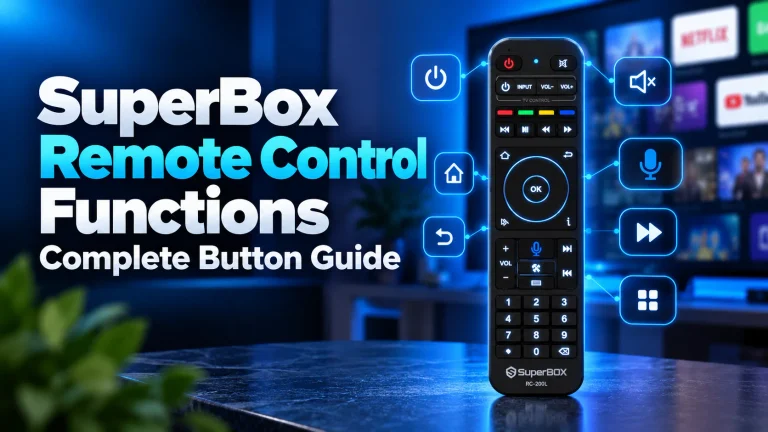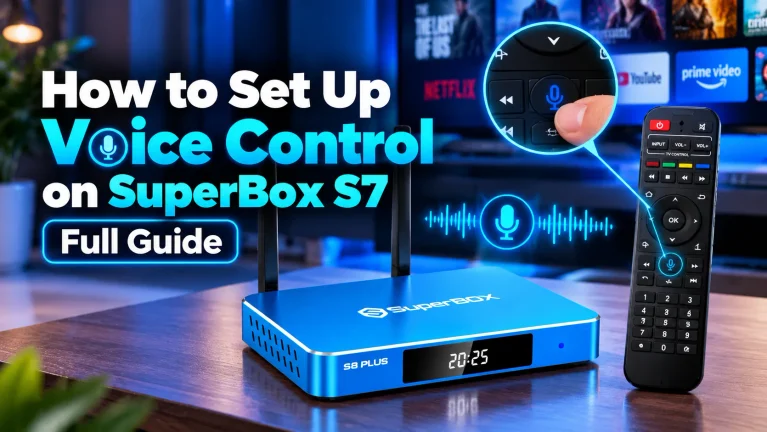
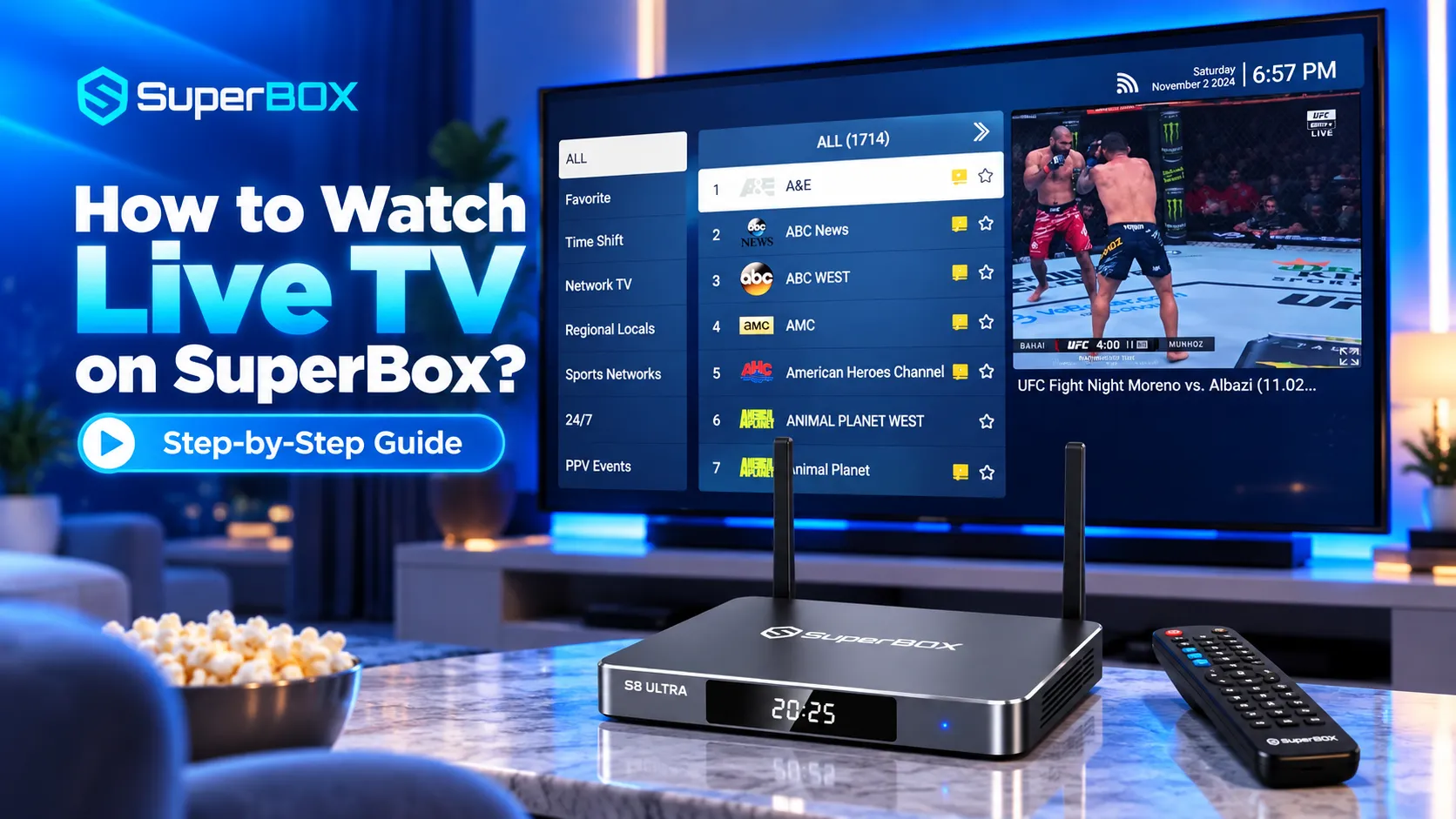
Setting up your home entertainment system should be simple, intuitive, and immediate. If you want to know how to watch live TV on SuperBox, the platform delivers over 2,000+ live sports, news, and entertainment channels right out of the box without monthly subscription fees. At SuperBox For Sale, our engineering team tests every hardware release from the S5 Max to the flagship S7 Max. While launching the live feed is straightforward, mastering remote shortcuts, channel categories, and failover backup streams elevates your viewing experience. This step-by-step tutorial walks you from a cold home screen directly to your favorite live broadcast in seconds.
Summary
- Primary Live TV App: Access all live channels through the Blue TV application (downloaded from the built-in App Store and placed on the primary home screen tile).
- Left-Menu Navigation: Press the Left arrow key on your remote inside Blue TV to reveal categories including Sports, Regional Locals, and PPV.
- 3-Second Favorite Shortcut: Highlight any live channel and hold the OK button for three seconds to pin it to your Favorites folder.
- Direct Number Dialing: Punch the channel number directly into your remote control keypad to jump across categories instantly.
- Server Redundancy: If a channel experiences lag or maintenance, open the Backup TV application to access mirrored streaming servers.
SuperBox Live TV Categories and Features
Explore the primary channel categories and features available inside the SuperBox live television portal.
| Channel Category | Content Included | Key Feature |
|---|---|---|
| Sports Networks | ESPN, Fox Sports, NFL Network, NBA TV, MLB, NHL | Dedicated team channels and 230+ ESPN Plus feeds |
| Regional Locals | ABC, CBS, NBC, FOX, and CW local affiliates | Major metropolitan coverage across the United States |
| PPV & Live Events | Major championship boxing, MMA, and wrestling | Zero pay-per-view fees or separate ticket purchases |
| 24/7 Channels | Continuous single-show marathons and classic series | Binge-watching without commercial interruption |
| Time Shift Catch-Up | Seven-day rewindable broadcast archives | Rewind live games or missed primetime broadcasts |
Method 1: Launch and Configure Blue TV from the Home Screen
Blue TV operates as the native broadcast engine for SuperBox hardware. When you boot your device, launch the application directly from the main dashboard to establish your streaming session.
- Check your network connection: Confirm that your SuperBox connects to high-speed internet via Ethernet or 5GHz Wi-Fi in the Settings menu.
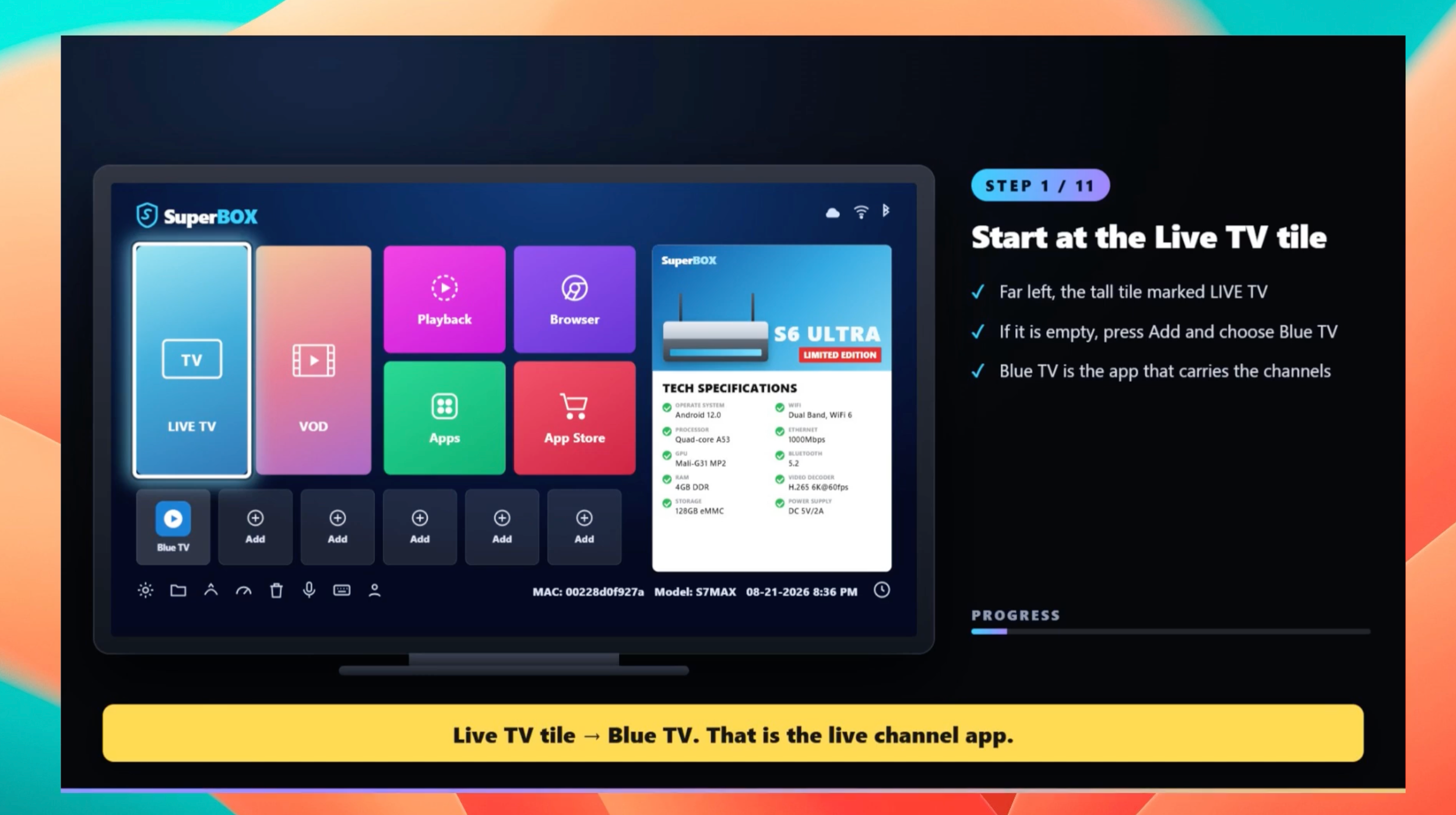
- Select the Live TV tile: From the main home launcher, click the tall rectangular tile labeled Live TV on the left side of the screen.
- Link Blue TV if prompted: If the Live TV tile is empty on a new setup, click Add and select Blue TV from your installed applications.
- Allow channel synchronization: Allow Blue TV five to ten seconds to load. The app downloads the current electronic program guide (EPG) upon every launch.
- Resume playback: The player automatically resumes playback on the last channel you watched during your previous viewing session.
Watch this video guide by Blaze Guides showing the complete live TV interface and rapid navigation shortcuts on the SuperBox S7 Max:
Method 2: Master Remote Shortcuts and Rapid Channel Browsing
Scrolling through more than 2,000+ channels line by line is inefficient. SuperBox remotes feature powerful built-in shortcuts designed to jump between networks instantly.
- Reveal the category sidebar: While watching any channel, press the Left arrow key on your remote control to slide out the master category drawer.
- Enter full-screen view: Press the OK button on your remote at any time to hide the channel menu and return to full-screen video.
- Pin channels to Favorites: Highlight any channel in the list and hold the OK button for three seconds until the star turns yellow.
- Access your pinned channels: Press the Left arrow key and select the Favorite folder to view only your saved networks.
- Dial channel numbers directly: Every channel displays an assigned channel number. Punch that number directly into the remote numeric keypad to switch instantly.
- Use Bluetooth voice search: Press the blue microphone button on your remote and speak a team name, network, or show title for instant tuning.
If you want to watch multiple sporting events at the same time, follow our guide on how to use multi-screen split view on SuperBox.
Method 3: Rewind Live Sports Using 7-Day Time Shift
Arriving late to a championship match or missing an evening broadcast is no longer a problem. The SuperBox Time Shift feature archives live television feeds for up to seven days.
- Identify Time Shift channels: Look for the small clock icon next to the yellow star on the channel guide row.
- Open the Time Shift category: Press the Left arrow key and scroll down to the Time Shift category to view all supported networks.
- Open the program archive: Select the channel and press the Right arrow key to inspect past broadcast time slots organized by date and hour.
- Rewind to the beginning: Select any completed or currently airing program to start playback from the opening whistle or title sequence.
- Control video playback: Use the directional arrow keys to pause, fast-forward through commercial breaks, or rewind key plays.
For a detailed breakdown of recording live broadcasts to external storage, read our walkthrough on how to record on SuperBox with DVR and playback.
Method 4: Switch to Backup TV During Server Maintenance
Occasional server maintenance or localized routing issues can disrupt individual streaming feeds. SuperBox provides a mirrored backup infrastructure through the Backup TV application.
- Exit Blue TV: If an individual channel buffers repeatedly, press the Home button on your remote control.
- Open the App Drawer: Navigate to your installed application list and select Backup TV.
- Tune into the mirrored feed: Search for the same channel name within Backup TV. Backup TV connects to independent server clusters hosting identical content.
- Verify network speeds: If both apps experience buffering, run the built-in Speed Test on the bottom bar of your home screen to verify your bandwidth.
If Blue TV displays connection errors or gets stuck on loading screens, review our troubleshooting guide on fixing SuperBox Blue TV not working.
Method 5: Download and Reinstall Live Apps from App Store
Following a factory reset or on brand new unboxed units, the Blue TV and Backup TV applications may require initial installation from the official repository.
- Launch the native App Store: Open the built-in App Store application from your home navigation row (do not use Google Play).
- Locate Blue TV: Find the Blue TV icon and click Install to download the core streaming package.
- Download Backup TV and Playback: Install Backup TV and the Playback application to complete your live television suite.
- Launch and authenticate: Open Blue TV directly from the App Store. The software automatically authenticates your hardware MAC address.
To ensure your media decoder packages remain up to date, read our step-by-step tutorial on how to update SuperBox firmware.
Where to buy authentic SuperBox with warranty coverage
When investing in a high-performance streaming console, ordering directly from superbox official store guarantees authentic hardware and verified server licensing. Our central distribution and customer care facility operates at 13951 Pipeline Ave, Chino, CA 91710, USA, led by founder Riley Cooper.
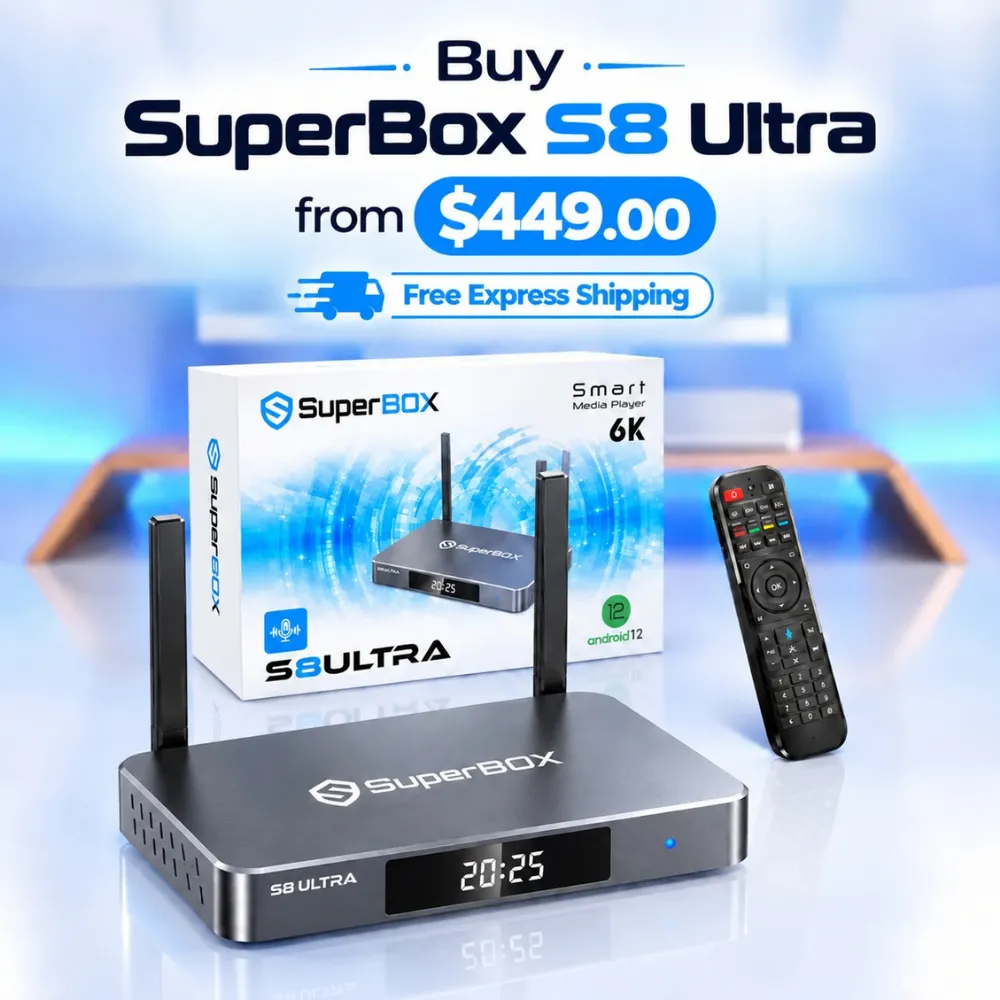
For the ultimate cord-cutting setup, we recommend the flagship SuperBox S8 Ultra priced at $449, featuring 4GB DDR RAM, 128GB storage, Wi-Fi 6, and Gigabit Ethernet. Every order includes our Official Reseller License Code #SP20250928002 and full warranty protection:
- Free Shipping: Fast 2 to 5 business day delivery across the United States and Canada with full real-time package tracking via FedEx or USPS.
- 24/7 Technical Support: Dedicated technical specialists available 24/7 via live chat and email for troubleshooting assistance.
- 30-Day Money-Back Guarantee: Hassle-free return policy if you are not completely satisfied with your streaming hardware performance.
- 1-Year Manufacturer Warranty: Full replacement coverage safeguarding against any hardware defects or system component failures supported directly by our customer care center in Chino, California.
- 100% Authentic Hardware: Direct factory units guaranteed genuine without modified firmware, unauthorized alterations, or security risks.
SuperBox for Sale is a leading authorized dealer of SuperBox, specializing in the supply of genuine SuperBox TV boxes Series S6, S7, and S8 in the US & CAD.
Experience Unrivaled Streaming Performance with SuperBox
Discover lightning-fast quad-core processing, dual-band Wi-Fi 6, 7-day playback, and crisp 6K ultra HD output engineered for discerning media fans.