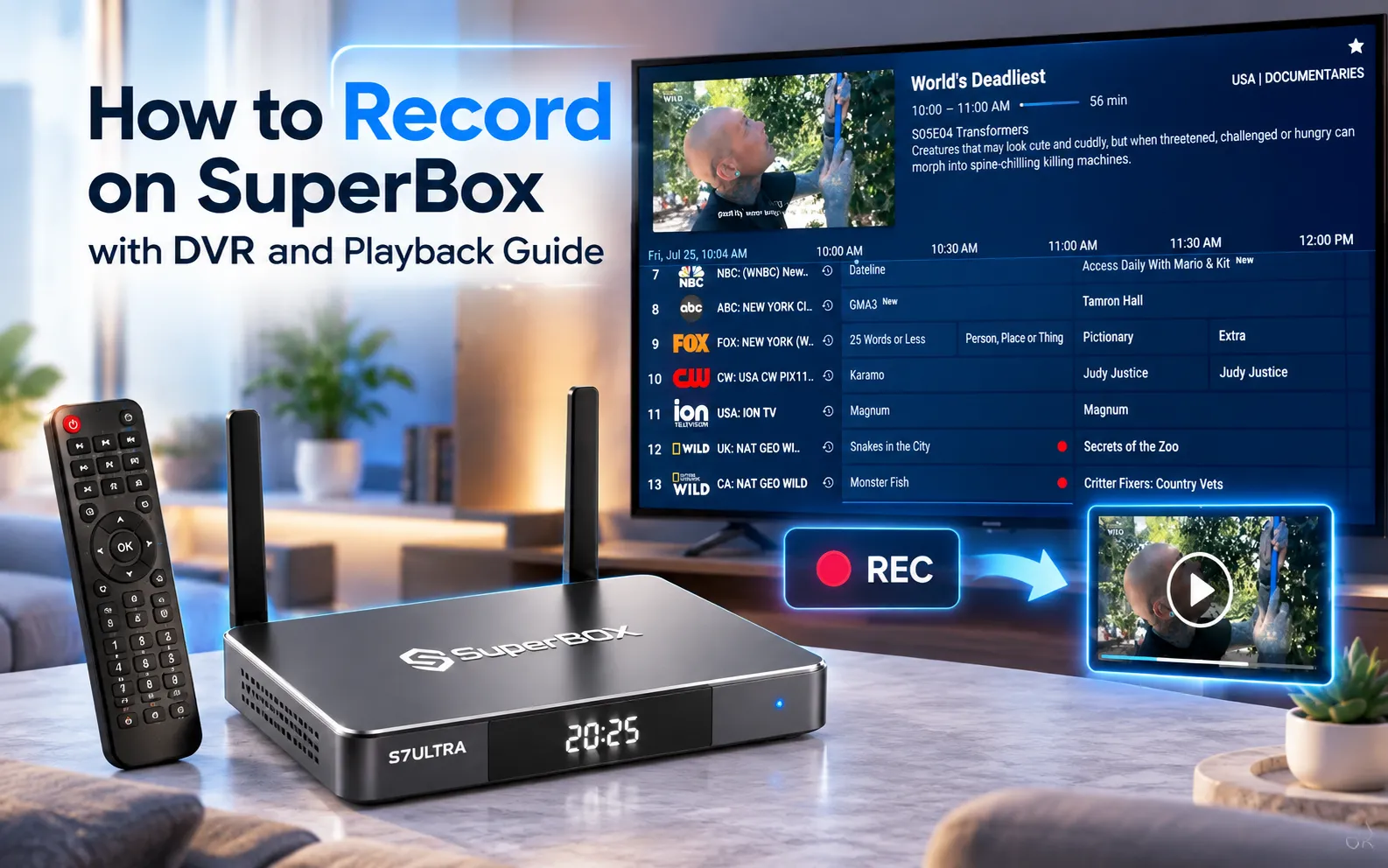
You can record on SuperBox using the built-in screen recording feature on the S8 Series, or by connecting a high-speed USB 3.0 drive to capture live broadcasts directly through the player control bar. For immediate viewing without external drives, the native SuperBox Playback app provides a rolling seven-day Playback archive across 86 premier channels with full pause and rewind capabilities.
Quick Takeaways & Key Highlights:
- USB Storage Setup: Insert a high-speed USB 3.0 flash drive or external hard drive (up to 2TB) formatted to FAT32, exFAT, or NTFS into the SuperBox USB port.
- Direct Live Recording: Press the OK button during any live Blue TV broadcast to reveal player controls and click the red Record button to start capturing immediately.
- 7-Day Playback Alternative: The native SuperBox Playback application automatically archives all broadcasts on 86 major networks for 7 days without consuming local drive storage.
- Storage Consumption: High-definition 1080p live recordings consume approximately 1.8GB per hour of video, requiring adequate external storage for extended events.
- Hardware Capture Option: For permanent multi-device archiving, connecting an external HDMI video capture card to a PC bypasses local storage limitations entirely.
Step 1: Preparing and formatting external USB storage
The SuperBox media player requires an external storage drive with sufficient write speeds and a compatible file system before it can record high-bitrate live video streams. High-definition 1080p live video consumes approximately 1.8GB of disk space per hour, while 4K video feeds require up to 4.5GB per hour.
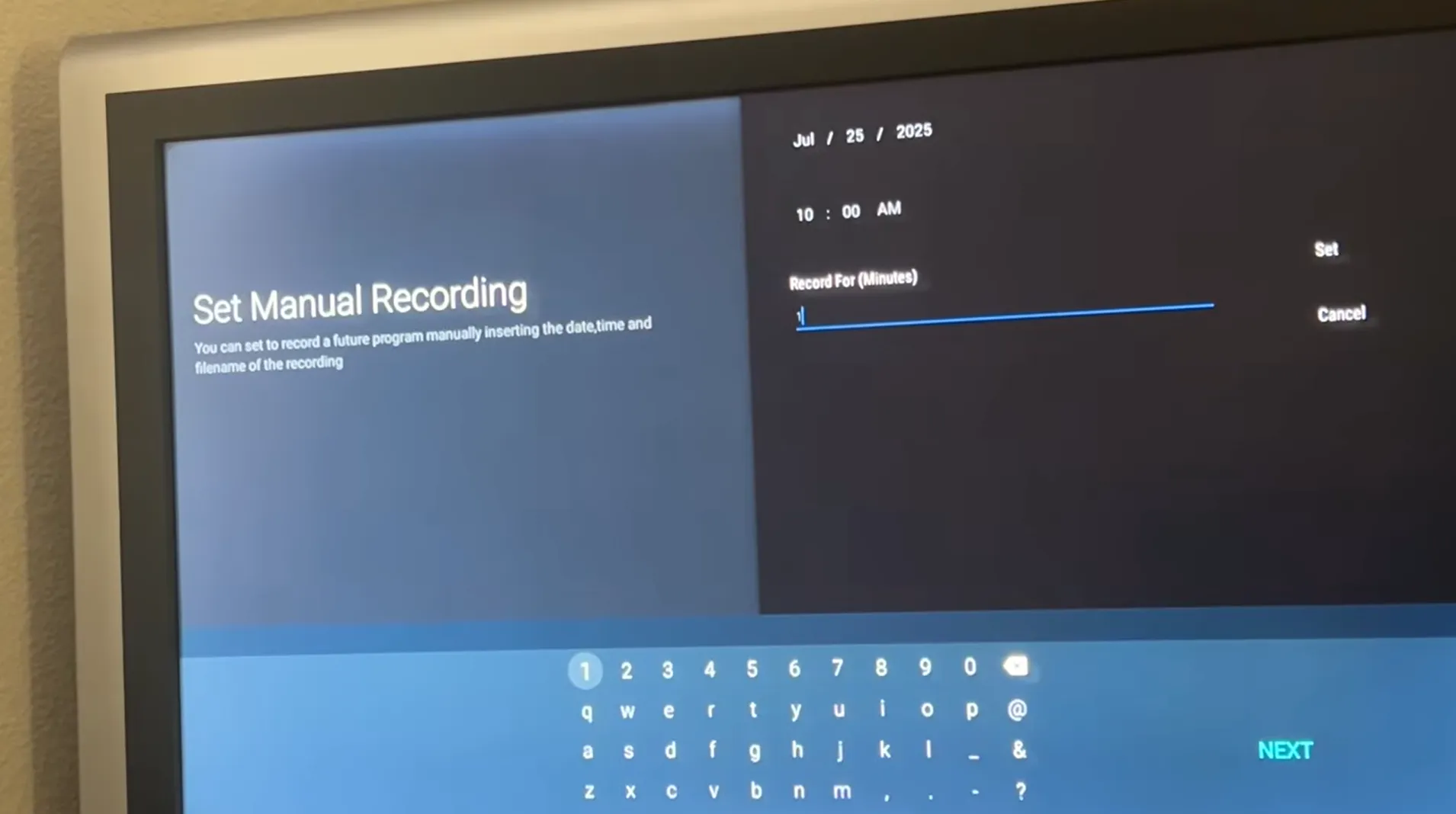
To prepare your storage hardware for recording, follow these technical guidelines:
- Drive Selection: Choose a USB 3.0 flash drive with sustained write speeds of at least 30MB/s, or an external portable hard drive up to 2TB in capacity. Connect the drive to the blue USB 3.0 port on the side or rear of your SuperBox to prevent data bottlenecking.
- File System Formatting: Format the storage drive on a Windows or Mac computer before connecting it to your SuperBox. The Android operating system supports NTFS, exFAT, and FAT32. For uninterrupted recording of long sporting events, select NTFS or exFAT to bypass the legacy 4GB maximum file size limit imposed by FAT32.
- Device Verification: Plug the formatted drive into the SuperBox USB port. Navigate to Settings > Device Preferences > Storage on your home screen and verify that your external drive appears under Removable Storage.
Step 2: Recording live TV broadcasts in Blue TV
Once your formatted external drive is recognized by the operating system, recording live linear channels inside the native Blue TV application takes only a few button presses on your remote control.
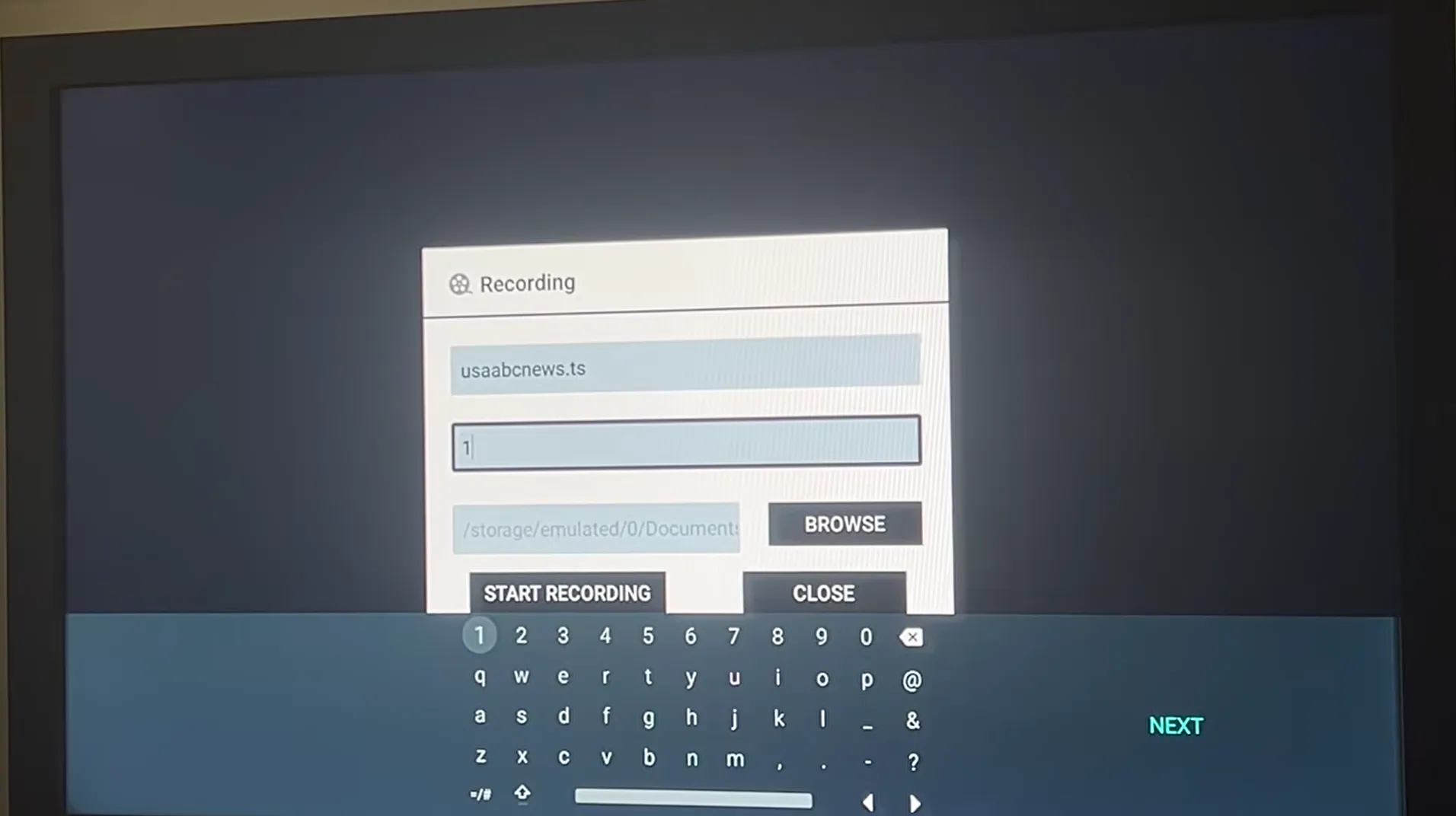
Follow this step-by-step recording sequence:
- Step 2.1: Open the Blue TV application from your home screen and navigate to the live channel you wish to record.
- Step 2.2: While the live broadcast is playing, press the OK button or the Down Arrow on your RC-200L remote control to bring up the on-screen video player overlay.
- Step 2.3: Navigate horizontally across the bottom control icons to locate the red Record (PVR) icon.
- Step 2.4: Press the OK button to engage recording. A red recording indicator and timer will appear in the upper-right corner of your television screen, confirming that video packets are being written to the USB storage.
- Step 2.5: To stop recording, bring up the on-screen player controls again and click the Stop Record button, or let the stream run until your designated program ends.
Step 3: Accessing and playing back recorded media files
The SuperBox operating system saves all captured video files into a dedicated directory created automatically on your connected storage device, labeled as PVR, Record, or BlueTV_Record.
To view your recorded programs on your SuperBox, open the built-in File Manager or FX File Explorer app from your home screen. Navigate to Removable Storage, select your USB drive, and open the recording folder. Click on any recorded video file to launch playback immediately. Alternatively, you can open VLC Media Player, which automatically indexes video files stored on external USB drives and provides advanced audio passthrough and subtitle synchronization controls.
Because recordings are saved as standard digital media files, you can safely unplug the USB drive from your SuperBox and insert it into a Windows PC, Mac, or smart television to watch your recordings on any compatible display.
Method 2: Using the 7-day Playback catch-up feature without USB storage
The SuperBox Playback application provides an automated alternative to manual recording that completely eliminates the need for USB flash drives or storage capacity planning. Operating on high-capacity cloud server clusters, Playback continuously archives every live broadcast across 86 core television networks over a rolling seven-day period.
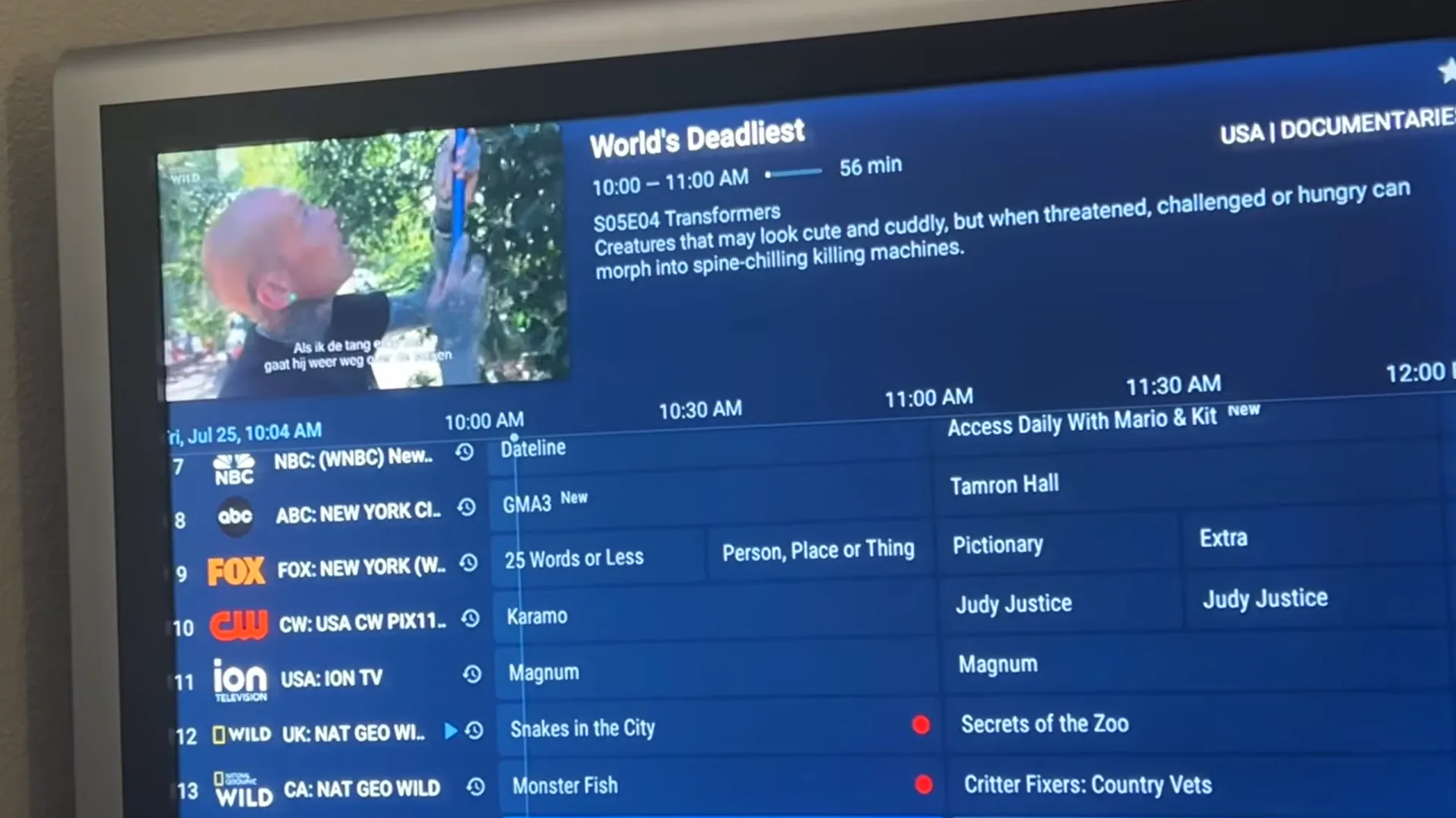
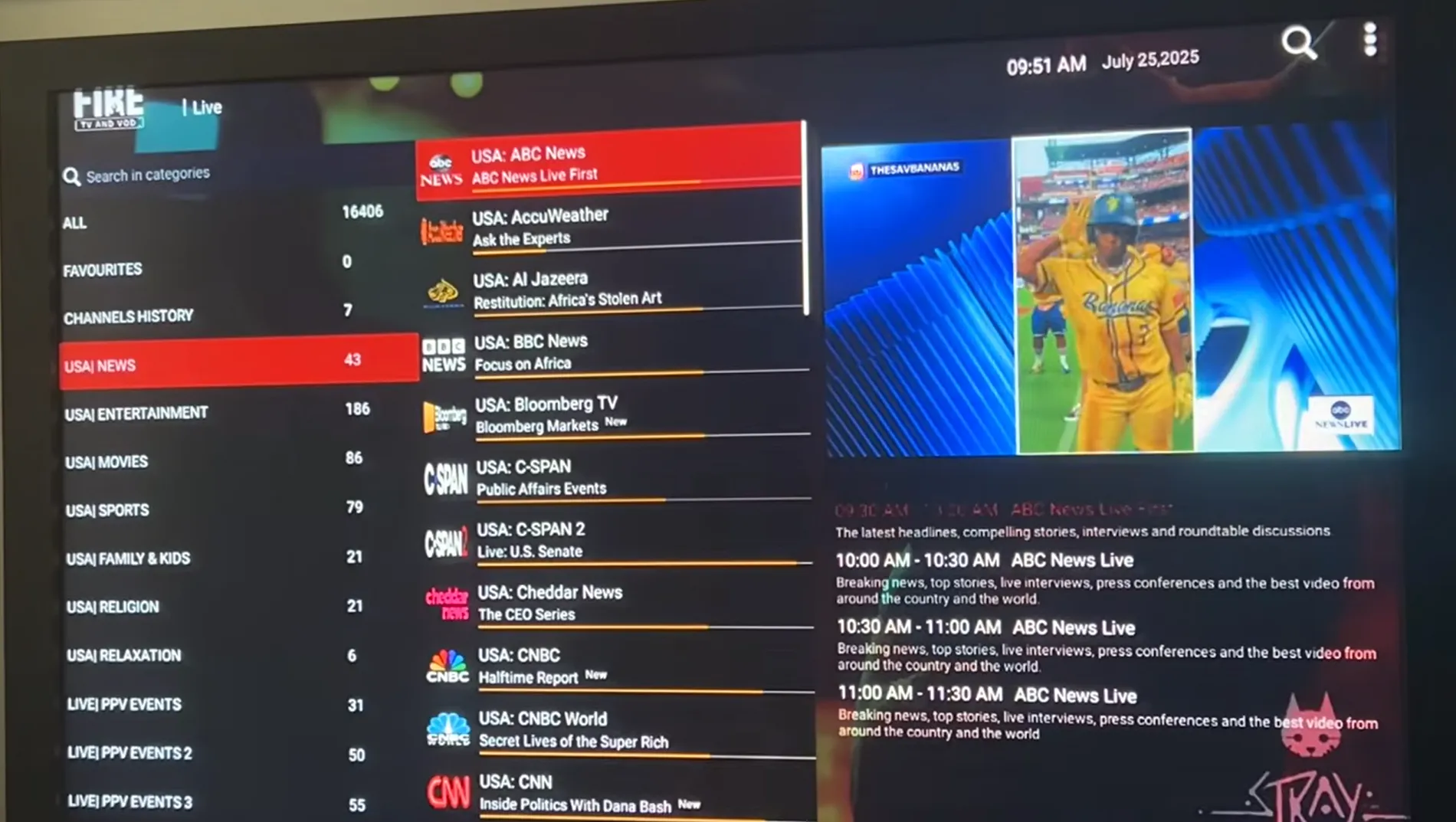
To access archived broadcasts using Playback, launch the SuperBox Playback app from your desktop. The interface displays an intuitive visual calendar arranged by channel and broadcast date. Select your desired network from the channel list, pick a past date within the last seven days, and browse the chronological show directory.
Clicking any past program begins instant on-demand playback, allowing you to pause live streams, rewind key moments, and fast-forward past commercial breaks with zero local drive space required.
Method 3: Recording SuperBox using an external HDMI capture card
For home theater archivists and content creators who require uncompressed 4K master recordings or scheduled multi-hour game captures, connecting an external hardware capture card provides the most versatile solution.
To set up an external HDMI capture configuration, connect an HDMI cable from the HDMI Output port on your SuperBox into the HDMI Input jack of a standalone USB capture device (such as an Elgato 4K60, AverMedia Live Gamer, or ezcap recorder). Run a second HDMI cable from the capture device HDMI Output to your television for real-time video pass-through.
Connect the capture card to a computer via USB 3.0 and launch recording software like OBS Studio. This configuration enables lossless recording directly onto computer hard drives without consuming SuperBox system memory.
SuperBox recording methods compared: Semantic comparison matrix?
The table below summarizes the technical specifications, storage prerequisites, and retention rules across all three recording methods available on SuperBox hardware:
| Recording Method | Hardware Requirement | Storage Capacity Limit | Retention Duration | Ideal Use Case |
|---|---|---|---|---|
| Direct USB PVR Recording | USB 3.0 Flash Drive / HDD (FAT32 or NTFS) | Up to 2TB External Storage | Permanent (Kept until manually deleted) | Saving memorable sports championships, classic movies, and personal video archives. |
| 7-Day Playback Catch-Up | None (Streams directly from cloud servers) | 0MB Local Storage Consumed | Rolling 7-Day Window (Automated deletion) | Catching up on missed evening news, prime-time drama episodes, and weekend games. |
| External HDMI Capture Card | HDMI Capture Box + PC / External Drive | Unlimited PC Storage Architecture | Permanent (Lossless digital archiving) | Content creators, home media server integration, and studio-grade video mastering. |
SuperBox recording troubleshooting checklist
If you encounter write errors or storage failures during the recording process, use the diagnostic checklist below to identify and correct the issue promptly:
- USB Drive Not Detected: If the SuperBox fails to display your external drive, unplug the drive, reboot the box, and re-insert the drive into the opposite USB port. Ensure the drive is formatted in NTFS or exFAT, as proprietary macOS APFS or encrypted drives cannot be read by Android.
- Recording Stops After Several Minutes: Sudden recording terminations almost always indicate a drive formatted in FAT32, which enforces an automatic 4GB file size limit. Reformatting the drive to NTFS on a computer resolves this issue permanently.
- Video Stuttering During Playback: High-bitrate video playback stuttering indicates slow USB read speeds or video decoder bottlenecks. Open the video file inside VLC Media Player and ensure Hardware Acceleration (MediaCodec) is activated in settings.
- Insufficient Storage Error: High-definition broadcasts fill small flash drives quickly. Always maintain at least 10GB of free space on your external drive before recording live sporting events or multi-hour programs.
Where to buy authentic SuperBox with warranty coverage
When investing in a high-performance streaming console, ordering directly from SuperBox guarantees authentic hardware and verified server licensing. Our central distribution and customer care facility operates at 13951 Pipeline Ave, Chino, CA 91710, USA, led by founder Riley Cooper.
For the ultimate cord-cutting setup, we recommend the flagship SuperBox S8 Ultra priced at $449, featuring 4GB DDR RAM, 128GB storage, Wi-Fi 6, and Gigabit Ethernet. Every order includes our Official Reseller License Code #SP20250928002 and full warranty protection:
- Free Shipping: Fast 2 to 5 business day delivery across the United States and Canada with full real-time package tracking via FedEx or USPS.
- 24/7 Technical Support: Dedicated technical specialists available 24/7 via live chat and email for troubleshooting assistance.
- 30-Day Money-Back Guarantee: Hassle-free return policy if you are not completely satisfied with your streaming hardware performance.
- 1-Year Manufacturer Warranty: Full replacement coverage safeguarding against any hardware defects or system component failures supported directly by our customer care center in Chino, California.
- 100% Authentic Hardware: Direct factory units guaranteed genuine without modified firmware, unauthorized alterations, or security risks.
SuperBox for Sale is a leading authorized dealer of SuperBox, specializing in the supply of genuine SuperBox TV boxes Series S6, S7, and S8 in the US & CAD.
Frequently asked questions about recording on SuperBox?
Can you schedule recordings in advance on SuperBox?
On select SuperBox firmware versions, you can schedule future recordings by highlighting an upcoming program inside the Electronic Program Guide (EPG) and selecting the Timer or Schedule Record option. However, for most broadcast channels, the automated 7-Day SuperBox Playback service eliminates the need for scheduling, as all programs are archived in the cloud automatically without user intervention.
What file format does SuperBox use for recorded videos?
The SuperBox PVR engine saves recorded video files primarily in .TS (MPEG Transport Stream) or .MP4 formats. These standard video containers preserve original broadcast audio tracks and closed captioning streams, allowing the files to be played back natively on computers, phones, and media players like VLC.
Do you need high-speed internet to watch local USB recordings?
No, you do not need an active internet connection to watch programs that have already been recorded to your USB storage drive. Once a video file is written to your local drive, it plays back entirely offline using the internal hardware decoder of the SuperBox or any other compatible media player.
Can you record one channel while watching another on SuperBox?
Recording one live channel while actively watching a different live channel depends on the specific hardware generation and video tuner architecture. Most single-tuner models focus processing power on decoding the active live stream. However, you can seamlessly watch any archived show on SuperBox Playback while a background broadcast records, or use an external HDMI capture setup for independent recording.
Experience Unrivaled Streaming Performance with SuperBox
Discover lightning-fast quad-core processing, dual-band Wi-Fi 6, 7-day playback, and crisp 6K ultra HD output engineered for discerning media fans.

![SuperBox Remote Control Functions: Complete Button Guide [2027]](https://superboxforsale.com/wp-content/uploads/2026/10/SuperBox-Remote-Control-Functions-768x432.webp "SuperBox Remote Control Functions: Complete Button Guide [2027] 10")
![How to Set Up Voice Control on SuperBox S7 Full Guide [2027]](https://superboxforsale.com/wp-content/uploads/2026/10/How-to-Program-SuperBox-Remote-to-TV-1-767x432.webp "How to Set Up Voice Control on SuperBox S7 Full Guide [2027] 16")