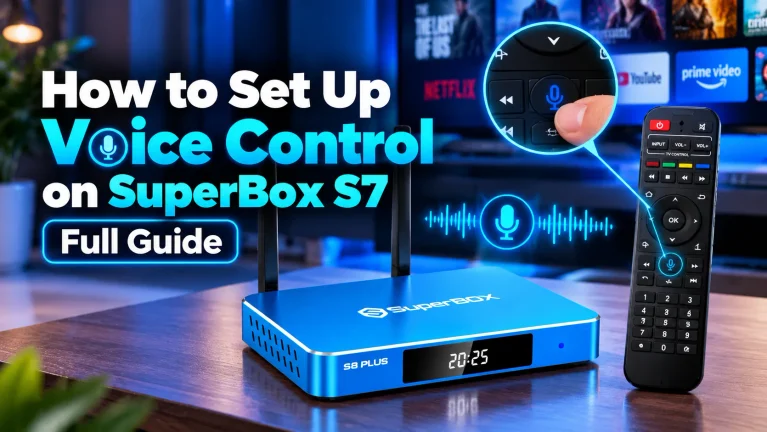
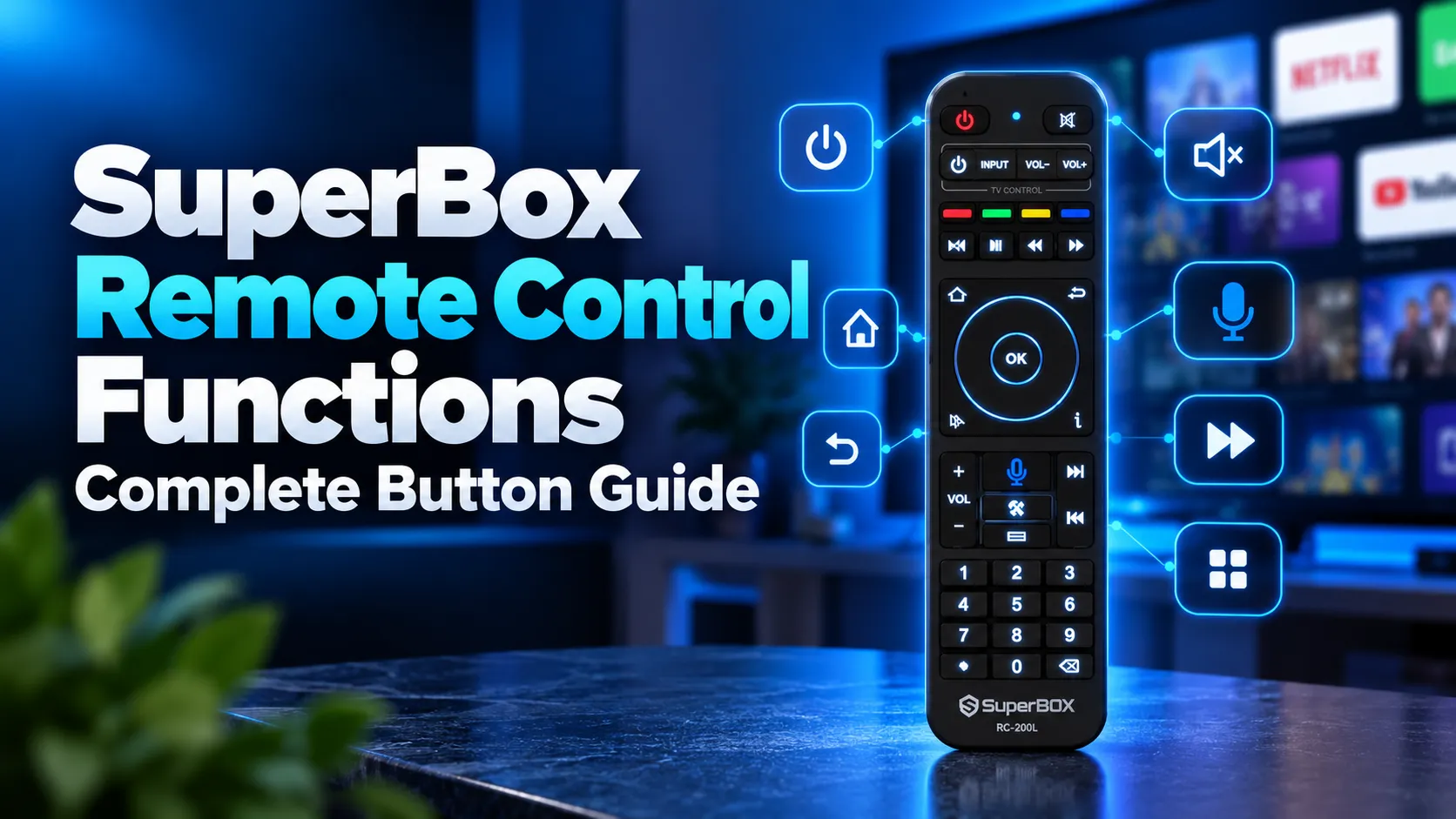
SuperBox remote control functions combine dual infrared and Bluetooth wireless modes to deliver full television control. The remote features dedicated media playback buttons, an on-screen mouse cursor toggle, numeric channel entry, and voice search activation. Pairing the remote via Bluetooth enables 360-degree wireless reception and activates the integrated microphone.
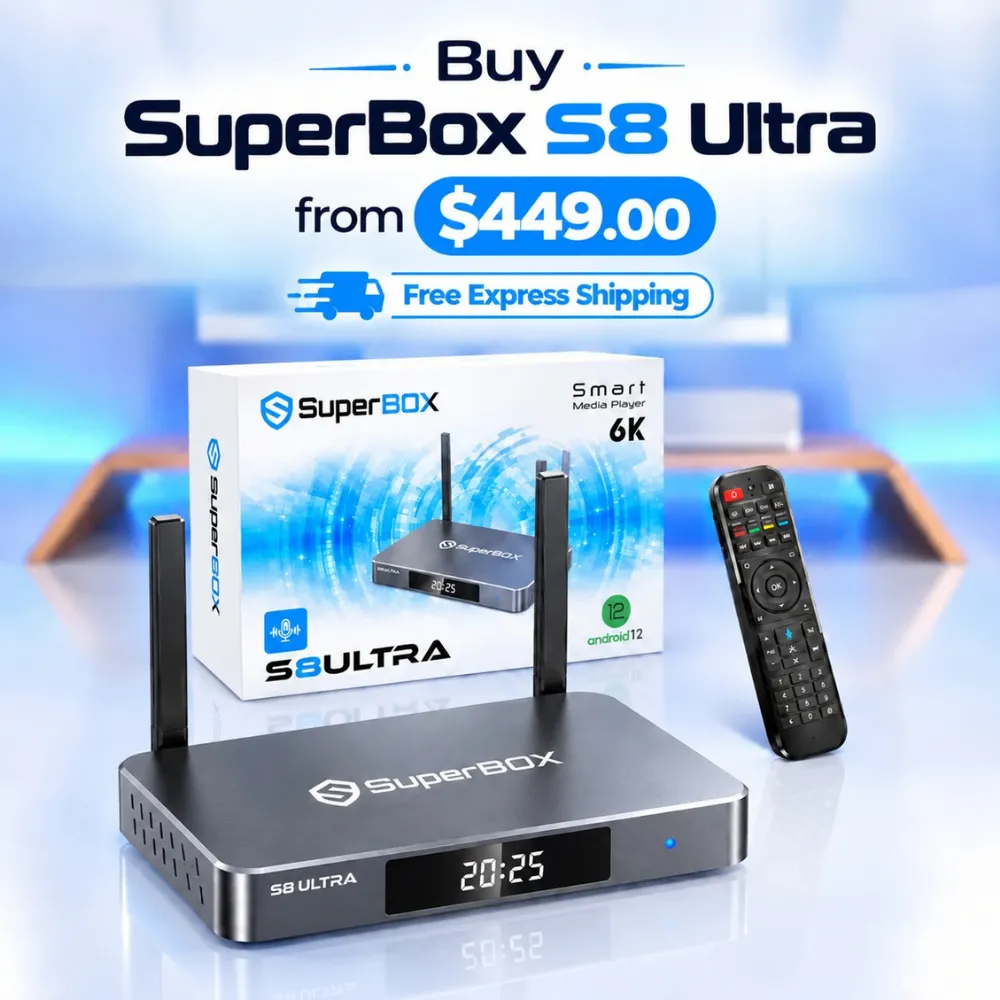
Standard infrared mode operates basic directional navigation and TV power without pairing. However, voice search and long-range response require Bluetooth synchronization. Cord-cutters looking for illuminated keys can consider the flagship SuperBox S8 Ultra priced at $449, which includes the upgraded RC-200L backlit voice remote.
Quick Takeaways & Key Highlights
- Dual Transmission: Operates via standard infrared and 2.4GHz Bluetooth Low Energy wireless signals.
- Mouse Mode: Dedicated cursor button converts directional arrows into an on-screen pointing mouse.
- IR Learning: Top white zone copies power, volume, and input commands from original television remotes.
- Voice Search: Bluetooth pairing activates the microphone for instant live channel and movie search.
- Backlit Control: Pressing OK and 0 simultaneously for 3 seconds toggles LED backlighting on supported models.
SuperBox remote button layout and functions breakdown
The standard SuperBox remote control, including the popular RC-200 and RC-200L models, organizes buttons into five functional clusters. Understanding each button cluster ensures quick navigation across live broadcasts, on-demand movies, and Android system settings.
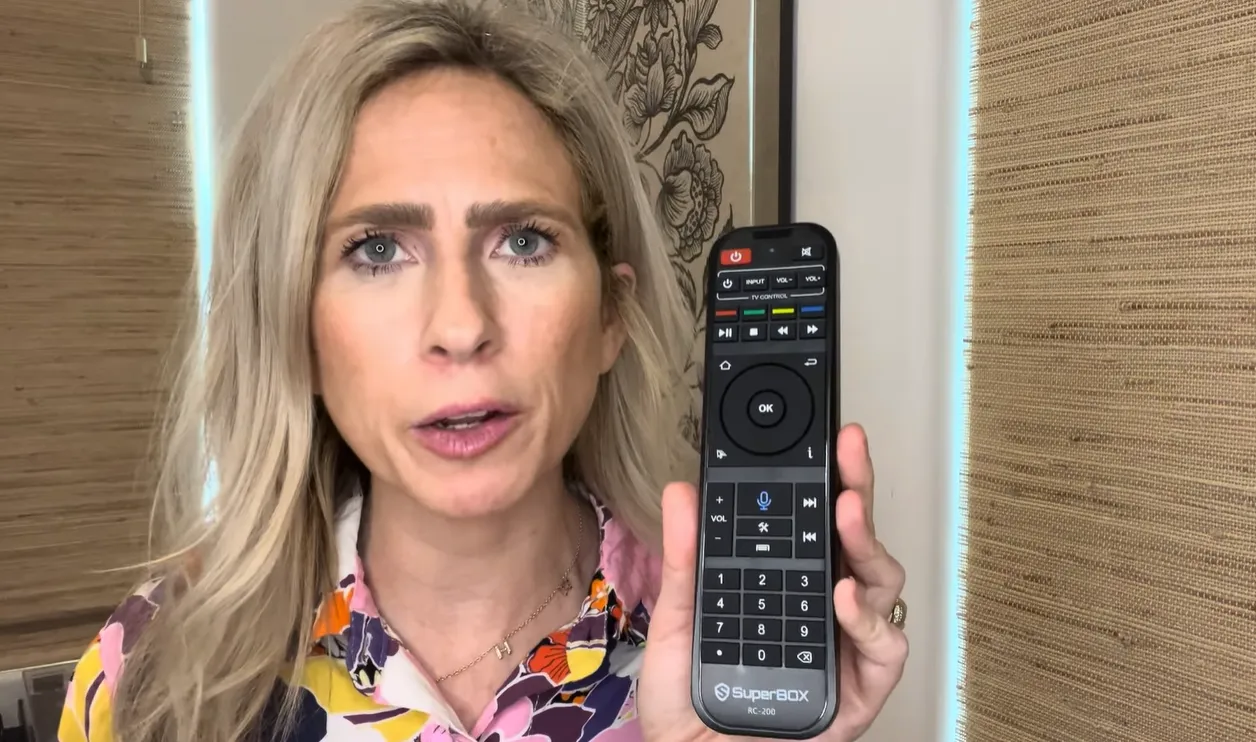
| Button Cluster | Key Buttons | Core Operational Function | Wireless Mode |
|---|---|---|---|
| TV Control Learning Zone | TV Power, TV IN, Vol+, Vol- | Copies original TV remote codes to manage power, source, and audio | Infrared (IR) Learning |
| Navigation & Selection | D-Pad Arrows, Center OK | Moves menu focus and confirms selected channels or application options | Dual IR & Bluetooth |
| System & Shortcuts | Home, Return, Menu, Apps | Returns to launcher, steps back one screen, opens settings, or views app drawer | Dual IR & Bluetooth |
| Playback Controls | Play/Pause, Rewind, Fast Forward | Controls media playback, scrub timelines, and triggers 7-day Playback archives | Bluetooth / IR |
| Specialized Tools | Voice Mic, Mouse Cursor, 0-9 Keys | Activates voice search, toggles mouse pointer, and dials channel numbers | Bluetooth for Voice, IR for Digits |
Each button cluster serves a distinct purpose during daily entertainment viewing. The top section handles television hardware, the middle cluster manages content navigation, and the bottom keypad provides precise numerical tuning.
How to use the mouse mode cursor function
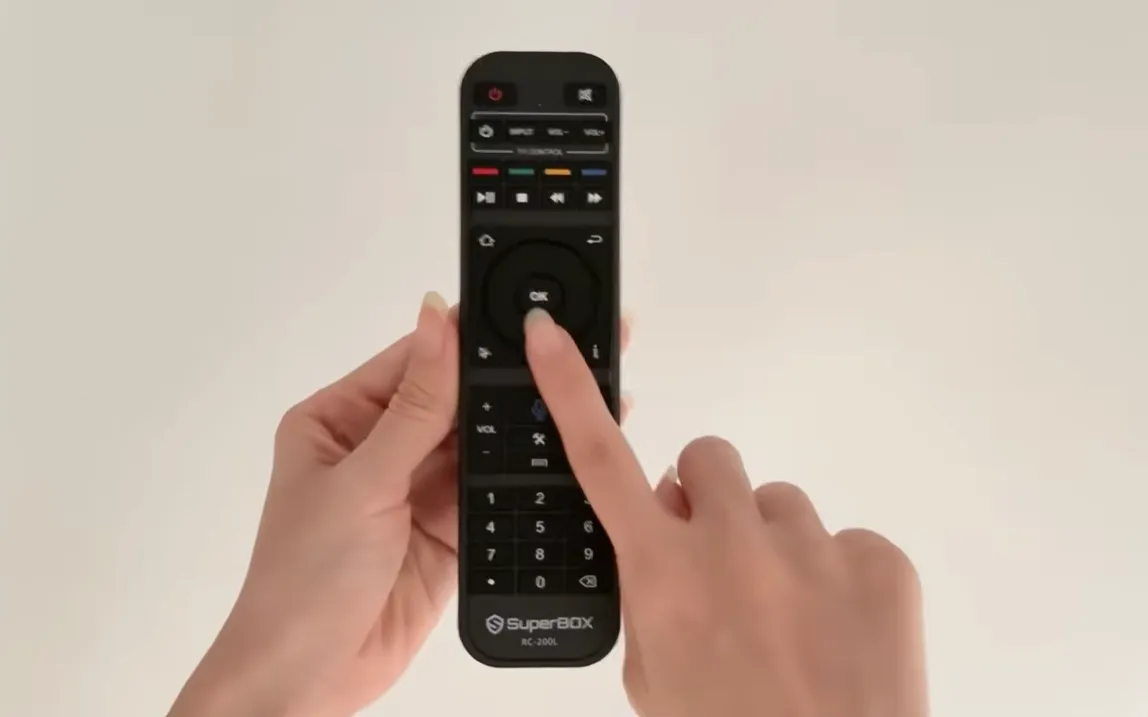
SuperBox remotes feature a dedicated mouse cursor button marked with a pointer arrow icon. Pressing this button toggles an on-screen mouse cursor that moves using the directional navigation pad.
Mouse mode is essential for navigating sideloaded Android applications and web browsers. Standard Android TV apps follow a grid-based focus system, but mobile apps require freeform cursor clicking. Pressing the cursor button displays a white mouse arrow on your television screen.
Use the Up, Down, Left, and Right directional arrows to guide the cursor across the display. Press the center OK button to execute a left mouse click on links, dialog boxes, or playback sliders. Pressing the mouse button a second time disables the cursor and restores standard directional pad navigation.
Programming television power and volume buttons using IR learning
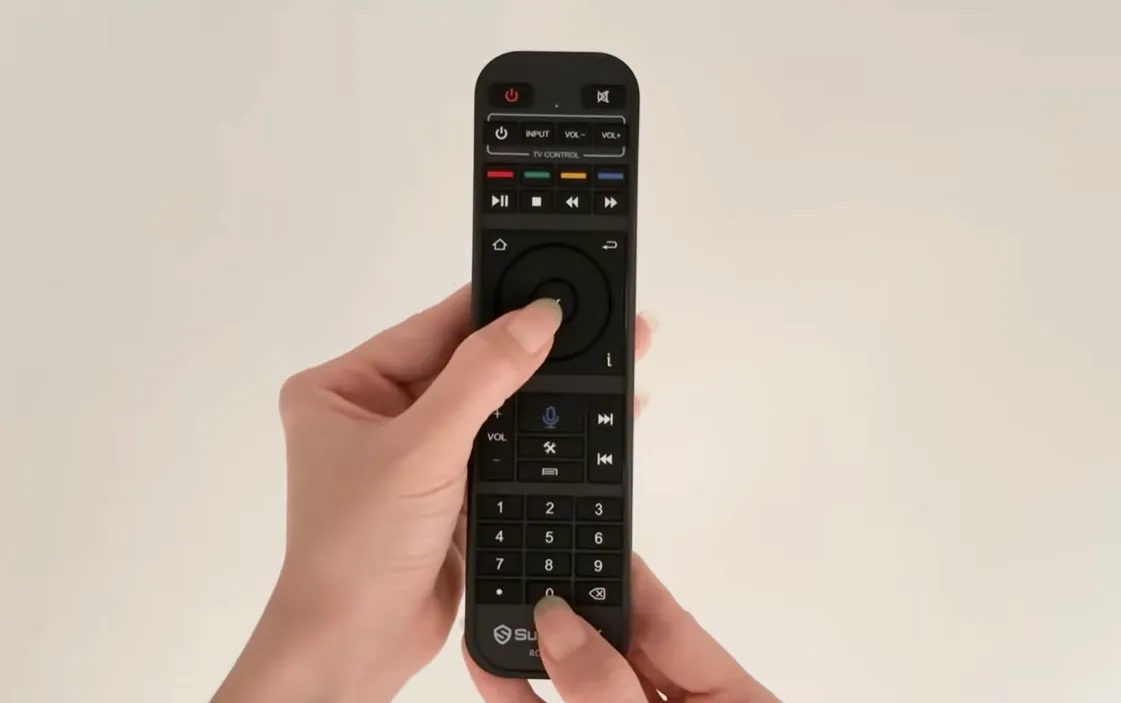
The upper white section of your SuperBox remote contains programmable infrared learning keys. Programming these buttons allows you to control your television power, audio volume, and input sources using only your SuperBox remote control.
This hardware feature copies infrared light pulses directly from your original television remote. Follow this 5-step checklist to complete programming within two minutes:
Activating voice control functions via Bluetooth pairing
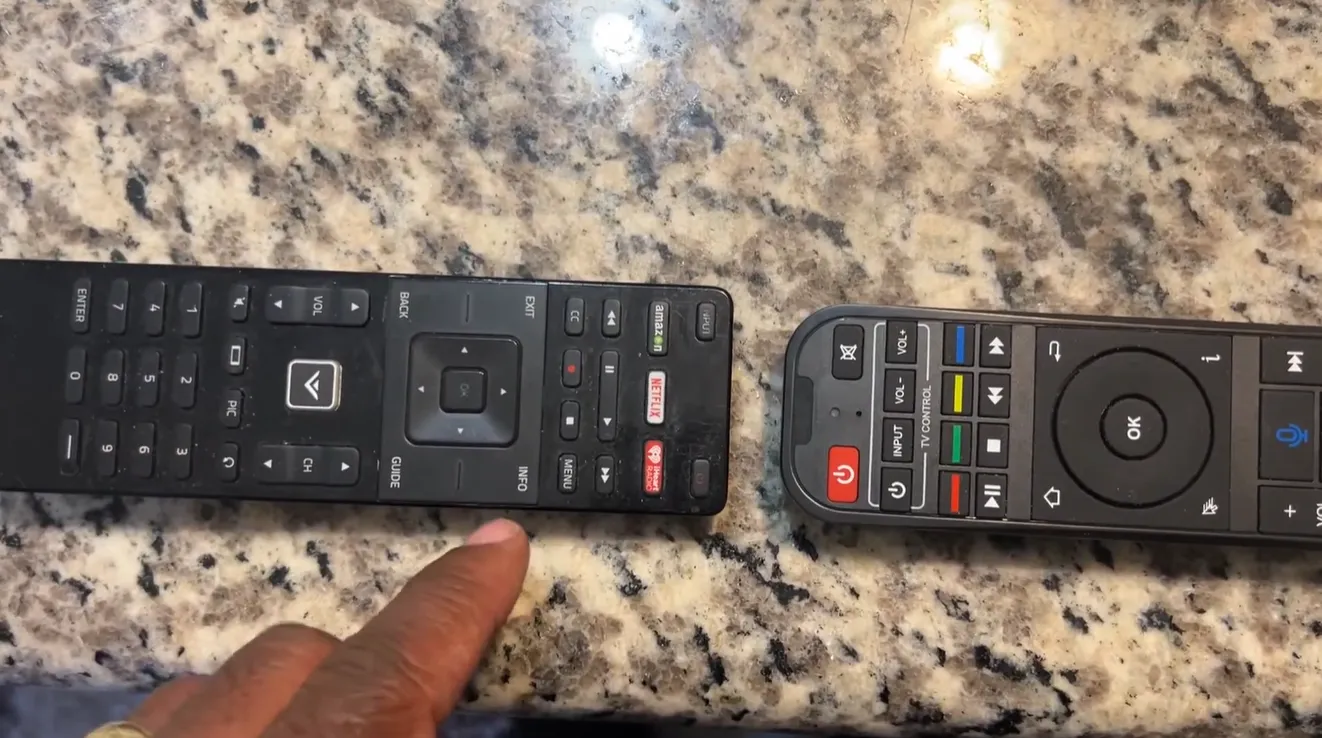
Voice search requires establishing an active Bluetooth connection between your SuperBox console and the remote control. The internal microphone cannot transmit voice audio over infrared light signals.
To pair your voice remote, hold down the OK and Return buttons simultaneously for 8 seconds until the red LED indicator flashes rapidly. On some remote revisions, pressing the Voice and OK buttons initiates this pairing broadcast.
Navigate to Settings on your television screen, click Remotes and Accessories, and select Add accessory. Choose RC200 or Remote from the discovered device list to complete pairing. Once paired, hold the microphone button and speak clearly into the top pinhole to search live sports and movie catalogs.
Controlling the LED backlight on RC-200L and RC-2000L remotes
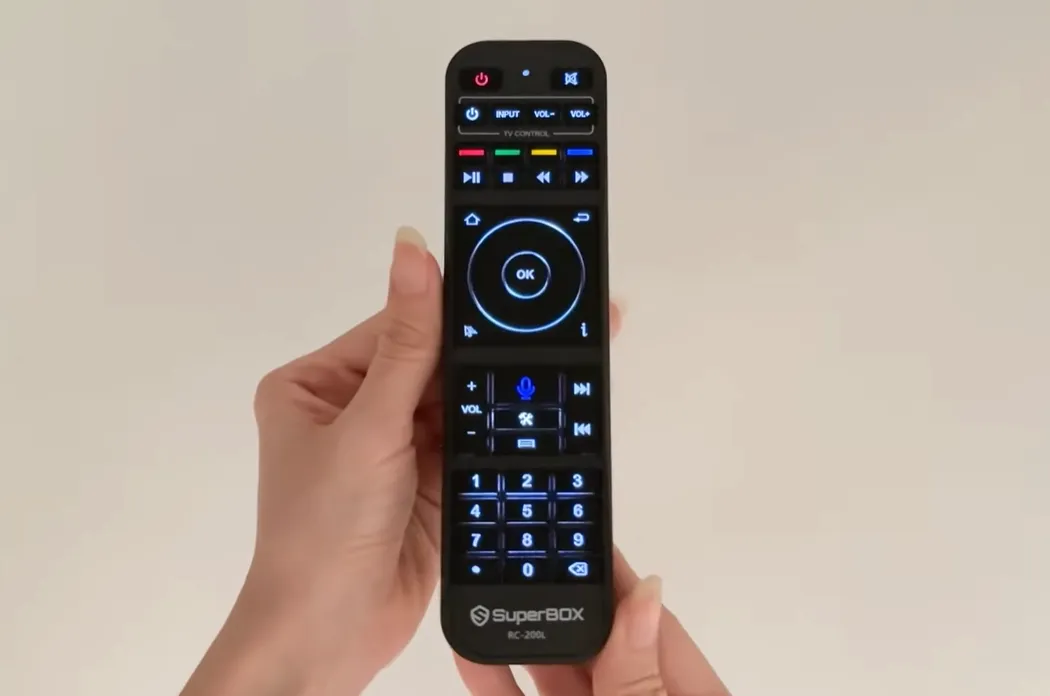
Premium SuperBox remotes feature integrated LED backlighting for effortless viewing in darkened home theaters. The backlight illuminates every button with soft blue light upon any button press.
To turn the backlight on or off manually, press and hold the OK button and the 0 button simultaneously for 3 seconds. The red LED indicator flashes 3 times to confirm that you switched the backlight mode successfully.
When backlight mode is active, the remote illuminates automatically whenever you touch a key. To preserve alkaline battery life, the illumination turns off automatically after 5 seconds of inactivity. This automated timeout prevents battery drain while ensuring complete visibility in low-light environments.
Video demonstrations of SuperBox remote functions and programming
Watching real-time remote demonstrations simplifies setup and button programming. Review this official tutorial detailing the RC-200L backlit remote features and illumination controls.
For a detailed visual guide on programming the white television control buttons to your TV and soundbar, watch this community demonstration from JasonTech.
Troubleshooting common SuperBox remote control issues
Why does the remote only work when pointed directly at the box?
The remote is operating in infrared mode because Bluetooth pairing has disconnected. Re-pair the remote by holding OK and Return for 8 seconds, then reconnecting the RC200 device in Remotes and Accessories settings.
How do you exit mouse mode if the cursor gets stuck?
Press the dedicated mouse cursor button once to toggle off the pointer. If the cursor remains on screen, press the Home button to return to the main dashboard, which automatically resets navigation focus.
What should you do if the remote stops responding completely?
Remove both AAA batteries, press several buttons to discharge residual capacitor energy, and insert fresh alkaline batteries. Bluetooth transmitters require steady voltage above 2.6 volts to maintain stable wireless communication.
Why upgrading to the SuperBox S8 Ultra delivers superior remote control
For cord-cutters demanding responsive controls and premium hardware, upgrading to the SuperBox S8 Ultra priced at $449 represents the gold standard in television streaming.
The S8 Ultra includes the next-generation RC-200L voice remote equipped with high-efficiency Bluetooth 5.2 connectivity. Its soft-touch tactile keys respond with zero lag, ensuring instant channel switching across thousands of live streams.
Built with 4GB DDR RAM and 128GB high-speed storage, the S8 Ultra processes voice commands in fractions of a second. Dedicated shortcuts let sports enthusiasts launch Quad Multi-View instantly to monitor four live broadcasts simultaneously.
Its aircraft-grade aluminum unibody chassis maintains operating temperatures under 38.5 degrees Celsius during intense 4K playback. Investing $449 eliminates monthly cable bills while providing reliable hardware supported by nationwide customer service.
Where to buy authentic SuperBox with warranty coverage
When investing in an authentic streaming console, purchasing from an authorized distributor like SuperBox guarantees genuine hardware and active server licensing. Our distribution center is located at 13951 Pipeline Ave, Chino CA 91710, led by founder Riley Cooper.
Every purchase includes comprehensive domestic customer support and direct manufacturer warranty coverage:
- Free Shipping: Fast 2 to 5 business day delivery across the United States and Canada with full real-time package tracking via FedEx or USPS.
- 24/7 Technical Support: Dedicated technical specialists available 24/7 via live chat and email for troubleshooting assistance.
- 30-Day Money-Back Guarantee: Hassle-free return policy if you are not completely satisfied with your streaming hardware performance.
- 1-Year Manufacturer Warranty: Full replacement coverage safeguarding against any hardware defects or system component failures supported directly by our customer care center in Chino, California.
- 100% Authentic Hardware: Direct factory units guaranteed genuine without modified firmware, unauthorized alterations, or security risks.
SuperBox for Sale is a leading authorized dealer of SuperBox, specializing in the supply of genuine SuperBox TV boxes Series S6, S7, and S8 in the US & CAD.
Frequently asked questions about SuperBox remote controls
Can you use a smartphone app as a SuperBox remote control?
Yes, you can install Android TV remote applications on your smartphone. Connect your phone to the same local Wi-Fi network as your SuperBox to enable wireless directional navigation and keyboard typing.
What battery type does the SuperBox remote control require?
The remote requires two standard AAA alkaline batteries. Avoid using rechargeable batteries with lower voltage ratings, because Bluetooth voice transmission functions best with full 1.5-volt cells.
Will a replacement SuperBox remote work with older box models?
Yes, newer RC-200 and RC-2000L remotes maintain backward compatibility. Basic infrared functions operate across all SuperBox generations, while voice commands work on any Bluetooth-enabled model.
Experience Unrivaled Streaming Performance with SuperBox
Discover lightning-fast quad-core processing, dual-band Wi-Fi 6, 7-day playback, and crisp 6K ultra HD output engineered for discerning media fans.