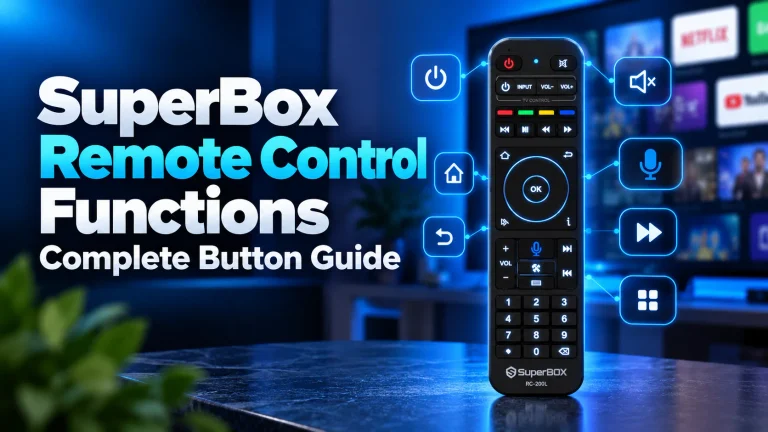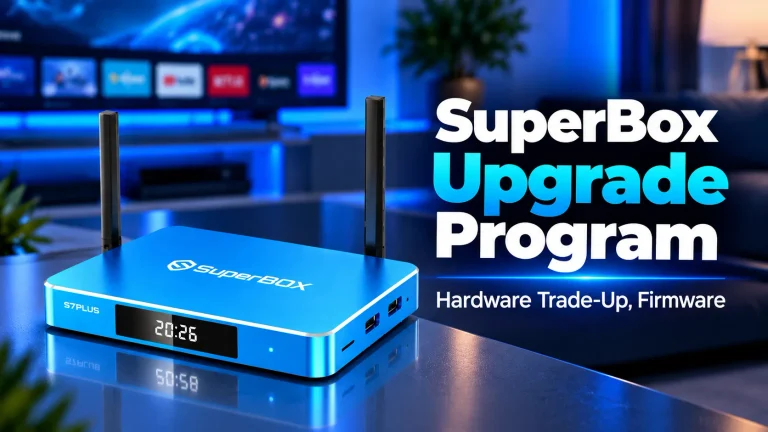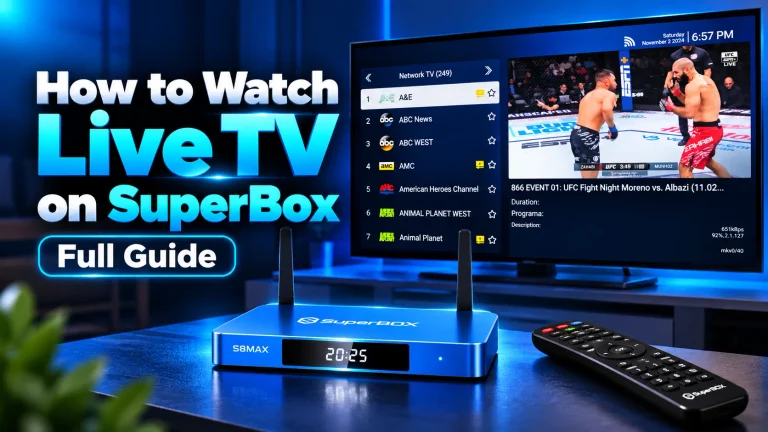
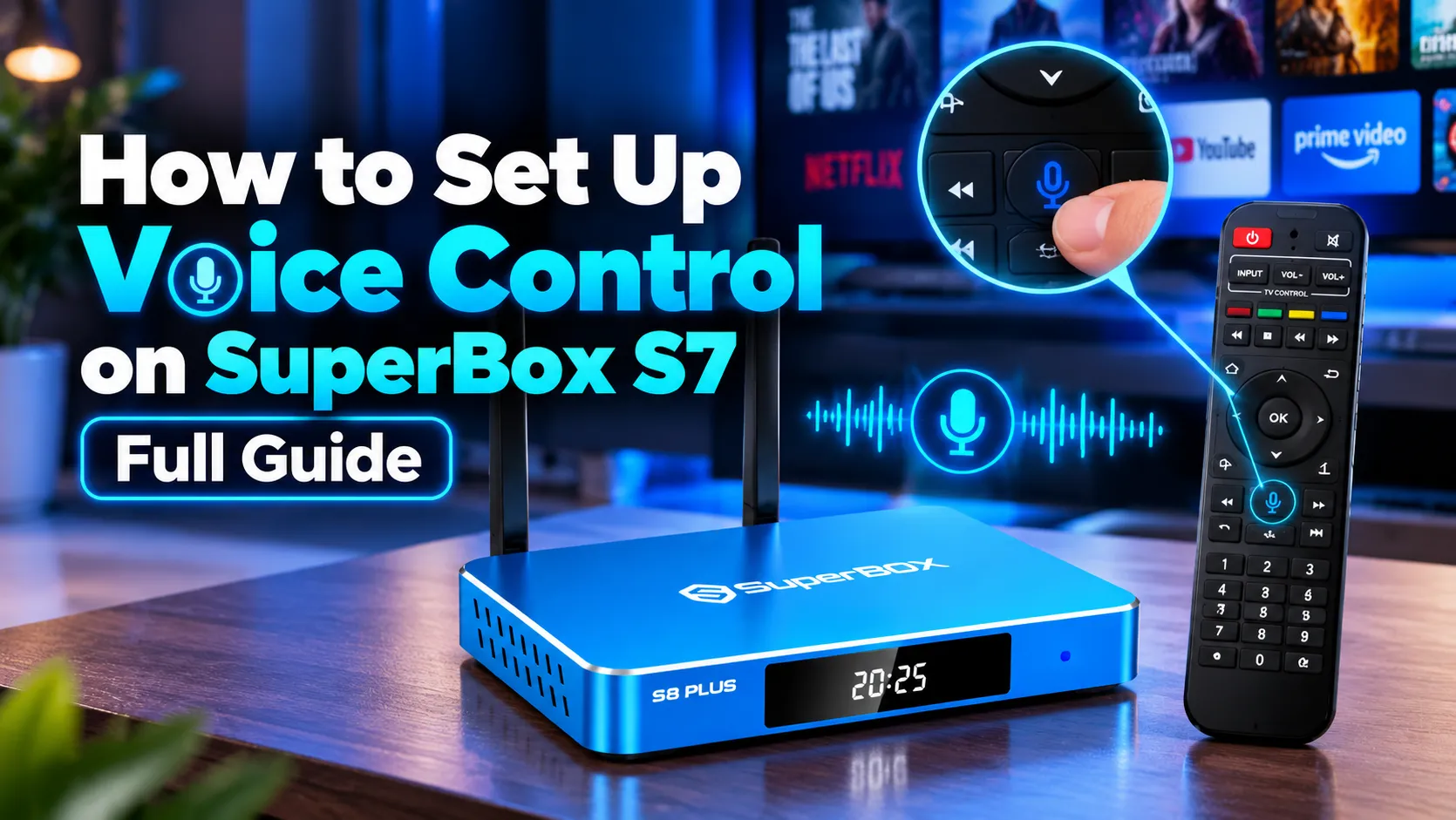
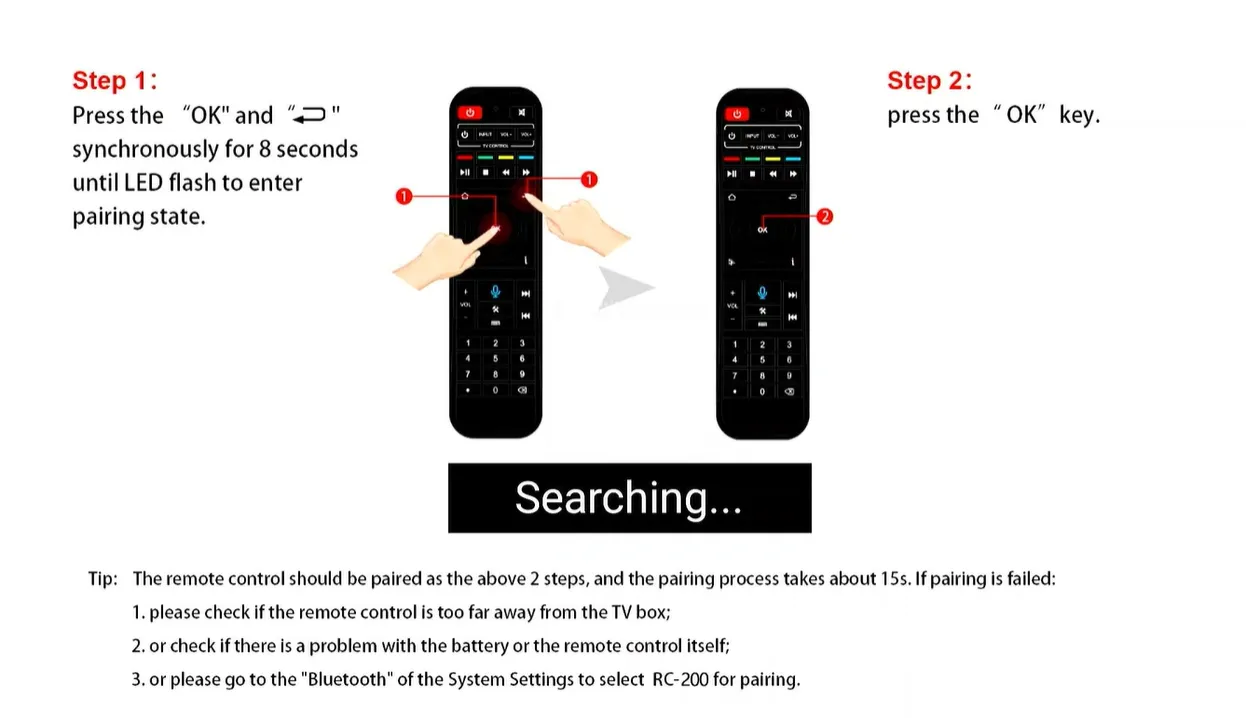
To set up voice control on SuperBox S7, pair your RC-200L remote via Bluetooth. Press and hold the OK and Return buttons simultaneously for 8 seconds until the red indicator light flashes. Navigate to Settings, select Remotes and Accessories, click Add accessory, and choose RC200 from the discovered device list.
Once paired, press and hold the blue microphone button and speak your command clearly into the top pinhole. Bluetooth pairing activates the internal microphone, whereas standard infrared mode only handles basic menu navigation.
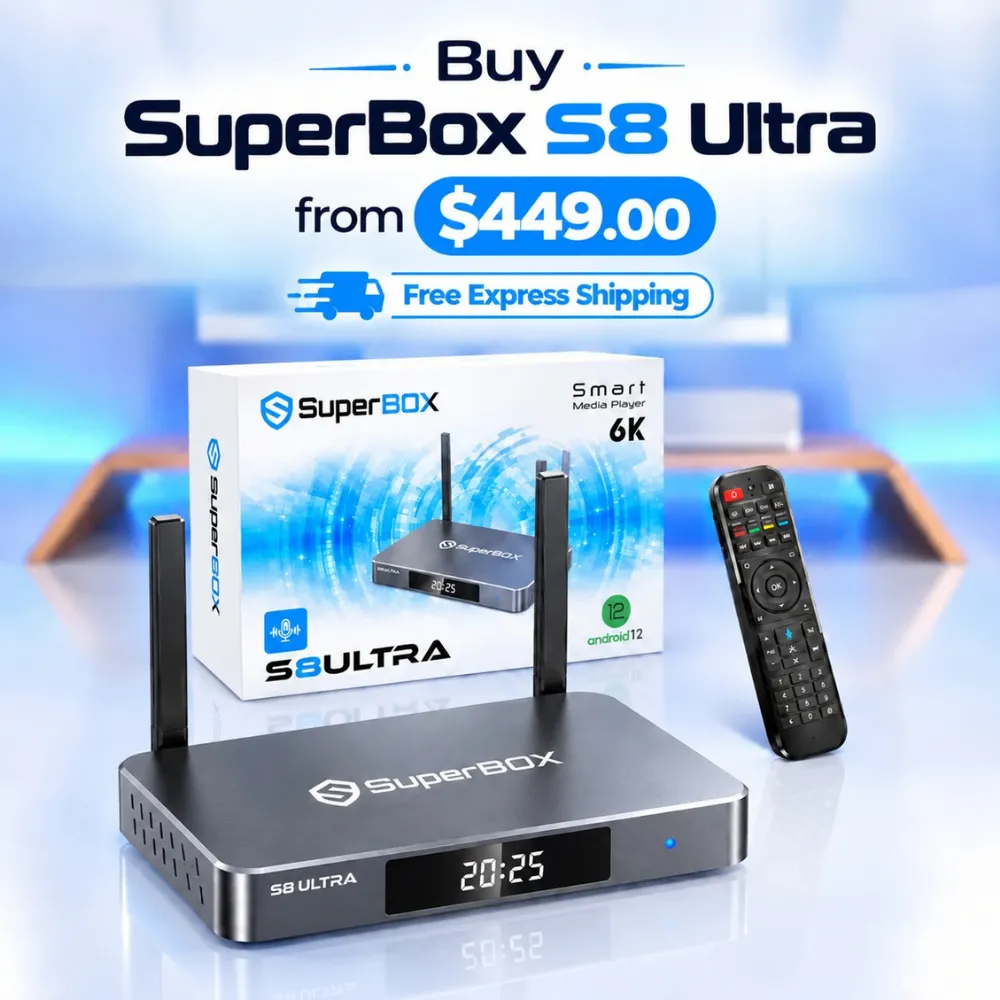
At SuperBox for Sale, we recommend the flagship SuperBox S8 Ultra for cord-cutters seeking illuminated backlit remotes and faster voice processing. Follow this guide to master S7 pairing, microphone permissions, TV button programming, and troubleshooting fixes.
Infrared mode vs Bluetooth voice mode
Out of the box, the SuperBox S7 remote operates using standard infrared signals. Infrared light transmits basic directional clicks and number inputs directly to the front sensor of your console. However, voice audio cannot travel across infrared light waves.
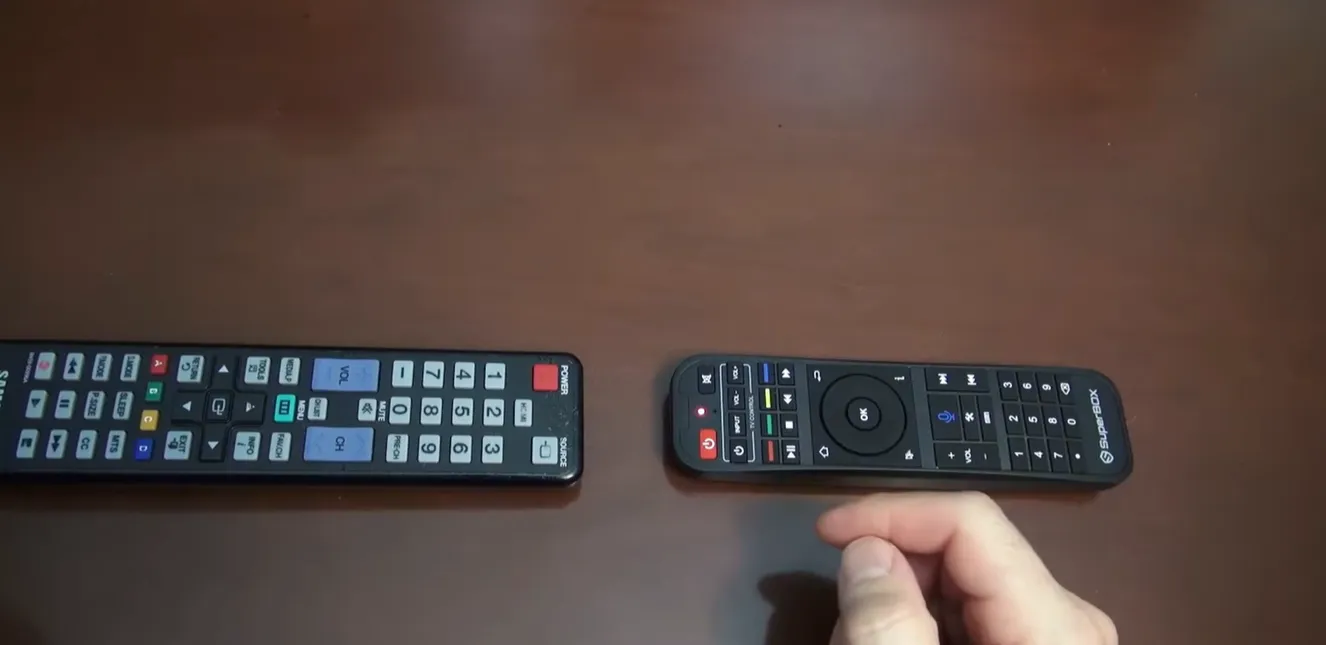
Bluetooth pairing establishes a high-bandwidth wireless connection between the remote receiver and the box. This wireless connection enables live microphone input and provides 360-degree control without pointing the remote directly at the television.
| Operational Feature | Infrared (IR) Mode | Bluetooth (BLE) Voice Mode |
|---|---|---|
| Line of Sight Required | Direct line to front console sensor | 360-degree wireless range up to 30 feet |
| Voice Command Search | Microphone completely disabled | Active voice search in Blue TV and apps |
| Button Functionality | Power, volume, directional arrows, numbers | Full navigation plus audio input transmission |
| Initial Setup Requirement | Works immediately with fresh batteries | Requires one-time Bluetooth pairing in Settings |
Many users assume their remote is defective when the microphone button produces no response on screen. In reality, the remote simply requires initial Bluetooth synchronization to wake its wireless transmission chip.
Step-by-step Bluetooth pairing guide for SuperBox S7 voice remotes
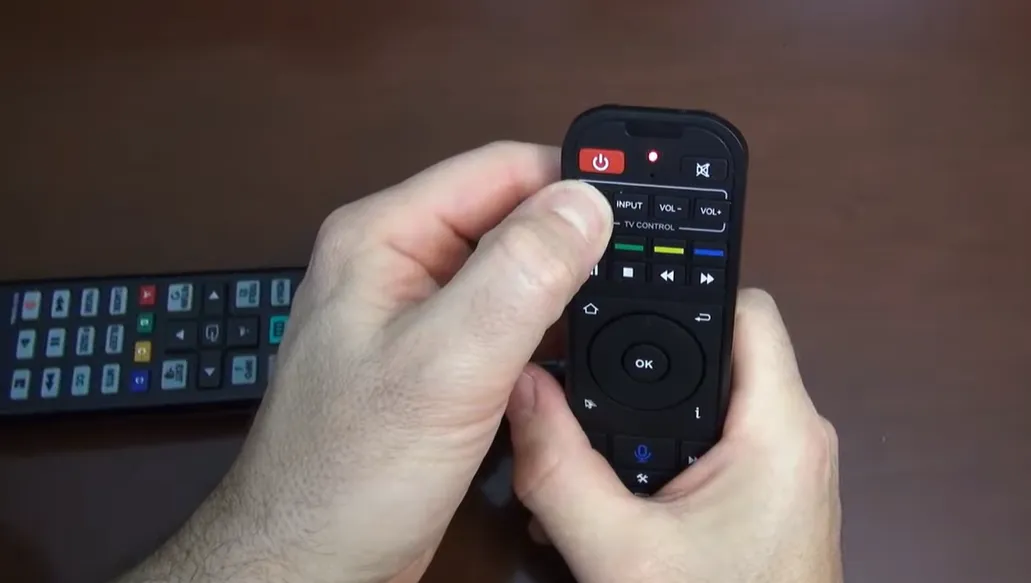
Pairing your remote takes less than two minutes when following the proper sequence. Keep the remote within 12 inches of the console during initial setup to prevent wireless interference.
- Step 1: Check Battery Power: Insert two fresh AAA alkaline batteries into the remote compartment. Low battery voltage prevents the Bluetooth transmitter from broadcasting pairing signals.
- Step 2: Enter Pairing Mode: Hold down the OK and Return (Back) buttons simultaneously for 8 seconds until the red LED indicator light on the remote flashes continuously.
- Step 3: Open Remotes and Accessories Menu: On your television screen, click the Settings gear icon from the home dashboard, select Remotes and Accessories, and click Add accessory.
- Step 4: Select the RC200 Remote: When the box discovers the remote, select RC200 on your screen. The indicator LED stops flashing and the TV displays a Connected confirmation prompt.
On certain production batches of the SuperBox S7 Max and S7 Ultra, the pairing combination uses the Voice (Microphone) and OK buttons instead. If the red light fails to flash with the Return key, use the Voice button combo.
Configuring microphone permissions and voice search settings
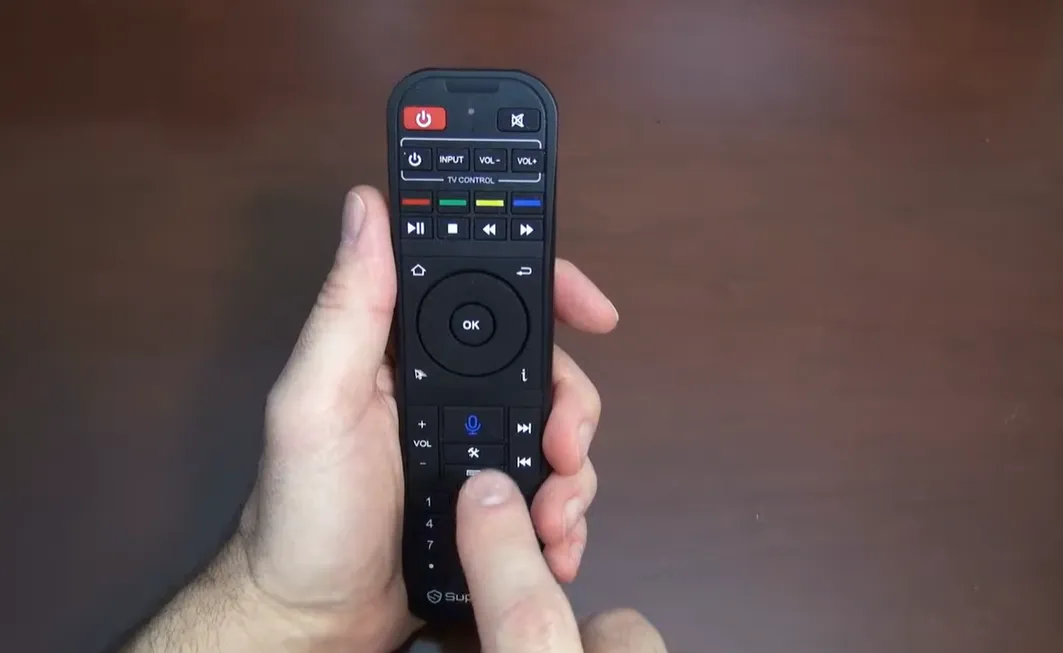
After Bluetooth pairing completes, confirm that system voice permissions are active. Restrictive security settings can block applications from accessing the remote microphone.
Open Settings on your console and navigate to Device Preferences, then select Voice Input or Google Assistant. Confirm that microphone permissions are toggled to Allowed for media applications downloaded from the App Store.
Ensure that the Blue TV and Blue VOD applications have microphone permissions enabled under Apps. Granting microphone access ensures that voice search queries execute directly inside your favorite live sports channels and movie catalogs.
How to use voice commands effectively across live TV and VOD
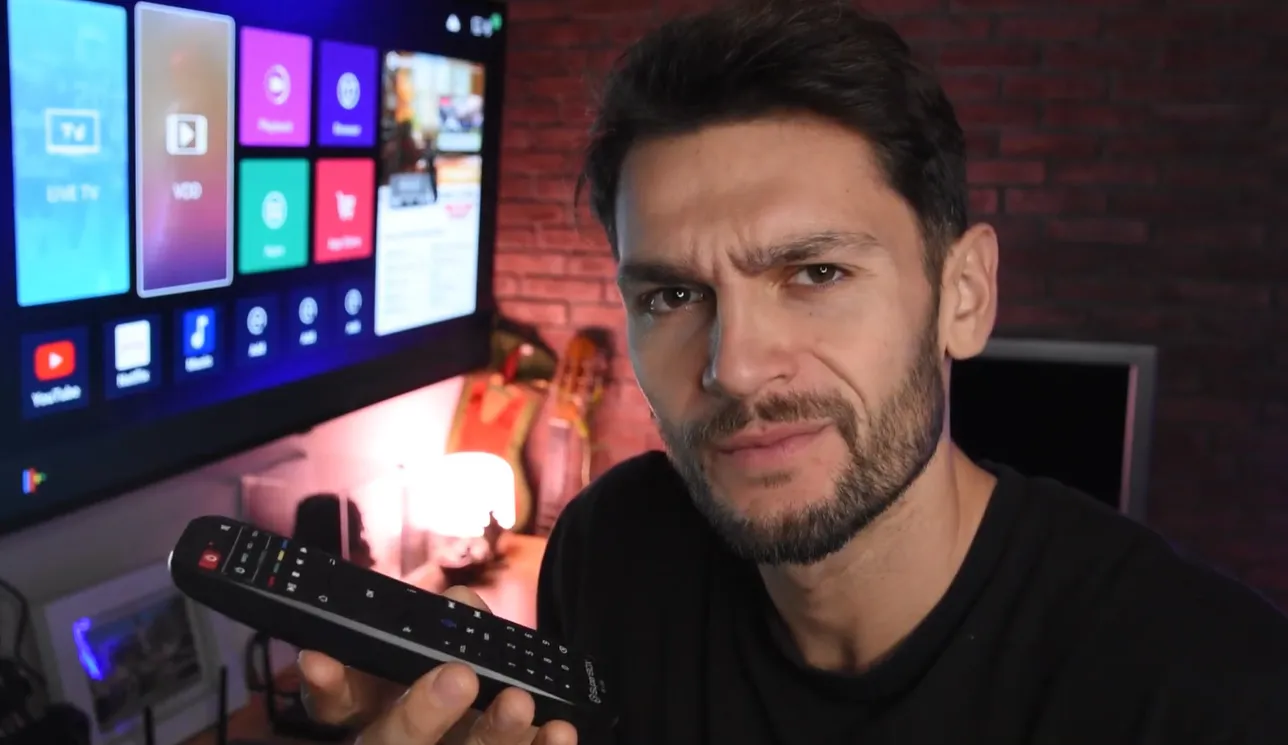
Using voice control requires pressing and holding the blue microphone button while speaking. Release the button immediately once you finish speaking your target command.
Speak clearly into the microphone opening positioned at the top edge of the remote. The speech recognition engine processes natural conversational phrasing across thousands of live channels and on-demand movies.
- Live Sports Tuning: Say commands like “Watch ESPN”, “NFL RedZone”, or “Dallas Cowboys game” to jump straight into active sports broadcasts without browsing categories.
- Movie and Series Discovery: Say “Search Tom Cruise movies” or “Find comedy series” inside Blue VOD to generate filtered title recommendations in seconds.
- General Navigation: Use system commands like “Open Blue TV”, “Mute volume”, or “Go to settings” to navigate your console without clicking directional pads.
Video demonstration of SuperBox S7 voice remote pairing
Watching on-screen pairing in real time makes remote setup simple and foolproof. Review this community tutorial demonstrating the exact button press sequence and pairing screen on the SuperBox S7 Max.
For additional visual walkthroughs covering the SuperBox S7 Pro and S7 Ultra consoles, this guide demonstrates pairing verification and basic voice queries across live broadcast channels.
Programming television power and volume using IR learning
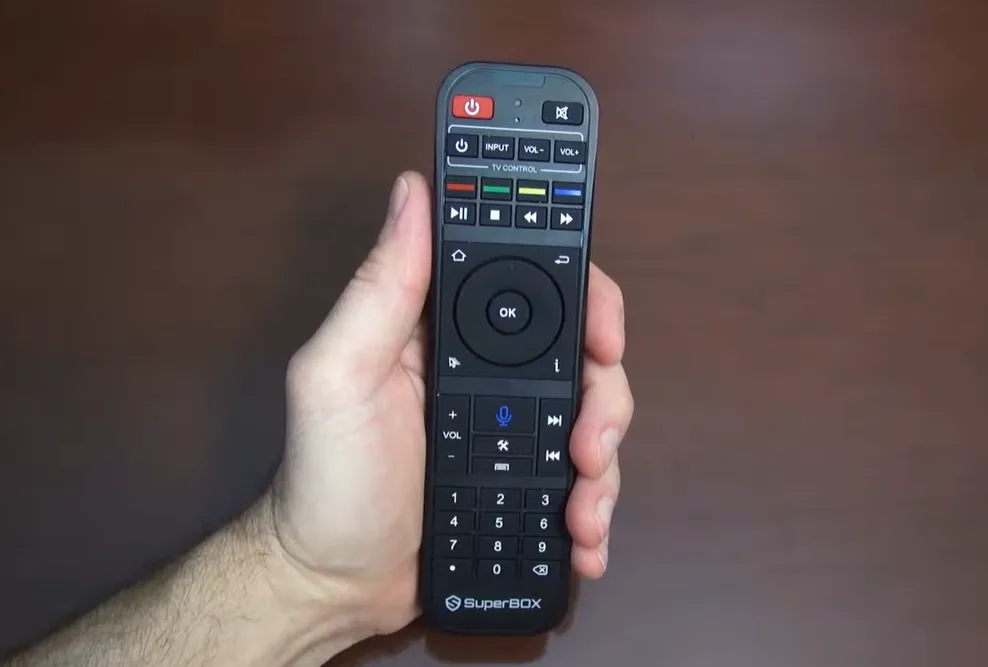
The upper section of your SuperBox S7 remote includes programmable buttons for television power, volume, and input selection. Programming these buttons eliminates the clutter of using two separate remote controls.
This feature uses infrared learning to copy transmission codes from your original television remote. Follow this 5-step checklist to program your television controls:
- Step 1: Enter Learning Mode: Press and hold the white TV Power button on your SuperBox remote for 5 seconds until the red LED light remains solid.
- Step 2: Align Remote Emitters: Position your television remote and the SuperBox remote head-to-head, leaving 1 to 3 centimeters between infrared glass windows.
- Step 3: Select the Target Key: Press the button you wish to program on the SuperBox remote, such as Volume Up. The red LED indicator will begin blinking slowly.
- Step 4: Transmit the Original Signal: Press and hold the corresponding button on your television remote until the SuperBox LED flashes 3 times rapidly, confirming signal capture.
- Step 5: Save and Exit: Repeat for Volume Down and TV Input, then press any standard navigation key to exit learning mode and test operation.
Troubleshooting common SuperBox S7 voice control issues
Occasional connection drops or battery drains can interrupt voice control. Use these community-tested fixes to restore your remote functionality in under two minutes.
Why does pressing the voice button show no response on screen?
The remote has likely dropped its Bluetooth link and reverted to infrared mode. Reconnect the remote by navigating to Settings, opening Remotes and Accessories, and re-pairing the RC200 device using the OK and Return buttons.
Why does voice search produce incorrect speech transcription?
Weak battery voltage causes packet loss in the Bluetooth audio stream. Replace depleted batteries with fresh AAA alkaline cells, and hold the remote within 6 inches of your mouth while speaking.
What should you do if the remote fails to enter pairing mode?
Remove the batteries for 10 seconds, press several buttons to discharge residual electricity, and insert fresh batteries. Hold OK and Return firmly together for 10 full seconds until the red light blinks.
Why does voice control stop working after powering off the TV box?
Putting the console into deep sleep can disconnect Bluetooth peripherals. Press the OK button once to wake the Bluetooth receiver, or toggle Bluetooth off and on under System Settings to force an immediate reconnect.
Why upgrading to the SuperBox S8 Ultra delivers the best voice streaming experience
Tired of unlit buttons in the dark or sluggish voice search responses? The premier SuperBox S8 Ultra at $449 delivers the ultimate voice-controlled home entertainment experience.
The S8 Ultra includes the exclusive RC-200L backlit Bluetooth remote featuring soft blue LED keys that illuminate automatically. Its Bluetooth 5.2 chipset provides stronger signal penetration and instantaneous voice command execution.
Powered by 4GB DDR RAM and 128GB high-speed storage, the S8 Ultra processes complex voice queries in under a second. Sports fans can use voice commands alongside full-channel Quad Multi-View to manage four live broadcasts on a single screen.
Its aircraft-grade aluminum unibody enclosure maintains operating temperatures under 38.5 degrees Celsius during extended viewing sessions. Investing $449 saves cord-cutters between $1,200 and $2,000 every year permanently.
Where to buy authentic SuperBox with warranty coverage
When investing in an authentic streaming console, purchasing from an authorized distributor like SuperBox for Sale guarantees genuine hardware and active server licensing. Our distribution center is located at 13951 Pipeline Ave, Chino CA 91710, led by founder Riley Cooper.
Every purchase includes comprehensive domestic customer support and direct manufacturer warranty coverage:
- Free Shipping: Fast 2 to 5 business day delivery across the United States and Canada with full real-time package tracking via FedEx or USPS.
- 24/7 Technical Support: Dedicated technical specialists available 24/7 via live chat and email for troubleshooting assistance.
- 30-Day Money-Back Guarantee: Hassle-free return policy if you are not completely satisfied with your streaming hardware performance.
- 1-Year Manufacturer Warranty: Full replacement coverage safeguarding against any hardware defects or system component failures supported directly by our customer care center in Chino, California.
- 100% Authentic Hardware: Direct factory units guaranteed genuine without modified firmware, unauthorized alterations, or security risks.
SuperBox for Sale is a leading authorized dealer of SuperBox, specializing in the supply of genuine SuperBox TV boxes Series S6, S7, and S8 in the US & CAD.
Frequently asked questions about SuperBox S7 voice control
Can you use the SuperBox S7 remote without Bluetooth pairing?
Yes, the remote functions as a basic infrared controller without Bluetooth pairing. However, microphone audio input remains completely disabled until you pair the remote via Bluetooth in Settings.
Does voice control work inside third-party Android streaming apps?
Yes, voice control works inside apps that support Android voice input, such as YouTube. Ensure that microphone permissions are toggled to Allowed in your console Application Settings.
How far away can you use the SuperBox S7 Bluetooth voice remote?
Once paired via Bluetooth, the remote operates up to 30 feet away from the console. You do not need direct line of sight to control playback or transmit voice commands.
Experience Unrivaled Streaming Performance with SuperBox
Discover lightning-fast quad-core processing, dual-band Wi-Fi 6, 7-day playback, and crisp 6K ultra HD output engineered for discerning media fans.