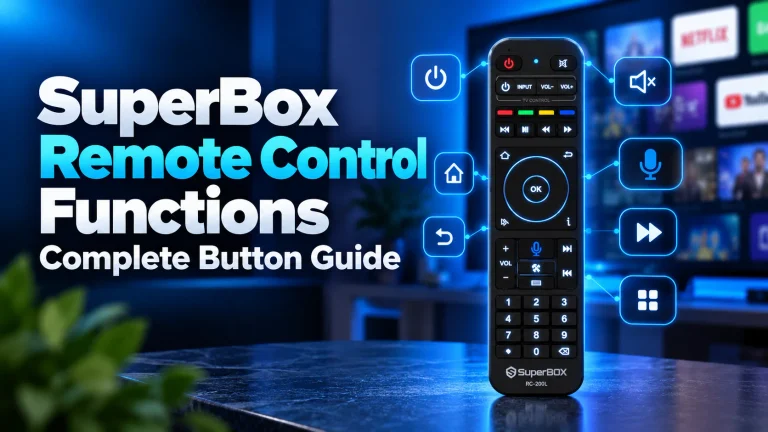
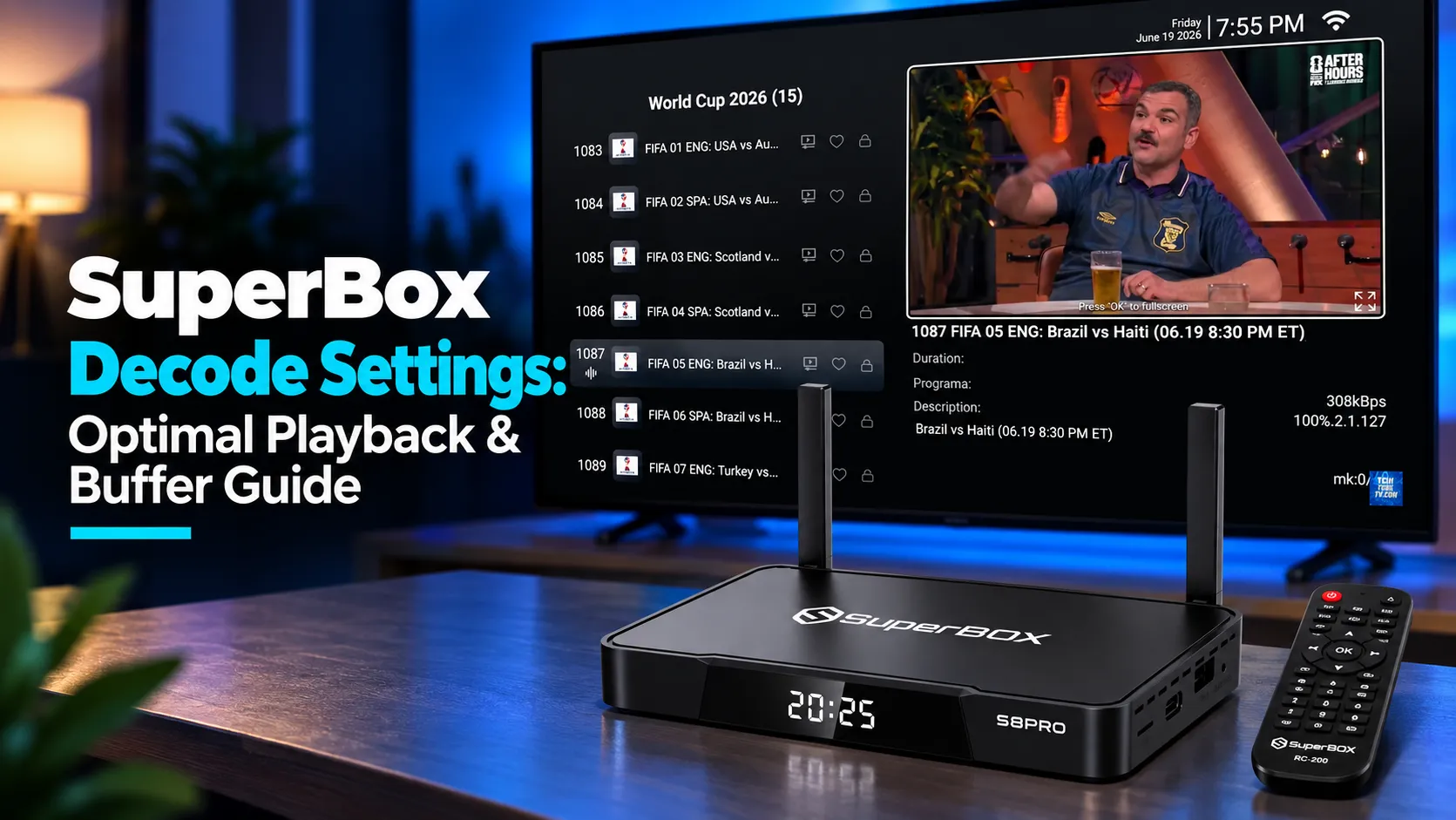
Blue TV is the flagship live streaming engine for SuperBox devices, providing direct access to thousands of live channels, sports passes, and news broadcasts. When your SuperBox Blue TV is not working, it interrupts your daily entertainment. You might see a black screen, zero kbps speeds, or a 98 percent loading freeze. At SuperBox For Sale, our technical support team handles thousands of streaming tickets every year. Fortunately, over 95 percent of Blue TV failures stem from cached data corruption, DNS conflicts, or outdated client packages. This comprehensive troubleshooting guide walks you through proven steps to restore your live channels immediately.
Summary
- Top Failure Causes: Blue TV playback failures usually occur due to corrupted local cache buffers, ISP DNS throttling, or app version mismatches.
- Clear Cache and Data: Resetting app storage through the Android Settings menu cleans corrupted temporary files without removing your account access.
- Fix the 98% Freeze: If Blue TV hangs at the 98% boot screen, perform a complete data wipe, uninstall the app, reboot, and reinstall from the App Store.
- Switch Public DNS: Configuring Google DNS (8.8.8.8) or Cloudflare DNS (1.1.1.1) eliminates regional ISP connection blocks and zero kbps transfer stalls.
- MAC-Based Activation: Your SuperBox streaming authorization is tied to your hardware MAC address, meaning factory resets never erase your channel permissions.
Diagnostic Identify Your Blue TV Error
Match your specific on-screen error with the verified resolution below.
| Blue TV Symptom | Underlying Cause | Recommended Action |
|---|---|---|
| Stuck on 98% loading bar | Corrupted launcher cache or interrupted update | Clear cache and data, then reinstall Blue TV |
| Black screen with zero kbps speed | ISP routing block or stalled network socket | Change DNS to 8.8.8.8 and reboot home router |
| App crashes immediately upon opening | RAM exhaustion or firmware version mismatch | Run Clean Up broom tool and install TV ROM update |
| Channels buffer continuously every 10 seconds | Wi-Fi interference or low bandwidth throughput | Switch to 5GHz Wi-Fi band or hardwire Ethernet |
| Playback authorization error message | Temporary authentication server maintenance | Restart box to refresh hardware MAC token |
Method 1: Clear Blue TV App Cache and Data
Streaming high-definition live channels creates temporary memory chunks inside internal flash storage. When these temporary files become fragmented or corrupted during power outages, the Blue TV media decoder fails to launch. Clearing the app cache and data purges damaged files and restores default operating parameters.
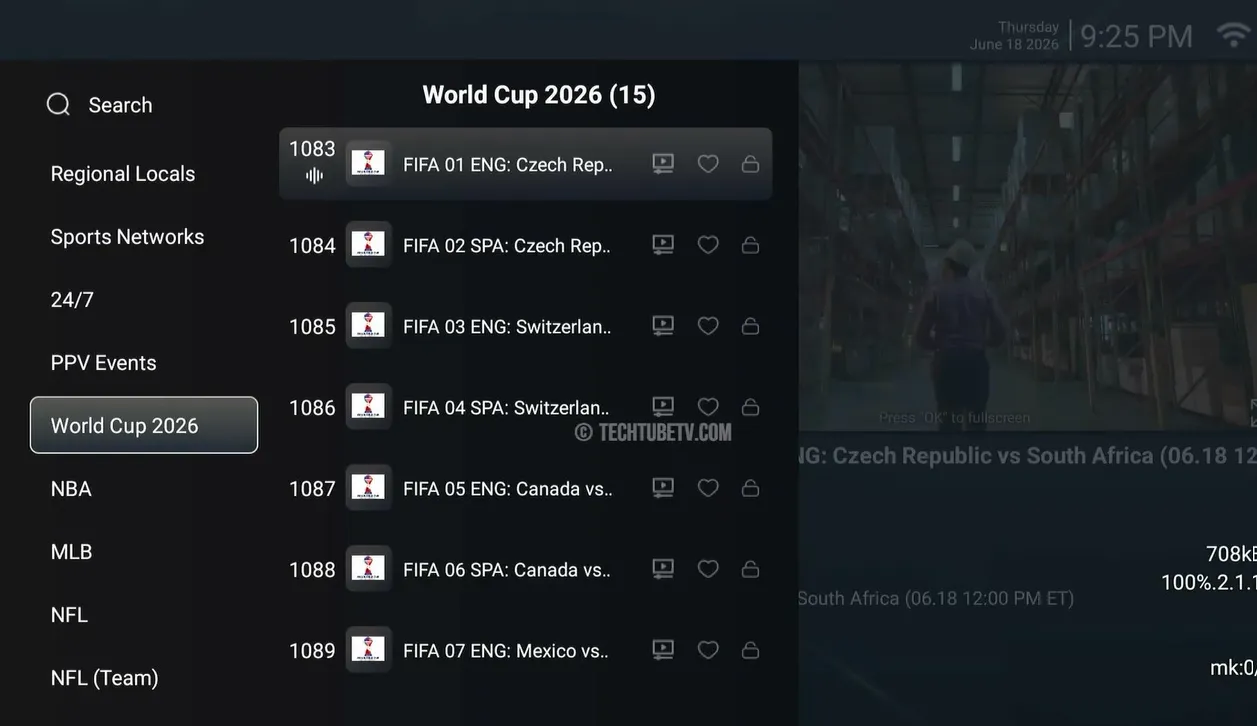
- Step 1: Open SuperBox Settings: Return to your home screen and select the gear icon in the top-right corner.
- Step 2: Access the Apps manager: Click on Apps, then choose See all apps to display installed packages.
- Step 3: Locate Blue TV: Scroll through the application list and select Blue TV.
- Step 4: Execute Clear Cache: Click on Clear Cache and confirm the action. This removes temporary video stream chunks.
- Step 5: Execute Clear Data: Select Clear Data and click OK. This wipes corrupted local configuration files while keeping your hardware authorization intact.
- Step 6: Relaunch the application: Return to the home screen and open Blue TV to test your live channel playback.
Method 2: Reinstall Blue TV (Resolve the 98% Loading Freeze)
The infamous 98% loading bar freeze occurs when an automatic background update encounters a network interruption. The APK installer registers incomplete library files, causing a boot deadlock. Performing a complete uninstallation and fresh reinstall from the SuperBox App Store eliminates damaged binaries.
- Step 1: Wipe existing app data: Navigate to Settings > Apps > Blue TV, and click Clear Data. Do not skip this step before uninstalling.
- Step 2: Uninstall Blue TV: On the same application screen, select Uninstall and press OK to confirm deletion.
- Step 3: Restart your SuperBox: Perform a clean system restart from the power menu or disconnect the power plug for 15 seconds.
- Step 4: Launch the native App Store: Open the built-in App Store from the home menu (not Google Play Store).
- Step 5: Download fresh Blue TV package: Locate the Blue TV tile, press Install, and wait for the download bar to reach 100 percent.
- Step 6: Open and authenticate: Launch the newly installed Blue TV app. The software will verify your motherboard MAC address and load the channel directory.
For more background on channel lineups and built-in features, review our full guide on what Blue TV offers on SuperBox.
Method 3: Configure Google or Cloudflare Public DNS
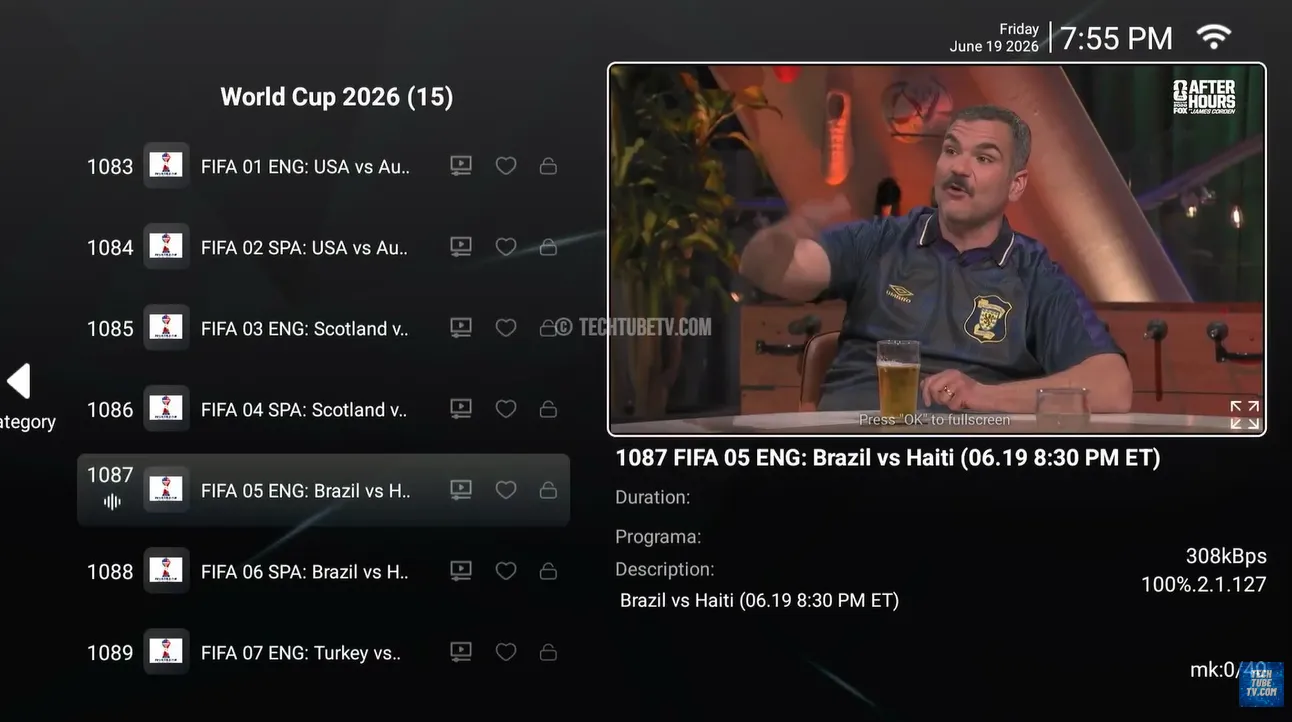
Many internet service providers (ISPs) employ aggressive content filtering or slow DNS resolvers. When your ISP DNS cannot resolve SuperBox content delivery network (CDN) hostnames, the app reports zero kbps transfer speeds or stalls on connecting messages. Switching to public DNS servers circumvents ISP routing hurdles.
- Step 1: Access Network Settings: Go to Settings > Network & Internet on your SuperBox.
- Step 2: Choose your active network: Select your connected Wi-Fi SSID or Ethernet adapter.
- Step 3: Modify IP Settings: Scroll down to IP Settings and switch the configuration from DHCP to Static.
- Step 4: Retain your IP and Gateway: Keep your existing IP address, subnet mask (typically 24), and gateway address unchanged by pressing Next.
- Step 5: Enter Primary DNS: Type 8.8.8.8 (Google DNS) or 1.1.1.1 (Cloudflare DNS) for DNS 1.
- Step 6: Enter Secondary DNS: Type 8.8.4.4 or 1.0.0.1 for DNS 2 and save your network profile.
If persistent buffering or slow video feeds persist after updating your DNS, explore our tested steps for fixing SuperBox buffering issues.
Method 4: Perform a Hard Power Cycle and Router Reset
Home modems and wireless routers maintain network routing tables that can become stale. At the same time, residual static charge on your SuperBox motherboard can freeze internal network interface controllers. A synchronized power cycle flushes temporary IP assignments and re-establishes clean communication handshakes.
- Step 1: Unplug router and modem: Disconnect the AC power adapters from both your modem and Wi-Fi router.
- Step 2: Unplug the SuperBox: Remove the DC power jack from the back of your SuperBox.
- Step 3: Wait 60 seconds: Allow all networking equipment and your streaming box to rest unpowered for one full minute.
- Step 4: Power up modem and router first: Plug your modem and router back in. Wait two minutes until all internet status lights turn solid green.
- Step 5: Reconnect the SuperBox: Plug the SuperBox power adapter back into the wall and boot up the system.
If your box frequently powers down on its own during streaming sessions, follow our tutorial on preventing SuperBox random shutdowns.
Method 5: Disable Third-Party VPN Services
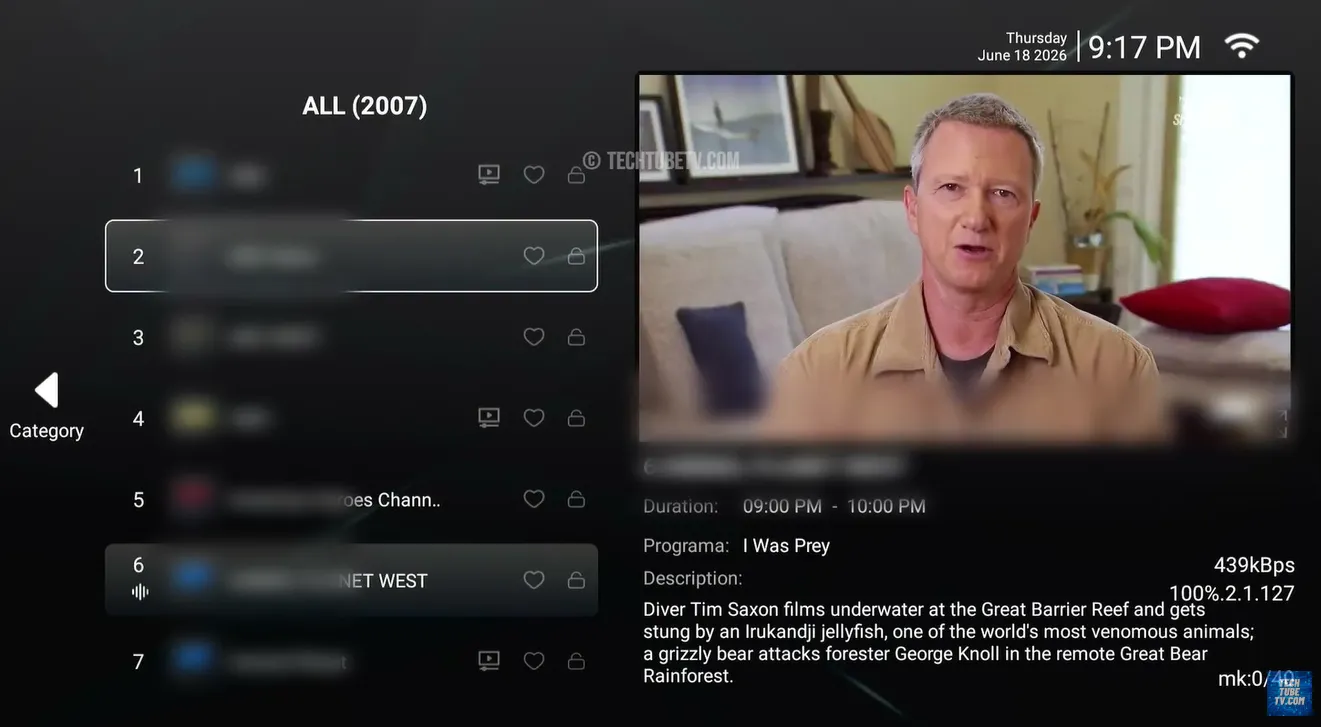
Many users install third-party VPN applications on Android TV boxes for privacy. However, Blue TV streaming servers use distributed content delivery networks optimized for direct residential connections. Commercial VPN IP ranges are frequently flagged as proxy traffic, triggering automated stream cutoffs or authorization blocks.
- Step 1: Open active VPN app: Navigate to your installed applications and open your VPN client (such as IPVanish, ExpressVPN, or NordVPN).
- Step 2: Disconnect VPN tunnel: Click the Disconnect button to terminate the encrypted tunnel.
- Step 3: Disable auto-connect on boot: Open the VPN application settings and turn off Connect on Android startup.
- Step 4: Force stop the VPN: Open Settings > Apps, select your VPN application, and click Force Stop.
- Step 5: Test Blue TV connection: Launch Blue TV directly on your unmasked residential internet connection.
Method 6: Update System Firmware via TV ROM Updater
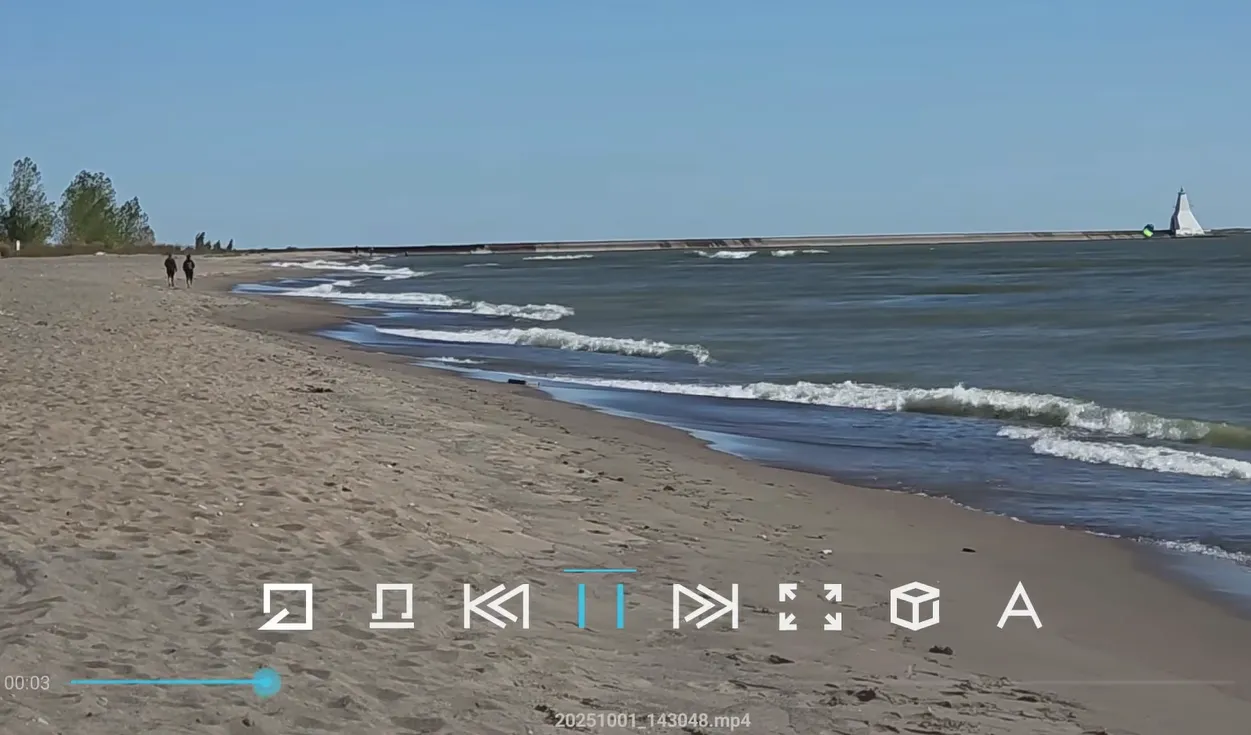
Blue TV receives regular codec updates and encryption certificates from the SuperBox developer network. If your underlying Android TV ROM build is out of date, the operating system cannot execute the latest media player APIs. Updating your system firmware ensures full operating compatibility.
- Step 1: Launch the App Store: Open the built-in App Store from the home menu.
- Step 2: Update App Store and Launcher: Check for pending updates to the store itself and confirm installation.
- Step 3: Access TV ROM Updater: Click on the TV ROM Updater utility inside the App Store.
- Step 4: Download and flash new build: Select Download, then click Install to begin system flashing.
- Step 5: Reboot into updated OS: Confirm the reboot prompt and let the SuperBox boot into the updated firmware build.
For a detailed breakdown of the complete updating process, read our comprehensive walkthrough on how to update SuperBox firmware properly.
Why Does Blue TV Stop Working?
Understanding how Blue TV delivers live television helps users prevent future stream interruptions. Three core architectural layers manage your streaming access:
1. Hardware MAC Address Authorization Tokens
Unlike standard streaming apps requiring email passwords, Blue TV verifies active access via your device cryptographic MAC address. When network latency exceeds 350ms, the initial authentication handshake with the licensing server can time out. Clearing app data forces the client to renew its authorization token.
2. Fragmented Media Cache Files
Blue TV stores live channel segment indices in flash memory. Sudden power cutoffs or forced channel zapping leave incomplete media chunks in the cache directory. These fragmented files corrupt the video playback parser, resulting in black screens or 98% loading hangs.
3. ISP Content Delivery Routing Blocks
Internet service providers often throttle high-bandwidth live video streams during peak evening sporting events. Default ISP DNS resolvers can also fail to resolve dynamic CDN load balancers. Switching to third-party public DNS routes data across higher-capacity network backbones.
Where to buy authentic SuperBox with warranty coverage
When investing in a high-performance streaming console, ordering directly from superbox website guarantees authentic hardware and verified server licensing. Our central distribution and customer care facility operates at 13951 Pipeline Ave, Chino, CA 91710, USA, led by founder Riley Cooper.
For the ultimate cord-cutting setup, we recommend the flagship SuperBox S8 Ultra priced at $449, featuring 4GB DDR RAM, 128GB storage, Wi-Fi 6, and Gigabit Ethernet. Every order includes our Official Reseller License Code #SP20250928002 and full warranty protection:
- Free Shipping: Fast 2 to 5 business day delivery across the United States and Canada with full real-time package tracking via FedEx or USPS.
- 24/7 Technical Support: Dedicated technical specialists available 24/7 via live chat and email for troubleshooting assistance.
- 30-Day Money-Back Guarantee: Hassle-free return policy if you are not completely satisfied with your streaming hardware performance.
- 1-Year Manufacturer Warranty: Full replacement coverage safeguarding against any hardware defects or system component failures supported directly by our customer care center in Chino, California.
- 100% Authentic Hardware: Direct factory units guaranteed genuine without modified firmware, unauthorized alterations, or security risks.
SuperBox for Sale is a leading authorized dealer of SuperBox, specializing in the supply of genuine SuperBox TV boxes Series S6, S7, and S8 in the US & CAD.
Frequently Asked Questions
Why does Blue TV get stuck on 98% when loading?
A freeze at 98% indicates corrupted local cache or a damaged update package. Clear both cache and data in Android Settings, uninstall Blue TV, reboot your box, and reinstall the application from the App Store.
Will clearing Blue TV app data delete my channels?
No. Clearing app data resets local preferences and temporary stream files. All channels and access privileges are tied to your SuperBox hardware MAC address and restore automatically.
Can I use a VPN with Blue TV on SuperBox?
While possible, most commercial VPN IP addresses trigger security blocks on Blue TV media distribution servers. Disabling your VPN ensures reliable, direct channel playback.
What download speed is required for smooth Blue TV streaming?
Blue TV requires at least 25 to 50 Mbps of stable download bandwidth for reliable high-definition live channels. We recommend connecting to a 5GHz Wi-Fi band or using an Ethernet cable.
Where do I reinstall Blue TV if it disappears?
Always reinstall Blue TV from the built-in SuperBox App Store located on your home screen. Do not attempt to download Blue TV APKs from generic third-party web repositories.
Final Troubleshooting Advice from Riley Cooper
A malfunctioning Blue TV app is almost always resolvable without factory resetting your hardware. Start by clearing the app cache and data to eliminate corrupted stream buffers. If the 98% loading bar persists, perform a clean reinstallation through the official App Store and switch your network to Google DNS. These straightforward fixes will have your favorite live television channels running smoothly in minutes.
Experience Unrivaled Streaming Performance with SuperBox
Discover lightning-fast quad-core processing, dual-band Wi-Fi 6, 7-day playback, and crisp 6K ultra HD output engineered for discerning media fans.