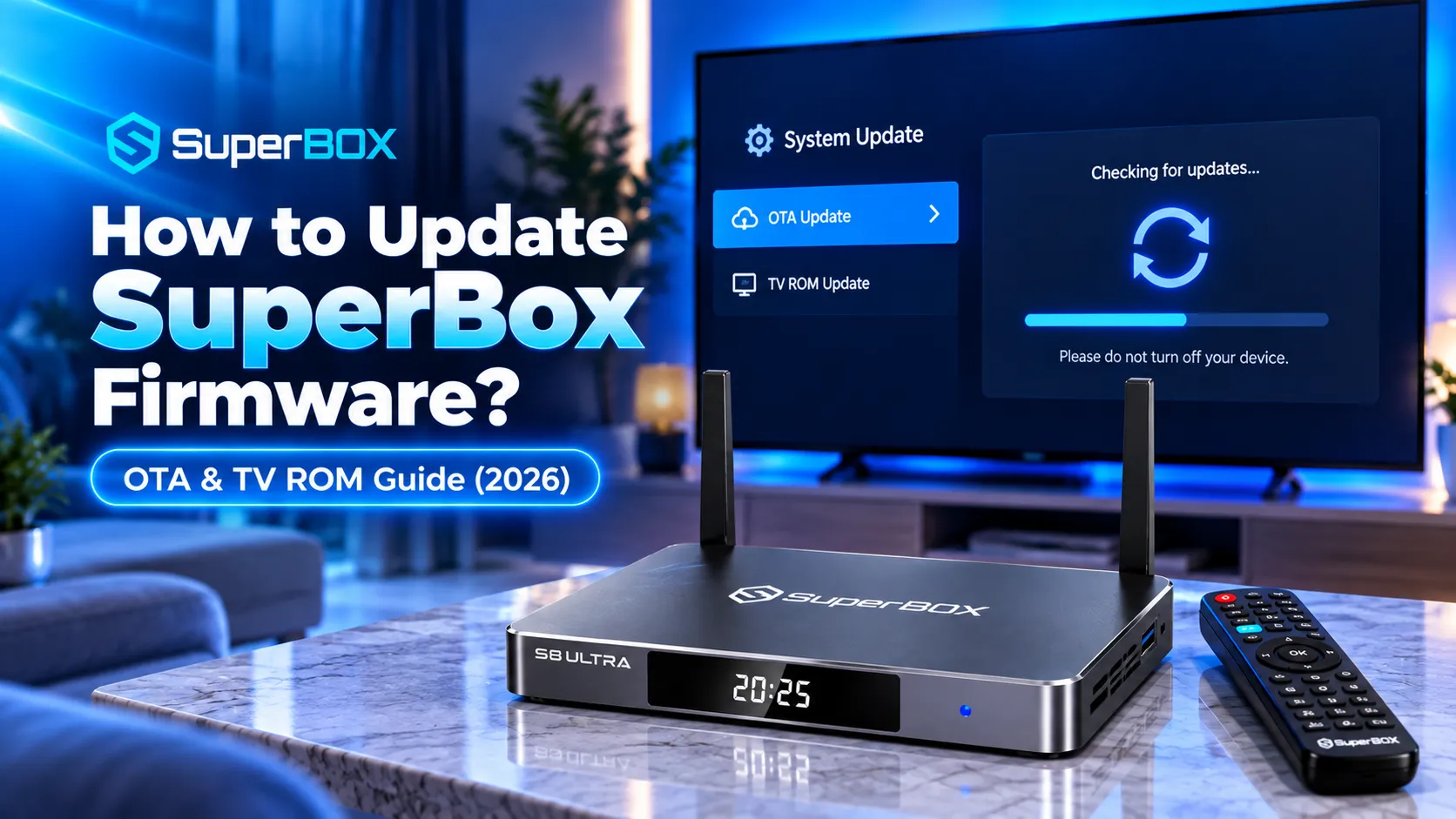
Keeping your streaming hardware on the latest system software is essential for uninterrupted playback, updated channel certificates, and patch security. If you want to know how to update SuperBox firmware properly, standard Android updates are only half the equation. Many users encounter failed streams because they skip the dedicated TV ROM updater hidden inside the App Store. At SuperBox For Sale, our engineering team regularly benchmarks operating system builds across every generation. This guide details the exact steps to update your SuperBox firmware safely without losing your apps or settings.
Method 1: Update via the App Store TV ROM Updater (Recommended)
The vast majority of SuperBox users miss essential system updates because they assume updating the App Store updates the entire system. In reality, updating the App Store generates a refreshed link to the TV ROM Updater. You must trigger this package manually to complete the firmware upgrade cycle.
- Open the native App Store: From the SuperBox home screen, select the built-in App Store icon (do not confuse this with the Google Play Store).
- Check for notification indicators: Look for colored dots or badge icons next to the App Store and Home Launcher entries indicating pending updates.
- Update App Store and Launcher: Click to update the App Store. The installer will finalize and automatically return you to the home menu.
- Re-enter the App Store: Re-open the App Store immediately. Updating the store refreshes the package list and reveals the updated TV ROM Updater tile.
- Launch the TV ROM Updater: Click on the TV ROM Updater icon and press OK on your remote.
- Download and install the update: Review the on-screen changelog, select Download, and then press Install once the download reaches 100 percent.
- Confirm system reboot: When the installation dialogue asks if you want to reboot, select Yes to complete the flashing sequence.
Watch this video walkthrough by tech reviewer JasonTech demonstrating the exact TV ROM Updater step that most users accidentally skip:
Method 2: Check for Over-The-Air (OTA) System Updates
The Android operating system layer receives security patches and kernel improvements through the native Over-The-Air (OTA) daemon. Performing regular OTA checks ensures your hardware decoders and network drivers remain fully compatible with current streaming protocols.
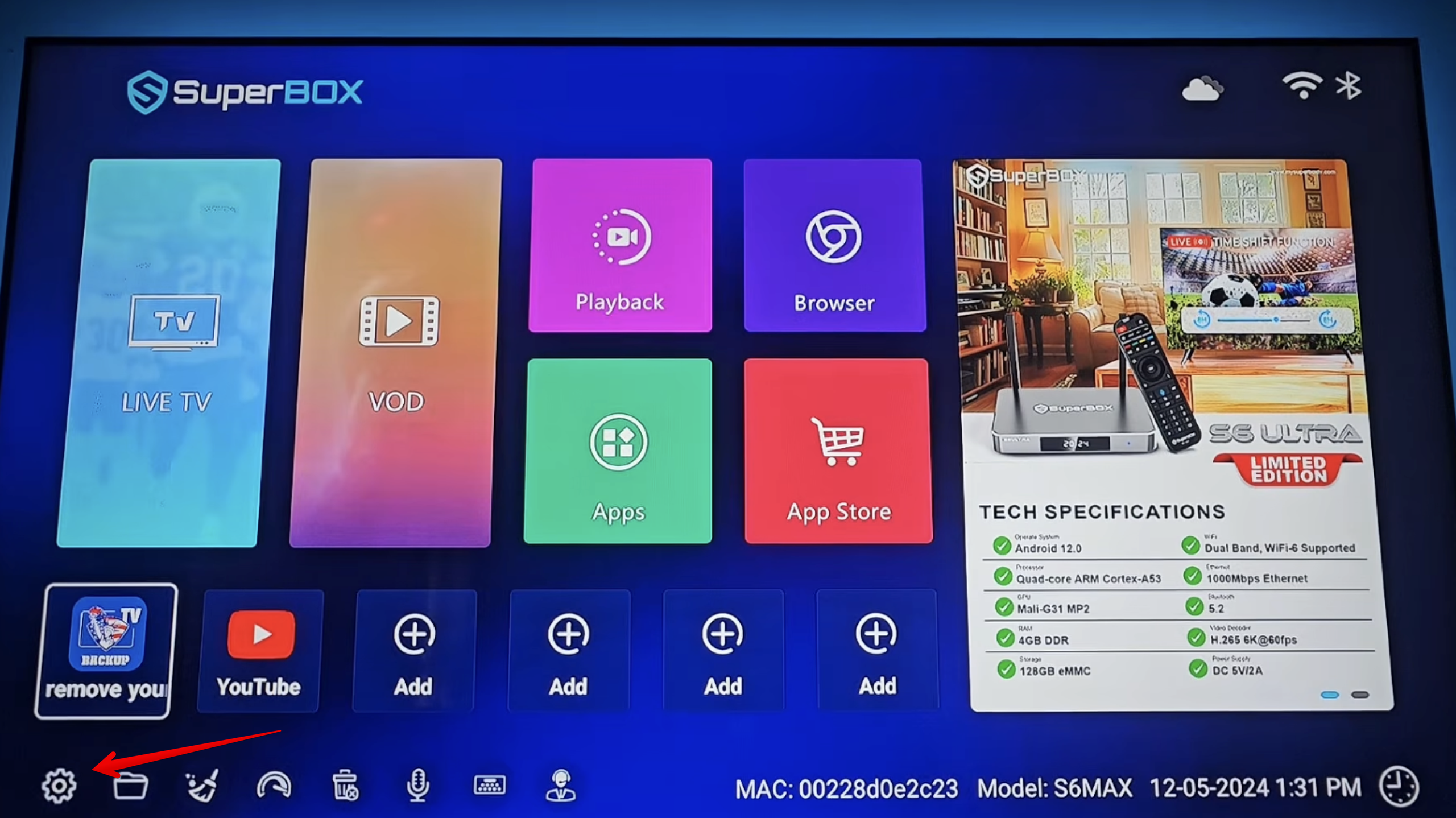
- Open SuperBox Settings: Click the gear icon located in the upper-right corner of your main home screen.
- Navigate to Device Preferences: Scroll down the settings list and select Device Preferences (or System on select firmware revisions).
- Access the About screen: Click on About at the top of the menu to view your current kernel version and build number.
- Select System Update: Click System Update to connect to the SuperBox cloud firmware repository.
- Initiate download: If a newer system build is available, select Check Update, then press Download.
- Allow automated reboot: Keep the device powered on during installation. The box will reboot automatically into the updated operating system.
If your device experiences sudden power loss during streaming or navigation, follow our troubleshooting guide on how to fix a SuperBox that keeps turning off randomly.
Method 3: Flash Firmware via USB Drive (Offline Recovery)
If your SuperBox suffers from a corrupted operating system, an unstable Wi-Fi connection, or a persistent boot loop, manual USB flashing provides an offline recovery solution. This method rewrites system image blocks directly to onboard flash storage.
- Format a USB flash drive: Insert a standard USB thumb drive into your computer and format it to the FAT32 file system.
- Obtain official firmware: Download the verified firmware ZIP package corresponding to your specific model from authorized SuperBox support resources.
- Transfer file without unzipping: Copy the downloaded firmware file directly to the root directory of your USB drive without unzipping it.
- Connect drive to SuperBox: Plug the USB drive into the USB 2.0 or USB 3.0 port on the side of your SuperBox.
- Open the Upgrade app: Navigate to the app drawer and launch the built-in Upgrade or Local Update utility.
- Select Local Upgrade: Choose the firmware package detected on your USB drive, verify the checksum, and click Wipe Data and Media if performing a recovery flash.
- Complete the upgrade: Click Update and allow the system recovery console to rewrite partitions. Do not power off until the main launcher appears.
Method 4: Update Core Media Apps (Blue TV, Blue VOD & Playback)
Firmware stability requires matching software versions across core streaming applications. Operating system updates frequently introduce newer media codecs that require current versions of Blue TV and Blue VOD to function without buffering.
- Launch the App Store: Open the built-in App Store from the primary navigation row.
- Check Blue TV status: Locate the Blue TV application tile. If a red or orange update badge is visible, press OK to install the patch.
- Update Blue VOD: Select Blue VOD and confirm the pending software upgrade to refresh movie metadata scrapers.
- Update Playback: Update the Playback DVR engine to ensure compatibility with 7-day live recording servers.
- Clear app caches: After updating media apps, navigate to Settings > Apps, select each streaming app, and clear cache to remove obsolete temp files.

If you encounter video stutters after applying updates, check our tested strategies on resolving SuperBox buffering and streaming lag.
Critical Safety Rules When Updating SuperBox Firmware
Firmware flashing rewrites low-level bootloader and kernel partitions. Violating basic flashing protocols can cause permanent bootloader corruption. Follow these mandatory safety guidelines during every update cycle:
- Maintain Continuous Power: Never disconnect the DC power adapter or switch off your power strip while an update is installing.
- Use Wired Ethernet Where Possible: A hardwired LAN cable eliminates packet drops that can lead to corrupted update archives during download.
- Avoid Generic Third-Party ROMs: Only install firmware distributed through official SuperBox OTA channels or authorized distributors. Generic Android TV ROMs lack proprietary MAC encryption keys.
- Allow Up to Ten Minutes for First Boot: Following a major firmware update, the Android operating system rebuilds application runtime caches. The initial boot cycle takes noticeably longer than standard startup.
To understand the full hardware specifications and security features behind these updates, read our comprehensive overview of how SuperBox operating architecture works.
SuperBox firmware updates provide essential enhancements to streaming reliability, audio decoding, and security. Remember to always check both the System Update menu and the TV ROM Updater inside the App Store. By executing both update layers, you ensure complete system synchronization and uninterrupted entertainment.
Where to buy authentic SuperBox with warranty coverage
When investing in a high-performance streaming console, ordering directly from SuperBox TV guarantees authentic hardware and verified server licensing. Our central distribution and customer care facility operates at 13951 Pipeline Ave, Chino, CA 91710, USA, led by founder Riley Cooper.
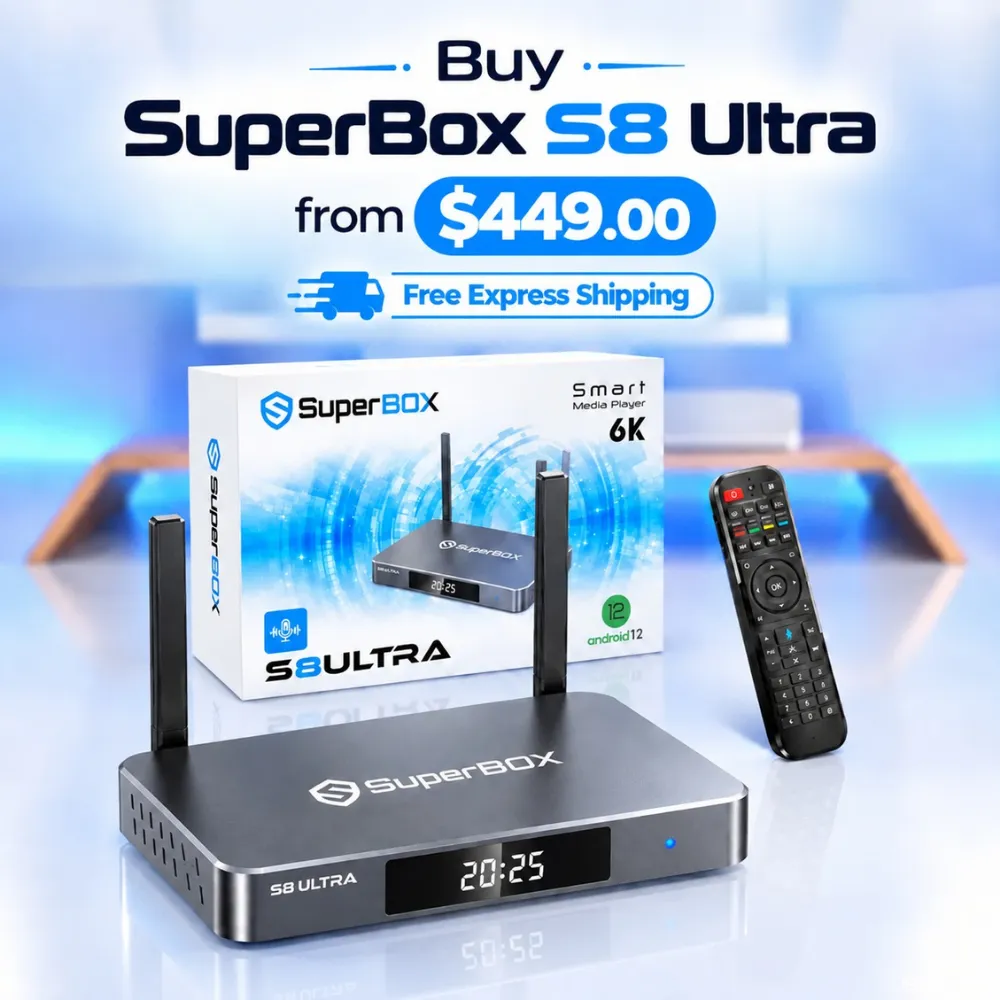
For the ultimate cord-cutting setup, we recommend the flagship SuperBox S8 Ultra priced at $449, featuring 4GB DDR RAM, 128GB storage, Wi-Fi 6, and Gigabit Ethernet. Every order includes our Official Reseller License Code #SP20250928002 and full warranty protection:
- Free Shipping: Fast 2 to 5 business day delivery across the United States and Canada with full real-time package tracking via FedEx or USPS.
- 24/7 Technical Support: Dedicated technical specialists available 24/7 via live chat and email for troubleshooting assistance.
- 30-Day Money-Back Guarantee: Hassle-free return policy if you are not completely satisfied with your streaming hardware performance.
- 1-Year Manufacturer Warranty: Full replacement coverage safeguarding against any hardware defects or system component failures supported directly by our customer care center in Chino, California.
- 100% Authentic Hardware: Direct factory units guaranteed genuine without modified firmware, unauthorized alterations, or security risks.
SuperBox for Sale is a leading authorized dealer of SuperBox, specializing in the supply of genuine SuperBox TV boxes Series S6, S7, and S8 in the US & CAD.
Experience Unrivaled Streaming Performance with SuperBox
Discover lightning-fast quad-core processing, dual-band Wi-Fi 6, 7-day playback, and crisp 6K ultra HD output engineered for discerning media fans.

![SuperBox Remote Control Functions: Complete Button Guide [2027]](https://superboxforsale.com/wp-content/uploads/2026/10/SuperBox-Remote-Control-Functions-768x432.webp "SuperBox Remote Control Functions: Complete Button Guide [2027] 6")
![How to Set Up Voice Control on SuperBox S7 Full Guide [2027]](https://superboxforsale.com/wp-content/uploads/2026/10/How-to-Program-SuperBox-Remote-to-TV-1-767x432.webp "How to Set Up Voice Control on SuperBox S7 Full Guide [2027] 12")