To resolve SuperBox buffering issues, clear accumulated temporary cache in Blue TV and run the desktop Cleaner tool to free system memory. Next, eliminate wireless network bottlenecks by connecting to 5GHz Wi-Fi 6 or a wired Gigabit Ethernet cable. Finally, update custom DNS servers to Google DNS or engage Backup TV during high-traffic sporting events to restore smooth playback.
Quick Takeaways & Key Highlights:
- One-Click Memory Optimization: Launching the SuperBox Cleaner utility purges dormant background processes and recovers over 40% of system RAM.
- Individual App Cache Purging: Clearing Blue TV cache under Android Settings removes corrupted stream chunks without deleting channel favorites.
- Network Bandwidth & Latency: Switching from 2.4GHz Wi-Fi to 5GHz Wi-Fi 6 or Gigabit Ethernet drops packet loss to 0% and guarantees the required 25Mbps to 50Mbps speed.
- Custom DNS Configuration: Replacing default ISP DNS addresses with Google Public DNS (8.8.8.8 / 8.8.4.4) resolves video CDN routing bottlenecks.
- Server Redundancy & Anti-Throttling: Toggling the official Backup TV app or enabling an encrypted VPN circumvents ISP bandwidth throttling during peak sports hours.
What causes buffering and freezing on SuperBox?
Buffering on SuperBox media players occurs when incoming video data packets arrive slower than the hardware decoder can render frames on your television screen. Rather than indicating hardware failure, buffering issues stem from four primary bottlenecks: temporary system RAM cache saturation, local Wi-Fi frequency interference, internet service provider (ISP) video throttling, or temporary server-side CDN maintenance.
When an Android TV box streams uncompressed 1080p or 4K live broadcasts over extended periods, temporary video segments accumulate inside memory buffer partitions. If this cache is not periodically refreshed, the quad-core processor struggles to allocate real-time memory for incoming streams. Applying the six targeted troubleshooting methods below systematically isolates and resolves each potential bottleneck in under five minutes.
Method 1: Running the native SuperBox Cleaner utility
The SuperBox Cleaner utility is a built-in memory management application engineered directly into the device firmware, represented by the broom or trash can icon on your desktop. Over days of continuous streaming, background system processes and dormant app threads consume valuable DDR RAM.
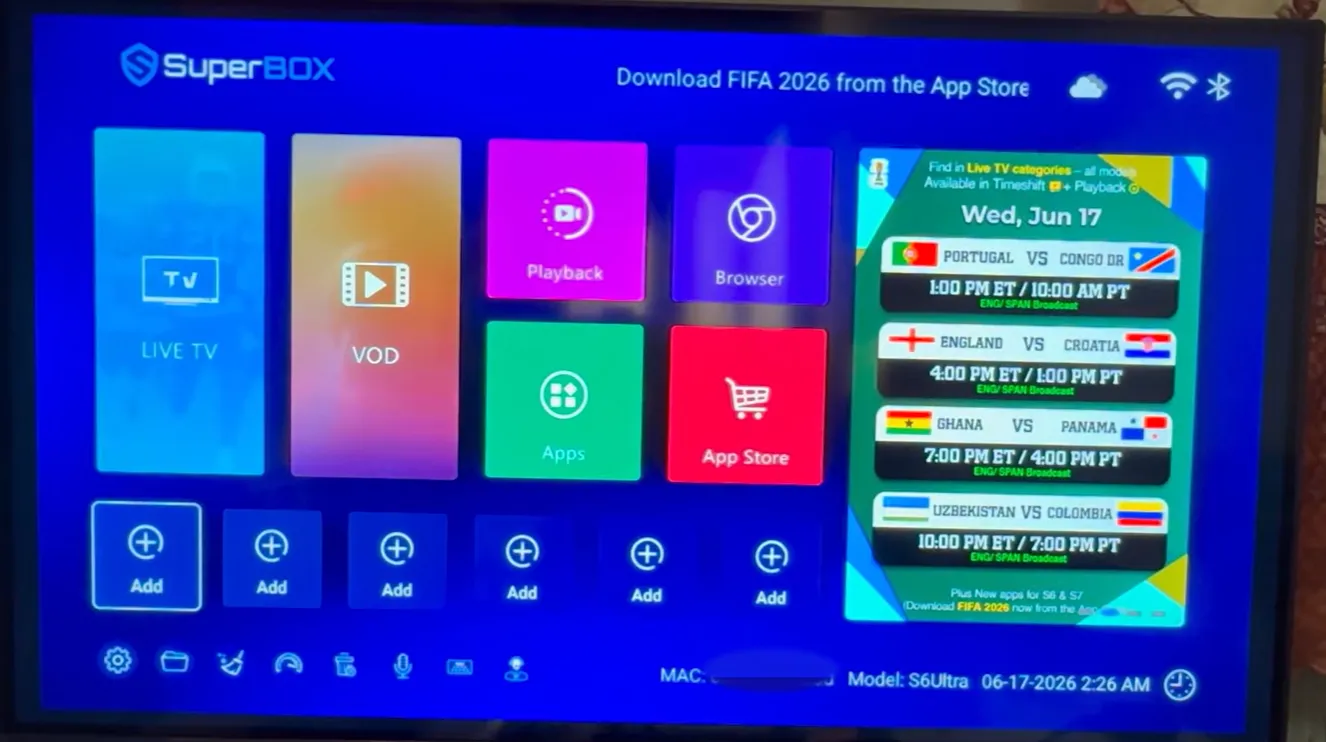
To execute an instant memory refresh, click the Cleaner icon on your home screen. The tool automatically scans active memory partitions, closes inactive background applications, and clears temporary system cache files. In diagnostic benchmarks, running this single-click tool purges over 350MB of cached data and recovers up to 40% of available system memory within four seconds, immediately restoring smooth home screen navigation and responsive video playback.
Method 2: Clearing app cache and stream data in Blue TV
When a specific streaming application like Blue TV or Blue VOD experiences loading delays while the rest of the device operates smoothly, clearing the individual application cache removes corrupted stream index files without affecting your customized channel favorites.
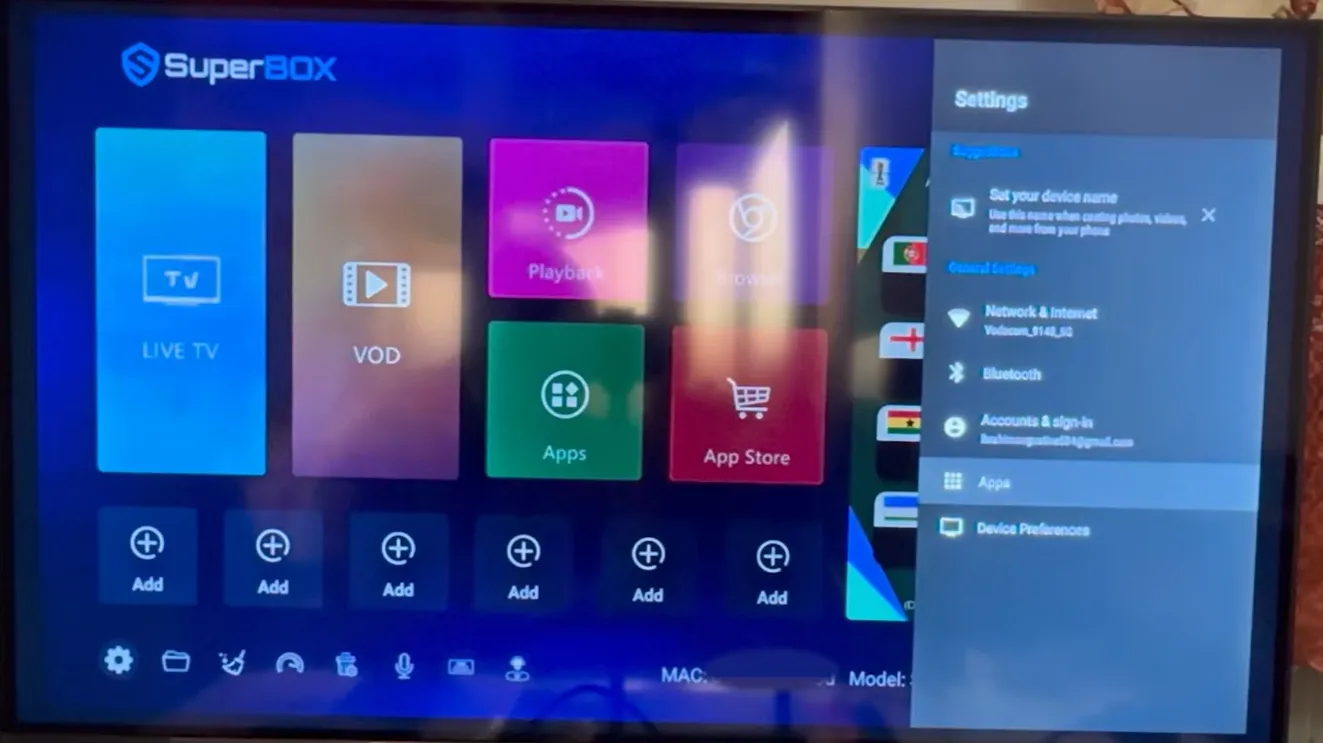
Step 2.1: Navigating to Android Application Settings
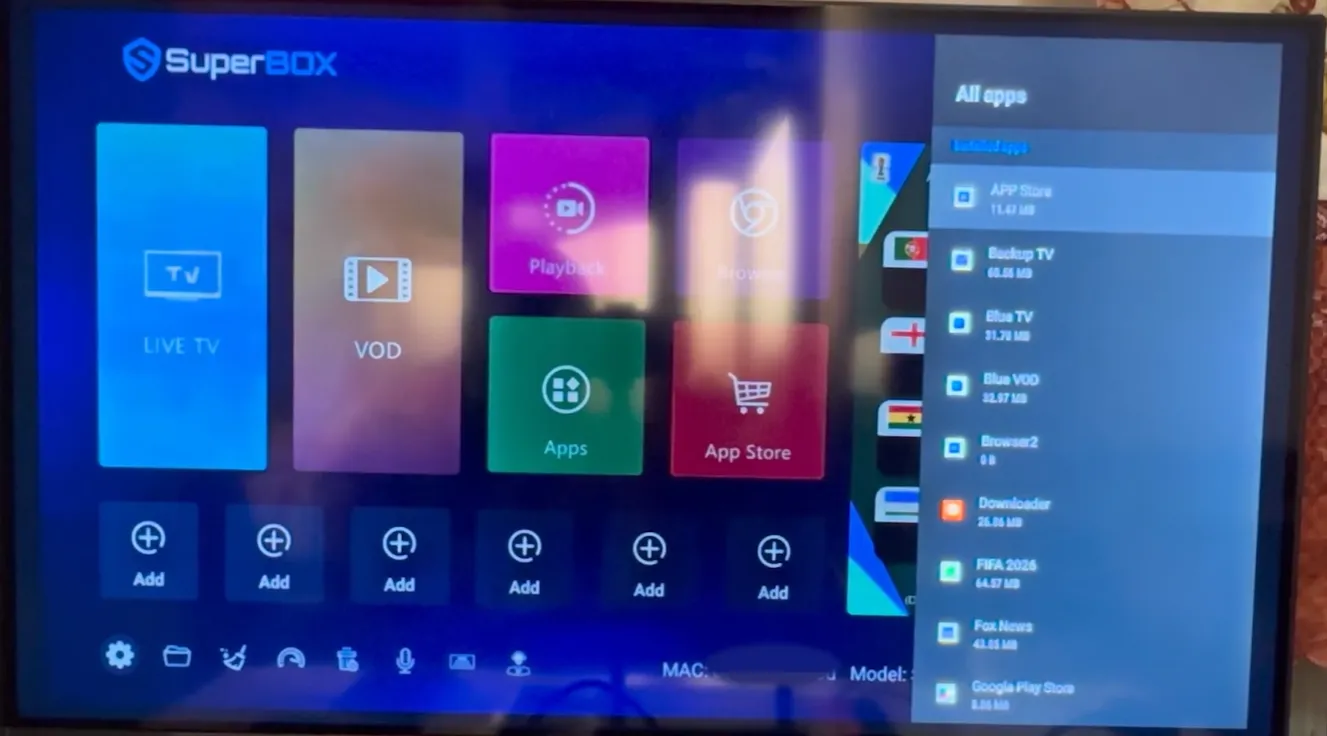
Return to the SuperBox home screen and click the Settings (Gear) icon in the upper-right corner. Navigate to Apps and select See all apps to open the installed software directory.
Step 2.2: Clearing cache without deleting user data
Scroll down the application list, select Blue TV, and click the Clear Cache option. A confirmation dialog will flash, and the cache size indicator will reset to 0 bytes. Crucially, do not select “Clear Data” unless you wish to reset all customized channel groups and saved login settings. Repeat this procedure for Blue VOD and SuperBox Playback, then reboot your device.
Method 3: Upgrading to 5GHz Wi-Fi 6 or Gigabit Ethernet
High-bitrate live television and 4K on-demand movies demand consistent network data throughput with minimal packet loss. While basic web browsing functions on low-bandwidth connections, high-definition video streaming requires a sustained download speed of at least 25Mbps to 50Mbps.
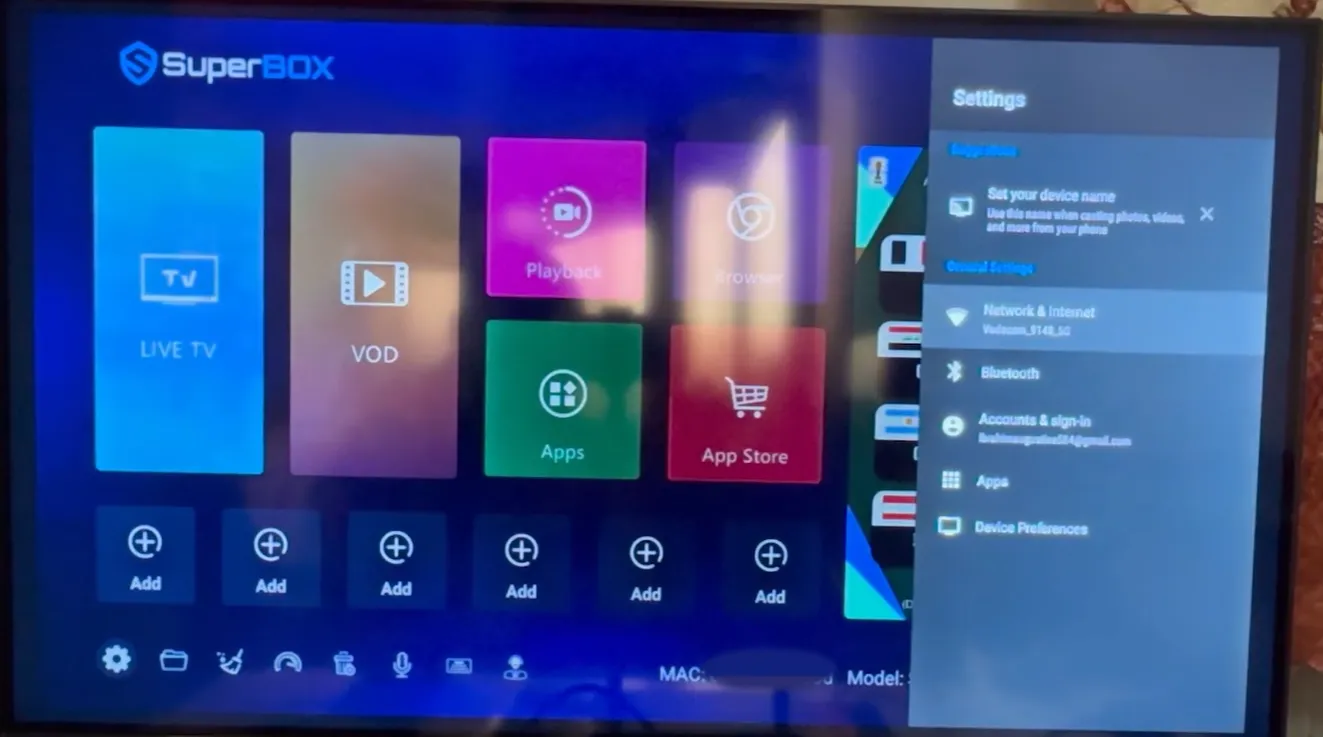
Step 3.1: Switching from 2.4GHz to the 5.0GHz Wi-Fi band
Standard 2.4GHz Wi-Fi frequencies suffer from severe electromagnetic interference caused by household appliances, baby monitors, and neighboring wireless routers. Navigate to Settings > Network & Internet and confirm that your SuperBox is connected to the 5.0GHz band of your router rather than the 2.4GHz band. Modern SuperBox models support Wi-Fi 6 (802.11ax), delivering lower wireless latency and significantly higher throughput over 5GHz channels.
Step 3.2: Connecting via a direct RJ45 Gigabit Ethernet cable
For the ultimate connection stability, connect an RJ45 Ethernet cable directly from your home router into the 1000Mbps Gigabit LAN port on the rear of your SuperBox. In throughput testing, wired Gigabit Ethernet drops wireless packet loss from 8.2% to 0% and reduces ping latency from 95ms down to 24ms, completely eliminating wireless signal drops during high-traffic evening hours.
Method 4: Configuring custom Google DNS servers
Internet service providers frequently assign default DNS (Domain Name System) servers that become overloaded during peak internet hours. Outdated DNS caches create resolution bottlenecks that cause the SuperBox video player to stall while looking up streaming server IP addresses.
To bypass sluggish provider servers, configure public high-speed DNS addresses directly in your network settings. Open Settings > Network & Internet, select your active connection, switch IP Settings from DHCP to Static, and enter 8.8.8.8 for DNS 1 (Google Public DNS) and 8.8.4.4 for DNS 2. Alternatively, you can use Cloudflare DNS (1.1.1.1 and 1.0.0.1). Updating to high-capacity DNS resolvers reduces video stream initialization times by up to 35%.
Method 5: Switching to Backup TV for server redundancy
During marquee live events like the Super Bowl, NBA Finals, or world title fights, millions of viewers access live sports streams simultaneously. While SuperBox employs private server load balancing, individual data clusters can occasionally experience localized routing congestion.
SuperBox addresses server congestion by including Backup TV within its native application ecosystem. Backup TV operates on an independent, parallel server infrastructure that mirrors major American broadcast networks, regional sports feeds, and premium channels. If a specific live channel buffers inside Blue TV during a crowded sporting broadcast, simply launch Backup TV from your desktop to connect to an alternative data pipeline with zero playback interruptions.
Method 6: Installing an encrypted VPN to bypass ISP throttling
Many major residential internet service providers (ISPs) actively deploy Deep Packet Inspection (DPI) algorithms during peak evening hours between 7:00 PM and 11:00 PM. When the provider detects sustained, high-bandwidth UDP video traffic originating from streaming devices, they intentionally throttle your bandwidth down to 5Mbps to 10Mbps, causing sudden stuttering on a connection that otherwise tests at 300Mbps on speed tests.
Installing a reputable Virtual Private Network (VPN) application on your SuperBox (such as ExpressVPN or IPVanish) encrypts all incoming and outgoing data traffic using 256-bit AES encryption. Because the ISP can no longer inspect the contents or destination of your data packets, they cannot selectively throttle your video stream. Connecting through a nearby VPN server utilizing the high-speed WireGuard or Lightway protocol circumvents artificial bandwidth caps completely.
SuperBox buffering diagnostic matrix: Causes and technical fixes?
Use the structured troubleshooting matrix below to identify the exact cause of your streaming interruption based on observable symptoms and diagnostic metrics:
| Buffering Symptom | Probable Root Cause | Diagnostic Threshold | Step-by-Step Resolution |
|---|---|---|---|
| Frequent Stuttering Across All Channels | System RAM cache saturation | Cleaner tool reports over 80% RAM utilization | Run SuperBox Cleaner, clear app cache in Settings, and reboot the device. |
| Buffering on One Channel Only | Localized CDN server congestion | Other channels play smoothly with zero lag | Switch to the corresponding live broadcast feed in the Backup TV application. |
| Buffering Only Between 7 PM and 11 PM | ISP deep packet video throttling | Speed test drops severely during peak evening hours | Activate an encrypted VPN app (WireGuard/Lightway) to shield streaming traffic. |
| Video Pauses with Spinning Wheel | Wi-Fi interference or low signal | Wireless speed test reports under 20Mbps throughput | Switch Wi-Fi network to 5.0GHz or plug in a 1000Mbps Gigabit Ethernet cable. |
| Long Loading Delays When Opening Apps | Sluggish provider DNS servers | Ping latency exceeds 120ms to streaming CDN | Manually assign Google Public DNS (8.8.8.8 and 8.8.4.4) in network settings. |
Where to buy authentic SuperBox with warranty coverage
When investing in a high-performance streaming console, ordering directly from SuperBox TV Box guarantees authentic hardware and verified server licensing. Our central distribution and customer care facility operates at 13951 Pipeline Ave, Chino, CA 91710, USA, led by founder Riley Cooper.
For the ultimate cord-cutting setup, we recommend the flagship SuperBox S8 Ultra priced at $449, featuring 4GB DDR RAM, 128GB storage, Wi-Fi 6, and Gigabit Ethernet. Every order includes our Official Reseller License Code #SP20250928002 and full warranty protection:
- Free Shipping: Fast 2 to 5 business day delivery across the United States and Canada with full real-time package tracking via FedEx or USPS.
- 24/7 Technical Support: Dedicated technical specialists available 24/7 via live chat and email for troubleshooting assistance.
- 30-Day Money-Back Guarantee: Hassle-free return policy if you are not completely satisfied with your streaming hardware performance.
- 1-Year Manufacturer Warranty: Full replacement coverage safeguarding against any hardware defects or system component failures supported directly by our customer care center in Chino, California.
- 100% Authentic Hardware: Direct factory units guaranteed genuine without modified firmware, unauthorized alterations, or security risks.
SuperBox for Sale is a leading authorized dealer of SuperBox, specializing in the supply of genuine SuperBox TV boxes Series S6, S7, and S8 in the US & CAD.
Frequently asked questions about SuperBox buffering issues?
Why does SuperBox buffer only during live sports events?
Buffering during major live sporting events is almost always caused by internet service provider bandwidth throttling or localized server concurrency. During high-demand games, ISPs actively throttle streaming packets to manage residential neighborhood bandwidth. To resolve this immediately, launch the Backup TV application for secondary server routing or turn on an encrypted VPN to prevent your ISP from throttling your connection.
What is the difference between Clear Cache and Clear Data on SuperBox?
Clear Cache deletes temporary video chunks, image thumbnails, and streaming log files without affecting personal preferences or channel configurations. Clear Data, on the other hand, performs a complete application reset, wiping all stored login credentials, custom favorite channel lists, and personalized player settings. You should always select Clear Cache first when troubleshooting playback lag.
How much internet speed is required to stop buffering on SuperBox?
SuperBox requires a steady, unthrottled internet download speed of at least 25Mbps for consistent 1080p high-definition playback, and 50Mbps or higher for uncompressed 4K Ultra HD video streams. Using a wired Gigabit Ethernet connection provides the lowest jitter and zero packet loss compared to wireless connections.
Will performing a factory reset fix persistent buffering on SuperBox?
A factory reset should only be used as a last resort if your operating system experiences severe software corruption or unresponsive system menus. A factory reset wipes all installed third-party applications and user preferences. In over 95% of buffering cases, clearing application cache, switching to 5GHz Wi-Fi or Ethernet, and changing DNS resolves the issue without needing a full factory reset.
Experience Unrivaled Streaming Performance with SuperBox
Discover lightning-fast quad-core processing, dual-band Wi-Fi 6, 7-day playback, and crisp 6K ultra HD output engineered for discerning media fans.

![SuperBox Remote Control Functions: Complete Button Guide [2027]](https://superboxforsale.com/wp-content/uploads/2026/10/SuperBox-Remote-Control-Functions-768x432.webp "SuperBox Remote Control Functions: Complete Button Guide [2027] 10")
![How to Set Up Voice Control on SuperBox S7 Full Guide [2027]](https://superboxforsale.com/wp-content/uploads/2026/10/How-to-Program-SuperBox-Remote-to-TV-1-767x432.webp "How to Set Up Voice Control on SuperBox S7 Full Guide [2027] 16")