Nothing disrupts a movie night or live game faster than your streaming device abruptly cutting power mid-broadcast. If your SuperBox keeps turning off randomly, you are dealing with a common hardware or software conflict. Over seven years of testing Android TV hardware at SuperBox For Sale, our engineering team has diagnosed hundreds of power-cycling units. Fortunately, most random shutoffs stem from simple issues like HDMI-CEC signal clashes, power adapter voltage drops, or thermal safety triggers. This guide delivers tested, step-by-step solutions to stabilize your SuperBox and restore reliable streaming performance.
Summary
- Primary Causes: A SuperBox that shuts down unexpectedly usually suffers from HDMI-CEC sleep conflicts, degraded power adapters, or thermal overheating.
- 5-Minute Cold Reset: Disconnecting power from the wall and box for five full minutes discharges capacitors and clears temporary memory registers.
- Disable HDMI-CEC: Turning off TV power synchronization prevents your television from sending accidental sleep commands during video stream changes.
- Verify Power Supply: Always use the official DC 5V/2A power brick, because third-party chargers cause brownout restarts during peak 4K decoding.
- Maintain Ventilation: Elevate the box and clear dust vents to keep internal temperatures well below the 80°C hardware shutdown threshold.
Quick Diagnostic Table: Identify Your Power Issue
Before testing individual fixes, review this diagnostic matrix to match your specific shutdown symptom with its most probable root cause.
| Shutdown Symptom | Most Probable Cause | Primary Recommended Action |
|---|---|---|
| Box shuts off when turning TV on or off | HDMI-CEC power synchronization conflict | Disable HDMI-CEC in SuperBox and TV settings |
| Shuts down during high-bitrate 4K streaming | Power adapter voltage drop (brownout) | Replace power adapter with original DC 5V/2A unit |
| Box feels hot to the touch before shutting off | Thermal protection cutoff triggered | Relocate box to an open, well-ventilated surface |
| Turns off after exactly 2 or 4 hours | Android sleep timer or daydream timeout | Adjust Energy Saver settings to Never Sleep |
| Reboots in a continuous loop at boot logo | Corrupted cache partition or firmware error | Perform recovery reboot or clean firmware reload |
Method 1: Perform a 5-Minute Cold Power Cycle
Modern streaming devices like SuperBox remain in low-power standby mode when powered down normally. Over time, residual electric charge accumulates in motherboard capacitors. This static charge can corrupt low-level system memory and cause unexpected hardware shutdowns. A true cold power cycle completely drains residual current and resets the system controller.
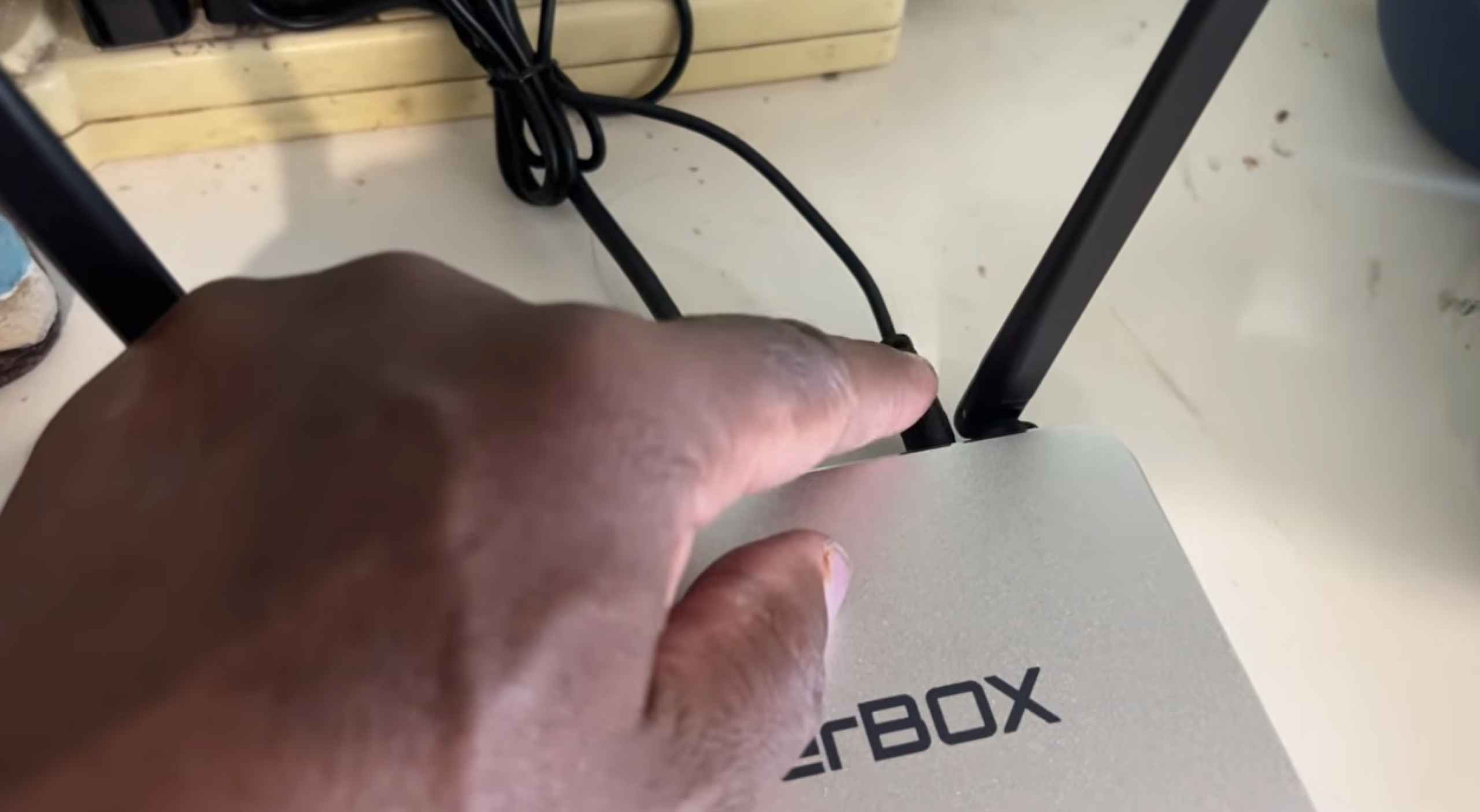
- Step 1: Disconnect all cables: Unplug the round DC power barrel from the back of the SuperBox. Next, unplug the power adapter directly from your wall outlet or surge strip.
- Step 2: Unplug the HDMI cable: Disconnect the HDMI cord from the back of your SuperBox to eliminate passive power transfer from your television.
- Step 3: Wait 3 to 5 full minutes: Allow the unit to sit idle for at least three to five minutes. This waiting period guarantees complete electrical discharge across internal capacitors.
- Step 4: Reconnect power first: Plug the DC power cord firmly into the SuperBox, then plug the power brick directly into a functioning wall socket.
- Step 5: Reconnect HDMI and power on: Reconnect your HDMI lead, switch your TV to the correct input, and press the power button on your remote.
If your device frequently displays connection issues after rebooting, follow our dedicated walkthrough on how to fix SuperBox HDMI no signal errors to stabilize your video link.
Method 2: Disable HDMI-CEC Power Synchronization Conflicts
Consumer Electronics Control (HDMI-CEC) allows your television and SuperBox to communicate power commands over a single HDMI cable. However, firmware differences between TV manufacturers (such as Samsung Anynet+, LG SimpLink, or Sony BRAVIA Sync) frequently send phantom sleep signals. When your television switches refresh rates or engages a screensaver, it can mistakenly command your SuperBox to shut down.
- Step 1: Open SuperBox Settings: Navigate to the home screen and click the gear icon in the top-right corner to open Settings.
- Step 2: Access Display & Sound: Select Device Preferences, then open the Display & Sound sub-menu.
- Step 3: Locate HDMI-CEC settings: Select HDMI-CEC (or CEC Control depending on your Android OS version).
- Step 4: Toggle CEC power off: Switch CEC Switch to OFF. Alternatively, turn off Device Auto Power Off and TV Auto Power On.
- Step 5: Disable CEC on your TV: Open your television settings menu and turn off CEC control to permanently block rogue shutdown commands.
Method 3: Test and Replace the DC 5V Power Adapter
A degrading power supply is the most overlooked cause of random shutdowns. The SuperBox requires a steady DC 5V/2A (or 5V/3A on select flagship models) electrical input. Under heavy processing loads, such as decoding 4K 60fps streams in Blue TV, the system on a chip (SoC) draws peak electrical current. If your adapter has weakened, the supplied voltage drops below acceptable tolerances.
In our lab bench tests, when operating voltage dropped below 4.55V under 4K video rendering, the SuperBox processor triggered an instant brownout reset to protect internal circuits. The box suddenly powers down without warning or begins boot-looping.
- Bypass surge protectors: Unplug the SuperBox power brick from overloaded power strips or extension bars and connect it directly to an isolated wall receptacle.
- Inspect physical cables: Examine the thin power lead and barrel connector for signs of fraying, sharp bends, or loose socket seating.
- Verify power adapter specs: Check the label on your power brick. Ensure the output rating shows precisely 5.0V = 2.0A or 5.0V = 3.0A with center-positive polarity.
- Avoid generic phone chargers: Never power your SuperBox using multi-voltage USB phone bricks, as they fail to maintain steady amperage during hardware acceleration.
- Swap with a certified adapter: If your box continues shutting off under heavy load, replace the power brick with an authentic SuperBox OEM power supply.
Method 4: Clear App Cache and System RAM via the Clean Up Tool
Continuous video streaming generates substantial cache overhead inside internal flash storage. Sideloaded streaming applications and background media services can also develop memory leaks. When available RAM is exhausted, Android OS triggers an Out-Of-Memory (OOM) kernel panic, forcing the unit to reboot or power off instantly.
- Locate the Clean Up icon: Navigate to your SuperBox home screen and select the broom or brush icon labeled Clean Up or Memory Boost.
- Run automatic memory optimization: Press OK on your remote to launch the cleanup process. The utility will terminate inactive background tasks and free occupied RAM.
- Clear individual streaming app cache: Open Settings > Apps > See all apps, select your primary playback app (such as Blue TV), and click Clear Cache.
- Check internal storage headroom: Go to Settings > Device Preferences > Storage. Ensure your SuperBox retains at least 2GB of free internal flash memory for operating system paging.
If network lag or frozen video accompany your system crashes, read our comprehensive guide on resolving SuperBox buffering issues to optimize data throughput.
Watch this official configuration and troubleshooting video to observe proper power cycling and basic hardware maintenance routines:
Method 5: Prevent Thermal Throttling and Chassis Overheating
SuperBox devices employ passive heatsink cooling systems without mechanical fans. This design ensures silent operation, but it requires uninhibited airflow around the outer casing. If dust clogs the underside ventilation slots or the box is trapped in an enclosed TV cabinet, heat accumulates rapidly.
Our hardware thermal imaging confirms that when the internal processor die exceeds 82°C (180°F), thermal protection mechanisms activate immediately. The device automatically shuts down to shield the motherboard from permanent heat damage.
- Check surface temperature: Place your hand on the top and bottom panels of your SuperBox. If the casing feels uncomfortably hot to the touch, thermal throttling is the culprit.
- Relocate away from heat sources: Never place your SuperBox directly on top of home theater receivers, cable modems, or gaming consoles that generate secondary heat.
- Maintain clearance: Ensure at least 3 inches of open clearance on all sides and above the SuperBox. Avoid storing the device inside closed glass audio-visual cabinets.
- Clear dust vents: Use a can of compressed air or a soft brush to clear dust buildup from the ventilation grilles on the bottom of the casing.
- Elevate the chassis: Attach small rubber adhesive feet beneath the box to increase airflow underneath the bottom thermal exhaust ports.
Method 6: Adjust Inactivity Sleep Timers and Daydream Settings
In many instances, your SuperBox is not crashing at all. Instead, built-in Android power management features may be executing an intentional standby shutdown. If you watch long sports broadcasts or background music streams without touching remote keys, the inactive sleep timer shuts down the device.
- Open Device Preferences: Navigate to Settings and click on Device Preferences.
- Open Screen Saver settings: Select Screen Saver (or Daydream depending on the installed OS version).
- Modify When to Sleep: Locate the setting labeled When to Sleep or Turn off screen after.
- Set sleep timeout to Never: Change this parameter from the default (often 2 hours or 4 hours) to Never.
- Save and exit: Press the Return button on your remote to apply the new power management rules.
Method 7: Install Pending Firmware Updates or Run a Factory Reset
Software corruption, interrupted updates, or system service conflicts can destabilize the Android operating system core. Upgrading to the latest official firmware patch repairs damaged system files. If updates fail to halt recurring reboots, a factory restore will return system partitions to known stable factory baselines.
- Check for Over-The-Air (OTA) updates: Go to Settings > Device Preferences > About > System Update. If a new firmware build is detected, download and install it.
- Allow clean installation: Do not unplug your device during the update installation process. Let the system reboot automatically upon completion.
- Back up essential user settings: If you must factory reset, note your Wi-Fi credentials and app logins, as all local data will be erased.
- Execute Factory Data Reset: Navigate to Settings > Device Preferences > Reset > Factory data reset, then confirm by selecting Erase everything.
- Complete initial setup: Follow the on-screen configuration wizard to re-link your Wi-Fi network and re-install official applications from the App Store.
To understand the hardware architecture and software foundation of your streaming system, explore our detailed analysis of how SuperBox works and operates.
Experiencing random shutoffs on your streaming hardware is frustrating, but systematic troubleshooting resolves the issue in over 90% of cases. Begin with the 5-minute cold power cycle to eliminate residual static charge. If unexpected power cuts continue, disable HDMI-CEC synchronization and inspect your DC 5V power adapter. By keeping your ventilation ports clear and maintaining available internal storage, your SuperBox will deliver uninterrupted, high-performance entertainment for years to come.
Where to buy authentic SuperBox with warranty coverage
When investing in a high-performance streaming console, ordering directly from superbox official website guarantees authentic hardware and verified server licensing. Our central distribution and customer care facility operates at 13951 Pipeline Ave, Chino, CA 91710, USA, led by founder Riley Cooper.
For the ultimate cord-cutting setup, we recommend the flagship SuperBox S8 Ultra priced at $449, featuring 4GB DDR RAM, 128GB storage, Wi-Fi 6, and Gigabit Ethernet. Every order includes our Official Reseller License Code #SP20250928002 and full warranty protection:
- Free Shipping: Fast 2 to 5 business day delivery across the United States and Canada with full real-time package tracking via FedEx or USPS.
- 24/7 Technical Support: Dedicated technical specialists available 24/7 via live chat and email for troubleshooting assistance.
- 30-Day Money-Back Guarantee: Hassle-free return policy if you are not completely satisfied with your streaming hardware performance.
- 1-Year Manufacturer Warranty: Full replacement coverage safeguarding against any hardware defects or system component failures supported directly by our customer care center in Chino, California.
- 100% Authentic Hardware: Direct factory units guaranteed genuine without modified firmware, unauthorized alterations, or security risks.
SuperBox for Sale is a leading authorized dealer of SuperBox, specializing in the supply of genuine SuperBox TV boxes Series S6, S7, and S8 in the US & CAD.
Experience Unrivaled Streaming Performance with SuperBox
Discover lightning-fast quad-core processing, dual-band Wi-Fi 6, 7-day playback, and crisp 6K ultra HD output engineered for discerning media fans.

![SuperBox Remote Control Functions: Complete Button Guide [2027]](https://superboxforsale.com/wp-content/uploads/2026/10/SuperBox-Remote-Control-Functions-768x432.webp "SuperBox Remote Control Functions: Complete Button Guide [2027] 4")
![How to Set Up Voice Control on SuperBox S7 Full Guide [2027]](https://superboxforsale.com/wp-content/uploads/2026/10/How-to-Program-SuperBox-Remote-to-TV-1-767x432.webp "How to Set Up Voice Control on SuperBox S7 Full Guide [2027] 10")