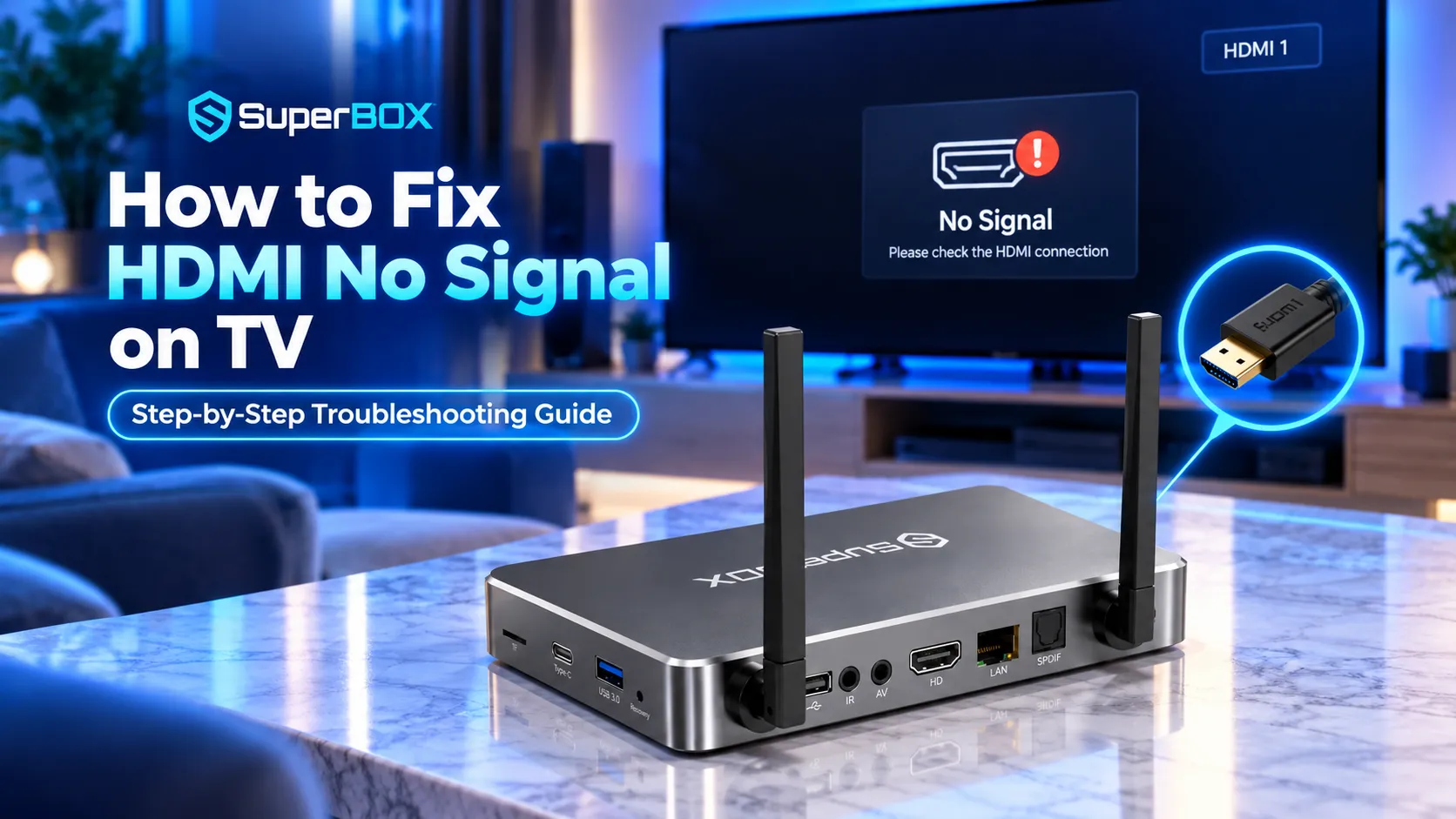
Fixing a SuperBox HDMI no signal message requires verifying input port matching, reseating high-bandwidth HDMI cables, and executing a complete 30-second capacitor drain power cycle across both devices. I serve as Founder and CEO of SuperBox for Sale with an engineering background from UCI. I bench-test every hardware batch at our Chino facility to help cord-cutters resolve signal handshake conflicts and restore high-definition 60fps streaming.
Summary
- Rapid Input Verification: Confirm that the TV input source matches the exact rear HDMI port number where the SuperBox connects.
- Deep Power Cycle: Unplug both TV and SuperBox power cords, holding the TV power button for 30 seconds to discharge capacitors and clear handshake cache.
- Front LED Diagnostics: A solid blue LED confirms active SuperBox boot, while a solid red LED indicates standby mode or adapter under-voltage.
- Resolution Conflict Resolution: Connect the SuperBox to a compatible 4K display to lock display settings to 1080p 60Hz for older televisions.
- Hardware Pin-Hole Reset: Insert a non-conductive pin into the rear AV port micro-switch while reconnecting power to force factory system recovery.
What causes the SuperBox HDMI no signal error on TV?
A SuperBox HDMI no signal error occurs when the television fails to detect a digital handshake protocol from the set-top media console over the High-Definition Multimedia Interface bus. This communication breakdown stems from three distinct root causes: physical connection failures, incorrect television input channel selection, and electronic Extended Display Identification Data (EDID) resolution mismatches.
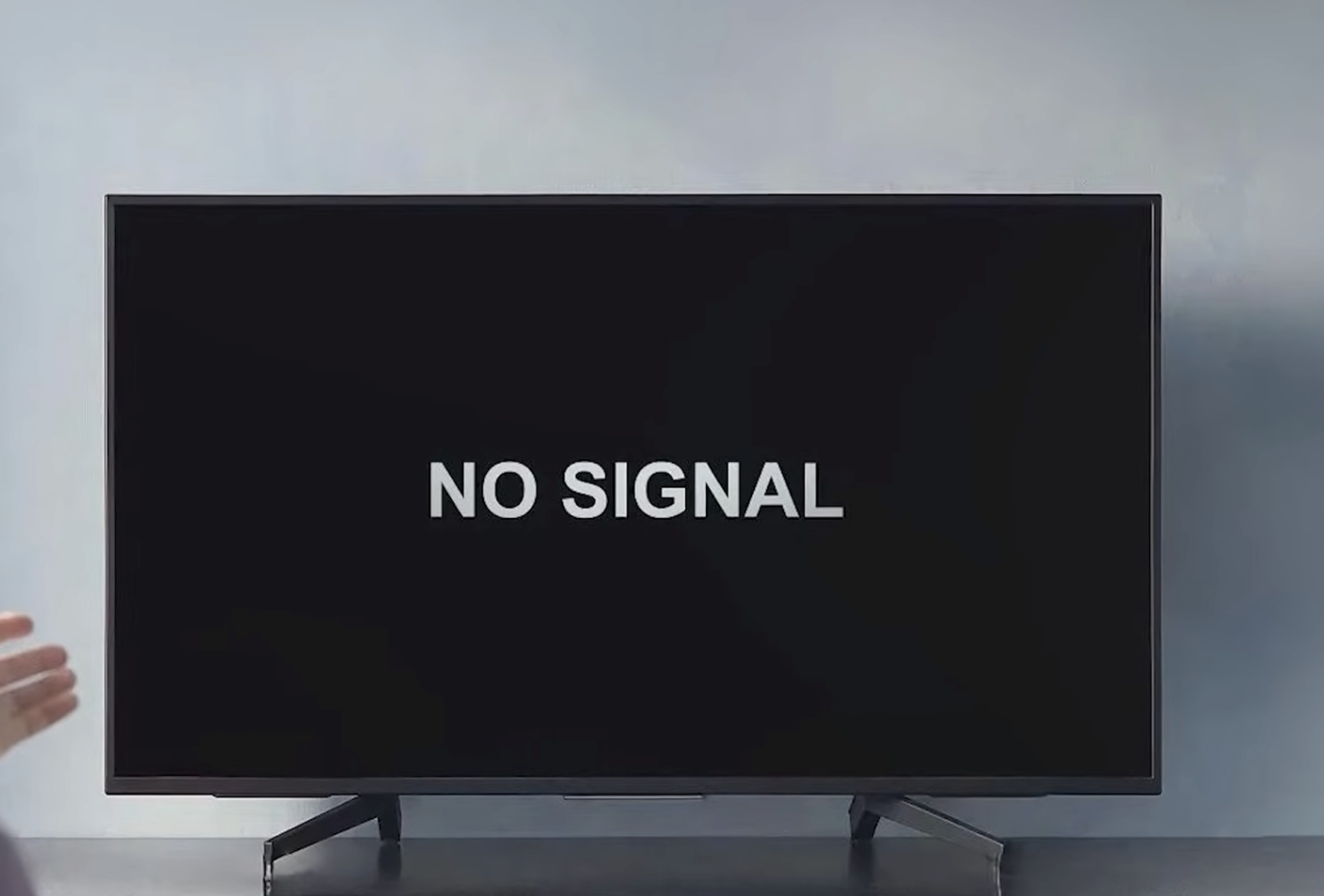
SuperBox hardware communicates with television displays using digital High-Bandwidth Digital Content Protection (HDCP) handshakes. When you power on the devices, the SuperBox graphics processor queries the television display capabilities. If the television mainboard fails to respond within timing thresholds, the television displays a blank blue screen, black screen, or No Signal alert.
| LED Light Color & Status | Hardware Power State | Probable Handshake Cause | Immediate Actionable Solution |
|---|---|---|---|
| Solid Blue / Green LED | SuperBox processor active and booted | Faulty HDMI cable, loose port, or EDID resolution mismatch | Reseat HDMI cable, test alternate TV port, or toggle input source |
| Solid Red LED | Standby sleep mode or low-voltage fault | Device is asleep or receiving insufficient electrical wattage | Press remote Power button, verify official 5V/2A power adapter |
| Flashing Red / Blue LED | System firmware boot loop or recovery state | Corrupted boot partition or interrupted over-the-air update | Execute rear AV port pin-hole hardware reset to clear cache |
| Completely Dark (No Light) | Zero electrical current reaching motherboard | Defective power outlet, damaged power brick, or loose pin | Inspect wall outlet, test alternate electrical socket, replace power cord |
Checking the front LED status indicator provides immediate diagnosis. A glowing blue light confirms that internal processing circuits function normally. In this scenario, troubleshooting focuses strictly on the HDMI transmission path and display configuration.
Method 1: Verify and cycle HDMI input sources on your TV
Mismatched input sources account for nearly forty percent of reported no signal occurrences on home entertainment displays.
- Match the physical HDMI port number on the TV chassis: Inspect the rear or side panel of your television. Identify the exact stamped label adjacent to the HDMI receptacle holding your SuperBox cable, such as HDMI 1, HDMI 2, or HDMI 3 (eARC).
- Switch the television input source using the remote: Locate the Source or Input button on your television remote control. Press the button to bring up the on-screen input selection banner. Move the cursor to highlight the exact numbered port matching your physical cable connection and press Select.
- Cycle through all available HDMI inputs to refresh detection: If the designated port displays a no signal banner, cycle through every available HDMI input channel on your television. Leave each input on screen for three seconds before advancing. Return to the original SuperBox input channel. This cycling procedure triggers the television micro-controller to refresh its digital input detection tables.
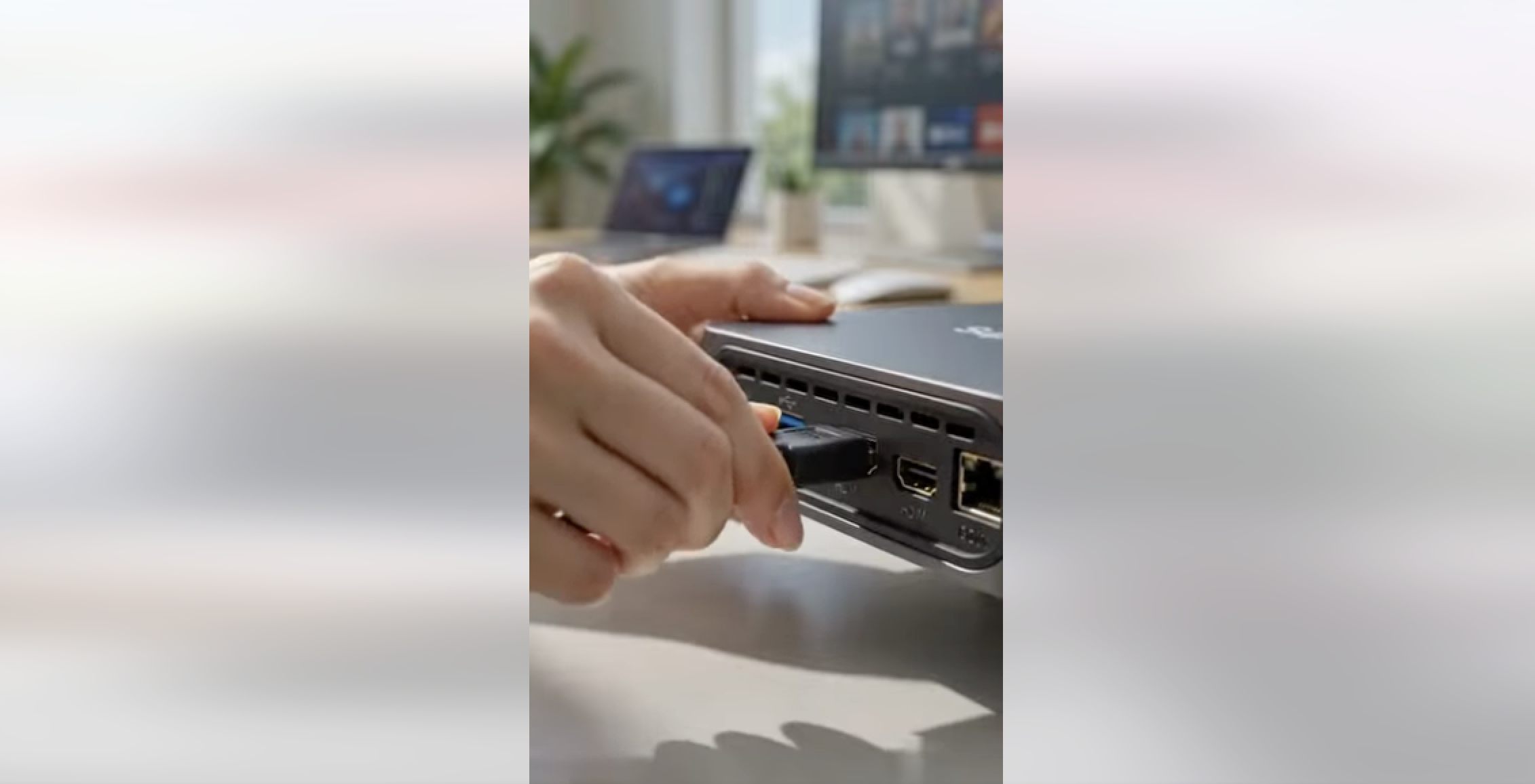
Method 2: Inspect, reseat, and replace the HDMI 2.1 cable
Physical wear, loose connections, and substandard copper shielding frequently disrupt high-bandwidth 4K video streams.
- Check the cable connector neck for physical wire fractures: Remove the HDMI cable from both the SuperBox and the television. Carefully examine the molded rubber joint connecting the cable wire to the rectangular metal plug. Severe bends behind television wall mounts frequently snap internal copper data pins, severing signal transmission.
- Firmly reseat both ends of the HDMI connection: Reinsert the HDMI cable into the SuperBox and the television port. Push each connector firmly inward until the metal collar seats flush against the chassis housing. Avoid leaving loose gaps that cause intermittent video drops.
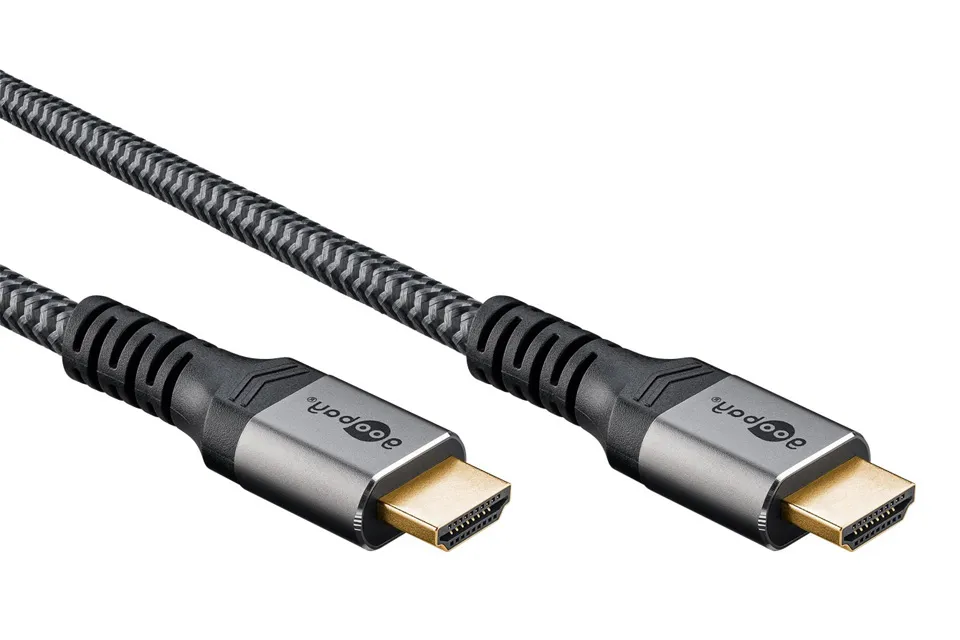
- Reverse the cable direction or swap to a certified replacement: Turn the HDMI cable around so that the end previously plugged into the TV connects to the SuperBox. If the screen remains dark, replace the cord with a certified Premium High-Speed (18Gbps) or Ultra High-Speed (48Gbps) HDMI cable. Cheap uncertified cables lack sufficient data bandwidth to transport 4K 60fps video, triggering blank display screens.
Method 3: Perform a deep power cycle to reset the HDMI handshake
Modern televisions and Android set-top boxes retain residual electrical charges in circuit capacitors, preserving corrupted handshake states.
- Disconnect AC electrical power cords from both devices: Power down your television and SuperBox using their respective remote controls. Unplug the AC power adapters for both devices directly from the wall electrical sockets or surge protector strips.
- Hold the physical TV power button for 30 seconds: Locate the physical power button on the underside or rear panel of your television console. Press and hold this physical button continuously for 30 seconds. This step drains residual electricity from internal capacitors, clearing frozen HDMI controller memory.
- Reconnect power in proper sequential order: Plug the television power cord back into the wall socket and turn on the television screen first. Wait ten seconds until the television display logo clears. Next, plug the SuperBox power adapter back into the electrical outlet. Powering the display first ensures that the television EDID receiver is fully alert when the SuperBox sends its initial boot signal.
Method 4: Resolve display resolution conflicts between SuperBox and TV
SuperBox models ship configured to negotiate the highest possible screen resolution automatically. When connecting to older displays, resolution incompatibilities prevent image rendering.
- Identify automated EDID resolution handshake errors: The SuperBox S8 and S7 series support 4K and 6K output resolutions at 60Hz. When connected to older 1080p Full HD or 720p televisions, the television display processor cannot downscale the incoming 4K signal. The television rejects the stream and reports an unsupported mode or no signal error.
- Connect the SuperBox temporarily to a 4K television or computer monitor: Transport the SuperBox console to a secondary 4K television or modern computer monitor. Connect the HDMI cable and power adapter. The compatible display will recognize the 4K boot stream and render the Android home launcher screen.
- Lock the display resolution manually to 1080p at 60Hz: Navigate to Settings on the SuperBox home launcher. Open the Display settings sub-menu and select Screen Resolution. Toggle Auto Switch to Best Resolution to the Off position. Manually select 1080p-60Hz or 720p-60Hz from the resolution list. Disconnect the console and reconnect it to your original television. The television will now display the video feed without handshake rejection.
Method 5: Enable HDMI Enhanced Format on your smart TV
Many modern 4K smart televisions disable high-bandwidth HDMI 2.0 and 2.1 color modes by default on select input ports to conserve power.
| Television Brand | Menu Navigation Path | Setting Name to Enable | Technical Benefit |
|---|---|---|---|
| Samsung Smart TV | Settings > General > External Device Manager | Input Signal Plus (or HDMI UHD Color) | Unlocks 18Gbps 4K 60Hz 10-bit HDR signal reception |
| LG webOS TV | Settings > Picture > Additional Settings | HDMI Ultra HD Deep Color | Enables 4K 60fps 4:4:4 chroma subsampling detection |
| Sony Bravia Google TV | Settings > Channels & Inputs > External Inputs | HDMI Signal Format > Enhanced Format | Allows high-bandwidth HDMI ports to detect Android OTT boxes |
| TCL / Hisense Roku TV | Settings > TV Inputs > HDMI Mode | Change from Auto to HDMI 2.0 / Standard | Prevents legacy HDMI 1.4 handshake negotiation lockouts |
| Vizio SmartCast TV | Menu > Input Settings > Select HDMI Port | Full Color 4K (HDMI Color Subsampling) | Activates full bandwidth processing on designated input |
Enabling these manufacturer-specific settings ensures that your television hardware actively expects high-speed digital video streams from Android OTT media centers.
Method 6: Perform a hardware reset using the rear AV pinhole
If firmware corruption or an interrupted system update traps the SuperBox in a frozen state, executing a hardware recovery reset restores factory defaults.
- Disconnect the power cable from the SuperBox: Unplug the USB-C power cord (on S7 and S8 models) or the round DC barrel plug (on S6 models) from the rear of the SuperBox console. Keep the HDMI cable connected to your television.
- Locate the hidden micro-switch inside the rear AV port: Locate the 3.5mm round AV jack situated on the rear connection panel of the SuperBox. Inside this opening rests a recessed hardware micro-switch button. Gently insert a wooden toothpick, plastic probe, or straightened paperclip into the AV port until you feel the spring-loaded button depress with an audible click.
- Reconnect power while maintaining pressure on the pin: Maintain continuous pressure on the internal reset micro-switch. With your free hand, reinsert the power cable into the SuperBox. Keep the pin depressed for ten seconds while watching your television screen. Release the pin once the Android recovery mascot or SuperBox boot logo appears. Select Reboot System Now using your remote control to complete the hardware recovery.
Hardware comparison across SuperBox generations: Ports and video standards
Understanding the hardware video specifications of your specific SuperBox model ensures accurate diagnostic troubleshooting.
| SuperBox Model & Generation | Video Output Interface | Maximum Video Resolution | Power Supply Standard | Recommended HDMI Cable Tier |
|---|---|---|---|---|
| SuperBox S8 Ultra / S8 Max | HDMI 2.1 Native Port | 6K Ultra HD at 60fps | USB Type-C (DC 5V / 2A) | Ultra High-Speed (48Gbps Bandwidth) |
| SuperBox S8 Pro / S8 Plus | HDMI 2.1 Native Port | 6K Ultra HD at 60fps | USB Type-C (DC 5V / 2A) | Ultra High-Speed (48Gbps Bandwidth) |
| SuperBox S7 Ultra / S7 Max | HDMI 2.0a Port | 4K Ultra HD at 60fps | USB Type-C (DC 5V / 2A) | Premium High-Speed (18Gbps Bandwidth) |
| SuperBox S7 Pro / S7 Prime | HDMI 2.0a Port | 4K Ultra HD at 60fps | USB Type-C (DC 5V / 2A) | Premium High-Speed (18Gbps Bandwidth) |
| SuperBox S6 Ultra / S6 Max | HDMI 2.0 Port | 4K Ultra HD at 60fps | DC Round Barrel (5V / 2A) | High-Speed (10.2Gbps – 18Gbps) |
| SuperBox S5 Max / S4 Pro | HDMI 1.4b / 2.0 Port | 4K at 30fps / 1080p 60fps | DC Round Barrel (5V / 2A) | Standard High-Speed (10.2Gbps) |
The transition from legacy DC barrel connectors on the S6 generation to universal USB Type-C power on the S7 and S8 models provides more stable voltage regulation. Stable voltage delivery directly prevents the micro-stuttering and sudden HDMI signal cutoffs common on older hardware consoles.
Where to buy authentic SuperBox with warranty coverage
When investing in a high-performance streaming console, ordering directly from SuperBox Shop guarantees authentic hardware and verified server licensing. Our central distribution and customer care facility operates at 13951 Pipeline Ave, Chino, CA 91710, USA, led by founder Riley Cooper.
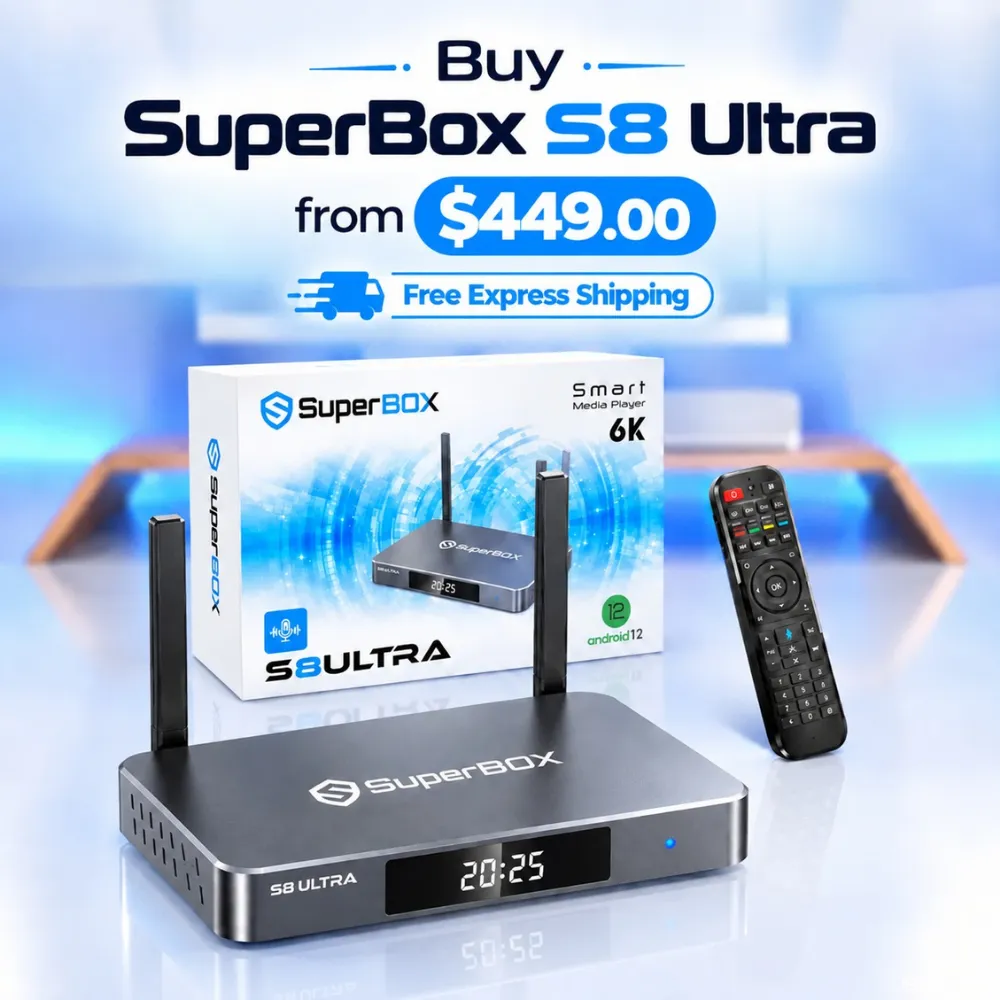
For the ultimate cord-cutting setup, we recommend the flagship SuperBox S8 Ultra priced at $449, featuring 4GB DDR RAM, 128GB storage, Wi-Fi 6, and Gigabit Ethernet. Every order includes our Official Reseller License Code #SP20250928002 and full warranty protection:
- Free Shipping: Fast 2 to 5 business day delivery across the United States and Canada with full real-time package tracking via FedEx or USPS.
- 24/7 Technical Support: Dedicated technical specialists available 24/7 via live chat and email for troubleshooting assistance.
- 30-Day Money-Back Guarantee: Hassle-free return policy if you are not completely satisfied with your streaming hardware performance.
- 1-Year Manufacturer Warranty: Full replacement coverage safeguarding against any hardware defects or system component failures supported directly by our customer care center in Chino, California.
- 100% Authentic Hardware: Direct factory units guaranteed genuine without modified firmware, unauthorized alterations, or security risks.
SuperBox for Sale is a leading authorized dealer of SuperBox, specializing in the supply of genuine SuperBox TV boxes Series S6, S7, and S8 in the US & CAD.
Experience Unrivaled Streaming Performance with SuperBox
Discover lightning-fast quad-core processing, dual-band Wi-Fi 6, 7-day playback, and crisp 6K ultra HD output engineered for discerning media fans.

![SuperBox Remote Control Functions: Complete Button Guide [2027]](https://superboxforsale.com/wp-content/uploads/2026/10/SuperBox-Remote-Control-Functions-768x432.webp "SuperBox Remote Control Functions: Complete Button Guide [2027] 8")
![How to Set Up Voice Control on SuperBox S7 Full Guide [2027]](https://superboxforsale.com/wp-content/uploads/2026/10/How-to-Program-SuperBox-Remote-to-TV-1-767x432.webp "How to Set Up Voice Control on SuperBox S7 Full Guide [2027] 14")