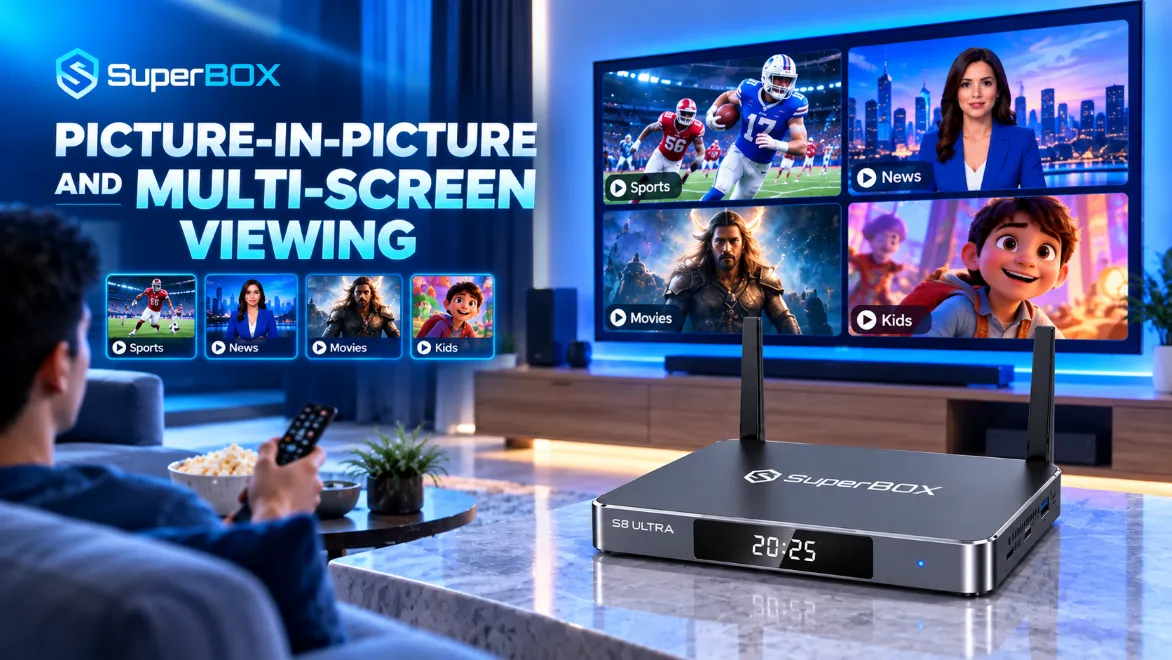
Live sports weekends often present an impossible dilemma when multiple playoff games or kickoff matches broadcast at the exact same hour. If you want to know how to use multi-screen on SuperBox, modern consoles like the flagship SuperBox S8 Series (including the S8 Ultra, S8 Max, S8 Plus, and S8 Pro) feature built-in Multi-View and PiP split-screen capability. At SuperBox For Sale, our engineering team regularly tests multi-stream decoding performance during live game days. This feature lets you watch two or more live broadcasts side by side on one television display without purchasing secondary boxes. This step-by-step tutorial guides you through setting up multi-screen view, adding channels, and managing audio feeds effortlessly.
Summary
- Native Multi-View & PiP: The SuperBox S8 multi-screen feature allows viewers to watch multiple live sports channels simultaneously using split-screen or Picture-in-Picture.
- Prime Sports Integration: Access multi-screen mode directly within the official Prime Sports or updated Blue TV media applications.
- Add Games Easily: Navigate to each split window and click the plus icon to choose live broadcasts from the sports channel guide.
- Independent Audio Control: Switch active commentary audio simply by moving your remote control directional pad to highlight the preferred window.
- Bandwidth Requirements: Multi-streaming requires at least 50 Mbps of stable internet throughput, ideally using a 5GHz Wi-Fi or wired Ethernet connection.
Method 1: Setup Multi-Screen in Prime Sports (Step-by-Step)
The Prime Sports application offers the most responsive multi-screen engine on SuperBox devices. It supports instant channel switching and dedicated live sports categorization without complex configurations.
- Step 1: Open the App Store: From your SuperBox home launcher, open the native App Store application.
- Step 2: Install Prime Sports: Search for Prime Sports, select the application, and press Install to download the package.
- Step 3: Disable active VPN tunnels: If you use a third-party VPN, disconnect it before opening Prime Sports to prevent streaming server blocks.
- Step 4: Launch Prime Sports: Open the newly installed Prime Sports app and click on Live TV to pull the latest channel schedule.
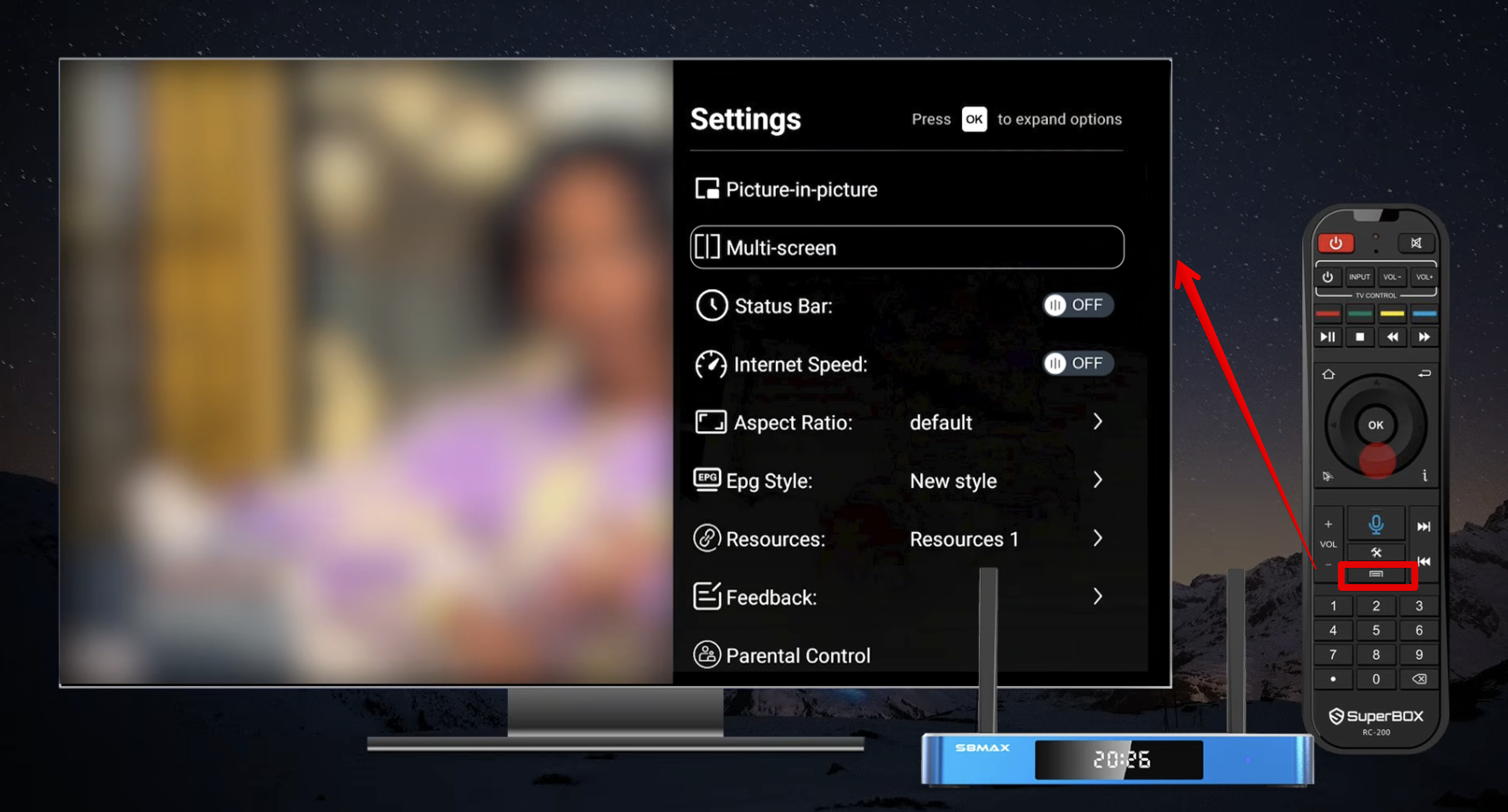
- Step 5: Select Multi-Screen: Scroll down the left-hand navigation menu and choose the Multi-Screen (or Split Screen) tab.
- Step 6: Add channel to Screen 1: Click the large + (Plus) icon in the first window, browse the sports guide, and select your first game.
- Step 7: Add channel to Screen 2: Use your remote arrow keys to highlight the second window, click the + button, and choose your second live broadcast.
Watch this video guide by Blaze Guides showing the complete split-screen setup process inside Prime Sports on a SuperBox:
To learn how to catch live football broadcasts across weekend networks, read our complete guide on how to watch NFL on SuperBox.
Method 2: Configure Multi-View Inside Blue TV
On flagship SuperBox hardware like the S8 Series, Blue TV incorporates a dedicated multi-view grid engine. This mode allows cord-cutters to monitor national news, regional weather, and sports events at the same time.
- Step 1: Open Blue TV: Launch the official Blue TV application from your home navigation bar.
- Step 2: Access live channel playback: Select any live channel to enter full-screen viewing mode.
- Step 3: Open the in-playback menu: Press the Menu button on your SuperBox remote control.
- Step 4: Select Multi-View: Navigate to the Multi-View icon in the on-screen options ribbon.
- Step 5: Select layout grid: Choose either 2-Screen Split or 4-Screen Quad Grid depending on your model capability.
- Step 6: Assign channel feeds: Select empty tiles to populate your preferred news or sports channels.
For a detailed breakdown of channel offerings and media servers, read our comprehensive overview of what Blue TV offers on SuperBox.
Where to buy authentic SuperBox with warranty coverage
When investing in a high-performance streaming console, ordering directly from SuperBox Store guarantees authentic hardware and verified server licensing. Our central distribution and customer care facility operates at 13951 Pipeline Ave, Chino, CA 91710, USA, led by founder Riley Cooper.
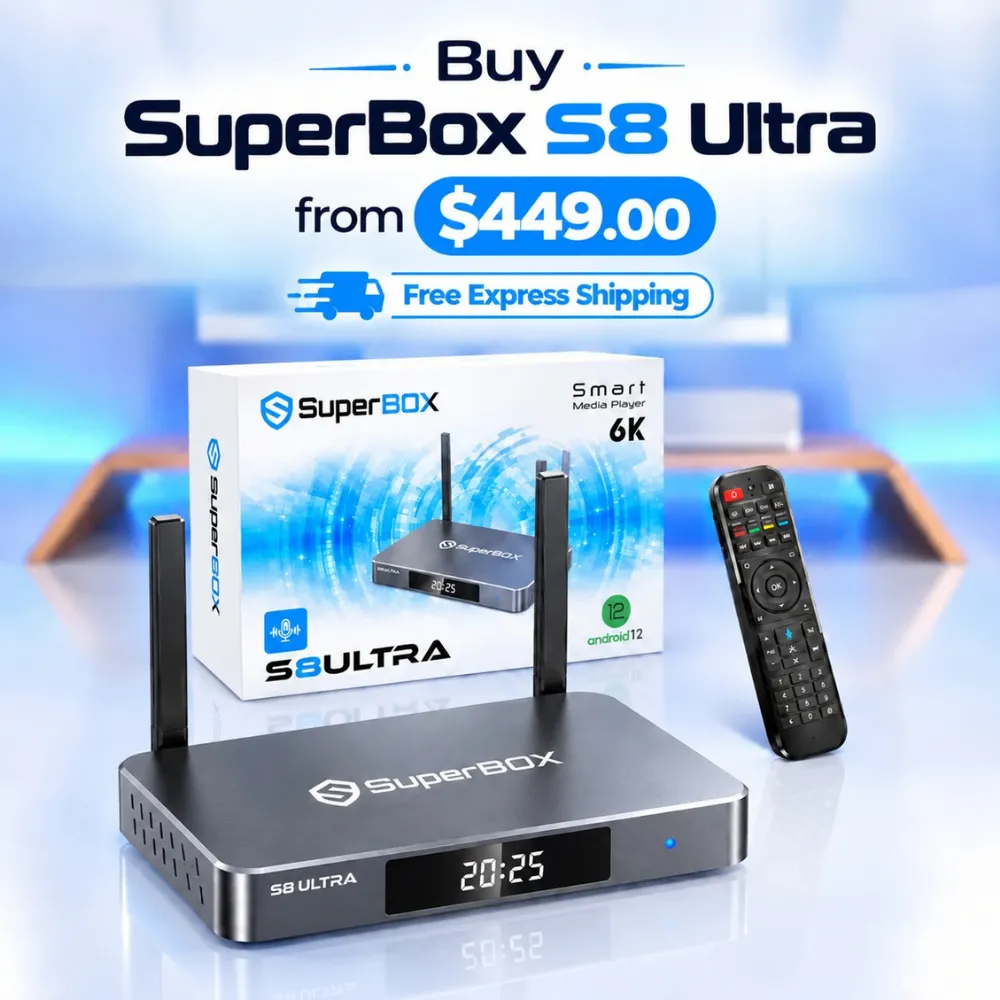
For the ultimate cord-cutting setup, we recommend the flagship SuperBox S8 Ultra priced at $449, featuring 4GB DDR RAM, 128GB storage, Wi-Fi 6, and Gigabit Ethernet. Every order includes our Official Reseller License Code #SP20250928002 and full warranty protection:
- Free Shipping: Fast 2 to 5 business day delivery across the United States and Canada with full real-time package tracking via FedEx or USPS.
- 24/7 Technical Support: Dedicated technical specialists available 24/7 via live chat and email for troubleshooting assistance.
- 30-Day Money-Back Guarantee: Hassle-free return policy if you are not completely satisfied with your streaming hardware performance.
- 1-Year Manufacturer Warranty: Full replacement coverage safeguarding against any hardware defects or system component failures supported directly by our customer care center in Chino, California.
- 100% Authentic Hardware: Direct factory units guaranteed genuine without modified firmware, unauthorized alterations, or security risks.
SuperBox for Sale is a leading authorized dealer of SuperBox, specializing in the supply of genuine SuperBox TV boxes Series S6, S7, and S8 in the US & CAD.
Experience Unrivaled Streaming Performance with SuperBox
Discover lightning-fast quad-core processing, dual-band Wi-Fi 6, 7-day playback, and crisp 6K ultra HD output engineered for discerning media fans.