

Missing the opening kickoff of a championship game or tuning in halfway through a breaking news broadcast is a common frustration for television viewers. If you want to know how to use time shift on SuperBox, modern units like the SuperBox S7 and S6 series feature an integrated seven-day cloud rewind engine. At SuperBox For Sale, our engineering team tests live streaming features across every firmware release. Unlike traditional DVR setups that require external USB hard drives, Time Shift operates entirely through remote cloud servers. This complete guide details how to activate Time Shift, master timeline controls, and navigate past broadcasts effortlessly.
Summary
- Instant Seven-Day Rewind: The SuperBox Time Shift feature allows viewers to rewind supported live channels up to seven days backwards.
- Left-Button Activation: While watching any supported channel in full-screen mode, press the Left arrow button on your remote to launch Time Shift.
- 30-Second Jumps: Tap the Left or Right remote arrow keys to jump thirty seconds per click, or hold down the button for rapid scrubbing.
- Channel Identification: Channels supporting Time Shift display a small white television icon beside the channel title in the electronic program guide.
- No External Storage Needed: Time Shift streams recorded broadcasts directly from SuperBox cloud edge servers without consuming internal flash storage.
Method 1: Activate Time Shift Mode on Live Channels
Launching Time Shift on your SuperBox requires only a single button press on your remote control. Ensure your device connects to high-speed internet before initiating cloud timeline playback.
- Step 1: Open Blue TV: Launch the official Blue TV application from your home navigation screen.
- Step 2: Tune to a supported network: Select any channel that supports Time Shift (such as major sports networks, national news, or prime movie feeds).
- Step 3: Enter full-screen view: Press OK on your remote control to hide the channel menu and expand the stream to full screen.
- Step 4: Press the Left arrow key: Tap the Left arrow button on your directional pad. The player enters Time Shift mode and jumps back three minutes.
- Step 5: View the timeline progress bar: Observe the on-screen timeline displaying the original broadcast timestamp, current playback position, and remaining show duration.
Watch this official video demonstration by SuperBOX TV showing how to use the Time Shift feature and configure parental controls on the S7 series:
Method 2: Identify Supported Time Shift Channels
While SuperBox delivers over 2,000+ live sports, news, and entertainment channels, Time Shift archives are prioritized for high-demand networks. You can locate supported channels quickly using two methods.
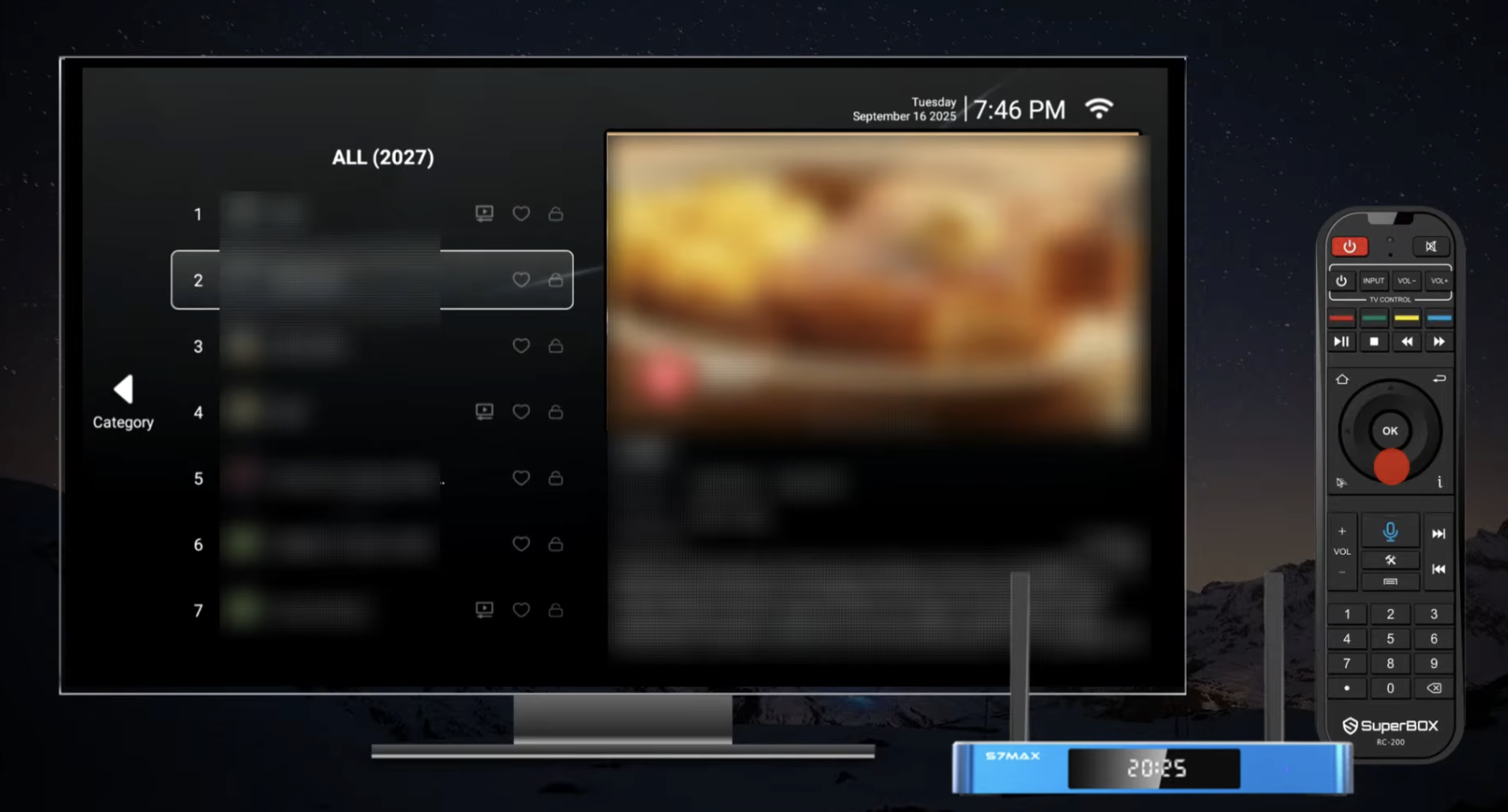
- Check for the white TV icon: Open the channel list by pressing OK. Channels supporting Time Shift display a small white television icon beside the title.
- Open the category sidebar: Press the Left arrow key while viewing the channel guide to slide out the master category drawer.
- Select the Time Shift category: Scroll down the list and click the dedicated Time Shift folder.
- Browse curated channels: Browse through over 100 dedicated networks that maintain rolling seven-day server recording buffers.
- Save to favorites: Highlight your preferred Time Shift channels and hold the OK button for three seconds to pin them to your Favorites folder.
To master general live broadcast navigation and remote shortcuts, read our complete guide on how to watch live TV on SuperBox.
Method 3: Master Timeline Playback and Scrubbing Controls
Navigating through seven days of archived television requires precise remote controls. SuperBox software provides multiple scrubbing speeds to help you pinpoint specific game plays or segments.
- Jump thirty seconds: Tap the Left or Right directional button once to skip backwards or forwards in thirty-second increments.
- Rapid fast-forward or rewind: Press and hold the Left or Right button to scrub rapidly across multi-hour broadcast blocks.
- Pause and resume playback: Press the central OK button to pause the video stream. Press OK again to resume playback smoothly.
- Change channels inside Time Shift: Use the Up and Down arrow keys on your remote to change channels while maintaining Time Shift mode.
- Return to the live broadcast: Press the Exit or Back/Return button on your remote control to immediately jump back to the live feed.
If you want to save sporting events permanently to a USB hard drive, explore our tutorial on how to record on SuperBox with DVR and Playback.
Method 4: Secure Time Shift Channels with Parental Controls
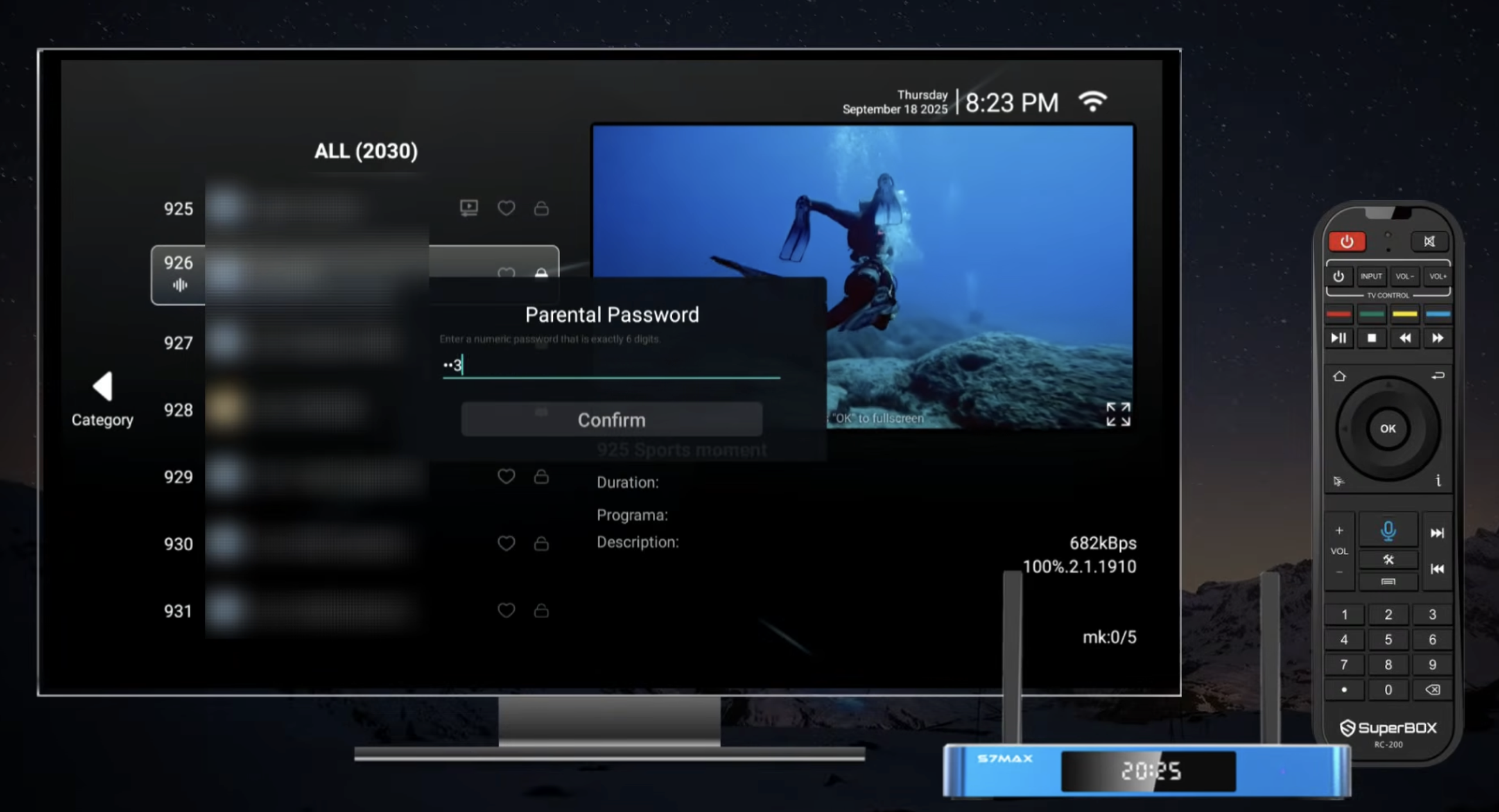
Because Time Shift allows viewers to rewind any broadcast from the past seven days, family households benefit from locking mature networks. SuperBox incorporates a robust parental lock system protected by a master PIN code.
- Open the Menu settings: While inside Blue TV, press the Menu button on your remote control.
- Access Parental Control: Scroll down the settings options and click on Parental Control.
- Create a secure PIN: Enter a 4-digit security password using your remote keypad and confirm the entry.
- Select channels to restrict: Navigate through the channel directory and long-press the OK button on any channel you want to lock.
- Confirm lock status: A padlock icon appears beside restricted channels. Future access requires entering your 4-digit master PIN.
To learn how to catch live sports broadcasts across weekend networks, read our complete guide on how to watch NFL on SuperBox.
The Time Shift feature on SuperBox revolutionizes how cord-cutters watch live television. By pressing the Left arrow button, you take complete control of your viewing schedule without setting up complex recording timers. Whether replaying game-winning goals or catching missed evening news, Time Shift ensures you never miss a moment.
Where to buy authentic SuperBox with warranty coverage
When investing in a high-performance streaming console, ordering directly from superbox website guarantees authentic hardware and verified server licensing. Our central distribution and customer care facility operates at 13951 Pipeline Ave, Chino, CA 91710, USA, led by founder Riley Cooper.
For the ultimate cord-cutting setup, we recommend the flagship SuperBox S8 Ultra priced at $449, featuring 4GB DDR RAM, 128GB storage, Wi-Fi 6, and Gigabit Ethernet. Every order includes our Official Reseller License Code #SP20250928002 and full warranty protection:
- Free Shipping: Fast 2 to 5 business day delivery across the United States and Canada with full real-time package tracking via FedEx or USPS.
- 24/7 Technical Support: Dedicated technical specialists available 24/7 via live chat and email for troubleshooting assistance.
- 30-Day Money-Back Guarantee: Hassle-free return policy if you are not completely satisfied with your streaming hardware performance.
- 1-Year Manufacturer Warranty: Full replacement coverage safeguarding against any hardware defects or system component failures supported directly by our customer care center in Chino, California.
- 100% Authentic Hardware: Direct factory units guaranteed genuine without modified firmware, unauthorized alterations, or security risks.
SuperBox for Sale is a leading authorized dealer of SuperBox, specializing in the supply of genuine SuperBox TV boxes Series S6, S7, and S8 in the US & CAD.
Experience Unrivaled Streaming Performance with SuperBox
Discover lightning-fast quad-core processing, dual-band Wi-Fi 6, 7-day playback, and crisp 6K ultra HD output engineered for discerning media fans.

![SuperBox Remote Control Functions: Complete Button Guide [2027]](https://superboxforsale.com/wp-content/uploads/2026/10/SuperBox-Remote-Control-Functions-768x432.webp "SuperBox Remote Control Functions: Complete Button Guide [2027] 8")
![How to Set Up Voice Control on SuperBox S7 Full Guide [2027]](https://superboxforsale.com/wp-content/uploads/2026/10/How-to-Program-SuperBox-Remote-to-TV-1-767x432.webp "How to Set Up Voice Control on SuperBox S7 Full Guide [2027] 14")