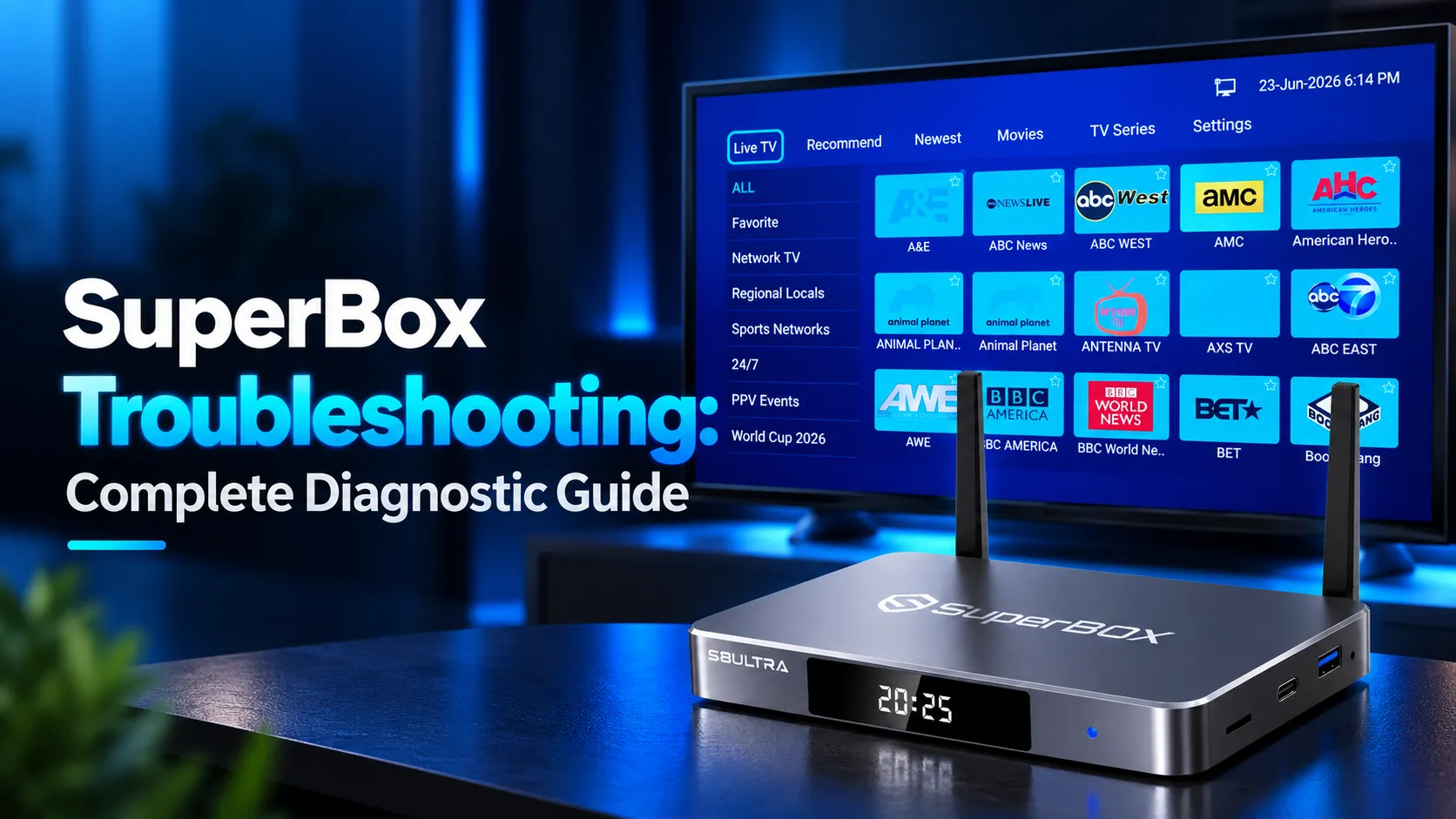
SuperBox troubleshooting follows a structured 5-tier diagnostic sequence. Start by clearing application cache, power cycling for 60 seconds, and verifying network clock sync. Next, update apps via the App Store or enter remote recovery codes. Troubleshooting systematically restores live streaming without unnecessary factory wipes.
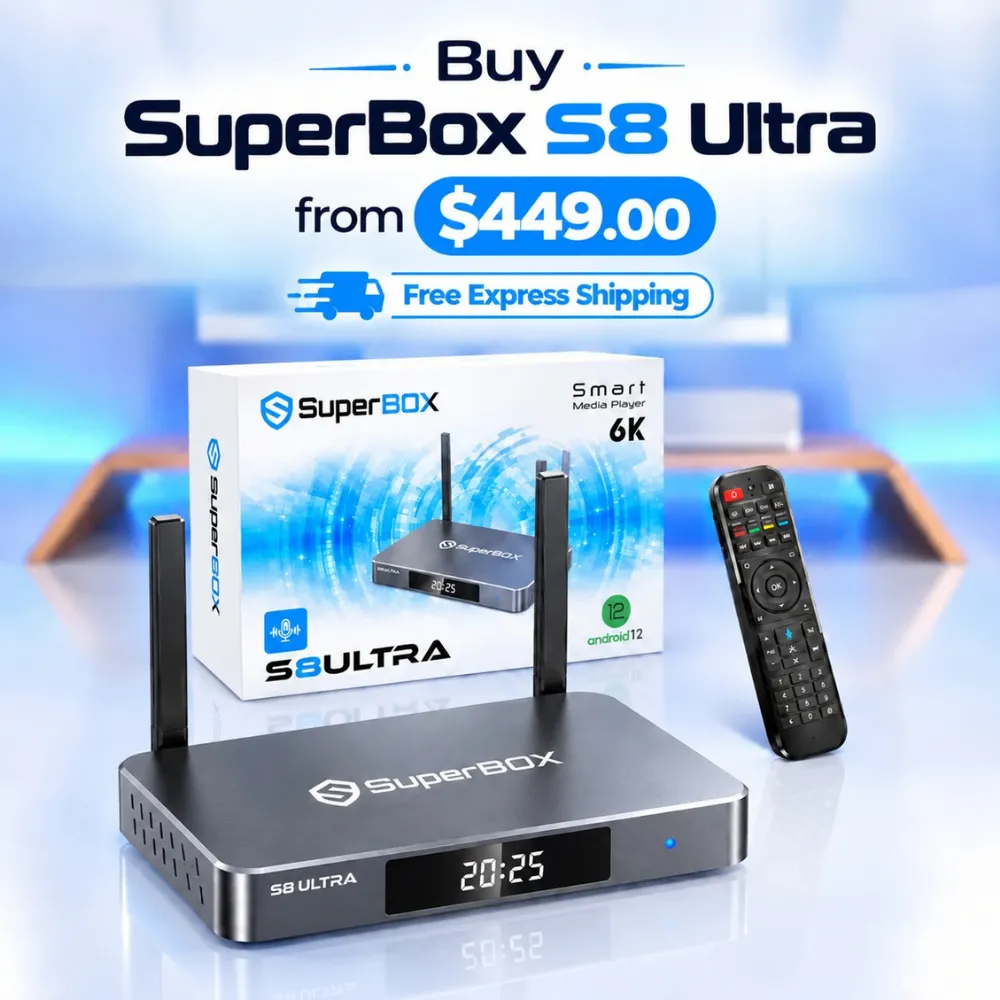
Most operating glitches stem from accumulated stream fragments, Wi-Fi radio jitter, or processor thermal throttling. Streamers seeking permanent stability can explore the flagship SuperBox S8 Ultra priced at $449. This model provides 128GB of high-speed eMMC storage, 4GB DDR RAM, and an aluminum unibody chassis that completely prevents hardware bottlenecks.
Quick Takeaways & Key Highlights
- 5-Tier Diagnostic Order: Progressing from cache cleaning to hardware power cycles resolves 95% of issues.
- App Crash Quick Fix: Clearing Blue TV cache or opening Backup TV restores live viewing instantly.
- Network Optimization: Setting Google DNS 8.8.8.8 and auto clock sync eliminates false offline errors.
- Remote Rescue Code: Entering .00000 on the infrared number pad recovers consoles from boot loops.
- Flagship Hardware Upgrade: Upgrading to 128GB internal storage permanently prevents memory crashes.
Comprehensive troubleshooting matrix for SuperBox consoles
SuperBox devices integrate custom Android software with cloud-based streaming infrastructure. Matching your observed symptom to its root cause eliminates guesswork and protects your saved channel configurations.
Review this technical diagnostic table before adjusting settings on your streaming box:
| Operational Problem Area | Observed Diagnostic Symptom | Primary Root Cause | Recommended Corrective Action |
|---|---|---|---|
| Live Video Playback | Channel freezing or loading stuck at 98% | Fragmented video buffer chunks | Clear Blue TV cache or switch to Backup TV app |
| Television Display | Black screen or no signal alert on TV | HDMI handshake sync failure | Execute synchronized 60-second cold power drain |
| Network Connectivity | Connected to Wi-Fi but apps report no internet | System clock desynchronization | Enable automatic network time in settings |
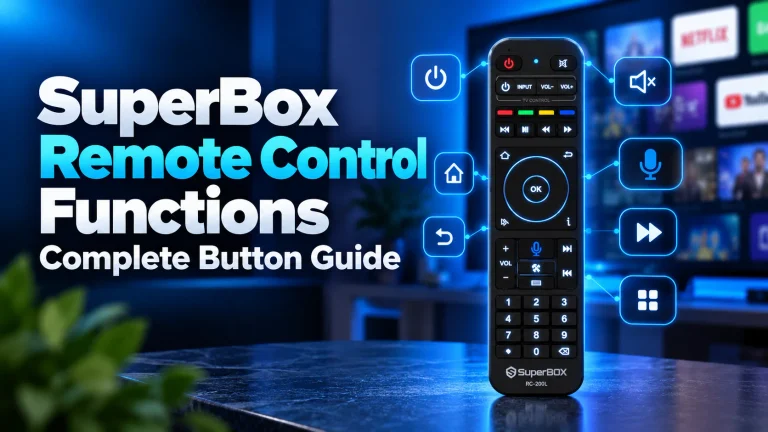
| Remote Navigation | Voice button unresponsive or cursor missing | Bluetooth unpairing or low batteries | Hold OK and Back for 5 seconds to re-pair |
| Operating System | Stuck on SuperBox boot logo animation | Corrupted user data partition | Type emergency remote shortcut (.00000) |
Follow the structured troubleshooting tiers below to resolve each category of operating faults.
Tier 1: Resolving video buffering and playback freezing
High-bitrate live television and 4K video-on-demand streams fill local memory buffers continuously. When video stalls or stutters during major events, software adjustments restore playback immediately.
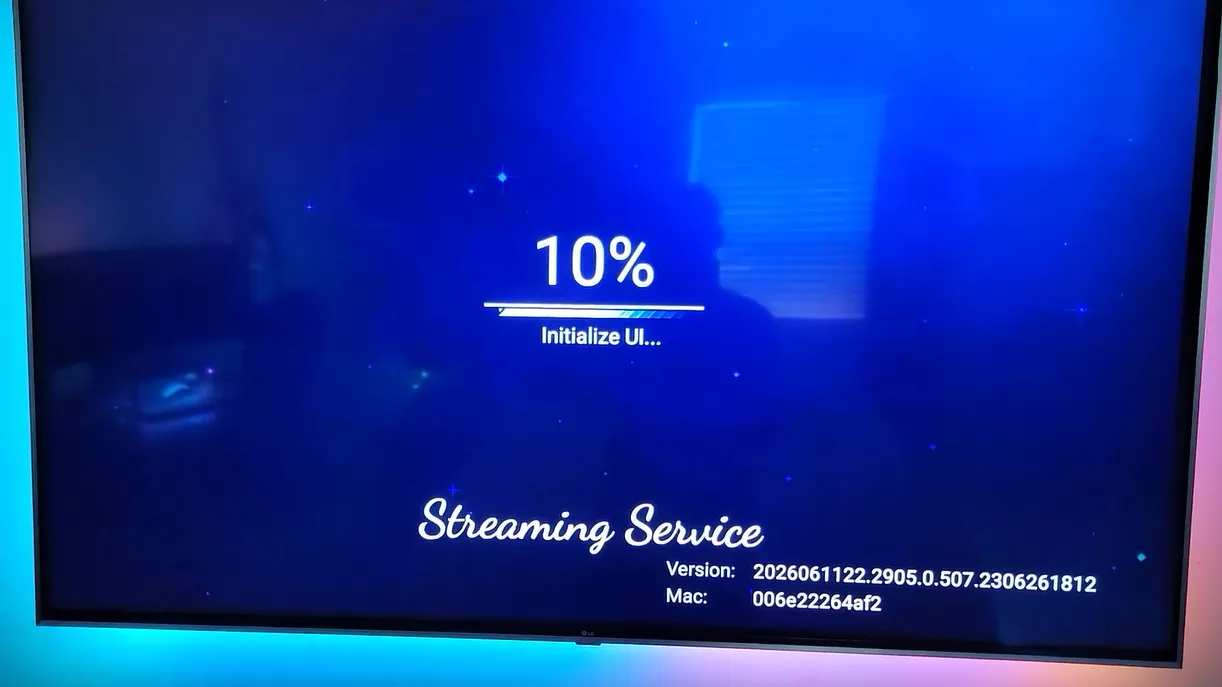
Apply these steps to stabilize video streaming playback:
Step 1: Clear application cache in Android settings
Open Settings from your home launcher dock, click Apps, and select See all apps. Choose Blue TV or Blue VOD, scroll down, and click Clear Cache. Do not click Clear Data, as clearing cache deletes corrupted temporary files while keeping channel favorites intact.
Step 2: Toggle video decoder playback settings
Tune to any live channel in Blue TV and press the Menu button on your remote control, shown as three horizontal lines. Locate Decode settings and toggle from Hardware to System. Hardware decoding relies on the graphics chip, while System uses native Android software decoders.
Step 3: Switch to the official Backup TV application
If a primary server cluster undergoes routine maintenance, launch the Backup TV application from your home screen. Backup TV routes streams through an alternate content delivery network, ensuring uninterrupted viewing during peak sporting events.
Watch this video guide showing how to configure and troubleshoot your SuperBox console:
Tier 2: Fixing network disconnects and connection errors
A stable streaming experience requires consistent packet delivery rather than burst speed. Wireless frequency interference and misconfigured domain name servers frequently disrupt streaming connections.
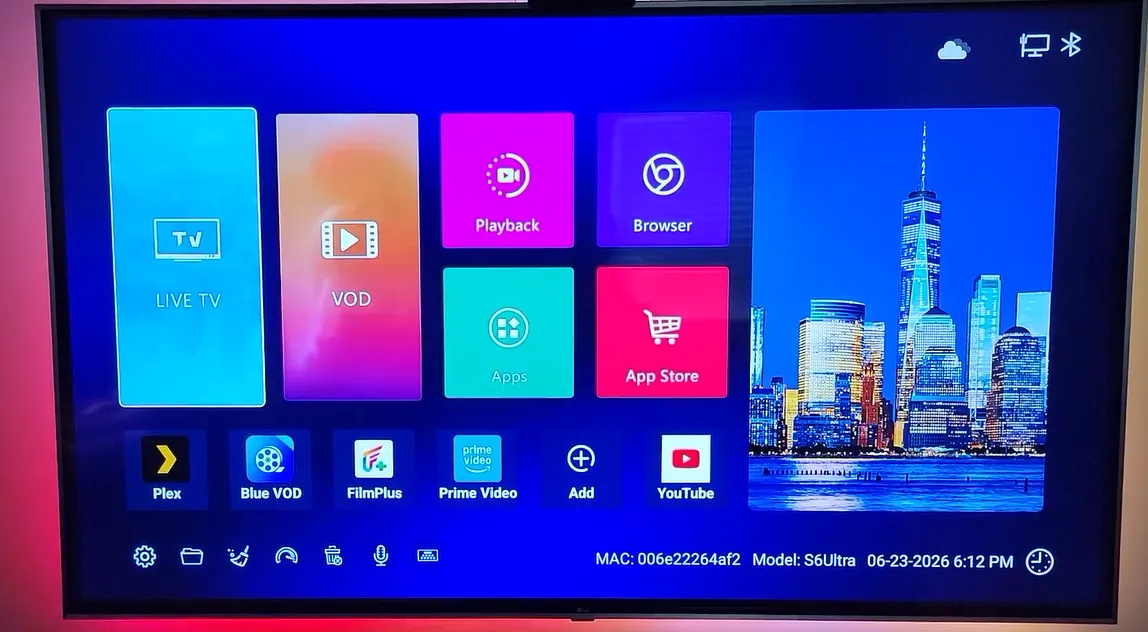
Follow these networking optimizations to stabilize connectivity:
Step 1: Synchronize network date and time
Open Settings, select Device Preferences, and click Date & Time. Ensure Automatic date & time is enabled. If your console clock differs from server time, security certificates fail to authenticate, causing apps to display false offline warnings.
Step 2: Configure high-speed public DNS addresses
Navigate to Network & Internet, click your active connection, and switch IP settings to Static. Set DNS 1 to 8.8.8.8 and DNS 2 to 8.8.4.4. Using Google public DNS bypasses restrictive internet service provider routing tables that throttle streaming ports.
Step 3: Connect via wired Ethernet or 5GHz Wi-Fi
Connect a Cat6 Ethernet cable directly to your home router to eliminate wireless packet drops. If running cable is impractical, connect exclusively to your router 5GHz wireless band, avoiding congested 2.4GHz frequencies.
Tier 3: Correcting display blackouts and HDMI handshake failures
When your television displays No Signal while the SuperBox front panel illuminates, digital copy protection handshakes or resolution mismatches are preventing video output negotiation.
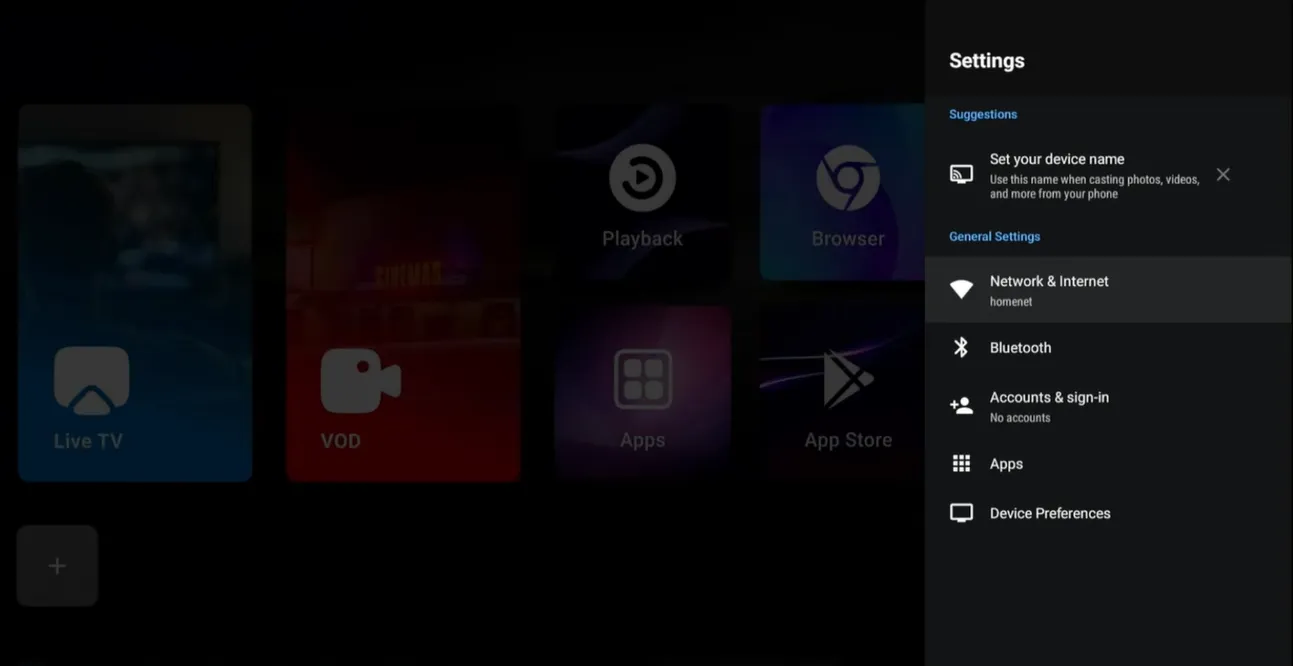
Follow these steps to restore television picture output:
Step 1: Execute a full power drain cycle
Unplug the power cables from both your SuperBox and your television. Disconnect the HDMI cable from both devices. Wait 60 seconds to discharge all residual capacitor energy, clearing volatile display registers completely.
Step 2: Reconnect to an alternate HDMI port
Insert the HDMI cable into an alternate port on your television, such as HDMI 2. Power on your television first, switch to the corresponding input, and plug in the SuperBox power adapter.
Step 3: Lock screen resolution to 1080p 60Hz
Once video appears, open Settings, select Device Preferences, click Display, and open Screen resolution. Turn off Auto switch to best resolution and select 1080p 60Hz. Setting a static resolution stops screen blackouts caused by refresh rate switching.
Tier 4: Fixing missing App Store and device abnormal alerts
Following a firmware update or system reset, third-party marketplaces may disappear or display Device Abnormal notifications. Reinstalling verified packages restores full application access.
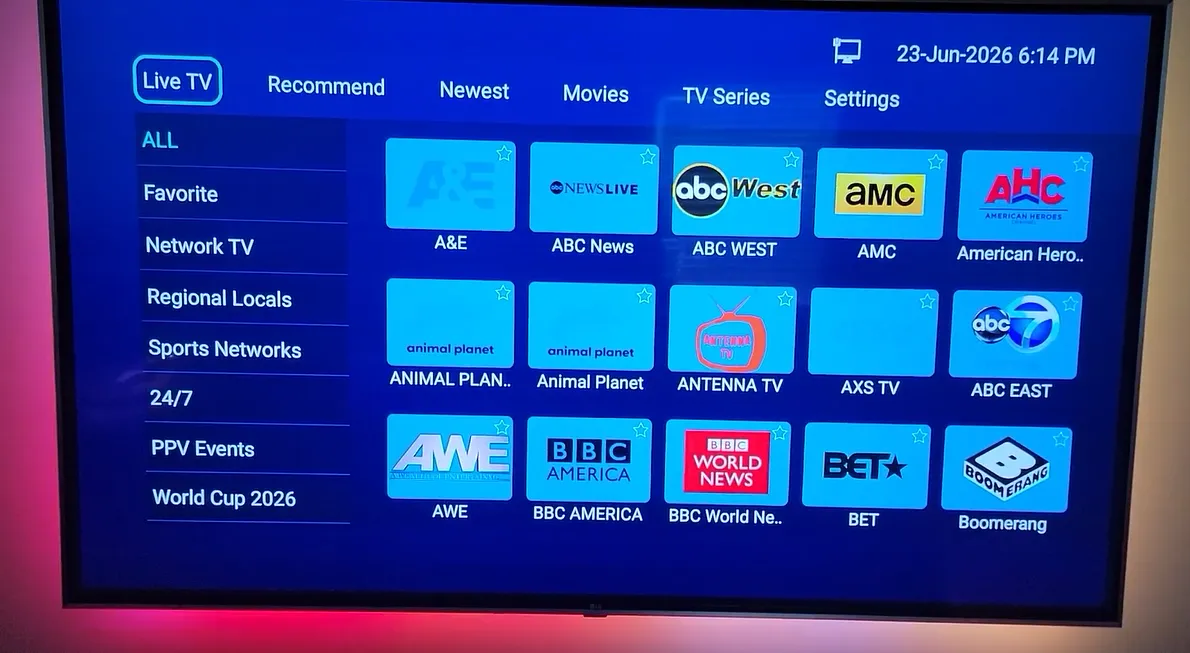
Apply these steps to restore missing applications:
Step 1: Download the App Store installer via browser
Launch your web browser and enter 143326.cc in the address bar to download the installer file automatically. Open File Manager, select Local Memory, open Download, and click appstore.apk to install the marketplace.
Step 2: Run the TV ROM Updater tool
Open the newly installed App Store and click the TV ROM Updater utility. This application installs essential firmware patches that lock the marketplace permanently to your home launcher dock.
Watch this video guide showing how to resolve missing store and device abnormal warnings:
Frequently asked questions about SuperBox troubleshooting
How do I re-pair my SuperBox remote if voice control stops working?
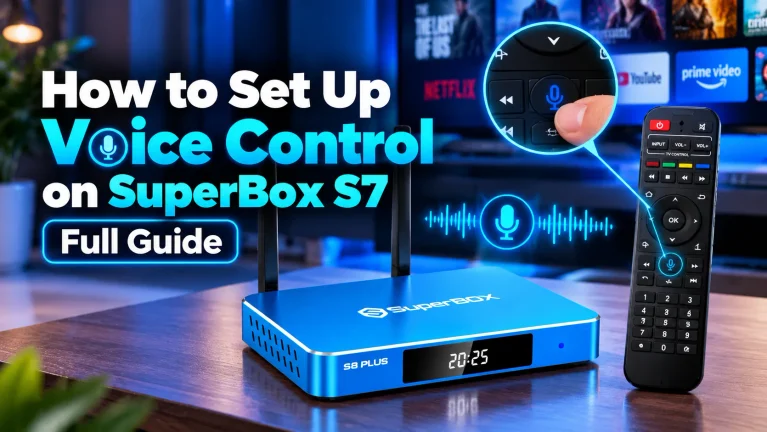
Point the remote at the console and press the OK and Back buttons simultaneously for five seconds. When the indicator light blinks, the console pairs the remote via Bluetooth, restoring voice search functionality.
How can I rescue a SuperBox stuck on the startup logo?
Point your infrared remote at the console and enter the Dot (.) key followed by 0 five times consecutively (.00000). This command bypasses graphical menus and triggers an automated firmware recovery reset.
Does performing a factory reset erase my lifetime channel subscription?
No, server licensing binds permanently to the hardware MAC address of the console. Reinstalling streaming applications from the App Store restores full channel access without requiring subscription logins.
Why upgrading to the SuperBox S8 Ultra prevents technical issues
Tired of routine troubleshooting, buffer delays, and storage warnings? Upgrading to the flagship SuperBox S8 Ultra priced at $449 delivers reliable hardware engineered for smooth continuous entertainment.
The S8 Ultra provides 128GB of high-speed eMMC internal storage, quadrupling the space of legacy models. Coupled with 4GB DDR RAM high-bandwidth RAM, it effortlessly manages heavy stream caching without running out of memory.
Sports enthusiasts can utilize Quad Multi-View shortcuts to stream four simultaneous live sports games with zero buffer lag. Advanced hardware decoders process multiple 4K video feeds smoothly, preventing the freezes common on older boxes.
Its aircraft-grade aluminum unibody housing keeps operating temperatures below 38.5 degrees Celsius during continuous playback. Investing $449 eliminates monthly cable bills while providing reliable hardware backed by authorized retail support.
Where to buy authentic SuperBox with warranty coverage
When investing in a high-performance streaming console, purchasing from an authorized distributor like the SuperBox Shop guarantees genuine hardware and active server licensing. Our distribution center is located at 13951 Pipeline Ave, Chino CA 91710, led by founder Riley Cooper.
Every purchase includes comprehensive customer service and direct manufacturer warranty coverage:
- Free Shipping: Fast 2 to 5 business day delivery across the United States and Canada with full real-time package tracking via FedEx or USPS.
- 24/7 Technical Support: Dedicated technical specialists available 24/7 via live chat and email for troubleshooting assistance.
- 30-Day Money-Back Guarantee: Hassle-free return policy if you are not completely satisfied with your streaming hardware performance.
- 1-Year Manufacturer Warranty: Full replacement coverage safeguarding against any hardware defects or system component failures supported directly by our customer care center in Chino, California.
- 100% Authentic Hardware: Direct factory units guaranteed genuine without modified firmware, unauthorized alterations, or security risks.
SuperBox for Sale is a leading authorized dealer of SuperBox, specializing in the supply of genuine SuperBox TV boxes Series S6, S7, and S8 in the US & CAD.
Experience Unrivaled Streaming Performance with SuperBox
Discover lightning-fast quad-core processing, dual-band Wi-Fi 6, 7-day playback, and crisp 6K ultra HD output engineered for discerning media fans.