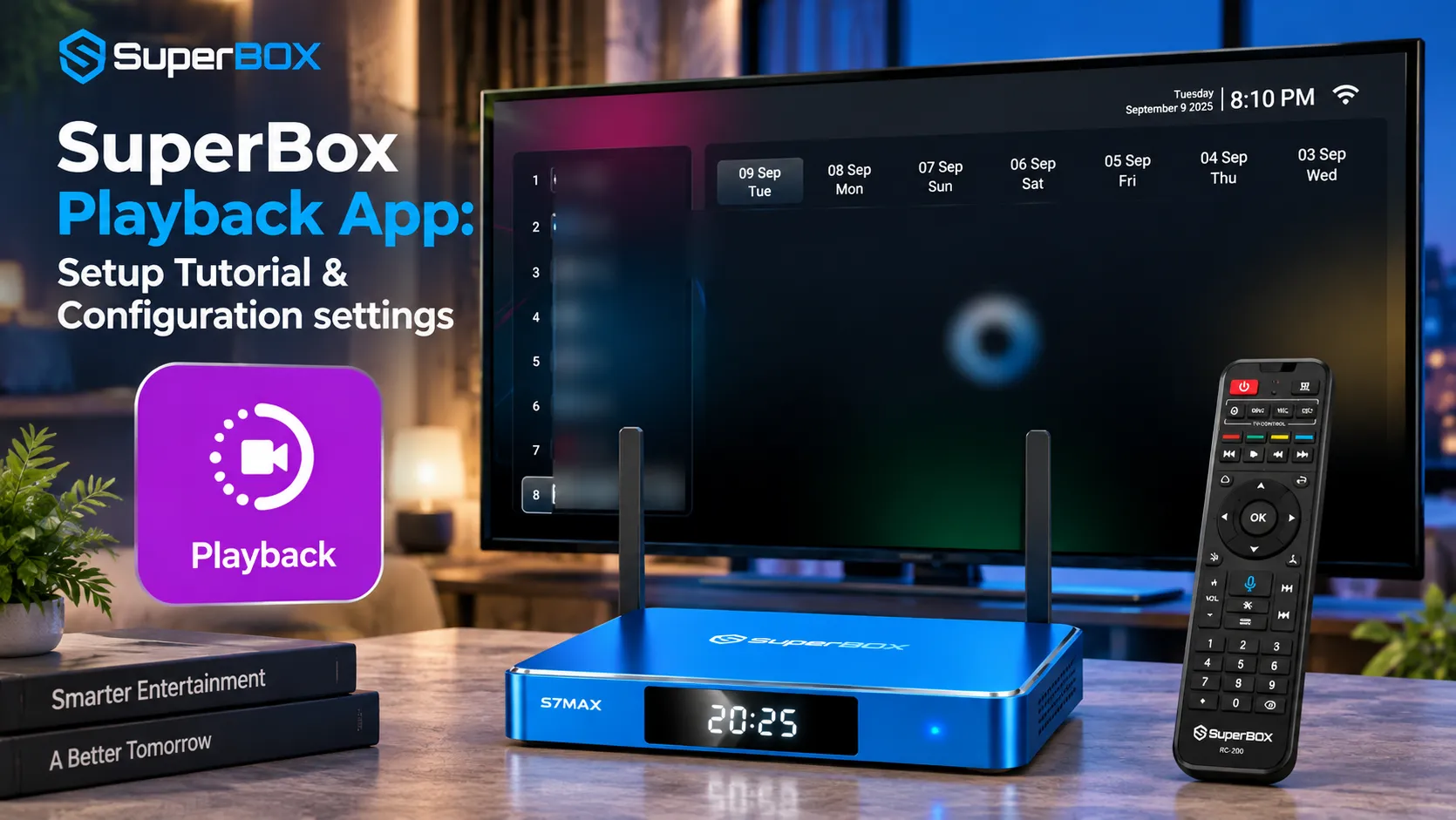
SuperBox Playback app is an automated cloud-based time-shift streaming application that archives seven consecutive days of live television broadcasts across 85 to 86 major news and sports networks without consuming local device storage. Compatible across SuperBox S6, S7, and S8 models, the app enables viewers to pause, rewind, and fast-forward past television programming through an integrated Electronic Program Guide.
Quick Takeaways & Key Highlights
- SuperBox Playback app archives 168 rolling hours of live television across 86 to 87 supported channels (with up to 8-hour live rewind on S6 series and full 7-day time-shift on S7 and S8 series).
- Remote cloud servers record programming continuously, preserving 100 percent of internal flash storage on your console.
- Navigation allows seamless timeline selection through the dedicated Programs interface and on-screen progress bar.
- Trick-play controls deliver smooth pause, rewind, and fast-forward functionality identical to on-demand video players.
- Built-in settings allow users to toggle real-time internet speed, adjust aspect ratios, and switch hardware decode profiles.
- Playback requires a stable broadband connection of 15 to 25 Mbps for smooth high-definition stream delivery.
What is the SuperBox Playback App?
SuperBox Playback app is a 7-day time-shift application available via the built-in App Store across modern SuperBox hardware generations. Unlike traditional media boxes requiring external hard drives to record programs, the Playback app connects directly to remote server archives containing seven days of continuously recorded broadcast footage.
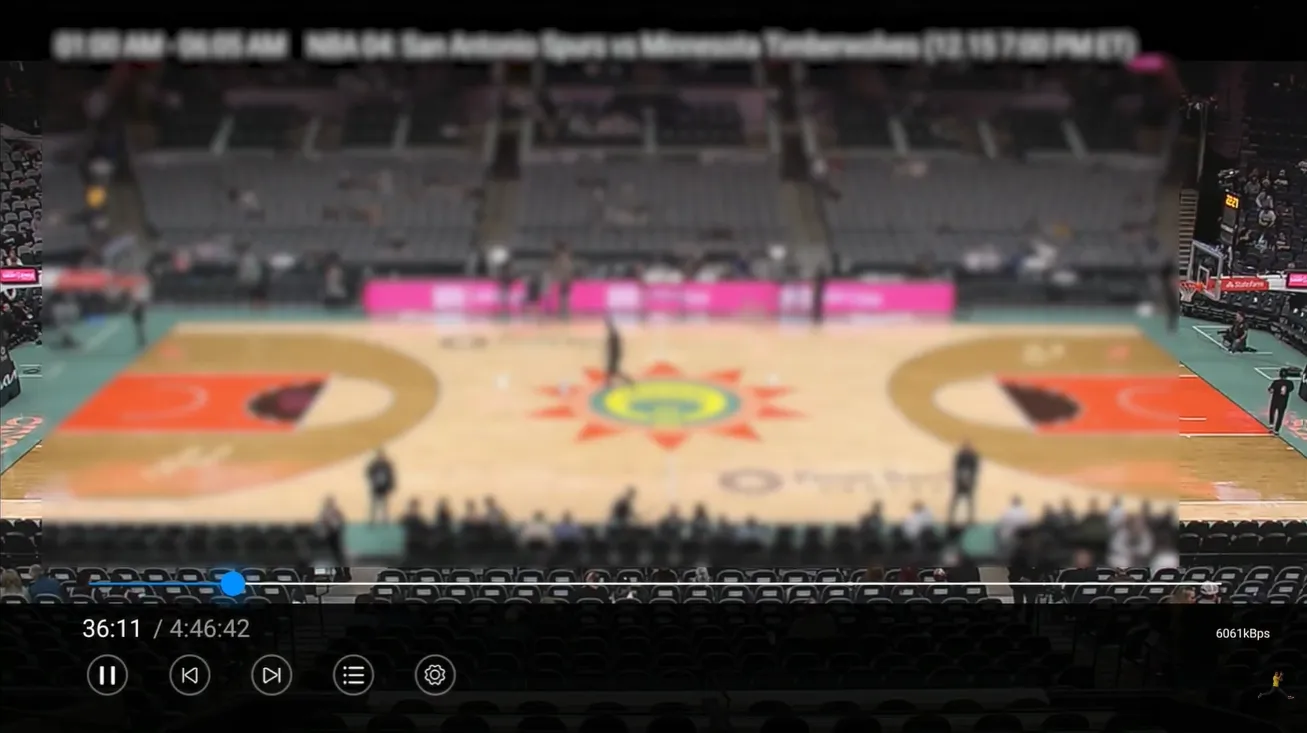
SuperBox Playback focuses primarily on high-priority live television networks where viewers frequently miss time-sensitive events. The channel lineup spans major national news broadcasts, financial reporting stations, and comprehensive live sports coverage across regional and national athletic networks.
Channel availability is optimized by hardware generation:
- SuperBox S6 Series (S6 Max / S6 Ultra/ S6 Pro): Features 85 dedicated playback channels covering major broadcast networks and live sports feeds.
- SuperBox S7 Series (S7 Pro / S7 Max / S7 Ultra): Features an expanded lineup of 86 high-definition playback channels with enhanced server bandwidth.
- SuperBox S8 Series (S8 Plus / S8 Ultra/ S8 Max/ S8 Pro): Features 86 channels supported by upgraded Android 12 operating architecture and dual-band Wi-Fi 6 connectivity.
SuperBox Playback delivers a distinct advantage over live time-shift in Blue TV. While Blue TV allows brief pausing or rewinding of the current active broadcast, the dedicated Playback application maintains an uninterrupted historical archive spanning 168 consecutive hours per channel.
How does the SuperBox Playback App work?
SuperBox Playback functions through an automated cloud recording pipeline operating on remote provider server clusters. Instead of using your console’s internal flash storage, provider servers ingest live broadcast signals directly from master control feeds, encoding video into compressed digital streams in real time.
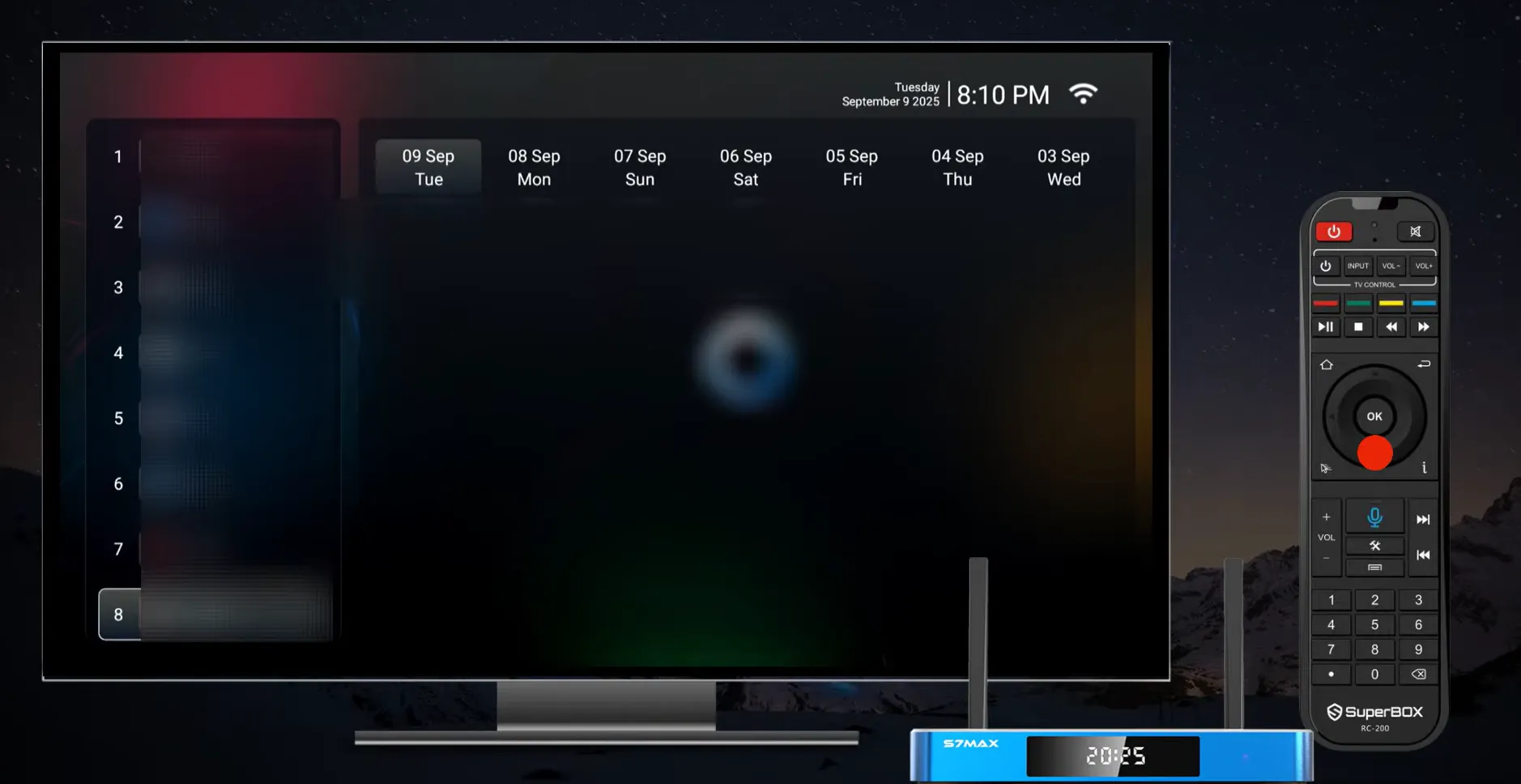
SuperBox cloud architecture coordinates three technical operational layers:
- Continuous Rolling Archive: Remote servers capture and archive 168 rolling hours of programming per supported network, automatically adding new footage while purging recordings older than seven days.
- EPG Schedule Synchronization: Recorded video streams synchronize automatically with Electronic Program Guide (EPG) metadata, organizing archived footage by channel, date, and program title.
- On-Demand Unicast Streaming: When a viewer selects a past broadcast, SuperBox requests an on-demand unicast stream from cloud servers, delivering zero impact on internal flash storage.
SuperBox decodes incoming playback streams using hardware-accelerated GPU pipelines. This architecture enables smooth frame-by-frame seeking along the progress bar without causing video stutter or audio desynchronization.
How to use SuperBox Playback App?
SuperBox Playback navigation is designed for intuitive remote control operation without requiring keyboard peripherals. The operational sequence follows five practical steps:
- Launch the Application: Select the Playback icon from the SuperBox home screen or open it directly through the SuperBox App Store.
- Select Your Channel: Navigate the left-hand channel menu using the directional arrows on your remote to choose your desired sports or news network.
- Open Programs Schedule: Click the Programs button on your remote control or on-screen interface to display the comprehensive 7-day broadcast timeline.
- Select Date and Time Slot: Scroll horizontally to select the day of the week, then scroll vertically to choose the specific program or sporting event.
- Control Trick-Play Seeking: Press the Left and Right arrow keys on your remote to fast-forward or rewind along the on-screen progress bar, exactly like Video on Demand.
SuperBox remote controls include dedicated Play/Pause and OK buttons that allow immediate playback toggling. Pressing the Back button returns you to the program grid without closing the active video stream.
Video tutorial: How to use the Playback App across SuperBox models?
SuperBox S7 Series Playback App demonstration?
The official demonstration for the SuperBox S7 series showcases the 86-channel lineup, demonstrating how to browse the timeline, adjust aspect ratios, and toggle speed monitors:
SuperBox S6 Max and Ultra Playback App demonstration?
The demonstration for the SuperBox S6 series illustrates the 85-channel directory and demonstrates trick-play seeking controls along the progress bar:
What configuration settings are available in the Playback App?
SuperBox Playback includes a dedicated in-app Settings menu accessible during active streaming by pressing the Menu key on your remote control. Viewers can customize three technical parameters:
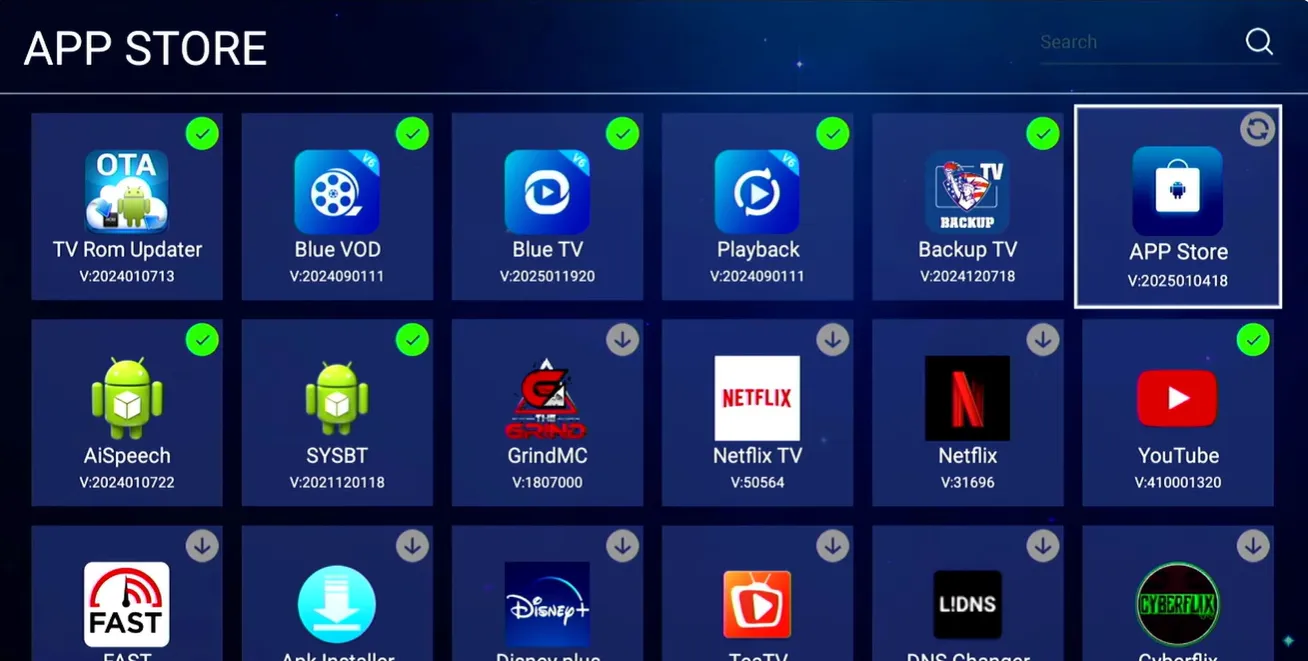
- Internet Speed Status: Toggles an on-screen bandwidth overlay that displays real-time download speeds in megabits per second, helping diagnose network bottlenecks.
- Aspect Ratio Adjustment: Modifies screen scaling between 16:9 widescreen, 4:3 standard, Auto-Fit, and Full Screen to match your television display.
- Hardware Decode Configuration: Allows switching between hardware decoding (GPU silicon) and software decoding (CPU) to optimize video rendering smoothness.
Recommended Configuration: For optimal video clarity and zero dropped frames, configure decode settings to Hardware Decoding. This routes H.265 decompression directly to the Mali GPU, ensuring consistent 60fps playback.
How to troubleshoot common SuperBox Playback App issues?
SuperBox Playback streams can experience occasional playback interruptions due to local network fluctuations or cache buildup. Users can resolve the most common issues with three quick fixes:
- Clear Application Cache: Navigate to Android Settings, open Apps, select Playback, and choose Clear Cache to remove corrupted temporary streaming files.
- Fix Audio Desynchronization: Open the in-app Settings menu during video playback and toggle the Decode setting to Hardware Decoding to re-align audio and video clocks.
- Verify Internet Throughput: Toggle the Internet Speed Status in the playback settings menu. Ensure your connection delivers at least 15 to 25 Mbps for stable high-definition playback.
SuperBox devices connected via wired Gigabit Ethernet or 5GHz Wi-Fi 6 wireless bands experience the lowest packet jitter, preventing buffering pauses during fast-forward seek operations.
Where to buy authentic SuperBox with warranty coverage
When investing in a high-performance streaming console, ordering directly from SuperBox for Sale guarantees authentic hardware and verified server licensing. Our central distribution and customer care facility operates at 13951 Pipeline Ave, Chino, CA 91710, USA, led by founder Riley Cooper.
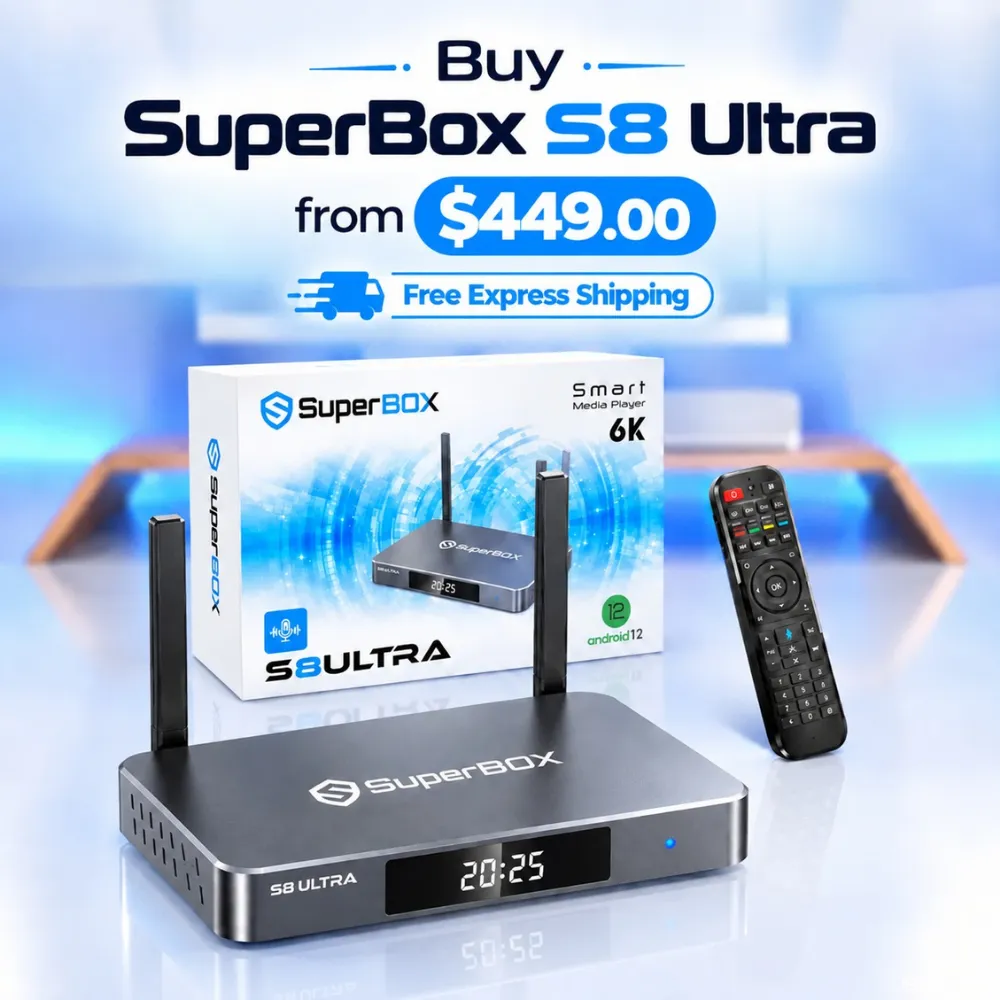
For the ultimate cord-cutting setup, we recommend the flagship SuperBox S8 Ultra priced at $449, featuring 4GB DDR RAM, 128GB storage, Wi-Fi 6, and Gigabit Ethernet. Every order includes our Official Reseller License Code #SP20250928002 and full warranty protection:
- Free Shipping: Fast 2 to 5 business day delivery across the United States and Canada with full real-time package tracking via FedEx or USPS.
- 24/7 Technical Support: Dedicated technical specialists available 24/7 via live chat and email for troubleshooting assistance.
- 30-Day Money-Back Guarantee: Hassle-free return policy if you are not completely satisfied with your streaming hardware performance.
- 1-Year Manufacturer Warranty: Full replacement coverage safeguarding against any hardware defects or system component failures supported directly by our customer care center in Chino, California.
- 100% Authentic Hardware: Direct factory units guaranteed genuine without modified firmware, unauthorized alterations, or security risks.
SuperBox for Sale is a leading authorized dealer of SuperBox, specializing in the supply of genuine SuperBox TV boxes Series S6, S7, and S8 in the US & CAD.
FAQ the SuperBox Playback App
Does the SuperBox Playback app use internal device memory?
SuperBox Playback does not consume internal device storage. All live television recordings are stored remotely on high-capacity cloud server clusters. When you select a program, video streams directly from the cloud without writing files to local flash memory.
How many days of past television does the Playback app save?
SuperBox Playback saves seven consecutive days (168 rolling hours) of past programming. As new broadcasts air, fresh data is added to the cloud archive while recordings older than seven days are automatically purged from the server network.
What is the difference between Blue TV time shift and the Playback app?
Blue TV time-shift is designed for short-term pausing and rewinding during an active live broadcast. In contrast, the dedicated Playback application provides a comprehensive historical archive allowing you to watch any program aired over the past seven days.
Can you fast-forward through commercials in the Playback app?
SuperBox Playback fully supports fast-forwarding through commercial breaks. Because archived broadcasts function like on-demand video files, viewers can scrub forward along the progress bar using the remote control arrow keys to skip advertisements.
Which SuperBox models support the Playback app?
SuperBox Playback is supported across all major hardware models, including the S6 series (S6 Max, S6 Ultra, S6 Pro), the S7 series (S7 Pro, S7 Max, S7 Ultra), and the latest S8 series (S8 Plus / S8 Ultra/ S8 Max/ S8 Pro. All models support 86 to 87 playback channels, with S6 models providing up to 8-hour live TV rewind and S7/S8 models providing full 7-day time-shift playback.
Experience Unrivaled Streaming Performance with SuperBox
Discover lightning-fast quad-core processing, dual-band Wi-Fi 6, 7-day playback, and crisp 6K ultra HD output engineered for discerning media fans.

![SuperBox Remote Control Functions: Complete Button Guide [2027]](https://superboxforsale.com/wp-content/uploads/2026/10/SuperBox-Remote-Control-Functions-768x432.webp "SuperBox Remote Control Functions: Complete Button Guide [2027] 8")
![How to Set Up Voice Control on SuperBox S7 Full Guide [2027]](https://superboxforsale.com/wp-content/uploads/2026/10/How-to-Program-SuperBox-Remote-to-TV-1-767x432.webp "How to Set Up Voice Control on SuperBox S7 Full Guide [2027] 14")