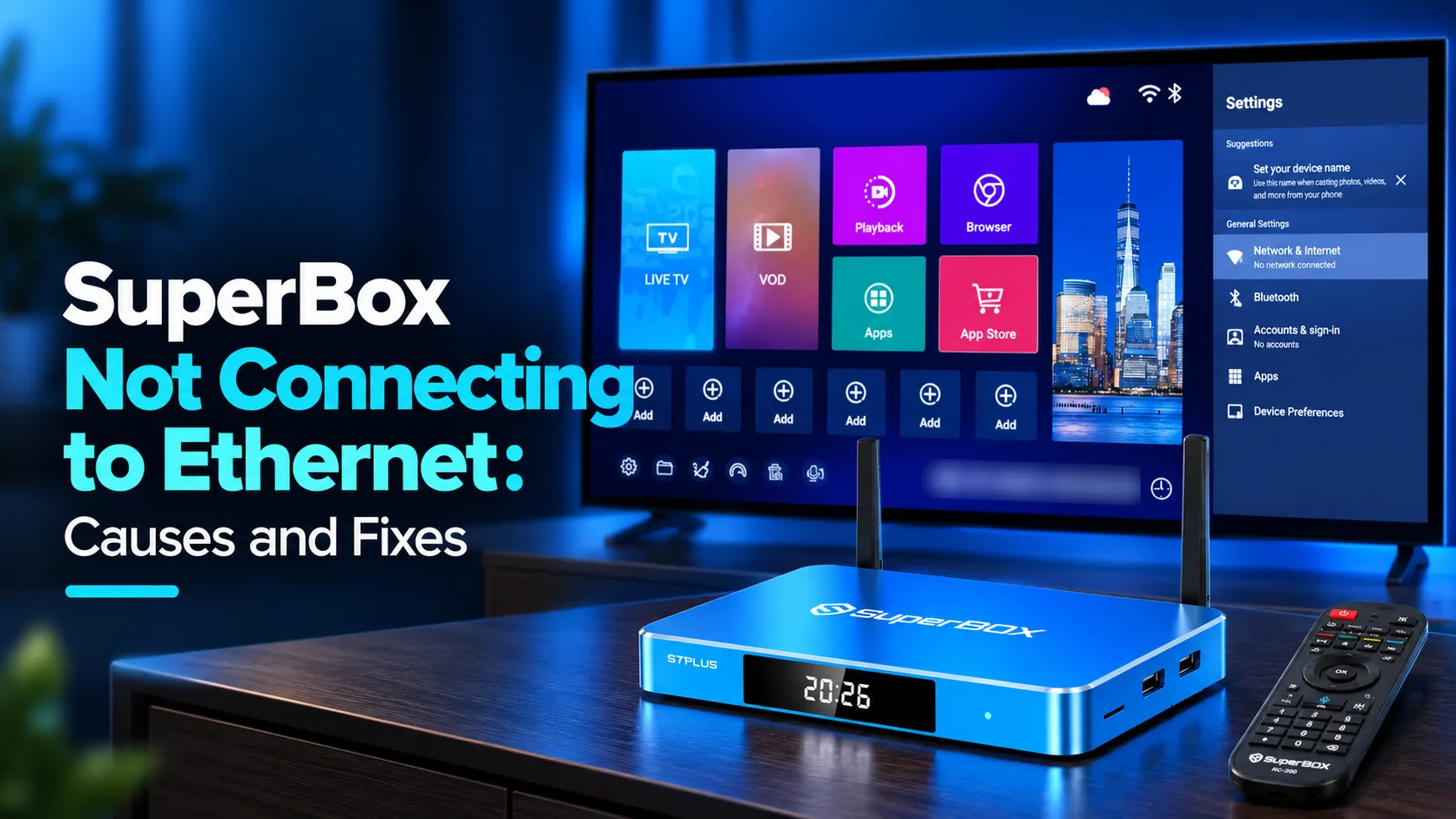
When your SuperBox is not connecting to Ethernet, open Settings, select Network & Internet, and toggle Wi-Fi OFF completely. Reconnect your Cat6 cable to force wired prioritization. If the console still shows not connected, power cycle both your box and router for 60 seconds, or assign a static IP address to bypass router DHCP allocation errors.
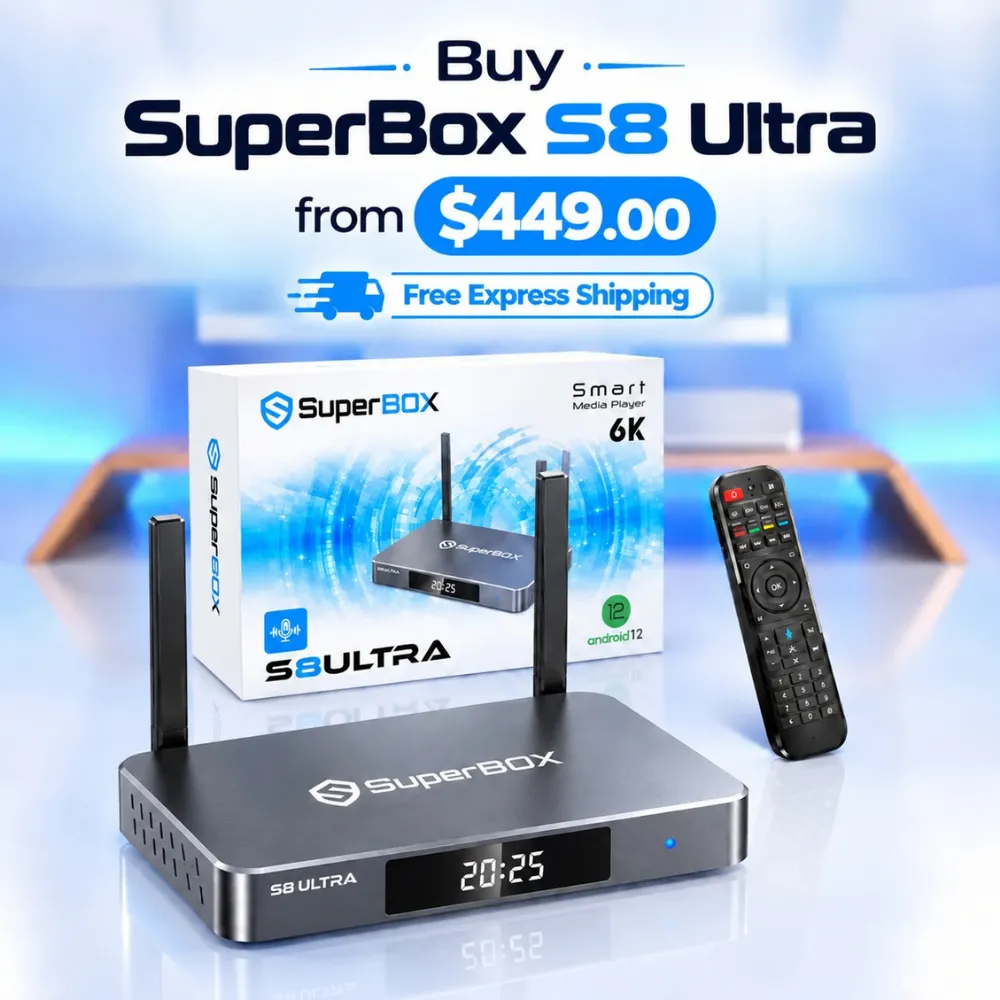
Wired connection failures typically stem from active wireless conflicts, router DHCP lease timeouts, or damaged cable pins. Streamers wanting ultra-fast networking can explore the flagship SuperBox S8 Ultra priced at $449. This model provides a dedicated 1000Mbps Gigabit Ethernet controller and 128GB of high-speed internal storage for zero buffer playback.
Quick Takeaways & Key Highlights
- Wi-Fi Priority Override: Disabling wireless forcing the OS kernel to bind internet traffic to Ethernet.
- Static IP Handshake: Manual IP addressing resolves router DHCP lease timeouts and APIPA errors.
- Hardware Link Lights: Active green and orange port LEDs confirm physical layer electrical contact.
- Clock Synchronization: Automatic network time settings prevent false connection failure alerts.
- Gigabit LAN Upgrade: True 1000Mbps hardware controllers deliver ten times the speed of older boxes.
Why SuperBox fails to connect via Ethernet
Wired Ethernet connections should provide instant plug-and-play stability. When your SuperBox refuses to negotiate a network link, diagnosing the issue systematically prevents unnecessary device resets.
Review this technical diagnostic table to match your network symptoms with the correct fix:
| Network Status Display | Root Technical Cause | Recommended Corrective Action | Verification Step |
|---|---|---|---|
| Ethernet Not Connected (Dark LEDs) | Damaged cable or inactive router LAN port | Swap to Cat6 cable and change router port | Check rear green link LED turns on |
| Connected, No Internet | Router DHCP failure or APIPA IP address | Configure Static IP address and Google DNS | Open browser to test webpage load |
| Intermittent Connection Drops | Wi-Fi and Ethernet routing conflict | Toggle Wi-Fi OFF in Network settings | Verify only Ethernet icon appears |
| Connection Successful, Apps Blocked | System clock desynchronization or SSL error | Set Date & Time to automatic network sync | Confirm streaming apps launch |
| Slow Speeds on Fast Fiber | Outdated 100Mbps legacy Ethernet PHY chip | Upgrade to Gigabit LAN hardware console | Run speed test above 100Mbps |
Start with simple interface configurations before replacing cables or reconfiguring home router security settings.
Method 1: Eliminate Wi-Fi routing conflicts in system settings
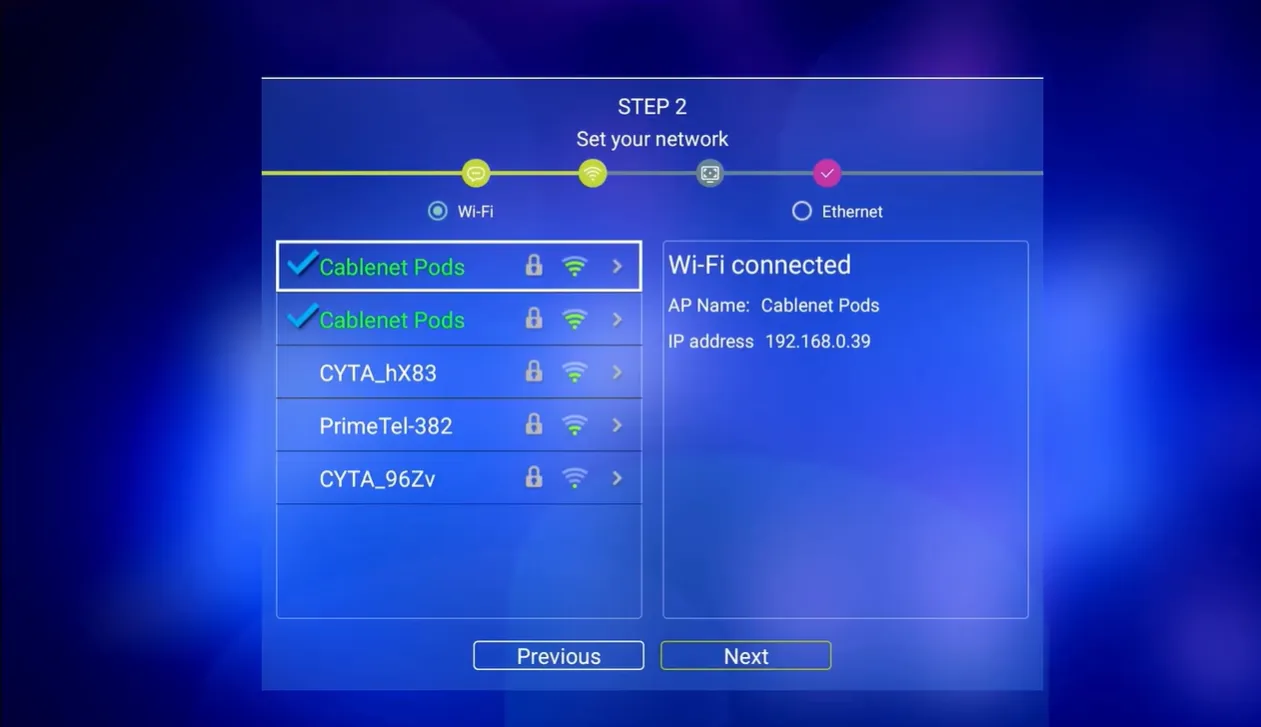
Android TV operating systems frequently experience routing priority confusion when both Wi-Fi and Ethernet interfaces remain enabled. Disabling wireless connections forces the network stack to route all packets through the physical LAN port.
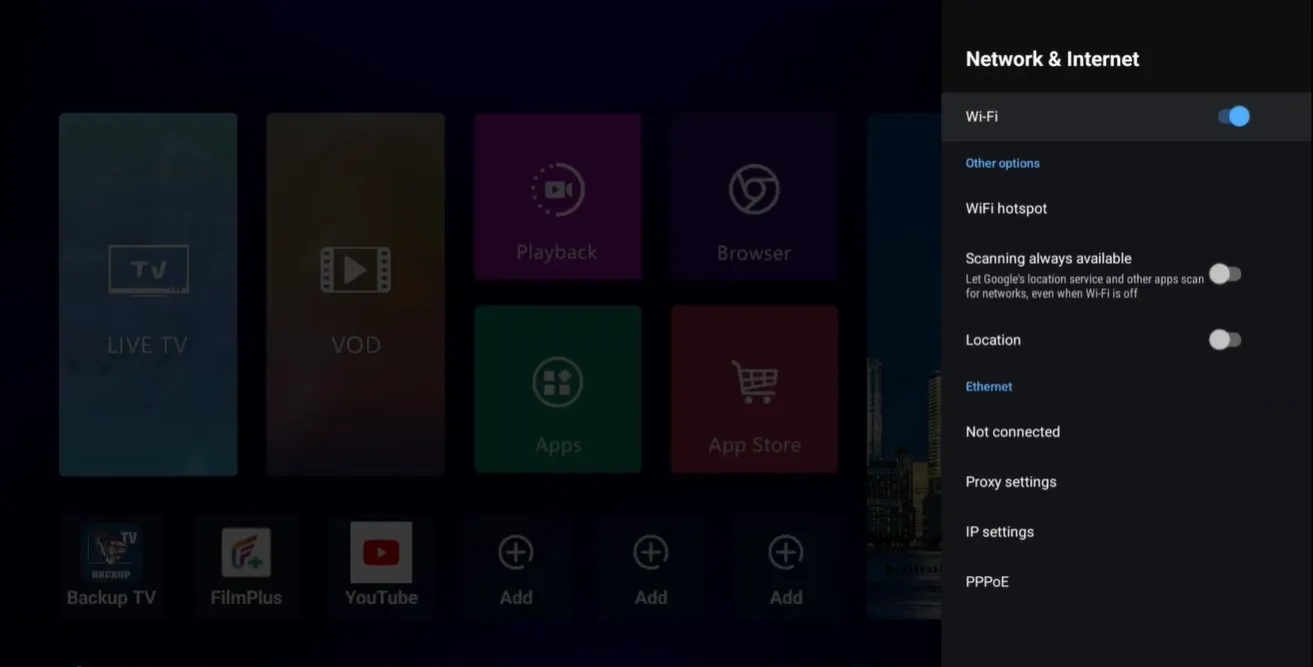
Follow these steps to force wired network prioritization:
Step 1: Open network settings on your home launcher
Press the Home button on your remote control to display the main interface. Navigate to the top-right corner, highlight the Settings gear icon, and press OK. Select Network & Internet from the configuration menu.
Step 2: Turn off the wireless interface toggle
Highlight the Wi-Fi toggle switch at the top of the menu and press OK to turn it OFF. If your console has previously saved wireless network credentials, select your home Wi-Fi name and click Forget Network to ensure complete disconnection.
Step 3: Connect your Ethernet cable and verify status
Firmly insert your RJ45 Ethernet cable into the rear port until the plastic clip clicks. The network screen should update within five seconds to display Ethernet Connected, showing your local IP address.
Watch this video guide covering how to resolve SuperBox Ethernet connectivity problems:
Method 2: Configure a static IP address to bypass DHCP failures
Modern mesh routers and gateway modems sometimes fail to assign local IP leases to streaming consoles. Switching from automatic DHCP to a manual Static IP configuration bypasses routing lease failures instantly.
Follow these steps to set up static network parameters:
Step 1: Access Ethernet IP configuration settings
Open Settings, navigate to Network & Internet, and select Ethernet. Scroll down to IP settings and click the option currently displaying DHCP. Select Static to open the manual parameter configuration screen.
Step 2: Enter an available local IP address
Enter an IP address matching your local router subnet range, such as 192.168.1.188 or 192.168.0.188. Choosing a high ending number like 188 avoids IP collisions with smartphones and personal computers on your home network.
Step 3: Specify the gateway and network prefix length
Enter your router gateway address, typically 192.168.1.1 or 192.168.0.1. When prompted for the Network prefix length, input 24, which corresponds to the standard subnet mask of 255.255.255.0.
Step 4: Input high-speed public DNS addresses
Set DNS 1 to 8.8.8.8 and DNS 2 to 8.8.4.4. Using Google public DNS servers avoids slow domain name lookups caused by restrictive internet service provider routing tables. Save settings to establish immediate connectivity.
Method 3: Inspect physical cables and execute a hardware power cycle
Physical layer faults account for a substantial percentage of wired networking issues. Pin degradation, bent connectors, and electrostatic lockups on the network PHY transceiver chip prevent proper electrical contact.
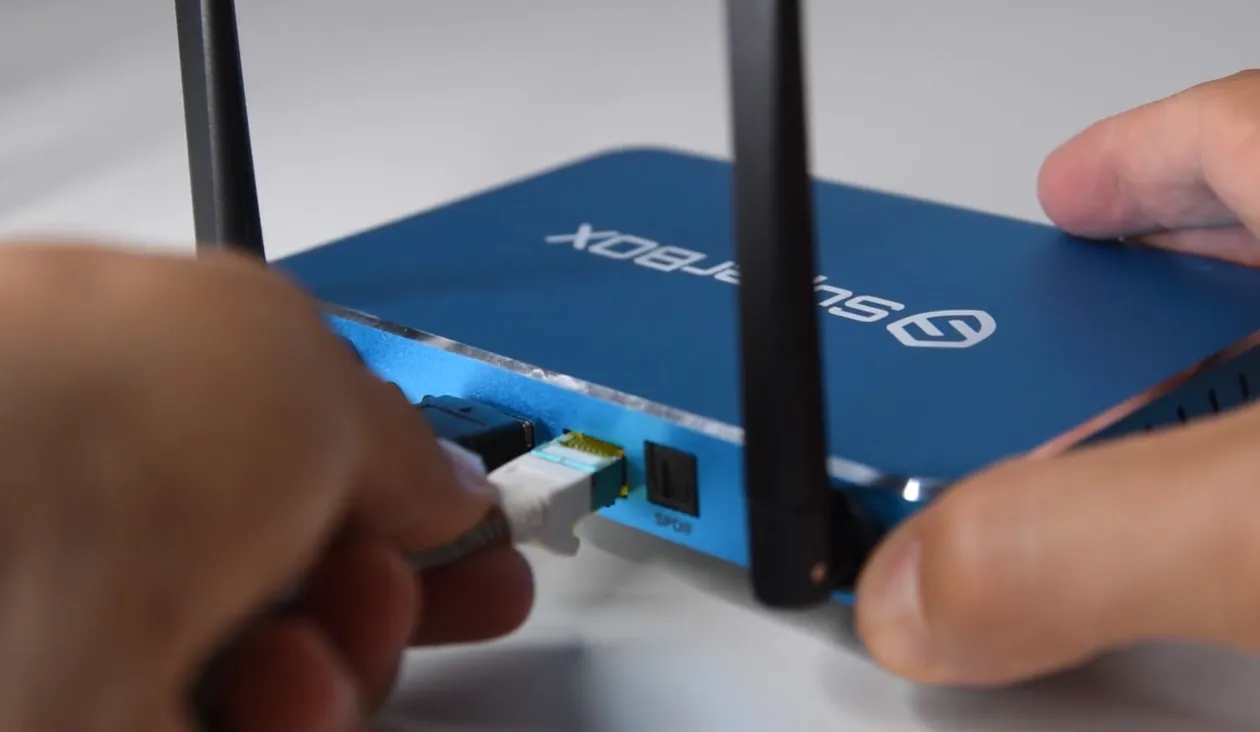
Apply these physical hardware troubleshooting checks:
- Inspect RJ45 LED Link Indicators: Look closely at the Ethernet port on the rear panel. A solid green light indicates physical link detection, while a blinking amber light confirms active data transmission. If both lights remain unlit, the cable or port is dead.
- Test with Certified Cat6 Cabling: Replace older Cat5 cables with a certified Cat6 patch cable. Faulty internal copper pairs often deliver power without negotiating data signals.
- Switch Router LAN Ports: Disconnect the cable from your router and plug it into an alternate LAN port. Certain gateway ports enter energy-saving sleep modes that fail to wake up streaming boxes.
- Perform a Full Network Power Cycle: Unplug the power adapters from both your SuperBox and home modem for 60 seconds. Reconnect the modem first, wait for internet lights to stabilize, and plug in the SuperBox.
Watch this video walkthrough showing proper wired and wireless network setup techniques:
Frequently asked questions about SuperBox Ethernet connections
Why does my SuperBox show Ethernet connected but streaming apps say no internet?
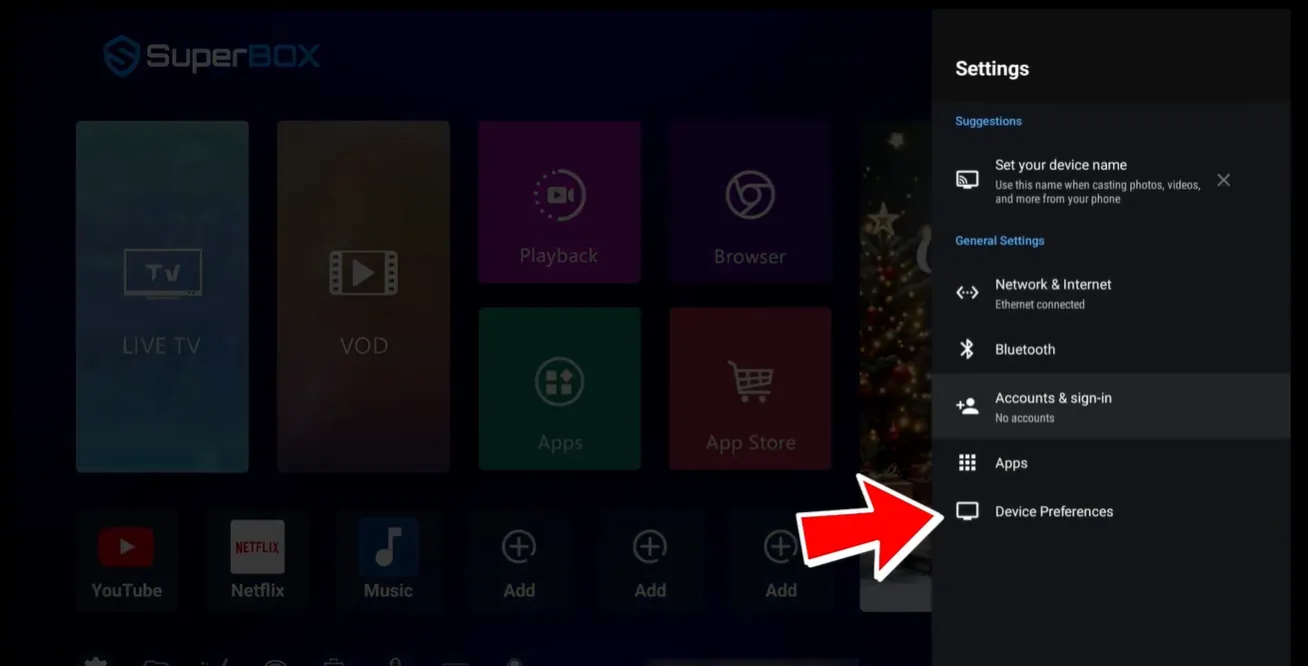
This issue almost always stems from an incorrect system clock. Open Settings, click Device Preferences, select Date & Time, and set network time to automatic. An incorrect clock causes SSL certificates to fail, blocking apps from reaching servers.
Is Ethernet faster than Wi-Fi on older SuperBox models?
Older SuperBox consoles feature 100Mbps Ethernet ports, whereas 5GHz Wi-Fi can deliver higher burst speeds. However, Ethernet offers zero wireless interference and lower jitter, making it vastly superior for uninterrupted live sports streaming.
Can a faulty power supply cause Ethernet connection failures?
Yes, degraded power adapters delivering inconsistent voltage fail to power the internal network transceiver chip properly. Ensure your power supply delivers a clean 5V 2A output to maintain stable wired networking performance.
Why upgrading to the SuperBox S8 Ultra provides true Gigabit networking
Frustrated by outdated 100Mbps connection limits, network adapter dropouts, and cable sync failures? Upgrading to the flagship SuperBox S8 Ultra priced at $449 delivers professional-grade networking designed for modern fiber internet.
The S8 Ultra features a true 1000Mbps Gigabit Ethernet controller, providing ten times the wired throughput of older generations. Combined with Wi-Fi 6 wireless connectivity, it guarantees ultra-low latency streaming across any home network environment.
With 128GB of high-speed eMMC storage and 4GB DDR RAM, you never have to worry about stream caching bottlenecks. Sports fans can utilize Quad Multi-View shortcuts to watch four simultaneous live sports games without dropped frames.
Its aluminum unibody housing keeps internal operating temperatures below 38.5 degrees Celsius during continuous playback. Investing $449 eliminates monthly cable bills while providing reliable hardware backed by authorized retail support.
Where to buy authentic SuperBox with warranty coverage
When investing in a high-performance streaming console, purchasing from an authorized distributor guarantees genuine hardware and active server licensing through our SuperBox TV Box store. Our distribution center is located at 13951 Pipeline Ave, Chino CA 91710, led by founder Riley Cooper.
Every purchase includes comprehensive customer service and direct manufacturer warranty coverage:
- Free Shipping: Fast 2 to 5 business day delivery across the United States and Canada with full real-time package tracking via FedEx or USPS.
- 24/7 Technical Support: Dedicated technical specialists available 24/7 via live chat and email for troubleshooting assistance.
- 30-Day Money-Back Guarantee: Hassle-free return policy if you are not completely satisfied with your streaming hardware performance.
- 1-Year Manufacturer Warranty: Full replacement coverage safeguarding against any hardware defects or system component failures supported directly by our customer care center in Chino, California.
- 100% Authentic Hardware: Direct factory units guaranteed genuine without modified firmware, unauthorized alterations, or security risks.
SuperBox for Sale is a leading authorized dealer of SuperBox, specializing in the supply of genuine SuperBox TV boxes Series S6, S7, and S8 in the US & CAD.
Experience Unrivaled Streaming Performance with SuperBox
Discover lightning-fast quad-core processing, dual-band Wi-Fi 6, 7-day playback, and crisp 6K ultra HD output engineered for discerning media fans.