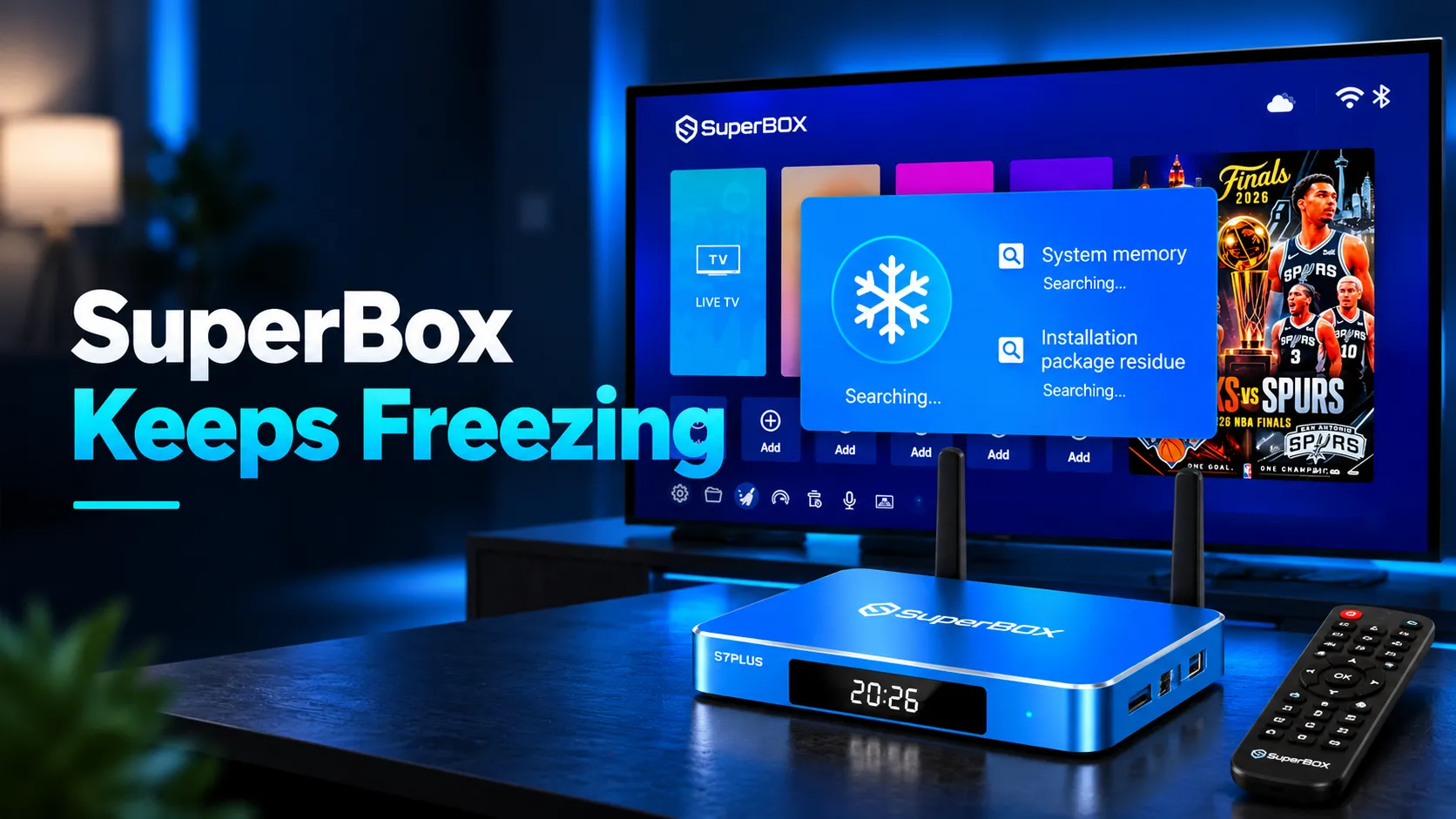
When your SuperBox keeps freezing, clear application cache by opening Settings, clicking Apps, selecting Blue TV, and choosing Clear Cache. Next, perform a 60-second power cycle on both your console and Wi-Fi router. If playback stutter persists during live sports, switch the video decode setting from Hardware to System, or connect an Ethernet cable to stop packet loss.
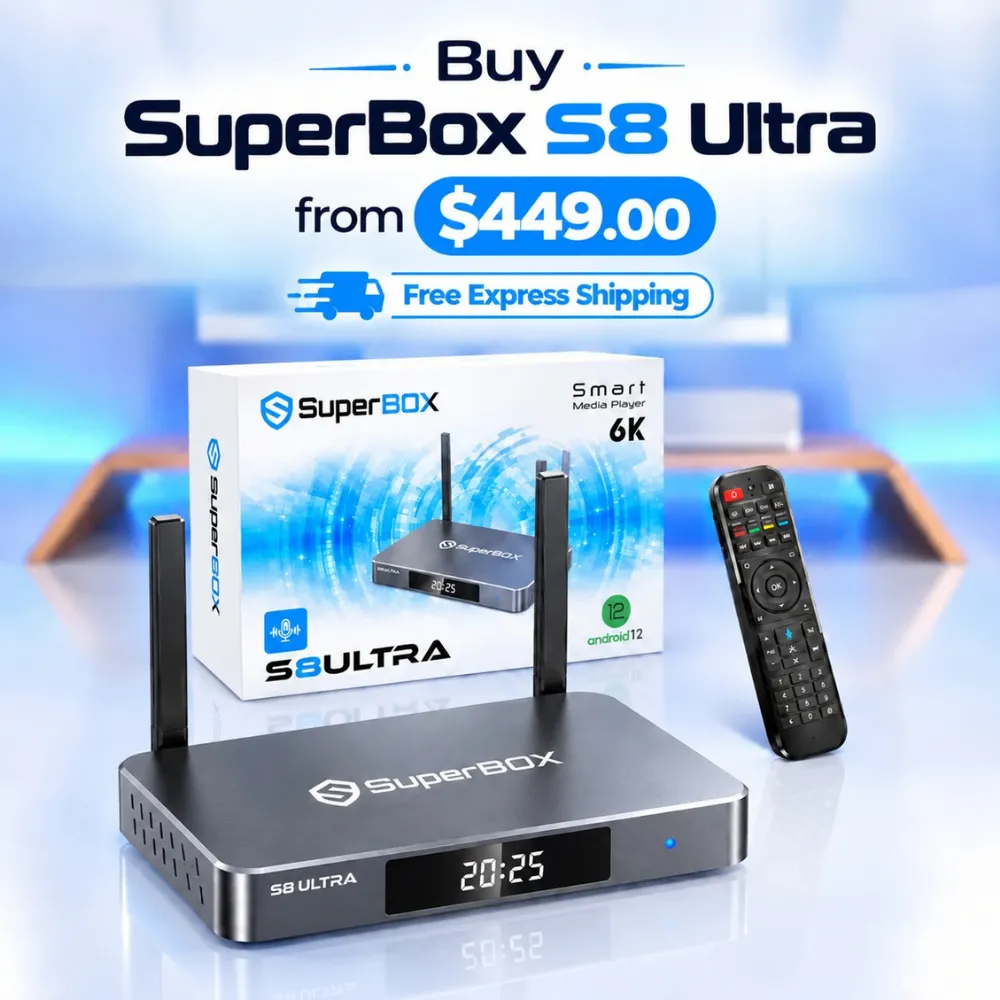
Freezing issues typically stem from corrupted stream fragments, local network latency, or processor heat throttling. Streamers seeking permanent stability can upgrade to the flagship SuperBox S8 Ultra priced at $449. This model provides 128GB of high-speed eMMC storage, 4GB DDR RAM, and an aluminum unibody chassis that completely prevents thermal lockups.
Quick Takeaways & Key Highlights
- App Cache Flush: Clearing Blue TV temporary data clears video buffer corruption in 30 seconds.
- Decoder Configuration: Toggling Hardware to System decoding resolves live stream frame freezing.
- Bandwidth Optimization: Switching to 5GHz Wi-Fi or Gigabit Ethernet prevents wireless buffer drops.
- Thermal Management: Operating consoles below 38.5 degrees Celsius stops processor speed throttling.
- Hardware Capacity Boost: Upgrading to 128GB storage hardware eliminates low RAM crashes completely.
Primary causes of SuperBox stream freezing
SuperBox consoles rely on high-speed internet feeds and hardware video decoders. When playback freezes, identifying whether the failure originates from software cache, network bandwidth, or thermal limits saves hours of troubleshooting.
Review this technical diagnostic table to match your console symptoms with proven solutions:
| Freezing Symptom | Underlying Root Cause | Recommended Corrective Action | Resolution Time |
|---|---|---|---|
| Isolated channel freeze in Blue TV | Corrupted video buffer chunks | Clear Blue TV cache in Android settings | Under 1 minute |
| Video stops while audio continues | Hardware decoder codec mismatch | Switch video player decode mode to System | 30 seconds |
| Repeated spinning circle buffering | Wi-Fi channel interference or packet loss | Connect direct Ethernet or switch to 5GHz band | 2 minutes |
| Sluggish menus and warm chassis | Processor thermal throttling above 48C | Move console to ventilated open area | 5 minutes |
| System crash on boot screen | Corrupted OS system partition | Execute emergency remote shortcut (.00000) | 3 minutes |
Most freezing problems resolve without a full system wipe. Start with simple software settings before adjusting hardware placements or performing factory resets.
Method 1: Clear application cache and temporary memory buffers
High-definition video streaming deposits temporary chunk files into local system storage. Over continuous viewing sessions, fragmented chunks accumulate and cause video decoders to stall during channel transitions.
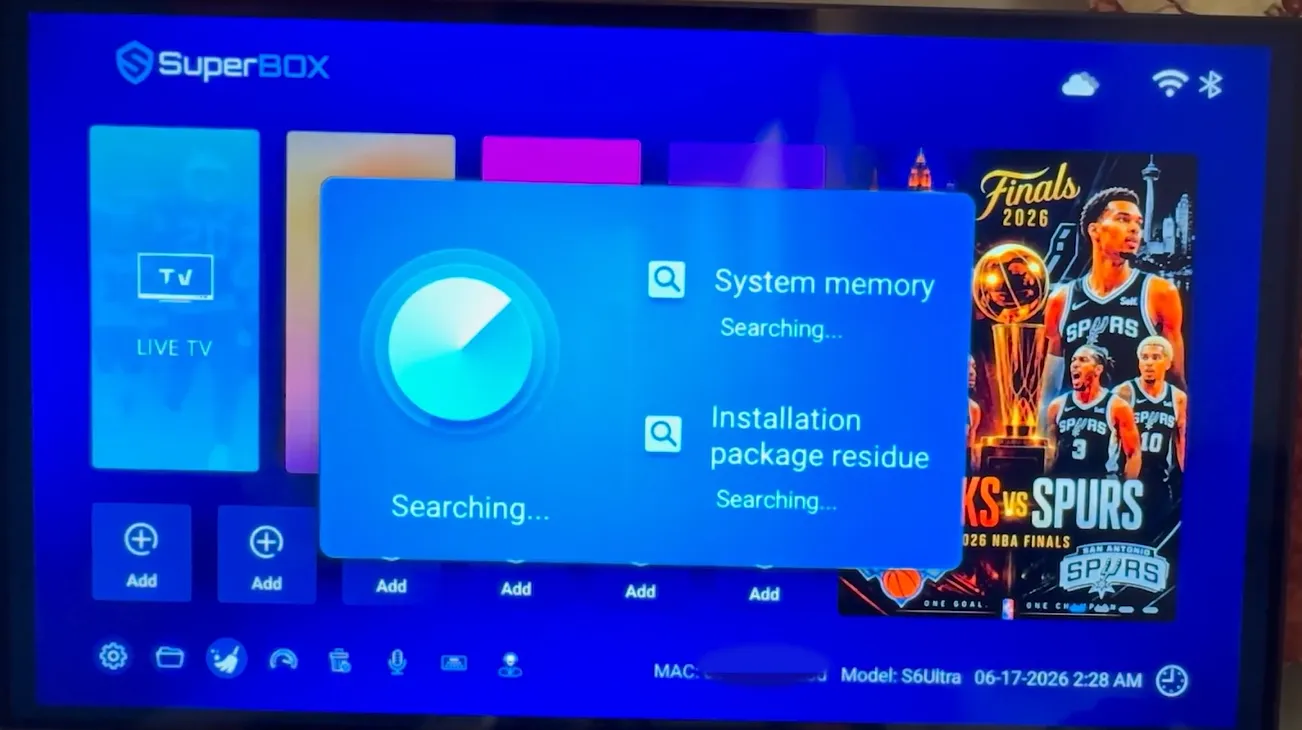
Follow these steps to clear corrupted stream cache safely:
Step 1: Open system settings from the home launcher
Press the Home button on your remote control to display the main interface. Navigate to the top-right corner, highlight the Settings gear icon, and press OK. This opens the Android configuration sidebar.
Step 2: Access installed application management
Scroll down the sidebar and click Apps, then select See all apps. Locate the specific streaming application causing playback issues, such as Blue TV, Blue VOD, or Playback.
Step 3: Clear cache without deleting account preferences
Click on the target application to view storage details. Scroll down and click Clear Cache. Do not select Clear Data, as clearing cache safely removes temporary buffers while keeping your saved channel favorites intact.
Step 4: Execute a one-click RAM memory purge
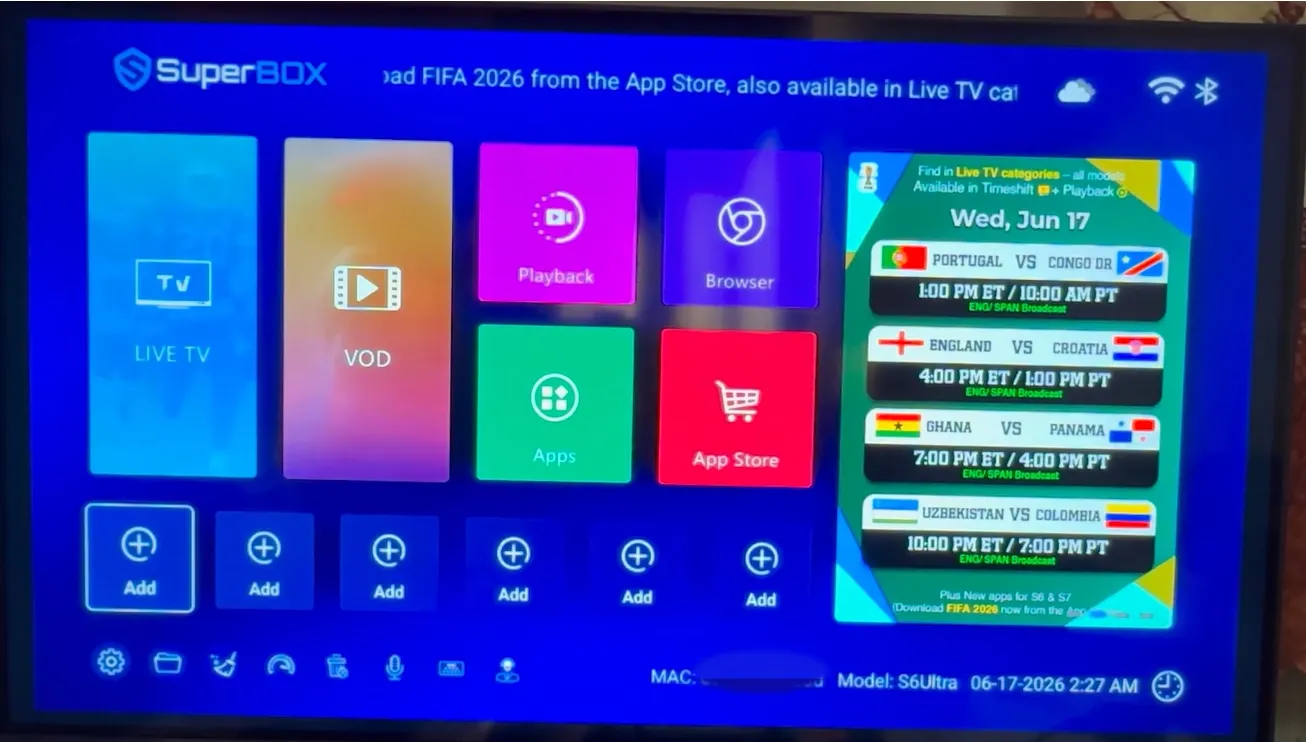
Return to the home dashboard and scroll down to the bottom utility dock. Click the Broom or Clean Up icon to launch the automated memory cleaner. This flushes inactive background processes and frees active RAM.
Watch this comprehensive video guide covering step-by-step buffering and freezing fixes:
Method 2: Adjust video decode and playback stream settings
When high-bitrate live television streams stall, adjusting the internal media decoder settings resolves codec incompatibilities instantly. Switching decoders redistributes video processing between hardware chips and software engines.
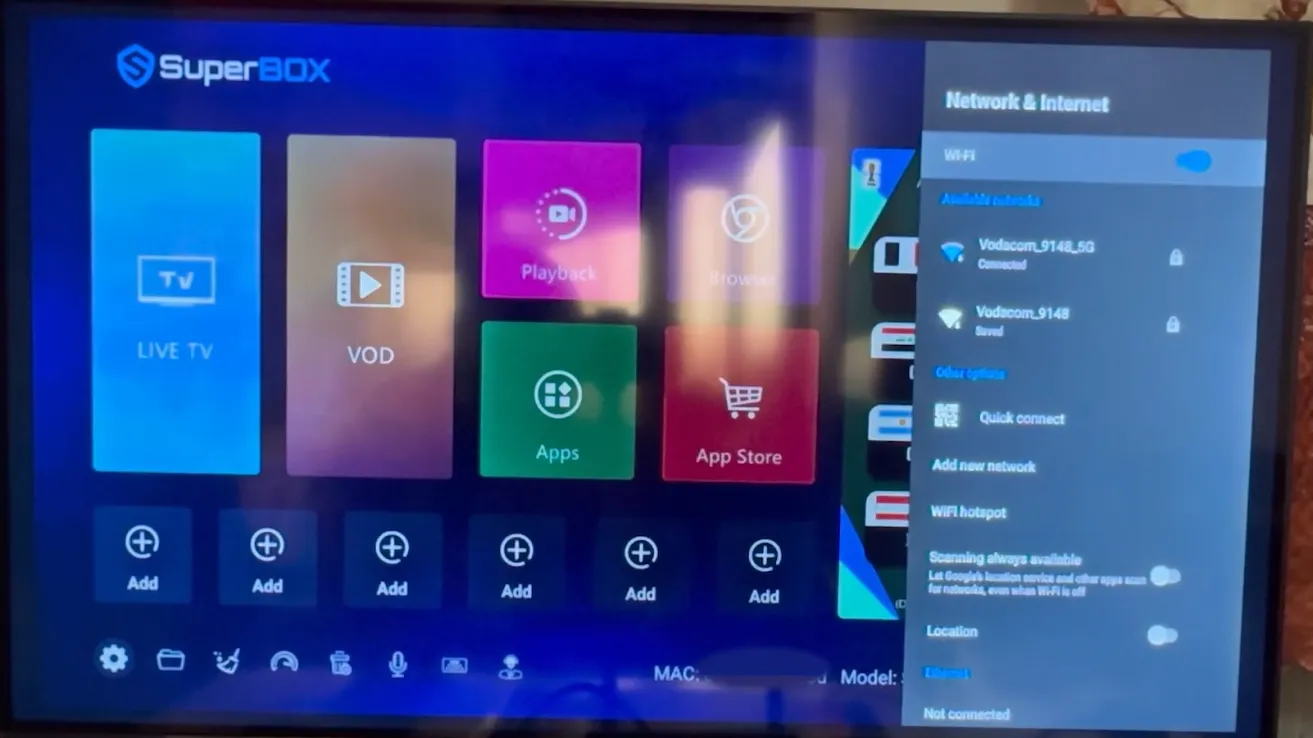
Follow these steps to reconfigure playback decoding parameters:
Step 1: Open the in-stream playback options menu
Launch Blue TV and tune to any live broadcast. Press the Menu button on your remote control, represented by three horizontal lines. A settings overlay appears along the bottom or side of the television screen.
Step 2: Switch between Hardware and System decode modes
Locate the Decode setting option. If the player is set to Hardware, toggle it to System or Hardware+. Hardware decoding leverages the dedicated graphics chip, while System decoding utilizes native Android media framework pipelines.
Step 3: Modify VOD stream speed modes
In Blue VOD, enter the search code 123123 to unlock developer settings. Change the streaming protocol from Fastest to Faster. Selecting Faster provides a more forgiving buffer window that prevents freezing during internet speed dips.
Watch this video guide showing how to optimize streaming settings and stop playback lag:
Method 3: Optimize network connectivity and DNS configurations
Live streams require consistent network throughput rather than high burst speeds. Wireless radio interference, overcrowded 2.4GHz channels, and restrictive internet service provider DNS servers frequently cause severe stream freezes.
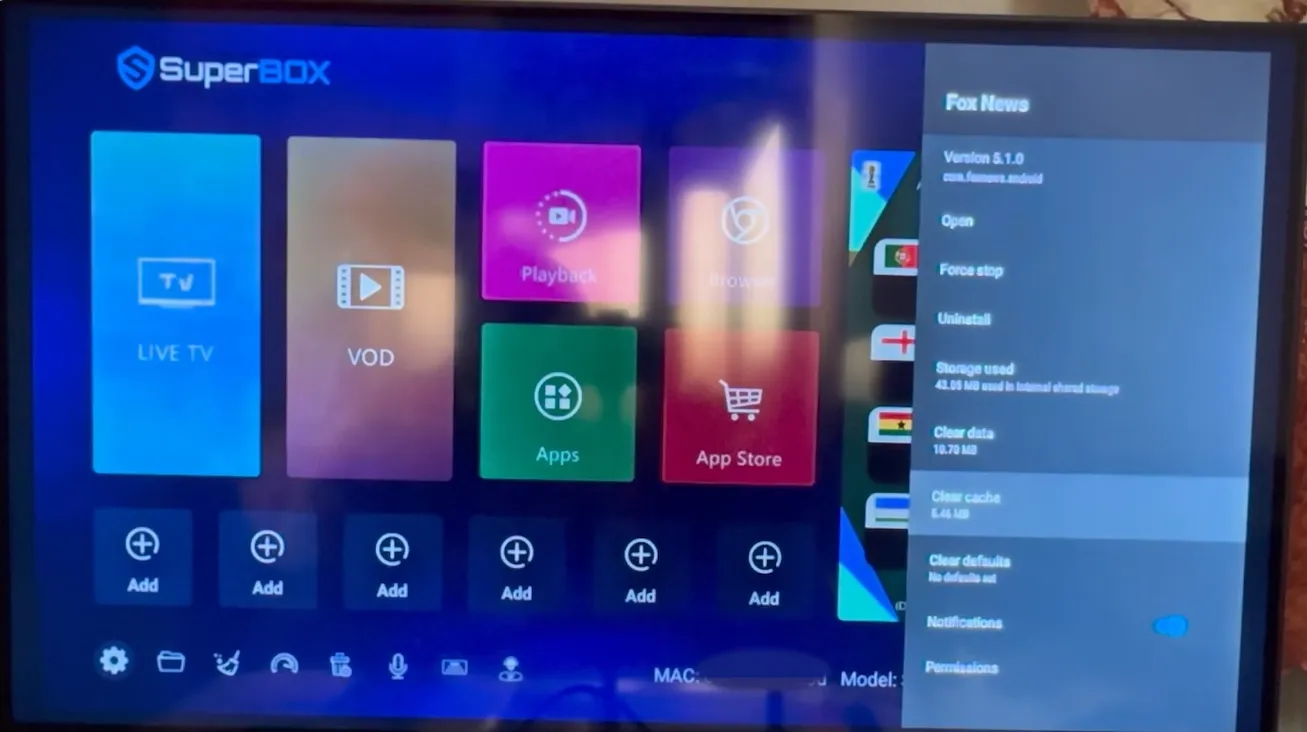
Follow these networking optimizations to stabilize your streaming throughput:
Step 1: Switch to a wired Ethernet connection
Wi-Fi signals fluctuate whenever household appliances or smartphones compete for bandwidth. Connecting an Ethernet cable directly from your router eliminates wireless interference and drops jitter down to under two milliseconds.
Step 2: Connect to the 5GHz wireless band
If running an Ethernet cable is impractical, open Network Settings and connect to your router 5GHz Wi-Fi band. The 5GHz frequency provides significantly higher bandwidth and avoids interference from nearby microwave ovens and Bluetooth devices.
Step 3: Update custom DNS server addresses
Some internet service providers throttle streaming servers through slow DNS lookup tables. Open Network Settings, select Static IP, and change DNS 1 to 8.8.8.8 and DNS 2 to 8.8.4.4. Using Google DNS accelerates hostname lookup times substantially.
Method 4: Prevent hardware thermal throttling and power brownouts
Streaming high-bitrate 4K content requires continuous processor computation. When placed in enclosed cabinets, older plastic consoles accumulate heat quickly, causing internal safety limits to throttle processor clock speeds down to 400MHz.
Apply these physical hardware maintenance techniques:
- Elevate Console Placement: Position your SuperBox on an open shelf with at least four inches of ventilation clearance on all sides.
- Perform Cold Power Drains: Unplug the DC power adapter for sixty seconds once weekly to discharge capacitors and clear hardware registers.
- Inspect Power Adapter Output: Ensure the factory 5V 2A power block delivers consistent voltage. Degraded power adapters cause voltage sags that freeze consoles under heavy decoding loads.
Frequently asked questions about SuperBox freezing issues
Why does my SuperBox freeze only on specific live TV channels?
Single channel freezes usually indicate a source broadcast bitrate fluctuation or corrupted local buffer. Clear cache in Blue TV and toggle the decode setting to System. If the freeze persists, switch to the backup channel feed in the channel menu.
Will doing a factory reset permanently fix my freezing box?
A factory reset resolves software partition corruption and background process bloat. If freezing is caused by low hardware RAM or poor Wi-Fi, the issue will return once apps are reinstalled. Always test network and cache fixes before executing a full reset.
What download speed is required to stop SuperBox from freezing?
A stable download speed of 25 to 50 Mbps is recommended for smooth HD streaming, while 70 Mbps or higher is ideal for 4K video feeds. Low ping latency and low jitter are more critical than raw download speeds for preventing live stream buffering.
Why upgrading to the SuperBox S8 Ultra permanently eliminates freezing
Tired of routine cache clearing, adjusting decoders, and waiting for frozen screens to unfreeze? Upgrading to the flagship SuperBox S8 Ultra priced at $449 provides dependable hardware built for intense 4K entertainment.
The S8 Ultra provides 128GB of high-speed internal eMMC storage, giving you four times the space of legacy streaming consoles. Paired with 4GB DDR RAM high-bandwidth RAM, it effortlessly caches high-bitrate live video feeds without slowing down system operations.
Sports enthusiasts can utilize Quad Multi-View shortcuts to watch four simultaneous live sports games without dropped frames. Its advanced video processor decodes multiple high-definition streams simultaneously with zero buffer lag.
Its aircraft-grade aluminum unibody housing keeps operating temperatures below 38.5 degrees Celsius during day-long streaming sessions. Investing $449 eliminates monthly cable bills while providing reliable hardware backed by authorized retail support.
Where to buy authentic SuperBox with warranty coverage
When investing in a high-performance streaming console, purchasing from an authorized distributor like SuperBox for Sale guarantees genuine hardware and active server licensing. Our distribution center is located at 13951 Pipeline Ave, Chino CA 91710, led by founder Riley Cooper.
Every purchase includes comprehensive customer service and direct manufacturer warranty coverage:
- Free Shipping: Fast 2 to 5 business day delivery across the United States and Canada with full real-time package tracking via FedEx or USPS.
- 24/7 Technical Support: Dedicated technical specialists available 24/7 via live chat and email for troubleshooting assistance.
- 30-Day Money-Back Guarantee: Hassle-free return policy if you are not completely satisfied with your streaming hardware performance.
- 1-Year Manufacturer Warranty: Full replacement coverage safeguarding against any hardware defects or system component failures supported directly by our customer care center in Chino, California.
- 100% Authentic Hardware: Direct factory units guaranteed genuine without modified firmware, unauthorized alterations, or security risks.
SuperBox for Sale is a leading authorized dealer of SuperBox, specializing in the supply of genuine SuperBox TV boxes Series S6, S7, and S8 in the US & CAD.
Experience Unrivaled Streaming Performance with SuperBox
Discover lightning-fast quad-core processing, dual-band Wi-Fi 6, 7-day playback, and crisp 6K ultra HD output engineered for discerning media fans.