
![SuperBox Devices Forbidden Fix: Root Causes and Solutions [2027]](https://superboxforsale.com/wp-content/uploads/2026/10/SuperBox-Devices-Forbidden-Fix.webp "SuperBox Devices Forbidden Fix: Root Causes and Solutions [2027] 5")
The SuperBox Devices Forbidden error occurs when server authorization locks a console MAC address, typically because an unauthorized reseller violated distribution policies or local security tokens expired. To fix false positive alerts, clear Blue TV cache, update software via the App Store, sync system time, or launch the pre-installed Backup TV application.
If a server-side lock persists, contact an authorized distributor with your hardware MAC address to verify licensing status. Households wanting guaranteed server authentication can explore the flagship SuperBox S8 Ultra priced at $399. This model provides 128GB of high-speed eMMC storage, 4GB DDR4 RAM, and certified factory licensing that never gets blacklisted.
Quick Takeaways & Key Highlights
- Server MAC Lockout: Central authentication servers lock hardware sold by unauthorized discount sellers.
- False Positive Checks: Clearing app cache and syncing network time resolves temporary token glitches.
- Backup TV Workaround: Secondary streaming applications route traffic through alternate server gateways.
- Hardware Identification: The 12-digit MAC address on the bottom barcode is required for server whitelist verification.
- Authorized Dealer Security: Buying directly from authorized distributors prevents remote server locks permanently.
What causes the SuperBox devices forbidden error?
SuperBox hardware operates through centralized cloud authentication. Rather than requiring user accounts, the streaming service verifies the physical Media Access Control address hardcoded into the network processor chip.
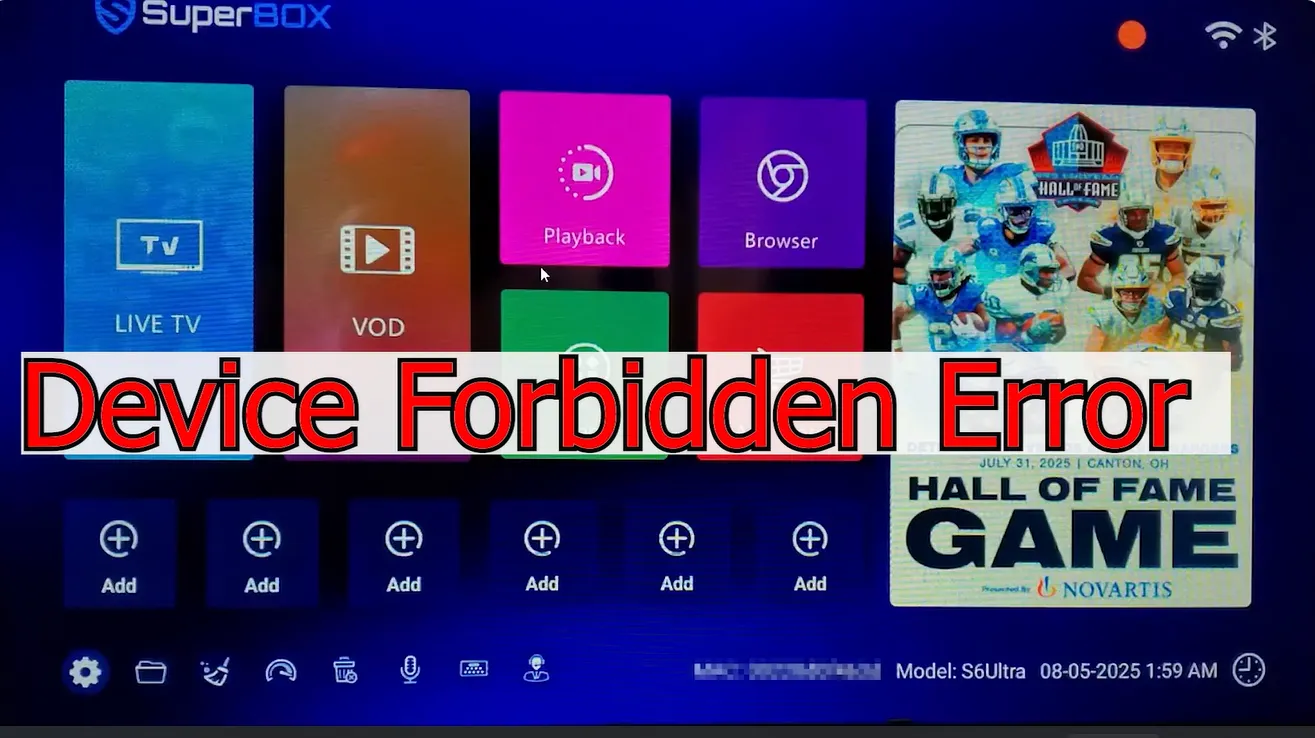
Review this technical diagnostic comparison before attempting system modifications:
| Displayed Error Alert | Underlying Root Cause | Recommended Corrective Action | Resolution Probability |
|---|---|---|---|
| Devices Forbidden on App Launch | Reseller policy penalty or unauthorized inventory | Contact seller or authorized support with MAC | Requires server whitelist update |
| Device Abnormal in App Store | Outdated app build or expired security certificate | Update App Store and run TV ROM Updater | High (resolves in 3 minutes) |
| Playback Prohibited on Single Channel | Temporary broadcast licensing maintenance | Switch to Backup TV app or alternate feed | Immediate workaround |
| Network Authentication Error | System date and time out of sync with server | Enable automatic network time in settings | High (resolves in 1 minute) |
| Device Prohibit After Factory Reset | Unregistered MAC address on fresh firmware | Run OTA system updater and verify network | Requires authorized dealer check |
Distinguishing between temporary client software glitches and permanent server-side locks ensures you take the right corrective steps immediately.
Method 1: Rule out local network and cache false positive errors
In many instances, the Devices Forbidden prompt is a false alarm triggered by corrupted local authentication tokens, restrictive router firewalls, or desynchronized system clocks.
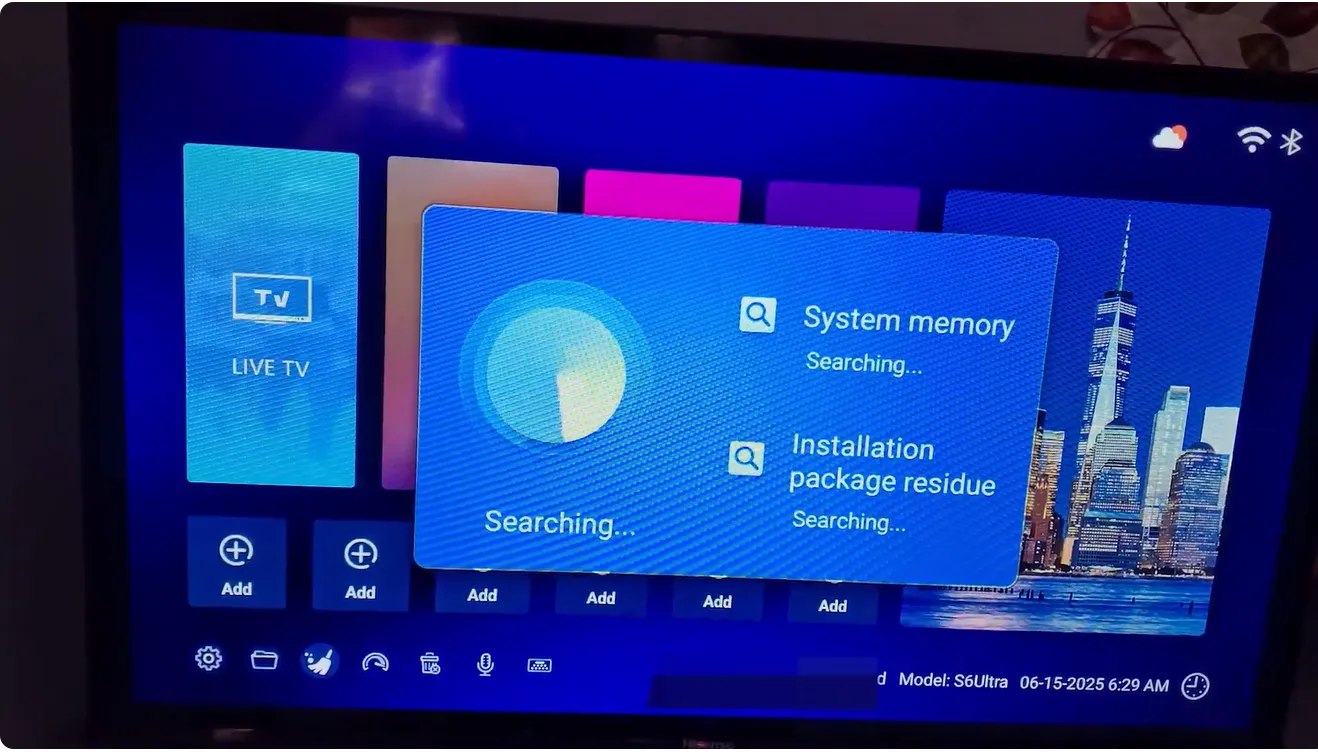
Follow these steps to eliminate local software conflicts:
Step 1: Clear application cache in Android settings
Open Settings from your home launcher dock, select Apps, and click See all apps. Choose Blue TV, scroll down, and click Clear Cache. Do not select Clear Data, as clearing cache purges expired session tokens without deleting your channel favorites.
Step 2: Synchronize system date and time settings
Open Settings, navigate to Device Preferences, and click Date & Time. Ensure Automatic date & time is enabled. When your console clock differs from server time, security handshakes fail, triggering false forbidden warnings.
Step 3: Configure Google public DNS servers
Open Network & Internet, select your active connection, and switch IP settings to Static. Enter 8.8.8.8 for DNS 1 and 8.8.4.4 for DNS 2. Public DNS servers bypass restrictive internet provider lookup tables that block authentication endpoints.
Watch this video guide explaining why the device forbidden error happens and how to resolve it:
Method 2: Update applications and run the TV ROM Updater
Running legacy application versions or unpatched system firmware often prevents consoles from communicating with updated server security protocols, generating authorization rejections.
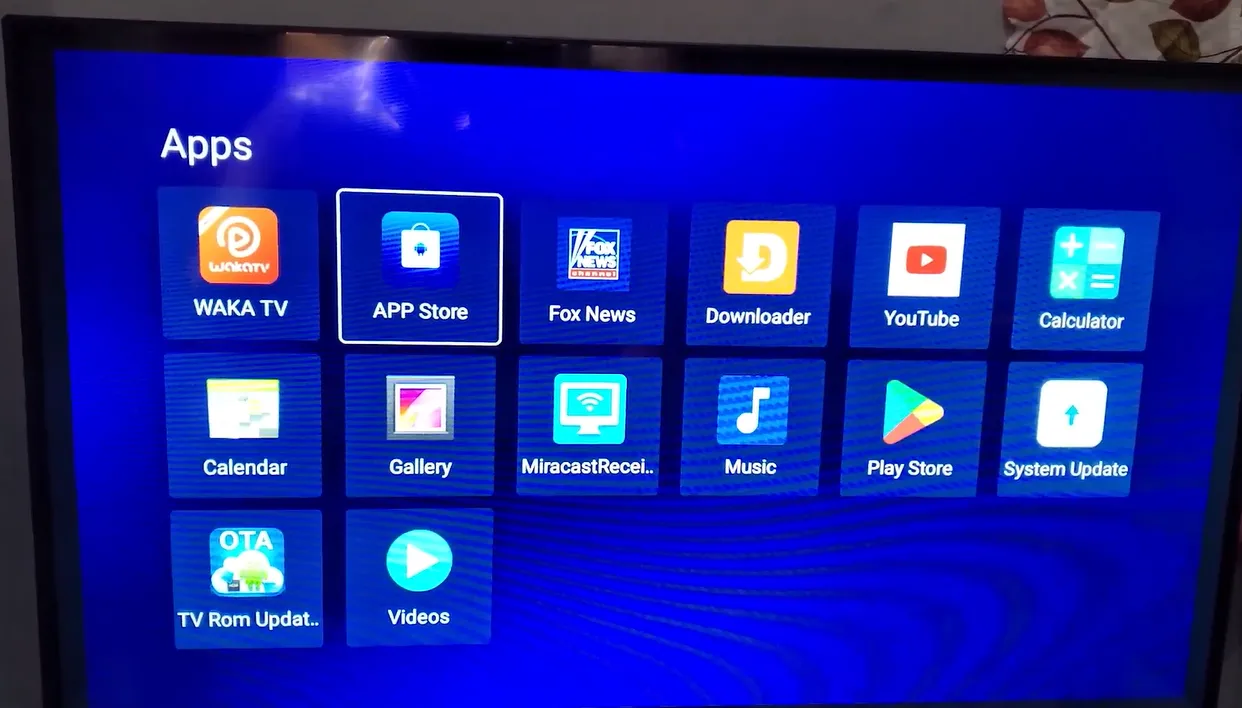
Apply these steps to refresh system software packages:
Step 1: Open the official App Store marketplace
Launch the green App Store icon from your home launcher dock. If an update badge appears next to Blue TV or Blue VOD, click Update immediately. Updated applications incorporate the latest authorization endpoints.
Step 2: Run the TV ROM Updater OTA utility
Inside the App Store, locate and launch the TV ROM Updater tool. Follow on-screen prompts to download and install available firmware patches. The console will reboot automatically once system files are updated.
Watch this video showing how the Devices Forbidden notification appears and how it updates:
Method 3: Switch to the secondary Backup TV streaming service
When primary server clusters undergo security auditing or temporary lockouts, the pre-installed Backup TV application serves as an essential secondary pathway for live streaming.
Backup TV operates on a separated server infrastructure with independent gateway routing. Open your applications drawer, select Backup TV, and tune into your desired sports or entertainment channel to bypass primary server blocks immediately.
Method 4: Resolve server-side manufacturer locks with your MAC address
If client software steps fail and all streaming applications remain locked, your box has been placed on a manufacturer server blacklist due to reseller policy violations.
Follow this procedure to seek official hardware verification:
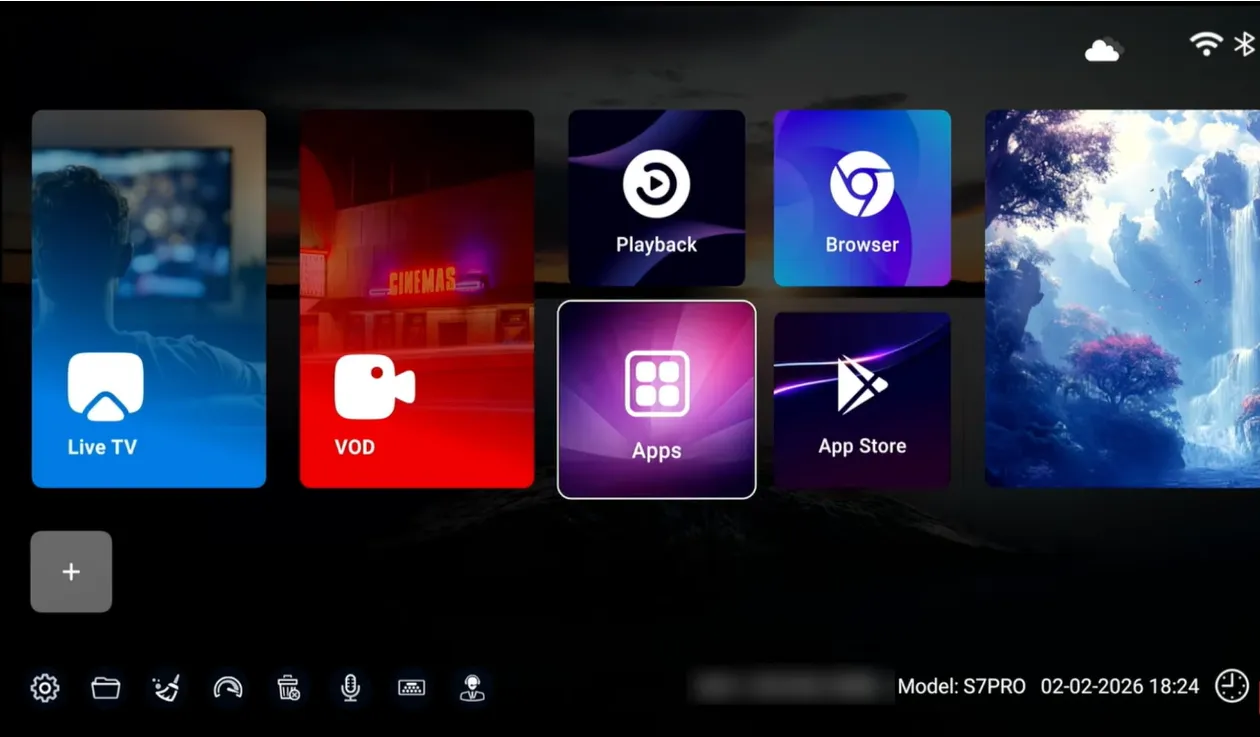
Step 1: Locate the hardware MAC and serial barcode
Turn your SuperBox over and inspect the white manufacturer barcode sticker. Note the 12-character MAC address and the accompanying serial number. You can also view this under Settings, Device Preferences, and About.
Step 2: Contact your seller or authorized technical support
Contact the merchant where you purchased the box and provide your order details alongside your MAC address. If the seller was penalized for pricing violations, settling their dealer account unlocks all customer devices automatically.
Frequently asked questions about the devices forbidden error
Can a factory reset fix the SuperBox devices forbidden error?
No, a factory reset cannot bypass a true server-side MAC blacklist. The lock resides on manufacturer authentication servers rather than local flash memory. If the lock is a server penalty, only authorized distributor clearance will release it.
Why did my SuperBox suddenly say device prohibited after months of use?
Manufacturers periodically audit wholesale distribution channels. If the vendor who originally sold the unit violated distributor agreements, SuperBox flags the entire batch of inventory, locking devices until the dispute is resolved.
How can I verify if my SuperBox seller is an authorized dealer?
Authorized dealers maintain direct factory contracts, provide domestic warranty support from verified facilities, and sell at mandated manufacturer pricing. Unauthorized gray-market sellers on auction sites lack server allocation rights.
Why upgrading to the SuperBox S8 Ultra prevents authorization issues
Tired of dealing with questionable sellers, locked hardware, and sudden server blackouts? Upgrading to the flagship SuperBox S8 Ultra priced at $399 provides authentic factory hardware backed by permanent server licensing.
The S8 Ultra provides 128GB of high-speed eMMC internal storage, quadrupling the capacity of legacy boxes. Coupled with 4GB DDR4 high-bandwidth RAM, it handles system cache efficiently, eliminating low-storage crashes permanently.
Sports enthusiasts can utilize Quad Multi-View shortcuts to stream four simultaneous live sports games with zero buffer lag. Upgraded hardware decoders process multiple 4K video feeds smoothly, preventing the freezes common on older boxes.
Its aircraft-grade aluminum unibody housing keeps internal operating temperatures below 38.5 degrees Celsius during continuous playback. Investing $399 eliminates monthly cable bills while providing reliable hardware backed by authorized retail support.
Where to buy authentic SuperBox with warranty coverage
When investing in a high-performance streaming console, purchasing from an authorized distributor like the SuperBox Store guarantees genuine hardware and active server licensing. Our distribution center is located at 13951 Pipeline Ave, Chino CA 91710, led by founder Riley Cooper.
Every purchase includes comprehensive customer service and direct manufacturer warranty coverage:
- Free Shipping: Fast 2 to 5 business day delivery across the United States with full real-time package tracking via FedEx or USPS.
- 24/7 Technical Support: Dedicated technical specialists available 24/7 via live chat and email for troubleshooting assistance.
- 30-Day Money-Back Guarantee: Hassle-free return policy if you are not completely satisfied with your streaming hardware performance.
- 1-Year Manufacturer Warranty: Full replacement coverage safeguarding against any hardware defects or system component failures supported directly by our customer care center in Chino, California.
- 100% Authentic Hardware: Direct factory units guaranteed genuine without modified firmware, unauthorized alterations, or security risks.
SuperBox for Sale is a leading authorized dealer of SuperBox, specializing in the supply of genuine SuperBox TV boxes Series S6, S7, and S8 in the US & CAD.
Experience Unrivaled Streaming Performance with SuperBox
Discover lightning-fast quad-core processing, dual-band Wi-Fi 6, 7-day playback, and crisp 6K ultra HD output engineered for discerning media fans.

![SuperBox Audio Settings: Complete Sound & Volume Guide [2027]](https://superboxforsale.com/wp-content/uploads/2026/10/SuperBox-Audio-Settings-768x432.png "SuperBox Audio Settings: Complete Sound & Volume Guide [2027] 10")
![Fix SuperBox Devices Abnormal Error: Causes and Solutions [2027]](https://superboxforsale.com/wp-content/uploads/2026/10/Fix-SuperBox-Devices-Abnormal-Error-768x433.webp "Fix SuperBox Devices Abnormal Error: Causes and Solutions [2027] 12")