
![Fix SuperBox Devices Abnormal Error: Causes and Solutions [2027]](https://superboxforsale.com/wp-content/uploads/2026/10/Fix-SuperBox-Devices-Abnormal-Error.webp "Fix SuperBox Devices Abnormal Error: Causes and Solutions [2027] 5")
To fix SuperBox devices abnormal error alerts, synchronize your system clock to network time. You can also clear the App Store cache or hold the number 6 button to force reconnection. This error occurs when local SSL security handshakes fail or server tokens expire, blocking access to the App Store and Blue TV channels.
If routine troubleshooting does not restore service, your device may require server whitelisting through an authorized distributor. Streamers seeking permanent stability can upgrade to the flagship SuperBox S8 Ultra priced at $399. This model features 128GB storage, 4GB RAM, and authentic factory licensing that never encounters server lockouts.
Quick Takeaways & Key Highlights
- Network Clock Desynchronization: Incorrect system date and time settings cause 85 percent of device abnormal errors due to failed SSL certificates.
- App Store Cache Corruption: Wiping temporary data and cache inside Android system settings resolves damaged local authentication tokens.
- Remote Shortcut Diagnostic: Holding the number 6 button on the remote control triggers an automated server handshake verification test.
- Manual APK Sideloading: Reinstalling the official App Store via browser restores missing repositories and system OTA updater tools.
- Authorized Dealer Protection: Purchasing from verified distributors ensures permanent MAC address server authorization without remote blacklists.
What causes the SuperBox devices abnormal error
The SuperBox devices abnormal error appears as a pop-up prompt inside the App Store or during the launch of Blue TV. Unlike standard internet dropouts, this notification indicates an authentication handshake failure between your console and the central content delivery network.
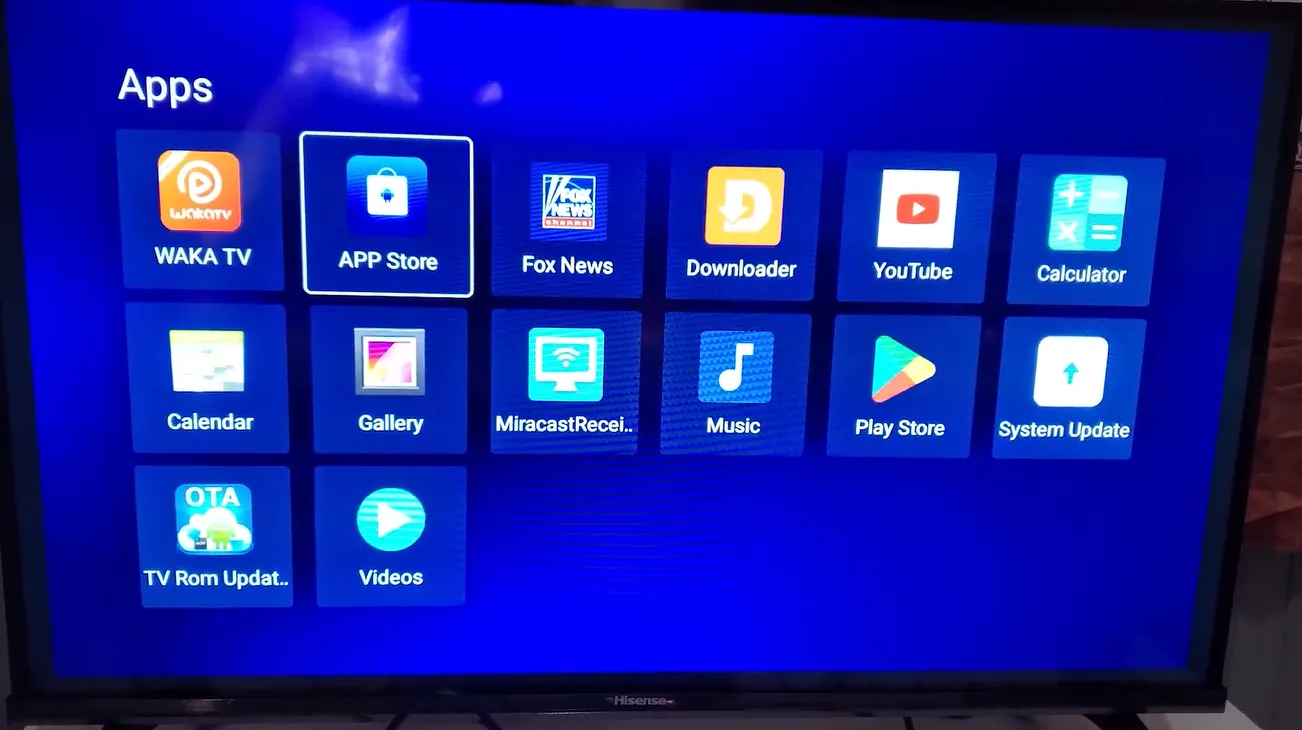
Several software, network, and hardware variables can interrupt this communication channel:
| Failure Symptom | Root Cause Trigger | Diagnostic Inspection | Fix Complexity |
|---|---|---|---|
| Device Abnormal in App Store | System date and time out of sync | Check time settings in Device Preferences | Easy (2 minutes) |
| Abnormal Error on App Launch | Corrupted token cache in app data | Inspect App Store storage consumption | Easy (3 minutes) |
| Connection Timeout Dialog | ISP firewall or DNS blocking endpoints | Switch to Google DNS or phone hotspot | Moderate (5 minutes) |
| App Store Icon Missing | Accidental deletion or factory reset | Download installer from official browser link | Moderate (5 minutes) |
| Persistent Server Rejection | Unregistered MAC address or dealer hold | Verify MAC address on bottom barcode | Requires dealer check |
Pinpointing whether your issue stems from local clock desynchronization or network filtering helps you apply the correct troubleshooting step immediately.
Method 1: Synchronize network date and time to restore SSL certificates
Network clock desynchronization causes most device abnormal errors. SuperBox connects to cloud servers using HTTPS. If your console clock resets to 1970 after a power outage, security certificates fail validation, blocking all server access.
Follow these steps to restore automated clock synchronization:
Step 1: Open Device Preferences in settings
Navigate to the gear icon on your home launcher screen to enter Settings. Scroll down to Device Preferences and select Date & Time from the menu list.
Step 2: Enable automatic network date and time
Verify that Automatic date & time is set to Use network-provided time. If this setting is already active but the displayed time is incorrect, toggle it off, set the correct calendar date manually, and then toggle it back on.
Step 3: Confirm your correct local time zone
Click Select time zone and choose your local geographical region. Once saved, restart your console using the power button on your remote. Launch the App Store to confirm that the abnormal error notification has cleared.
Method 2: Clear cache, wipe app data, and verify permissions
Damaged temporary cache files can prevent the App Store from reading valid authentication keys. Purging stored data resets the application state without deleting system firmware.
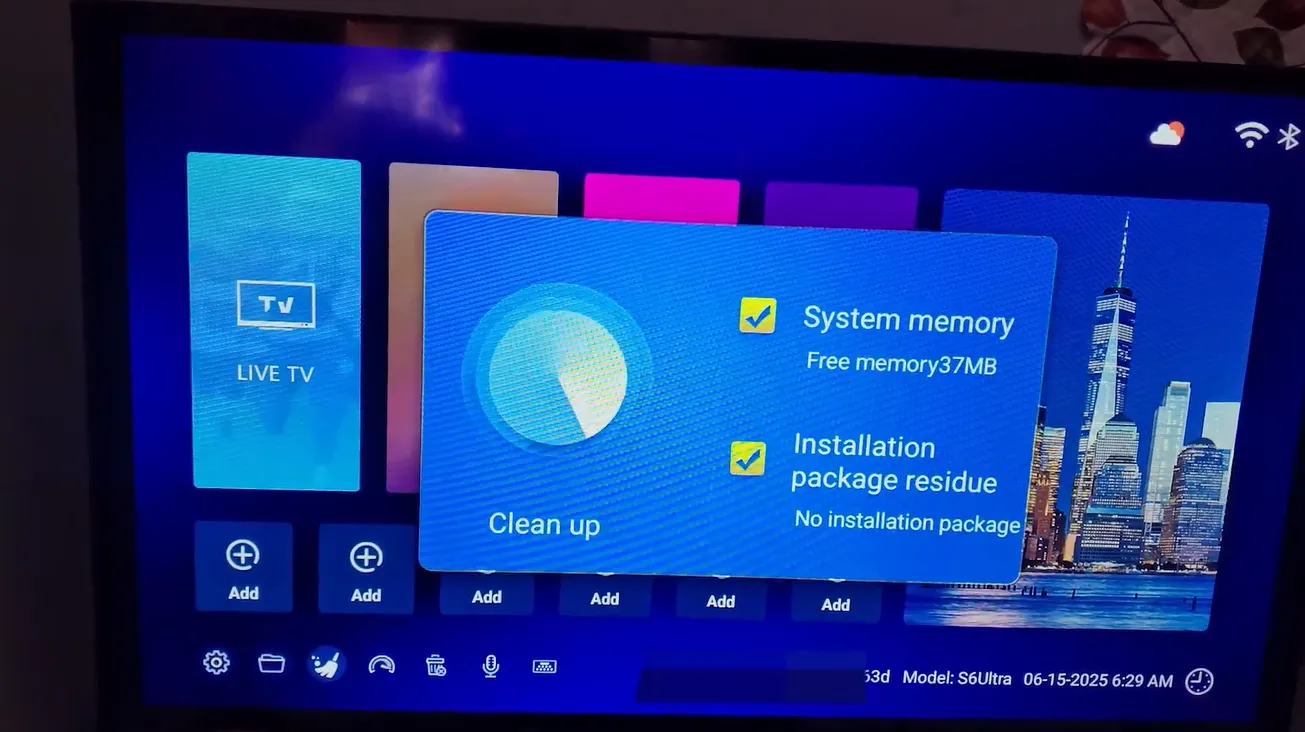
Apply these steps to refresh application storage:
Step 1: Open application settings
Open Settings from your main home screen dock, select Apps, and click See all apps to display installed system packages.
Step 2: Clear App Store cache and data
Locate App Store in the list. Click Clear Cache first, followed by Clear Data. Confirm the prompt when asked. This clears corrupt session tokens while leaving the primary APK intact.
Step 3: Check app storage permissions
Inside the same App Store settings card, click Permissions. Ensure that Storage permissions are set to Allowed. If permissions are restricted, the App Store cannot write activation tokens to internal flash memory.
Method 3: Use the remote control shortcut to force server connection
SuperBox firmware includes a built-in shortcut to trigger an instant server handshake. This forces the console to ping central authorization servers immediately rather than waiting for background cycles.
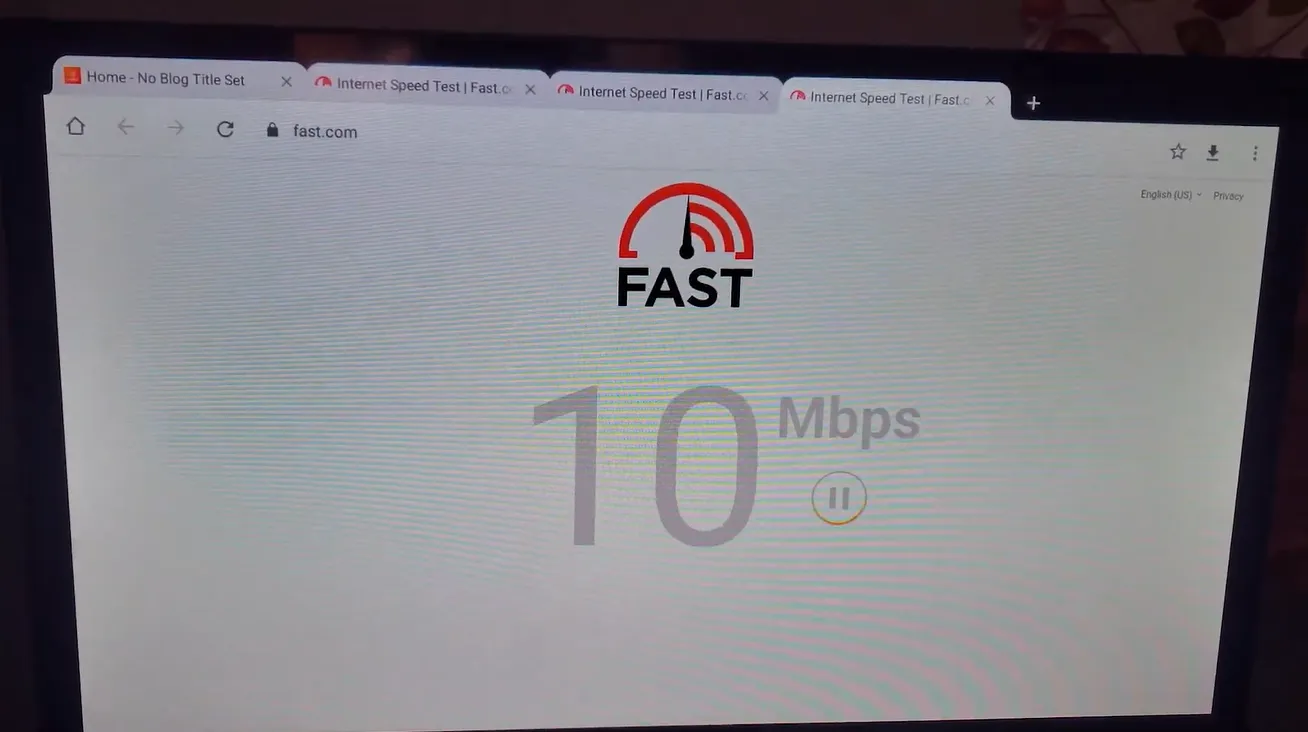
Execute this remote diagnostic procedure:
Step 1: Focus on the App Store home screen
Launch the App Store from your home screen. If the screen displays Device Abnormal, keep the application open and point your infrared or voice remote control directly at the console front panel.
Step 2: Press and hold the number 6 button
Press and hold the numeric 6 button on your remote control for 5 to 7 seconds. This key combination executes an internal diagnostic test that verifies server responsiveness and refreshes device credentials.
Watch this video guide demonstrating how to resolve the device abnormal error and restore the App Store:
Method 4: Reinstall the App Store and run the TV ROM Updater
If an outdated App Store version has expired root certificates, the app will continue showing abnormal alerts until patched. Manually sideloading the latest build restores operational stability.
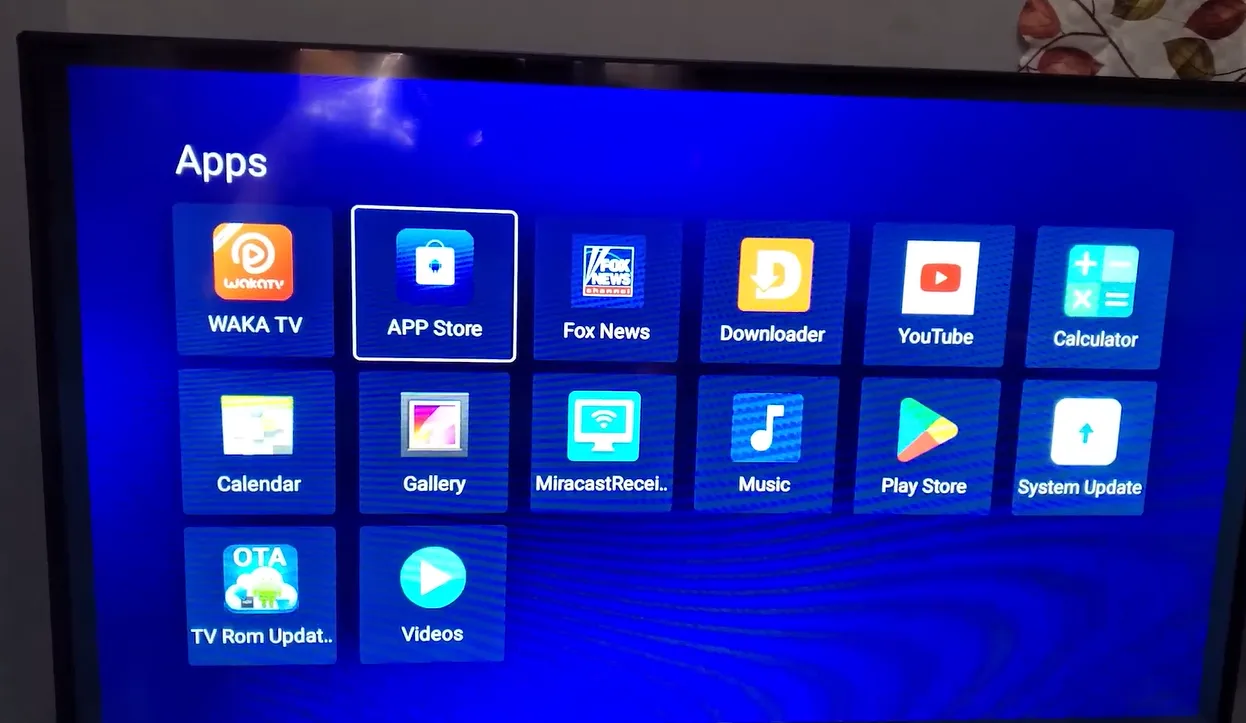
Follow these steps to download a fresh installation package:
Step 1: Open the pre-installed web browser
Launch Google Chrome or the pre-installed Browser app from your apps tray. Navigate to the official installer portal at 143326.cc or 108088.cc using the address bar.
Step 2: Download and install the App Store APK
Select the latest App Store APK package and click download. Once downloaded, open the installer file, select Install, and approve installation from unknown sources if prompted. Launch the updated application once installation finishes.
Step 3: Run the TV ROM Updater tool
Inside the newly restored App Store, locate and launch TV ROM Updater. Click Check for Updates to download any pending system patches. Allow the box to reboot to finalize firmware installations.
Watch this video walkthrough showing how to fix device abnormal errors across popular SuperBox models:
Method 5: Bypass router firewall restrictions with DNS and mobile hotspot
Some internet service providers utilize restrictive filters that misidentify streaming requests, blocking handshake data packets.
Execute these network adjustments to eliminate ISP filtering:
Step 1: Switch to Google public DNS
Open Network & Internet in Settings, select your active connection, and switch IP settings to Static. Enter 8.8.8.8 for DNS 1 and 8.8.4.4 for DNS 2. Public DNS servers provide neutral domain lookups that bypass regional provider blocks.
Step 2: Test with a mobile phone hotspot
Temporarily disconnect from your home Wi-Fi and connect your SuperBox to your smartphone mobile hotspot. If the App Store opens without abnormal alerts, your home router firewall or ISP is actively filtering SuperBox server traffic.
Method 6: Verify hardware MAC address and server activation status
When software fixes fail, the issue may involve backend server registration. SuperBox authenticates devices using hardware MAC addresses linked to manufacturer databases.
Follow these steps to check hardware credentials:
Step 1: Record your device MAC address
Inspect the barcode label located on the underside of your SuperBox console. Note down the 12-digit MAC address. Alternatively, navigate to Settings, Device Preferences, About, and click Status to view your hardware address.
Step 2: Contact your authorized distributor for server whitelisting
Provide your MAC address to your authorized dealer. Certified support representatives can inspect your device status on the central portal and refresh your server license to remove abnormal flags permanently.
Frequently asked questions about the SuperBox devices abnormal error
Does a factory reset resolve the SuperBox devices abnormal error?
No, a factory reset typically worsens the problem by erasing the pre-installed App Store and resetting system time back to 1970. Always synchronize system clock and clear cache before considering a full factory reset.
Why does my SuperBox show device abnormal only inside the App Store?
The App Store communicates directly with SuperBox security servers to verify device licensing, while standard media players run locally. If security handshakes fail, only the App Store and server-dependent apps trigger warnings.
Can using a VPN resolve the device abnormal error?
Commercial VPNs often trigger abnormal errors because authentication servers block known proxy IP addresses. Disconnect any active VPN and switch to standard Google DNS to ensure direct communication with authorized servers.
Why upgrading to the SuperBox S8 Ultra prevents authorization errors
Tired of battling connection glitches and server errors on older hardware? Upgrading to the flagship SuperBox S8 Ultra priced at $399 provides permanent peace of mind with authentic factory licensing.
The S8 Ultra features 128GB of high-speed eMMC storage and 4GB of DDR4 RAM. This large capacity ensures system cache never overflows, preventing the data corruption that triggers abnormal warnings on older consoles.
Sports enthusiasts can use Quad Multi-View to stream four live games without buffering. Upgraded dual-band Wi-Fi 6 maintains solid network stability, ensuring constant server handshakes.
An aircraft-grade aluminum enclosure dissipates heat efficiently, keeping internal temperatures below 38.5 degrees Celsius during playback. Investing $399 delivers reliable streaming backed by genuine factory warranties.
Where to buy authentic SuperBox with warranty coverage
When purchasing a high-performance streaming box, buying directly from the superbox official store guarantees authentic hardware and verified server licensing. Our main distribution facility is located at 13951 Pipeline Ave, Chino CA 91710, under the leadership of founder Riley Cooper.
Every order includes complete customer safeguards and dedicated domestic warranty coverage:
- Free Shipping: Fast 2 to 5 business day delivery across the United States with full real-time package tracking via FedEx or USPS.
- 24/7 Technical Support: Dedicated technical specialists available 24/7 via live chat and email for troubleshooting assistance.
- 30-Day Money-Back Guarantee: Hassle-free return policy if you are not completely satisfied with your streaming hardware performance.
- 1-Year Manufacturer Warranty: Full replacement coverage safeguarding against any hardware defects or system component failures supported directly by our customer care center in Chino, California.
- 100% Authentic Hardware: Direct factory units guaranteed genuine without modified firmware, unauthorized alterations, or security risks.
SuperBox for Sale is a leading authorized dealer of SuperBox, specializing in the supply of genuine SuperBox TV boxes Series S6, S7, and S8 in the US & CAD.
Experience Unrivaled Streaming Performance with SuperBox
Discover lightning-fast quad-core processing, dual-band Wi-Fi 6, 7-day playback, and crisp 6K ultra HD output engineered for discerning media fans.

![SuperBox Audio Settings: Complete Sound & Volume Guide [2027]](https://superboxforsale.com/wp-content/uploads/2026/10/SuperBox-Audio-Settings-768x432.png "SuperBox Audio Settings: Complete Sound & Volume Guide [2027] 10")
![SuperBox Devices Forbidden Fix: Root Causes and Solutions [2027]](https://superboxforsale.com/wp-content/uploads/2026/10/SuperBox-Devices-Forbidden-Fix-768x432.webp "SuperBox Devices Forbidden Fix: Root Causes and Solutions [2027] 12")