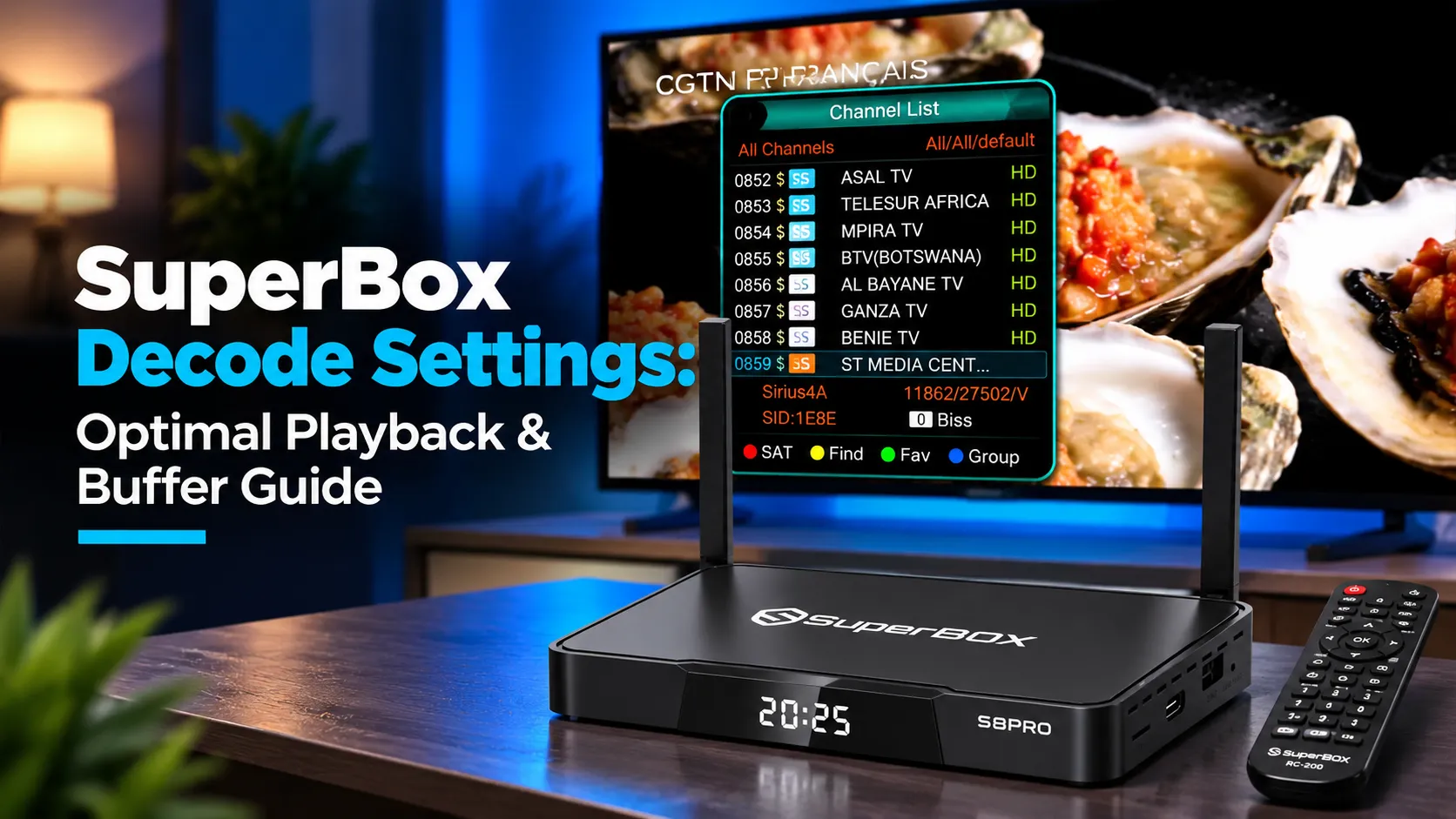
SuperBox decode settings determine how your console processes live television and on-demand video streams. To adjust decode settings, press the Menu button on your remote while playing any channel in Blue TV or Blue VOD. Navigate to the Decode option and switch from Hardware to System or Advance to resolve buffering, audio lag, or black screen errors.
Hardware decoding delivers optimal energy efficiency for standard broadcasts, while System and Advance modes provide software fallbacks for corrupted stream containers. For streamers seeking hardware capable of multi-channel decoding, the flagship SuperBox S8 Ultra at $449 features an upgraded video processor supporting Quad Multi-View playback.
Quick Takeaways & Key Highlights
- Hardware Mode: Uses dedicated GPU video decoders for low power consumption and smooth 4K 60fps rendering.
- System Mode: Routes streams through Android native MediaCodec architecture to resolve audio synchronization lag.
- Advance Mode: Employs CPU software decoding to process corrupted stream packets and unusual video codecs.
- Instant Access: Pressing the remote Menu button during playback opens the on-screen decode selection toolbar.
- Hidden Speed Menu: Entering 123123 in the Blue VOD search bar unlocks advanced streaming buffer configurations.
Hardware vs System vs Advance
Video decoding converts compressed digital broadcast data into uncompressed video frames displayed on your television screen. SuperBox consoles include three primary decoding engines within the Blue TV and Blue VOD applications (downloaded via the built-in App Store).
Selecting the proper decoding profile prevents stream stuttering, frame drops, and audio desynchronization. Review this technical comparison matrix to understand how each decoding engine operates under different playback conditions:
| Decoding Mode | Processing Architecture | Primary Use Case | System Resource Profile |
|---|---|---|---|
| Hardware (HW) | Dedicated GPU / VPU video processing chip | Standard live sports and 4K 60fps broadcasts | Lowest CPU utilization and minimal heat generation |
| System (Native) | Android OS MediaCodec framework pipeline | Fixes audio lag and black screens with sound | Balanced CPU and GPU resource distribution |
| Advance (SW) | CPU software algorithms via software player | Corrupted video packets and unusual stream feeds | Higher CPU load with broader format compatibility |
Hardware mode serves as the default profile across all SuperBox consoles. When network streams experience encoding irregularities, switching to alternative decoding engines bypasses hardware limitations without interrupting viewing.
Step-by-step guide to change decode settings in Blue TV and Blue VOD
Changing your decoding configuration takes less than 30 seconds while watching live television or movies. Follow this 5-step sequence to adjust your playback engine directly from your remote control:
If you encounter a black screen with normal audio on Hardware mode, switching to System mode resolves the video rendering pipeline immediately. Test each setting across several minutes before making permanent adjustments.
How decode settings fix black screens, stuttering, and audio lag
Different streaming errors require targeted decoding adjustments. Matching your visual symptoms with the correct engine ensures rapid problem resolution without restarting your console.
Why does a channel show a black screen with normal audio?
This glitch occurs when the hardware video processing chip fails to decode an unsupported video codec while the audio track plays normally. Switching from Hardware to System mode transfers video processing to Android MediaCodec, restoring display visuals instantly.
How does switching decoding mode fix video stuttering during live sports?
Live sports streams occasionally transmit dropped frames or variable bitrates that overwhelm strict hardware decoders. Switching to Advance mode utilizes software buffering, smoothing out frame inconsistencies during high-action sporting events.
What causes audio and video desynchronization on live broadcasts?
Audio desynchronization happens when audio and video timestamps drift apart during network packet delays. Switching to System mode synchronizes internal audio renderers with video frame buffers, restoring perfect lip-sync alignment.
Accessing hidden buffer and speed optimization menus
SuperBox firmware includes hidden configuration menus designed for advanced network buffer tuning. Accessing these settings optimizes stream caching for households with fluctuating internet connections.
Open the Blue VOD application and navigate to the search bar. Use your remote numeric keypad to enter the secret code 123123 into the search field. This code unlocks a hidden configuration screen containing network streaming mode parameters.
Switch the streaming mode parameter from Fastest to Faster. While counterintuitive, Fastest mode aggressively requests oversized data chunks that trigger network throttling, whereas Faster mode establishes stable continuous packet delivery.
Regularly clearing application cache prevents playback errors caused by fragmented temporary video files. Navigate to Settings, click Apps, select Blue TV or Blue VOD, and click Clear Cache to refresh local memory.
Video demonstrations of SuperBox decode settings and buffering fixes
Watching hands-on demonstrations helps you locate playback toolbars and menu overlays effortlessly. Review this official tutorial from SuperBOX Lara showing how to navigate decode settings and EPG styles.
For an in-depth visual guide on eliminating buffering using hidden speed menus and cache management, watch this comprehensive walkthrough.
Network optimization settings complementing video decoding
Adjusting decode settings works best when supported by a stable broadband connection. Unstable internet connections cause packet loss that no decoding engine can compensate for indefinitely.
Connect your SuperBox using a direct Ethernet cable rather than Wi-Fi whenever possible. A wired connection eliminates wireless channel congestion and guarantees consistent throughput for high-bitrate 4K streams.
If utilizing Wi-Fi, ensure your console connects to the 5GHz frequency band instead of 2.4GHz. The 5GHz band provides wider data bandwidth and reduced radio interference from neighboring electronic household devices.
Update your network DNS settings to Google Public DNS by entering 8.8.8.8 and 8.8.4.4 under Network Settings. Custom DNS configurations prevent server connection delays and accelerate content delivery network routing.
Frequently asked questions about SuperBox decoding settings
Which decode setting is the recommended default for SuperBox?
Hardware mode is the recommended default profile for general viewing. It delivers optimal energy efficiency, lowest operating temperatures, and smoothest playback across standard broadcast streams.
Does changing the decode setting apply to all channels permanently?
Yes, altering the decode setting in Blue TV sets the global playback engine for all channels. If you switch to Advance mode, remember to toggle back to Hardware mode once temporary stream issues resolve.
Can incorrect decode settings cause the SuperBox console to overheat?
Advance software decoding increases CPU utilization, causing internal operating temperatures to rise slightly. Running in Hardware mode keeps operating temperatures cool and preserves console hardware longevity.
Why upgrading to the SuperBox S8 Ultra delivers flawless video decoding
Tired of adjusting playback engines and waiting through stream buffering? Upgrading to the flagship SuperBox S8 Ultra priced at $449 provides an effortless high-definition home entertainment experience.
The S8 Ultra features an advanced video processing unit supporting next-generation AV1 and H.265 hardware decoding. Its dedicated video pipeline decodes 4K 60fps streams effortlessly without frame drops or manual adjustments.
Backed by 4GB DDR RAM and 128GB high-speed internal storage, the S8 Ultra delivers multi-stream processing power. Sports enthusiasts can launch Quad Multi-View to decode four live sports broadcasts simultaneously on one screen.
Its aircraft-grade aluminum unibody housing maintains operating temperatures below 38.5 degrees Celsius during extended viewing sessions. Investing $449 permanently cuts cable bills while delivering premium hardware with domestic customer support.
Where to buy authentic SuperBox with warranty coverage
When investing in an authentic streaming console, purchasing from an authorized distributor like SuperBox Store guarantees genuine hardware and active server licensing. Our distribution center is located at 13951 Pipeline Ave, Chino CA 91710, led by founder Riley Cooper.
Every purchase includes comprehensive domestic customer support and direct manufacturer warranty coverage:
- Free Shipping: Fast 2 to 5 business day delivery across the United States and Canada with full real-time package tracking via FedEx or USPS.
- 24/7 Technical Support: Dedicated technical specialists available 24/7 via live chat and email for troubleshooting assistance.
- 30-Day Money-Back Guarantee: Hassle-free return policy if you are not completely satisfied with your streaming hardware performance.
- 1-Year Manufacturer Warranty: Full replacement coverage safeguarding against any hardware defects or system component failures supported directly by our customer care center in Chino, California.
- 100% Authentic Hardware: Direct factory units guaranteed genuine without modified firmware, unauthorized alterations, or security risks.
SuperBox for Sale is a leading authorized dealer of SuperBox, specializing in the supply of genuine SuperBox TV boxes Series S6, S7, and S8 in the US & CAD.
Join the Conversation: This article has been shared on our official Facebook page. Head over to our Facebook post to join the community discussion, share your thoughts, and follow SuperBox for Sale on Facebook for the latest updates and streaming tips!
Experience Unrivaled Streaming Performance with SuperBox
Discover lightning-fast quad-core processing, dual-band Wi-Fi 6, 7-day playback, and crisp 6K ultra HD output engineered for discerning media fans.