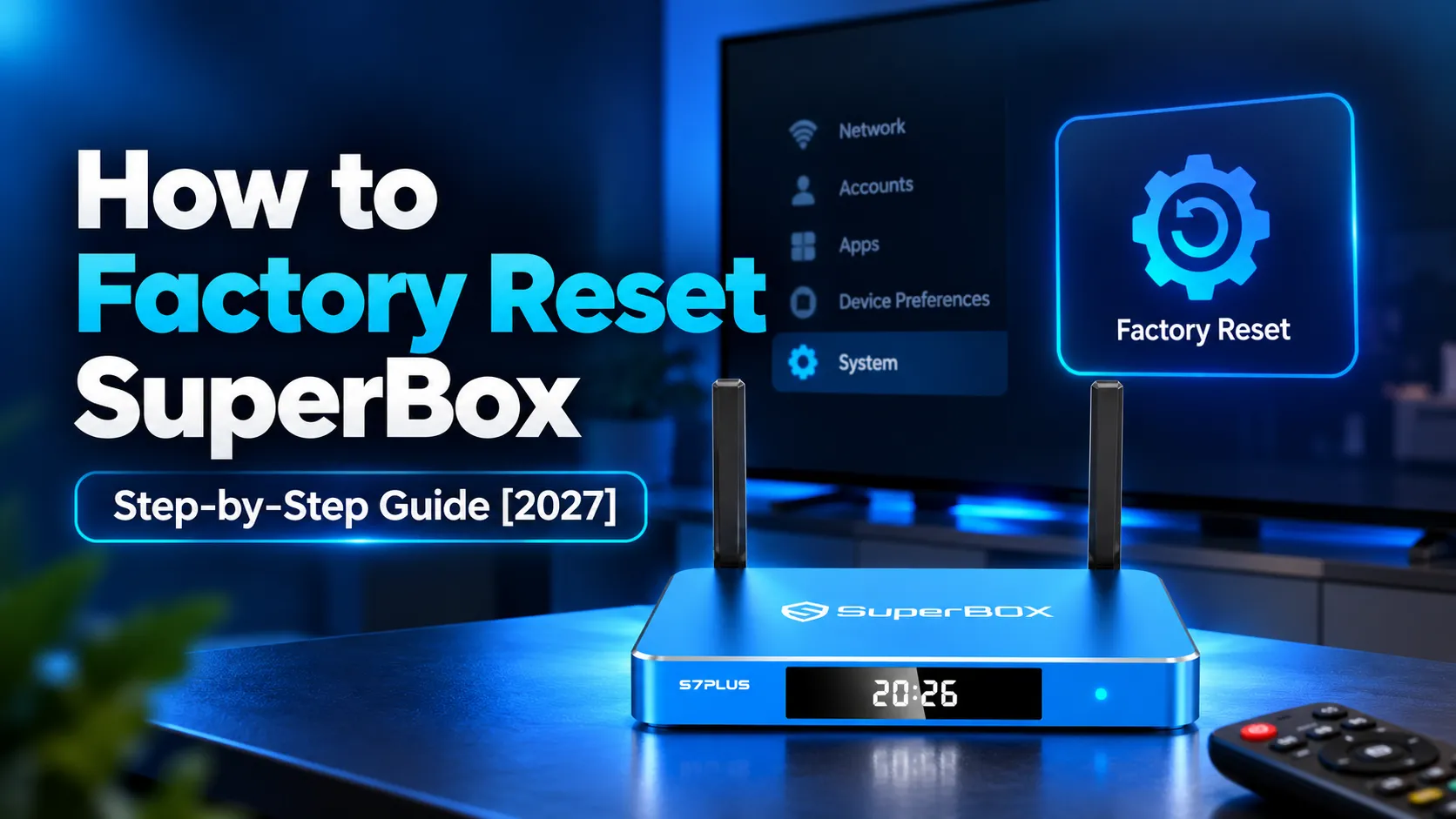
To factory reset SuperBox, open Settings, select Device Preferences, click About, and choose Factory Reset. Confirm by selecting Erase Everything to wipe corrupted software and restore clean operating firmware. If your console is frozen or stuck on the boot screen, enter the secret remote shortcut by typing .00000 on the numeric keypad to execute an instant recovery reset.
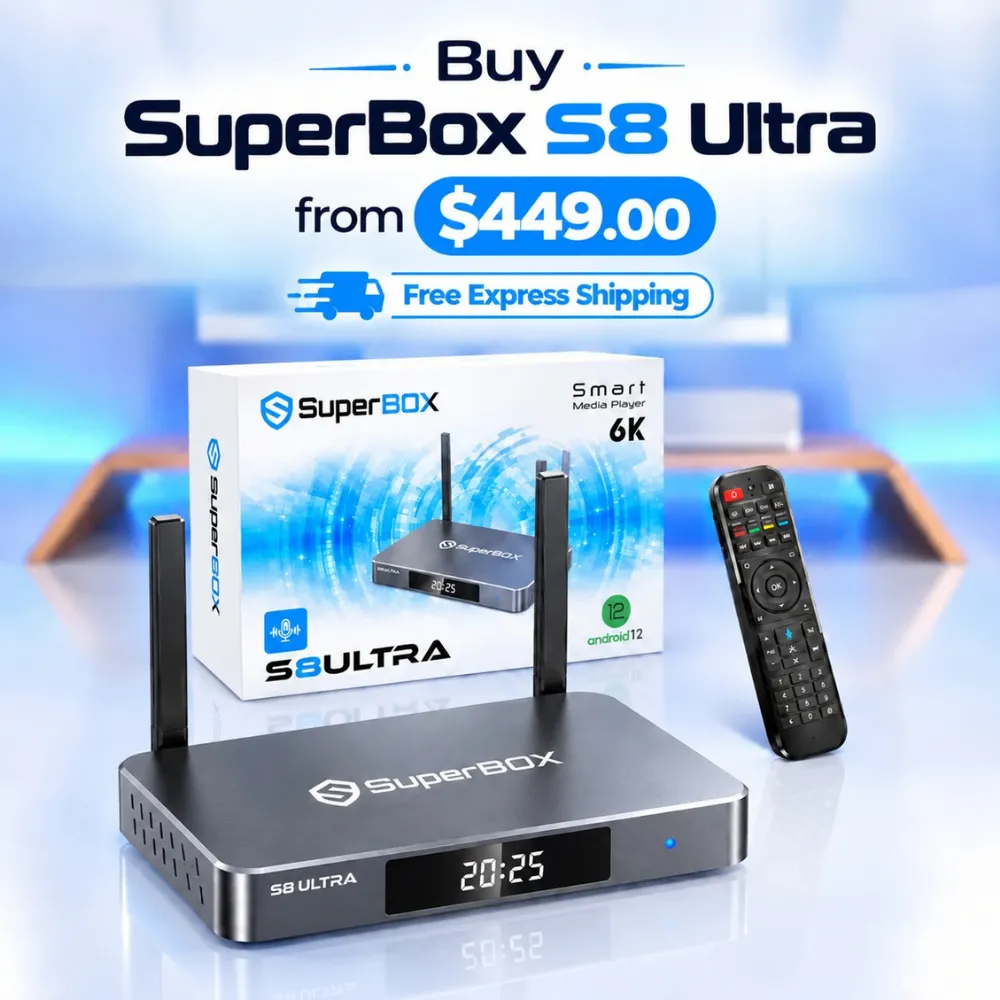
Performing a factory reset resolves boot loops, system lag, and network driver lockups without revoking your hardware service. Households seeking reliable performance can explore the flagship SuperBox S8 Ultra priced at $449. This model provides 128GB of high-speed storage and 4GB DDR RAM to prevent system crashes entirely.
Quick Takeaways & Key Highlights
- Settings Menu Method: Complete software wipe takes under three minutes through Device Preferences.
- Remote Keypad Shortcut: Entering .00000 rescues consoles stuck in startup boot loops without menus.
- Zero Authorization Loss: Hardware MAC address keeps lifetime server activation active permanently.
- Mandatory Clock Sync: System clock must synchronize after rebooting before applications can connect.
- Hardware Capacity Boost: Upgrading to 128GB internal storage prevents recurring memory corruption.
When to factory reset SuperBox versus safe alternatives?
Factory resetting wipes all downloaded applications, user accounts, and saved channel favorites. Before executing a full wipe, determine whether your issue requires a complete reset or a simpler troubleshooting step.
Review this decision matrix to pick the safest maintenance method for your streaming device:
| Console Symptom | Recommended Troubleshooting Action | Impact on Installed Apps & Favorites | Execution Complexity |
|---|---|---|---|
| Isolated stream buffering or app freeze | Clear application cache in Android settings | Zero impact; all logins and channel favorites remain saved | Simple (30 seconds) |
| Sluggish home menu navigation | Run home screen broom cleaner utility | Zero impact; only flushes volatile system RAM | Very simple (10 seconds) |
| Wi-Fi disconnects or IP assignment error | Cold boot power cycle for 60 seconds | Zero impact; resets local network chip cache | Simple (1 minute) |
| Persistent boot loop or black screen | Secret remote control shortcut (.00000) | Full wipe; requires reinstalling streaming applications | Moderate (2 minutes) |
| Corrupted OS or unresponsive system | Android settings factory data reset | Full wipe; restores original factory firmware | Moderate (3 minutes) |
Always try power cycling and clearing application cache before performing a factory reset. Proceed with a full system wipe only when performance issues persist across multiple applications.
Method 1: Standard factory reset using Android settings menu
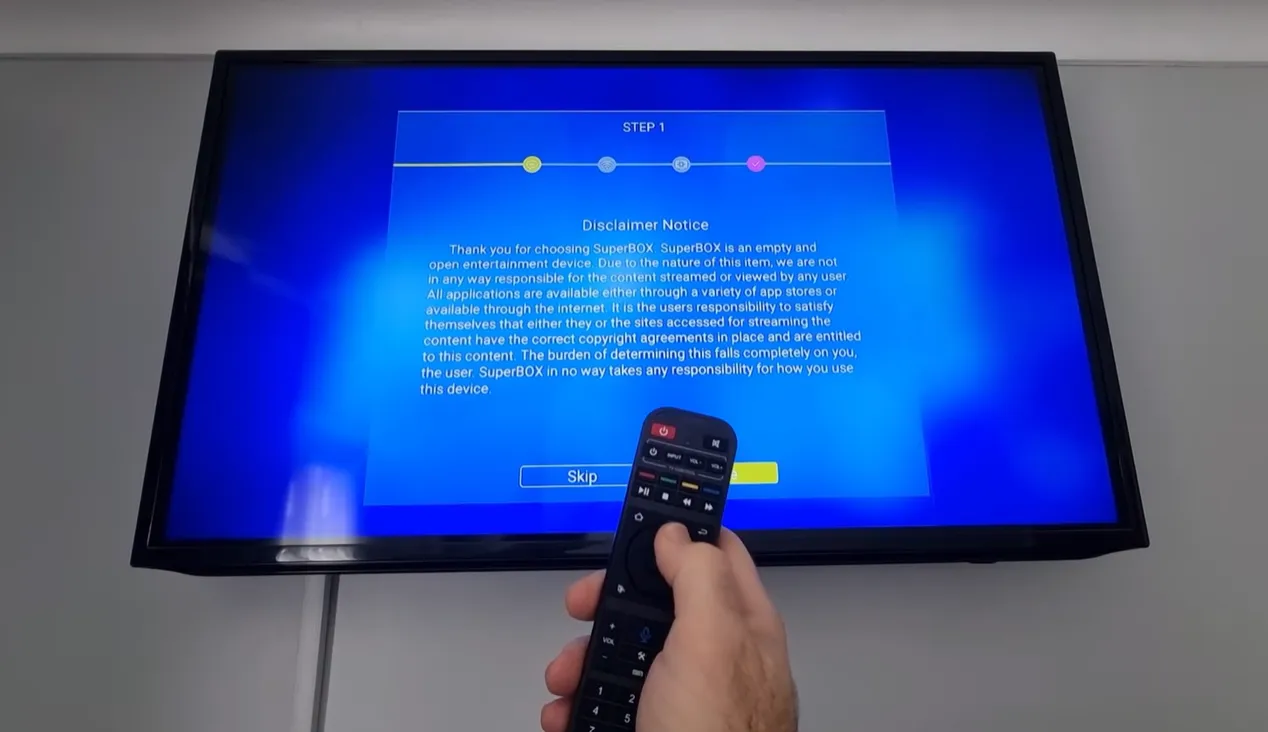
The standard settings reset is the safest procedure when your home screen launcher responds normally. This built-in Android tool wipes volatile user partitions while preserving essential factory system software.
Step 1: Open device settings from the home launcher
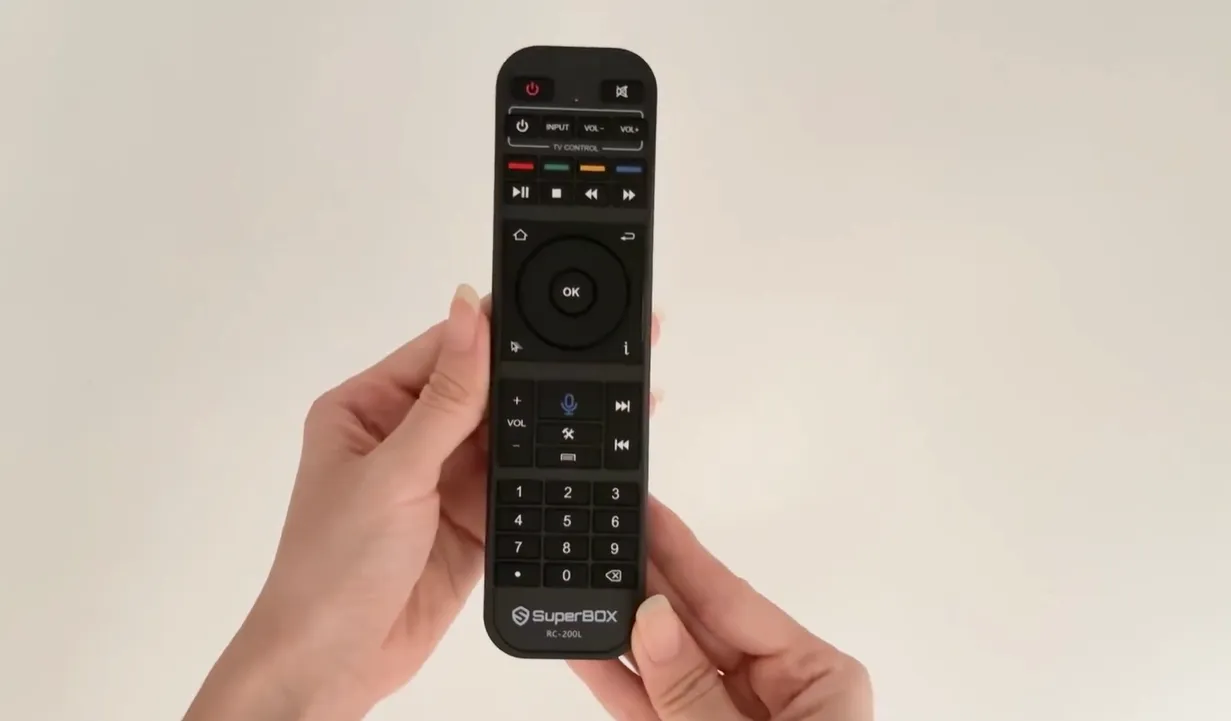
Press the Home button on your remote to return to the main dashboard. Navigate to the top-right corner and select the Settings gear icon. Press OK to open the system configuration sidebar.
Step 2: Navigate to device preferences and system about
Scroll down and click Device Preferences, or General Settings on older models. Click About at the top to access system maintenance tools.
Step 3: Select factory reset and confirm erase everything
Scroll down and select Factory Reset. Review the system warning stating that downloaded files and apps will be deleted. Click Factory Reset again, then choose Erase Everything to confirm.
Step 4: Allow automated system reboot and formatting
Your screen will turn black before displaying the Android recovery animation. Do not disconnect power or press buttons during this process. The console completes formatting and reboots within three minutes.
Watch this visual demonstration covering the standard settings reset procedure:
Method 2: Emergency remote control keypad shortcut
When your SuperBox freezes on the initial boot logo or the settings menu crashes, the emergency remote shortcut is the most effective solution. This sequence bypasses graphical menus by sending a direct reset command to the underlying bootloader.
Step 1: Aim your infrared remote directly at the front panel
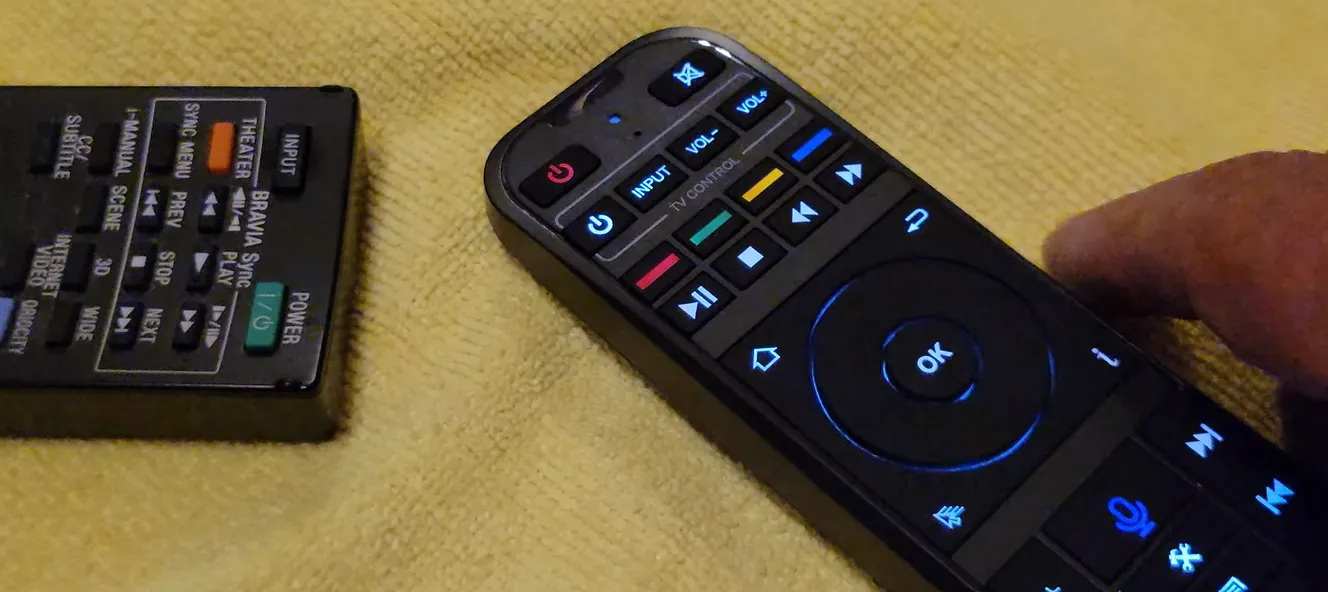
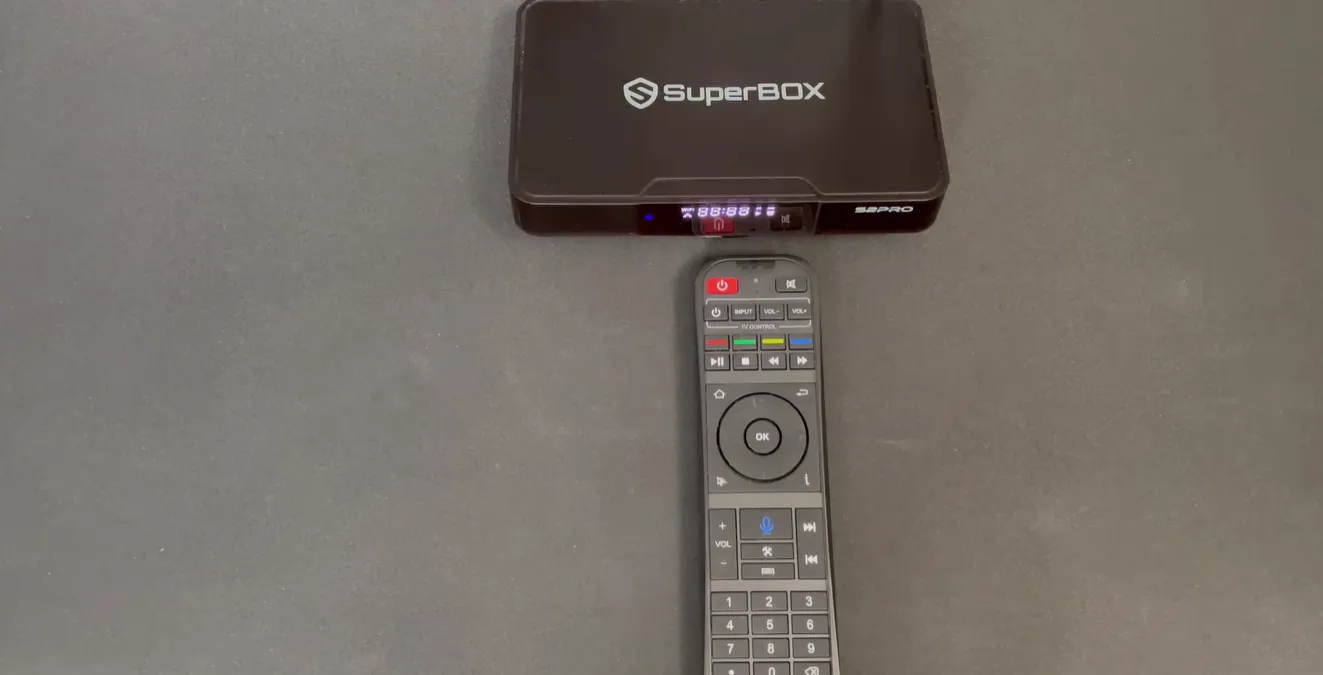
Ensure fresh batteries are installed in your remote. Aim directly at the console front panel with clear line of sight, as emergency keypad codes transmit over infrared rather than Bluetooth connections.
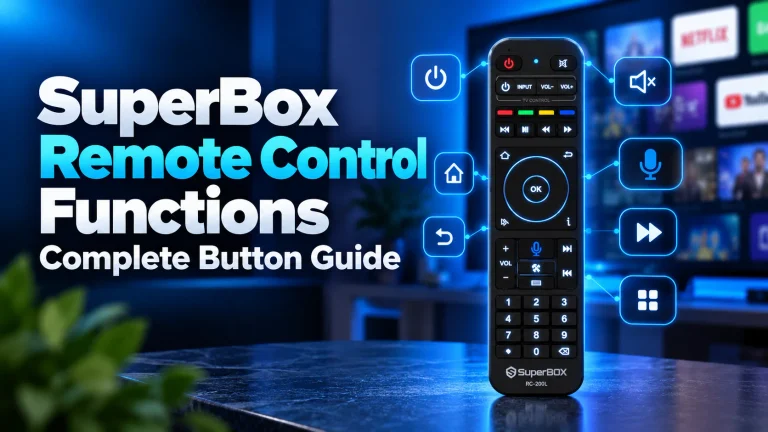
Step 2: Enter the secret reset sequence on the number pad
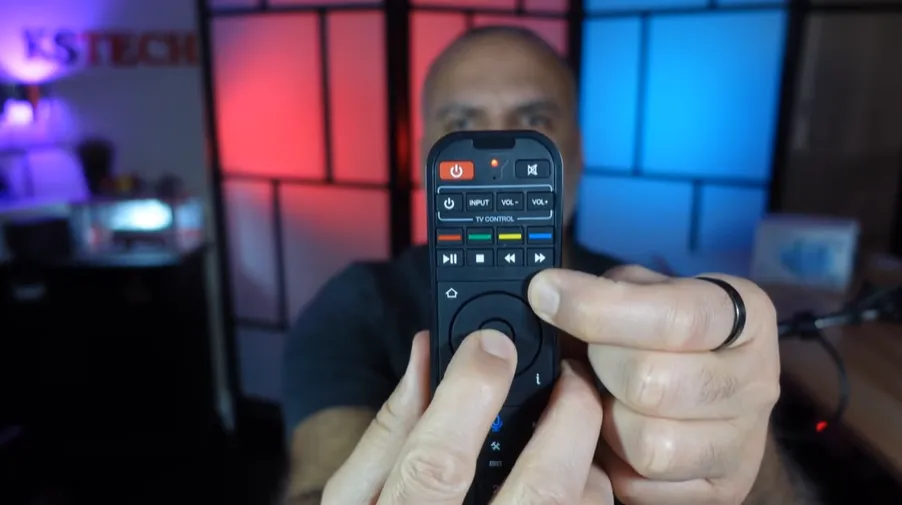
Press the Dot (.) key followed by the number 0 key on the numeric pad. Repeat this sequence five times in continuous succession: Dot then Zero, five times total (.00000).
Step 3: Wait for the automated wipe and restart cycle
Within ten seconds, the front LED blinks and the screen turns black. The console wipes volatile memory and reinitializes factory firmware. Leave the unit undisturbed until the initial setup screen appears.
Watch this video guide demonstrating how to execute the remote keypad shortcut:
Method 3: Hardware pinhole recovery button procedure
If your console fails to respond to both graphical settings and remote codes, the physical recovery button provides a hardware-level override. This procedure accesses Android Recovery Mode directly from the onboard system kernel.
Step 1: Locate the physical reset switch
Inspect the console exterior. On most models, the reset switch sits inside the rear 3.5mm AV port. On select editions, it sits behind a pinhole labeled Reset on the bottom casing.
Step 2: Depress the internal switch using a non-conductive tool
Unplug the DC power adapter. Gently insert a wooden toothpick or paperclip into the AV port until you feel a distinct mechanical switch click. Keep the button firmly depressed.
Step 3: Connect power and navigate Android Recovery Mode
Reconnect the power cable while holding the switch. Maintain pressure for eight seconds until the Android Recovery menu appears on screen, then release the button.
Connect a USB keyboard or mouse to the box. Navigate to Wipe data / factory reset and confirm. Select Yes to wipe data, then choose Reboot system now.
Critical post-reset setup and application restoration
How to re-pair the Bluetooth voice remote control?
Factory resetting unpairs Bluetooth devices, returning the remote to infrared mode. Point the remote at the console and hold OK and Back for five seconds until the light blinks, restoring Bluetooth voice pairing.
How to reconnect Wi-Fi and verify system clock synchronization?
Reconnect your home Wi-Fi or Ethernet cable in Network Settings. Go to Device Preferences, select Date & Time, and ensure automatic sync is active. Incorrect time zones cause SSL errors that block app downloads.
How to restore App Store and streaming applications?
Open the App Store icon on your home dock to download Blue TV, Blue VOD, and Playback. If the store icon is missing, open the web browser, navigate to the official app portal, enable installation permissions, and install the latest App Store package directly.
Frequently asked questions about SuperBox factory resets
Does a factory reset cancel my SuperBox lifetime service?
No, a factory reset never cancels your streaming access. Server authorization is hardcoded to the hardware MAC address of the device. Reinstalling streaming applications restores your full channel lineup automatically without entering account passwords.
Will a factory reset delete my saved channel favorites?
Yes, a factory reset purges local app storage, removing custom channel favorites and watch history. If you only want to resolve minor stream buffering without losing favorites, clear application cache in settings instead of performing a full reset.
Why is my SuperBox stuck on the boot screen after resetting?
A prolonged initial boot is normal as the operating system rebuilds system caches. If the boot screen persists for more than ten minutes, disconnect power for sixty seconds. Reconnect power and execute the emergency remote shortcut to clear remaining corrupted temporary data.
Why upgrading to the SuperBox S8 Ultra prevents system corruption
Tired of system crashes, low storage alerts, and repetitive factory resets? Upgrading to the flagship SuperBox S8 Ultra priced at $449 provides dependable hardware designed for continuous entertainment.
The S8 Ultra provides 128GB of high-speed eMMC internal storage, giving you four times the capacity of older streaming boxes. Coupled with 4GB DDR RAM high-bandwidth RAM, it effortlessly manages heavy live stream caching without filling system memory.
Sports enthusiasts can utilize Quad Multi-View shortcuts to watch four live games simultaneously with zero buffer lag. Upgraded hardware decoders process multiple 4K video feeds smoothly, preventing the operating system freezing common on legacy devices.
Its aluminum unibody housing keeps internal operating temperatures below 38.5 degrees Celsius during continuous playback. Investing $449 eliminates monthly cable bills while providing reliable hardware backed by authorized retail support.
Where to buy authentic SuperBox with warranty coverage
When investing in a high-performance streaming console, purchasing from an authorized distributor through the superbox official website guarantees authentic hardware and verified server licensing. Our distribution center is located at 13951 Pipeline Ave, Chino CA 91710, led by founder Riley Cooper.
For households looking to upgrade to our highest-performing flagship console, we recommend the SuperBox S8 Ultra priced at $449. Every purchase includes comprehensive customer service and direct manufacturer warranty coverage:
- Free Shipping: Fast 2 to 5 business day delivery across the United States and Canada with full real-time package tracking via FedEx or USPS.
- 24/7 Technical Support: Dedicated technical specialists available 24/7 via live chat and email for troubleshooting assistance.
- 30-Day Money-Back Guarantee: Hassle-free return policy if you are not completely satisfied with your streaming hardware performance.
- 1-Year Manufacturer Warranty: Full replacement coverage safeguarding against any hardware defects or system component failures supported directly by our customer care center in Chino, California.
- 100% Authentic Hardware: Direct factory units guaranteed genuine without modified firmware, unauthorized alterations, or security risks.
SuperBox for Sale is a leading authorized dealer of SuperBox, specializing in the supply of genuine SuperBox TV boxes Series S6, S7, and S8 in the US & CAD.
Experience Unrivaled Streaming Performance with SuperBox
Discover lightning-fast quad-core processing, dual-band Wi-Fi 6, 7-day playback, and crisp 6K ultra HD output engineered for discerning media fans.