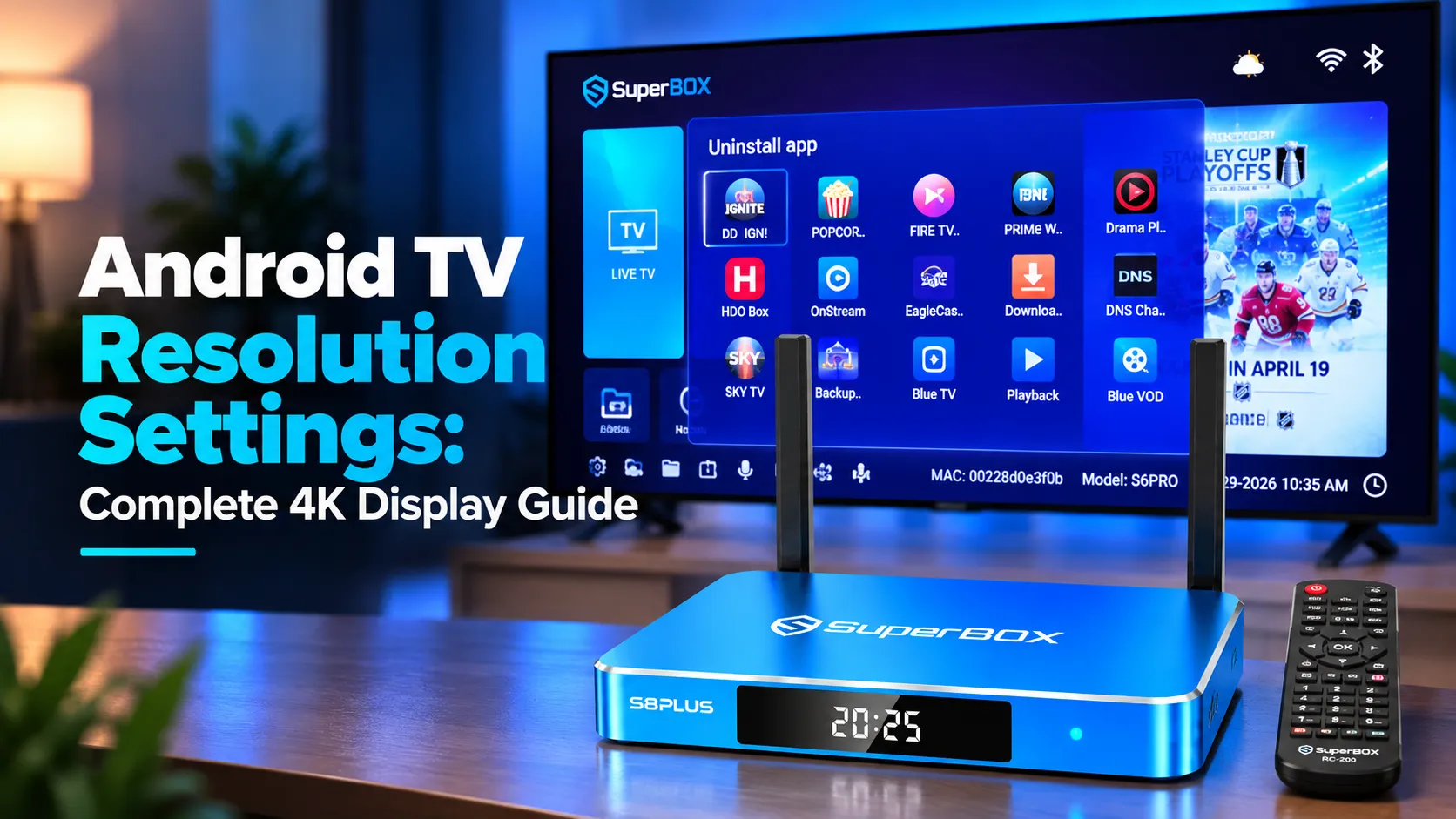
Android TV resolution settings control video output dimensions and refresh rates for your television. To optimize display settings on SuperBox, open Settings, select Device Preferences, and click Screen Resolution under Display. Turn off automatic switching and select 4K2K 60Hz or 1080p 60Hz to eliminate stuttering and screen flickering.
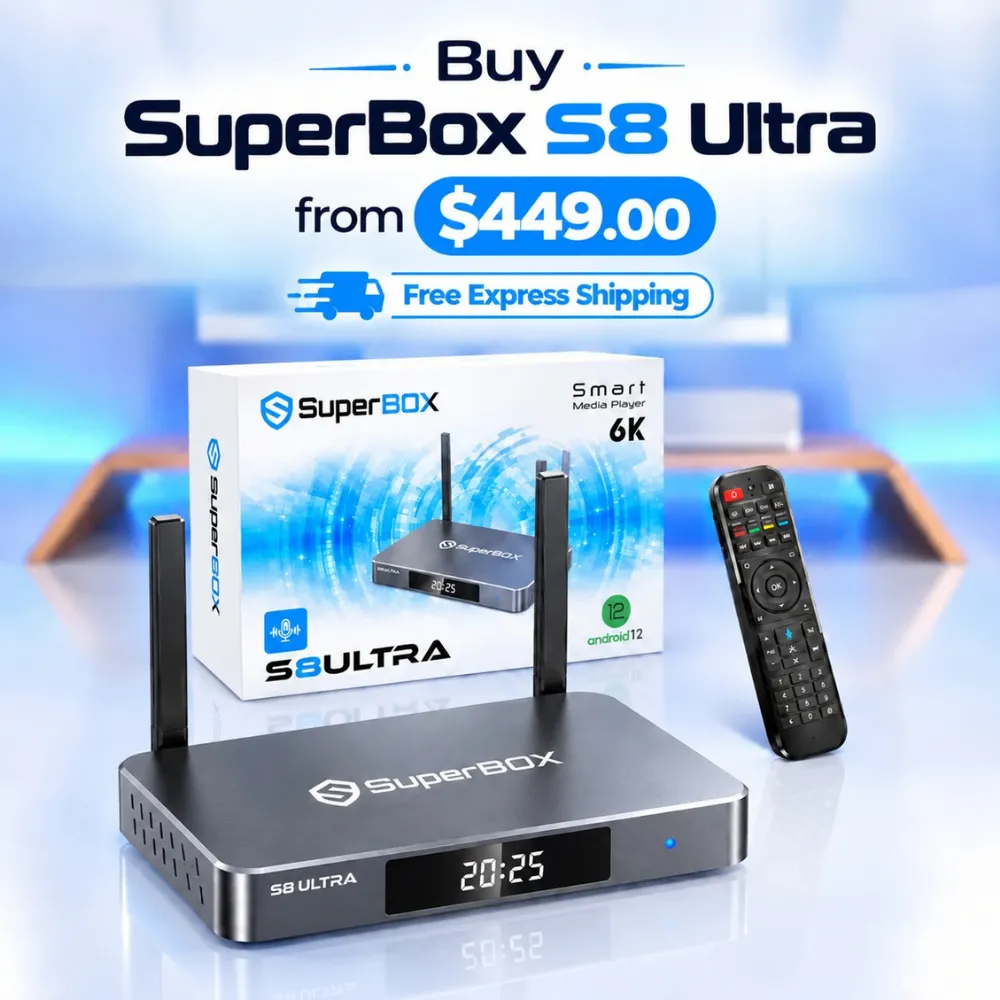
Manually locking your display output prevents HDMI handshake negotiation delays when launching live sports channels and 4K movies. Viewers looking for superior visual processing can explore the flagship SuperBox S8 Ultra priced at $449, which features native 4K 60fps HDR10+ decoding and Quad Multi-View display capabilities.
Quick Takeaways & Key Highlights
- Optimal Standard: 4K2K 60Hz (3840x2160p at 60Hz) provides the smoothest live sports playback.
- Manual Override: Disabling auto-resolution prevents unwanted downscaling to 1080p or 30Hz.
- Overscan Correction: Screen Position zoom tools prevent cut-off scoreboards and clipped menu borders.
- Broadcast Color: Setting color space to YCbCr 4:2:2 matches standard television transmission pipelines.
- High-Speed Cables: HDMI 2.0 or HDMI 2.1 cables supporting 18Gbps bandwidth prevent black screen drops.
Android TV display modes and refresh rates
Display resolution represents the total number of horizontal and vertical pixels rendered on your television screen. Matching your console output resolution to your television panel specifications guarantees razor-sharp visuals without digital distortion.
Refresh rates dictate how many video frames your television displays each second, measured in Hertz. Selecting a 60Hz refresh rate is essential for fast-motion sports broadcasts, ensuring fluid camera panning across football fields and basketball courts.
| Resolution Profile | Pixel Dimensions | Refresh Rate | Recommended Television Setup |
|---|---|---|---|
| 4K2K 60Hz (UHD) | 3840 x 2160 Progressive | 60 Frames Per Second (60Hz) | Modern 4K Ultra HD smart TVs and high-end laser projectors |
| 4K2K 30Hz / 24Hz | 3840 x 2160 Progressive | 24 or 30 Frames Per Second | Older 4K displays with limited HDMI 1.4 input bandwidth |
| 1080p 60Hz (Full HD) | 1920 x 1080 Progressive | 60 Frames Per Second (60Hz) | Standard 1080p screens, bedroom panels, and computer monitors |
| 720p 60Hz (HD) | 1280 x 720 Progressive | 60 Frames Per Second (60Hz) | Legacy televisions and mobile travel entertainment setups |
Always select progressive scan modes indicated by the letter p rather than interlaced modes marked with an i. Progressive scan renders every horizontal line simultaneously, preventing distracting jagged artifacts during intense live sports motion.
Step-by-step guide to configure resolution on SuperBox
Configuring your display output takes less than one minute through the Android system dashboard. Follow this 5-step walkthrough to lock your console into optimal high-definition output:
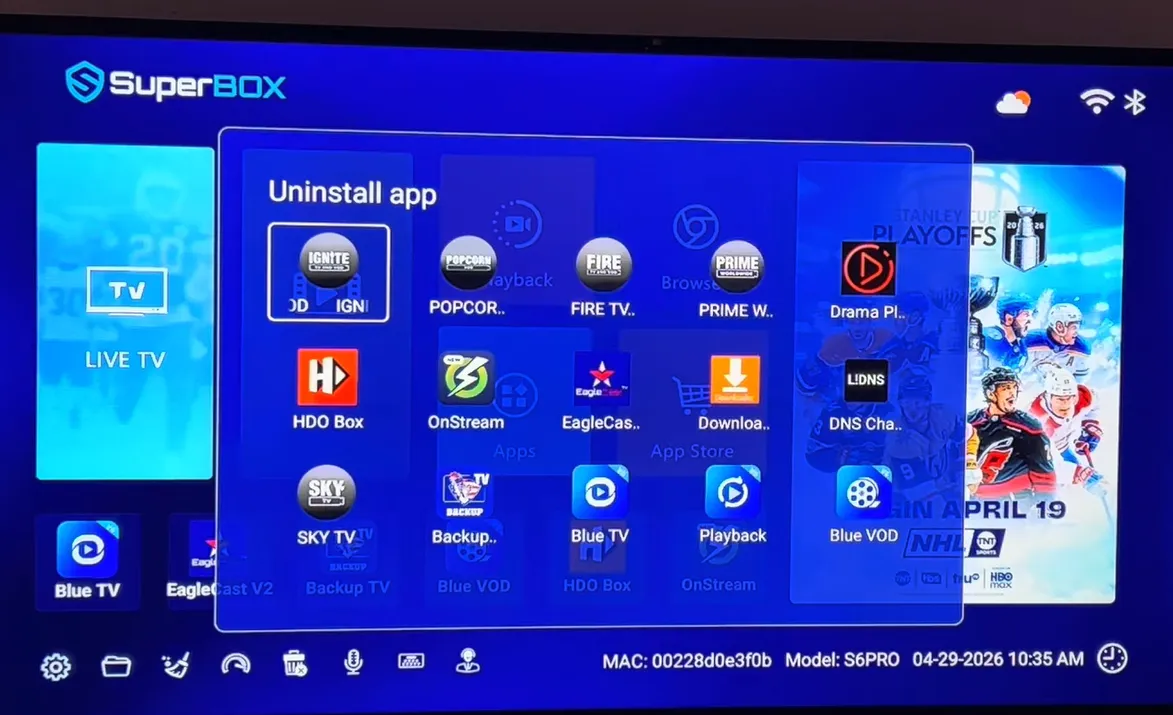
If your screen remains black after selecting a new display mode, do not press any buttons. The Android system automatically reverts to your previous display setting after 15 seconds of inactivity.
Fixing screen zoom and overscan edge clipping
Overscan occurs when your television enlarges the incoming video signal, cutting off clock digits, channel watermarks, and sports scoreboards. Adjusting screen scale calibrates image boundaries perfectly against television bezel edges.
Navigate to Settings, open Device Preferences, select Display, and click Screen Position or Screen Scale. Use the Zoom Out button on your remote control to shrink the display frame until four alignment arrows touch screen corners precisely.
Additionally, review your television hardware picture aspect ratio settings using your original TV remote. Change the aspect ratio from 16:9 or Wide to Just Scan, Fit to Screen, or 1:1 Pixel Mapping to disable hardware overscan completely.
Configuring color space and HDR deep color settings
Color space settings determine how digital color values transmit across your HDMI cable. Setting appropriate color profiles guarantees rich contrast without crushed shadow detail or unnatural skin tones.
Under Display settings, locate the Color Space option. Select YCbCr 4:2:2 or YCbCr 4:2:0 for television broadcasts, because professional broadcast networks master live video using YCbCr color encoding.
If your television supports High Dynamic Range, confirm that HDR10 or Dynamic Color is set to Auto. On televisions without native HDR hardware, disable SDR to HDR conversion to prevent washed-out milky gray tones across dark scenes.
Video demonstrations of Android TV display and resolution settings
Watching on-screen menu walkthroughs provides visual confirmation of display settings and menu navigation. Review this tutorial from Bscholarly TV demonstrating how to change screen resolution on Android TV.
For an advanced technical exploration covering YCbCr color spaces, refresh rates, and display troubleshooting, review this detailed walkthrough.
Troubleshooting HDMI handshake errors and screen flickering
HDMI handshake errors produce flickering screens, snow static, or sudden blackouts when changing resolutions. Use these targeted technical solutions to restore reliable digital video signaling.
Why does the screen go black when switching to 4K 60Hz?
A black screen indicates that your HDMI cable lacks the 18Gbps bandwidth required for 4K 60Hz transmission. Replace legacy cables with a certified high-speed HDMI 2.0 or HDMI 2.1 cable to support full 4K data bandwidth.
How do you fix washed-out colors on non-HDR televisions?
Washed-out gray visuals occur when the console forces HDR tone mapping onto a standard dynamic range display. Open Display settings and set HDR Mode to Off or SDR to ensure rich natural color reproduction.
Why does the television display revert to 1080p after rebooting?
This occurs when Auto switch to best resolution remains enabled during boot handshakes. Turn off automatic switching under Screen Resolution to permanently lock your console to 4K2K-60Hz across restarts.
Frequently asked questions about Android TV resolution settings
Does lowering screen resolution save internet streaming data?
No, changing the HDMI output resolution changes only how the box sends video to your TV. Stream data consumption is determined by the source video bitrate selected inside Blue TV or Blue VOD applications.
What HDMI port settings on your TV are required for 4K 60Hz?
Many smart TVs require enabling enhanced HDMI port formats. Turn on HDMI Enhanced Format on Sony, HDMI Ultra HD Deep Color on LG, or Input Signal Plus on Samsung TV settings.
Can you force 4K resolution on a 1080p television panel?
No, physical television screens cannot render more pixels than their native display matrix contains. Selecting 1080p 60Hz matches full HD panels perfectly without wasting system processing resources.
Why upgrading to the SuperBox S8 Ultra delivers premier 4K visuals
Frustrated by display resolution drops and sluggish video rendering? Upgrading to the flagship SuperBox S8 Ultra priced at $449 delivers an unrivaled high-definition home theater experience.
The S8 Ultra features next-generation Mali graphics and dedicated hardware video processors supporting native 4K 60fps HDR10+ playback. Its advanced HDMI 2.1 architecture handles 18Gbps data streams smoothly without dropped frames or flickering.
Powered by 4GB DDR RAM and 128GB high-speed internal storage, the S8 Ultra delivers multi-stream decoding capabilities. Sports fans can launch Quad Multi-View to render four simultaneous live sporting events on a single display without frame stutter.
Its aircraft-grade aluminum unibody housing maintains operating temperatures below 38.5 degrees Celsius during extended 4K viewing. Investing $449 eliminates monthly cable bills while providing premium hardware backed by authorized retail guarantees.
Where to buy authentic SuperBox with warranty coverage
When investing in an authentic streaming console, purchasing from an authorized distributor like superbox official store guarantees genuine hardware and active server licensing. Our distribution center is located at 13951 Pipeline Ave, Chino CA 91710, led by founder Riley Cooper.
Every purchase includes comprehensive domestic customer support and direct manufacturer warranty coverage:
- Free Shipping: Fast 2 to 5 business day delivery across the United States and Canada with full real-time package tracking via FedEx or USPS.
- 24/7 Technical Support: Dedicated technical specialists available 24/7 via live chat and email for troubleshooting assistance.
- 30-Day Money-Back Guarantee: Hassle-free return policy if you are not completely satisfied with your streaming hardware performance.
- 1-Year Manufacturer Warranty: Full replacement coverage safeguarding against any hardware defects or system component failures supported directly by our customer care center in Chino, California.
- 100% Authentic Hardware: Direct factory units guaranteed genuine without modified firmware, unauthorized alterations, or security risks.
SuperBox for Sale is a leading authorized dealer of SuperBox, specializing in the supply of genuine SuperBox TV boxes Series S6, S7, and S8 in the US & CAD.
Experience Unrivaled Streaming Performance with SuperBox
Discover lightning-fast quad-core processing, dual-band Wi-Fi 6, 7-day playback, and crisp 6K ultra HD output engineered for discerning media fans.