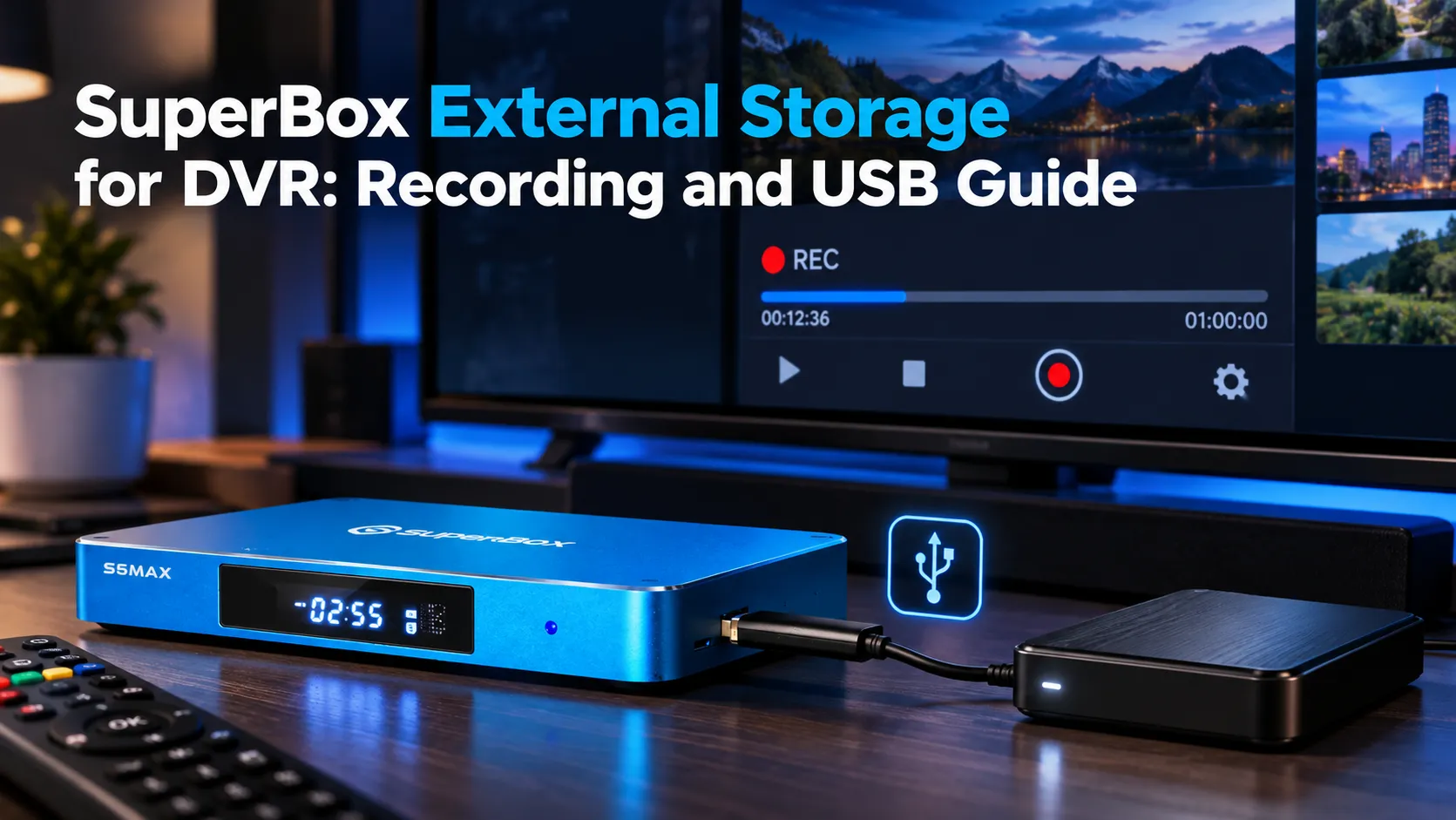
SuperBox external storage lets users expand memory and play local media files using USB drives or Micro SD cards. While SuperBox lacks a native local DVR recording tool, the console replaces traditional hard drive recording with a cloud Playback system that automatically archives 7 days of live TV without consuming local storage space.
Quick Takeaways & Key Highlights
- SuperBox consoles do not feature a native local DVR recording button for direct hard drive storage.
- The built-in 7-day cloud Playback feature eliminates the need for physical DVRs by archiving 80+ broadcast channels automatically.
- External USB drives and Micro SD cards connect smoothly via side ports on SuperBox S6, S7, and S8 hardware.
- External storage expands internal app capacity, stores offline video files, and supports third-party media players like VLC.
- Proper drive formatting using FAT32 or NTFS and safe ejection protocols prevent data corruption on external storage drives.
Does SuperBox support external storage for DVR recording?
SuperBox hardware consoles do not include a native digital video recorder button inside the default Blue TV application. Viewers expecting traditional cable set-top box functionality cannot click an instant record icon to capture live television streams directly onto an attached external hard drive.
Community discussions across Reddit and home entertainment forums frequently highlight this distinction. While early cord-cutters relied heavily on bulky hard drive recorders, SuperBox bypasses local storage constraints by adopting a centralized cloud-based time-shift architecture instead.
SuperBox consoles do support external storage connectivity through integrated hardware ports. Connecting a high-capacity USB flash drive or Micro SD card serves several valuable purposes, even though direct live television recording is handled through cloud infrastructure rather than local disks.
Cloud Playback vs local DVR storage: What is the difference?
Understanding the operational difference between local digital video recording and cloud playback clarifies why dedicated recording hardware is unnecessary on SuperBox consoles. Traditional local DVR setups require manual timers, ongoing hard drive maintenance, and constant management of available gigabytes.
Local DVR setups face inherent hardware vulnerabilities during daily usage. If an unexpected power outage occurs, or if your external USB drive fills to capacity, scheduled television recordings fail completely, leaving viewers without their anticipated sporting events or primetime episodes.
SuperBox Playback resolves these storage limitations through automated cloud servers. The pre-installed Playback application continuously records and archives over 80 major broadcast networks 24 hours a day for seven consecutive days, requiring zero local hard drive space and zero scheduled programming effort.
Viewers simply open the Playback application, select their desired network channel, choose the broadcast date from the electronic program grid, and start watching immediately. Full rewind, pause, and fast-forward controls operate seamlessly without consuming local storage bytes.
What can you use SuperBox external storage for?
Connecting external storage drives to your SuperBox console remains highly beneficial for daily entertainment needs. Expanding hardware capacity beyond default factory memory unlocks several practical capabilities across modern living room setups.
Adoptable internal storage expansion represents the primary benefit for power users. Android TV allows users to format high-speed USB 3.0 flash drives or Micro SD cards as internal memory, granting ample room to download third-party applications, gaming emulators, and custom media tools.
Personal media library playback functions flawlessly through external storage connections. Users can load USB thumb drives with high-bitrate 4K MKV movies, home video recordings, family photo albums, or lossless audio files, playing them directly through versatile media engines like VLC Player.
Third-party Android recording utilities can also target connected external storage drives. While Blue TV does not record locally, certain specialized third-party IPTV players and screen capture APKs permit users to designate an attached USB storage directory as their destination recording path.
How to connect and format external storage on SuperBox?
Setting up an external USB drive or Micro SD card on SuperBox hardware takes only a few minutes. Follow the structured steps below to ensure proper file system formatting and safe drive operation.
Step 1: Choose a compatible USB flash drive or Micro SD card
Select a reliable USB 3.0 flash drive, external solid-state drive (SSD), or Class 10 Micro SD card from established brands. For maximum compatibility with Android TV, format your drive to FAT32 or exFAT on a computer before connecting it to your SuperBox console.
Step 2: Insert your external drive into the SuperBox USB port
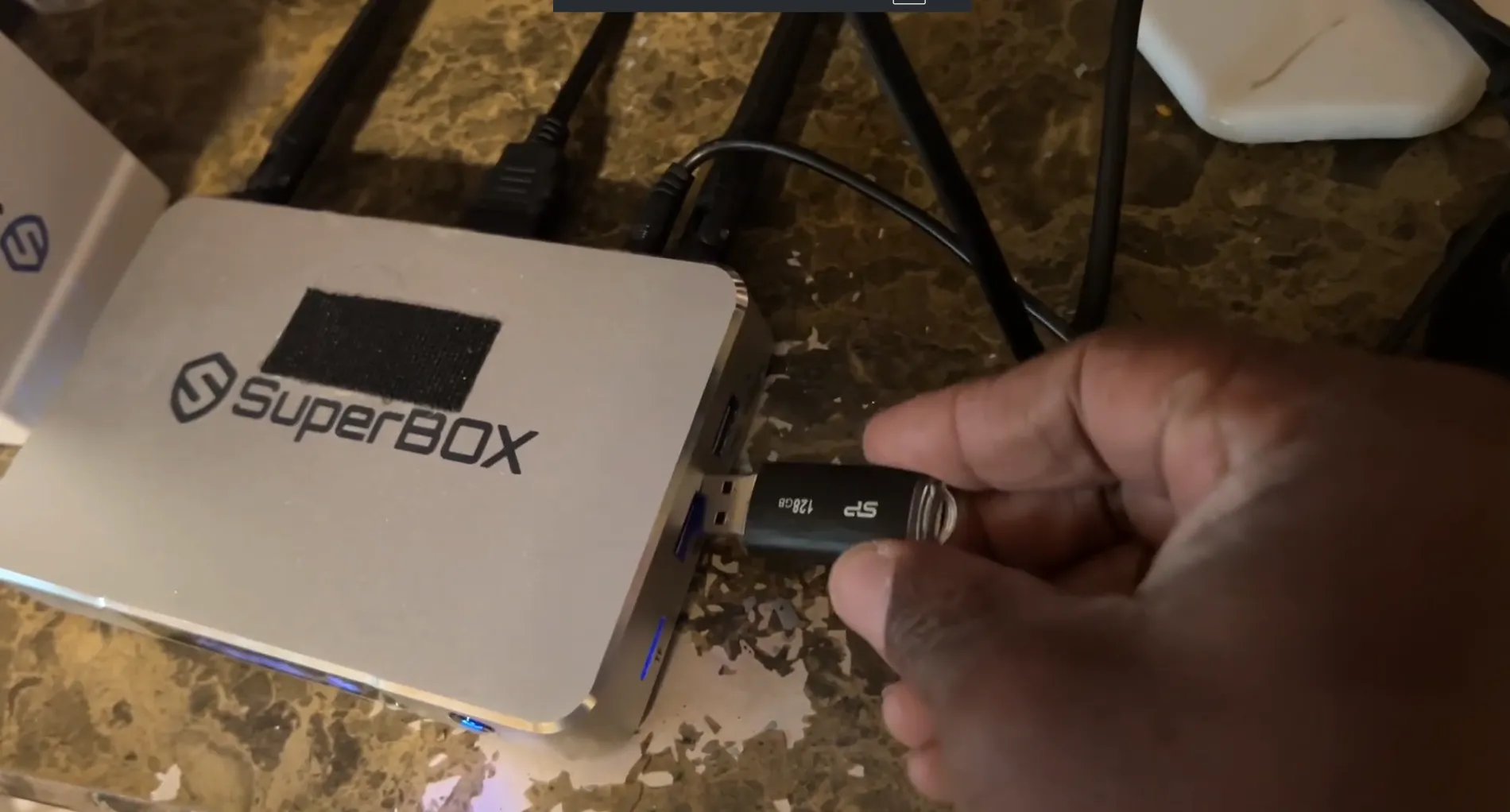
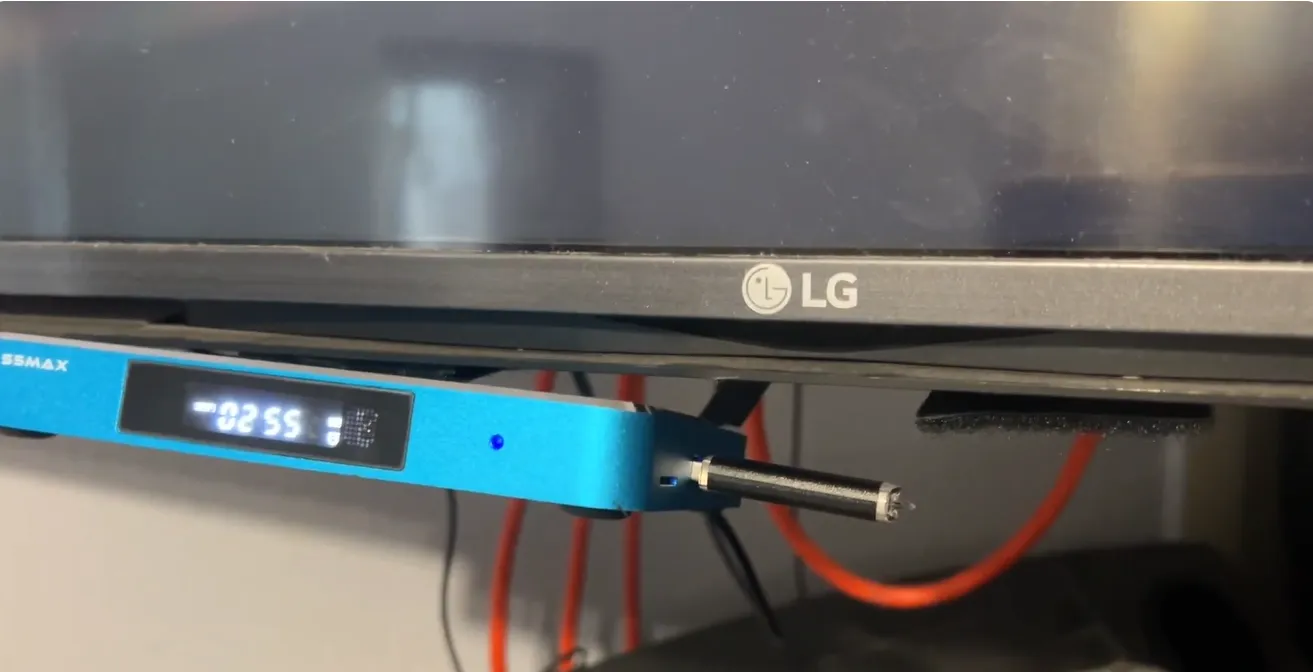
Locate the USB ports situated along the side panel of your SuperBox console. Insert your flash drive firmly into the high-speed blue USB 3.0 port for optimal data throughput, or slide your Micro SD card into the dedicated TF memory slot.
Step 3: Configure external drive settings on Android TV
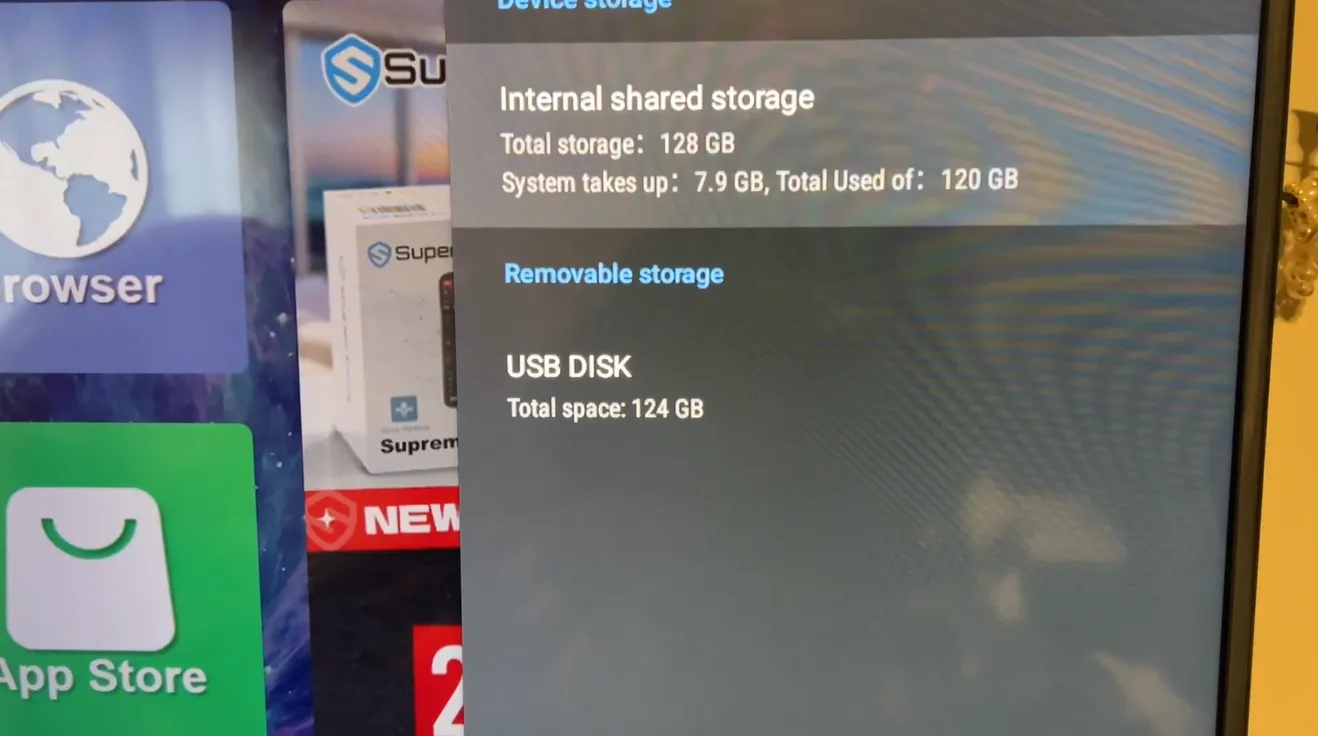
SuperBox automatically displays an on-screen notification once the storage drive connects. Navigate to Settings, select Device Preferences, and click Storage. Choose Removable Storage for personal media playback, or select Device Storage to format the drive for app installation.
Step 4: Safely eject your external drive after usage
Removing a storage drive without unmounting it can corrupt stored data. Navigate to the top notification bar, highlight the USB drive icon, and select Eject. Wait for the confirmation prompt before physically unplugging the drive from your SuperBox console.
SuperBox storage specs and external expansion limits?
SuperBox hardware models feature varying internal storage allocations alongside standardized external connectivity ports. The comparison matrix below outlines internal memory configurations alongside maximum expansion capabilities across primary editions.
| Hardware Model | Internal Storage (eMMC) | External USB Ports | Micro SD Card Slot | Max Supported Storage |
|---|---|---|---|---|
| SuperBox S6 Series | 32GB to 128GB | 1x USB 2.0, 1x USB 3.0 | Yes (TF Card Slot) | Up to 2TB External Drive |
| SuperBox S7 Pro | 32GB | 1x USB 2.0, 1x USB 3.0 | Yes (TF Card Slot) | Up to 2TB External Drive |
| SuperBox S7 Max | 64GB | 1x USB 2.0, 1x USB 3.0 | Yes (TF Card Slot) | Up to 2TB External Drive |
| SuperBox S7 Ultra / Prime | 128GB | 1x USB 2.0, 1x USB 3.0 | Yes (TF Card Slot) | Up to 2TB External Drive |
| SuperBox S8 Series | 32GB to 128GB | 1x USB 2.0, 1x USB 3.0 | Yes (TF Card Slot) | Up to 2TB External Drive |
Video guide: How to add a flash drive to SuperBox for extra storage?
Streaming hardware specialist Super Streamer demonstrates the physical setup and on-screen detection of a USB flash drive on SuperBox hardware, outlining disk space recognition and safe ejection techniques.
Reviewer Super Streamer illustrates how plugging a standard USB thumb drive into the side port immediately triggers storage recognition on the television screen. The demonstration emphasizes selecting the on-screen Eject button before physically unplugging the drive.
Addressing the question of direct DVR recording, reviewer Super Streamer confirms that while external USB memory successfully expands storage for media files and applications, live television catch-up is managed through the pre-installed Playback suite.
Frequently asked questions about SuperBox external storage and DVR?
Can you record live TV directly to a USB drive on SuperBox?
The native Blue TV application does not feature a direct record-to-USB command button. Instead of saving video streams to external flash drives, SuperBox provides a dedicated 7-day cloud Playback application that archives major networks automatically.
Does SuperBox require external storage to use 7-day Playback?
SuperBox 7-day Playback does not require any external USB drive or Micro SD card. Because broadcast recordings are stored on central cloud servers, viewers access historical programming over their home broadband connection without consuming local disk space.
Which file format is best for a SuperBox USB flash drive?
FAT32 and exFAT provide the most reliable file system compatibility across Android TV operating systems. FAT32 works universally for smaller media files, while exFAT supports large individual 4K movie files exceeding 4GB in size.
Can you play 4K MKV movie files from external storage on SuperBox?
SuperBox hardware decodes 4K and 6K video files smoothly from connected USB 3.0 flash drives and external hard drives. Installing a third-party media player such as VLC Player from the App Store guarantees support for MKV, MP4, and multi-channel audio tracks.
Experience Unrivaled Streaming Performance with SuperBox
Discover lightning-fast quad-core processing, dual-band Wi-Fi 6, 7-day playback, and crisp 6K ultra HD output engineered for discerning media fans.