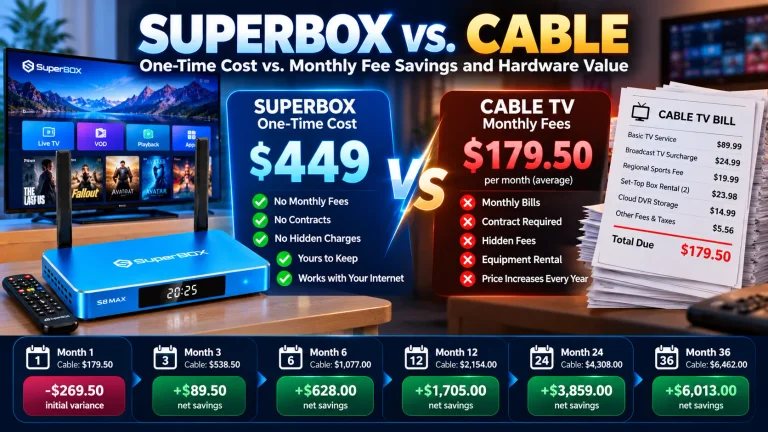
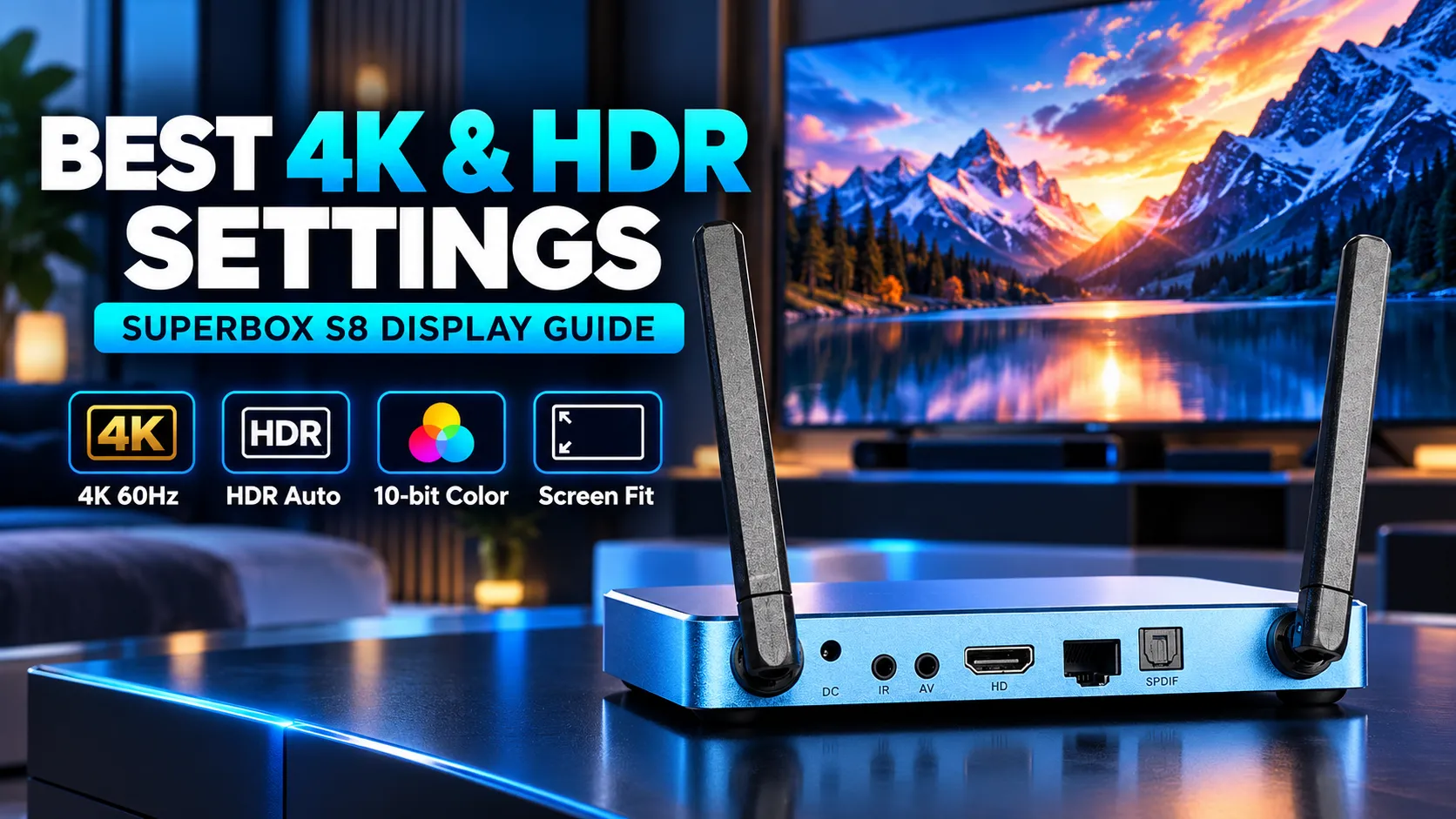
The best picture settings for SuperBox S8 require setting HDMI output to 4K2K-60Hz, enabling Auto HDR mode, and configuring YUV420 10-bit color depth. Adjusting Screen Percent to 100% and matching TV picture modes eliminates blurry scaling, oversaturated colors, and black borders.
Summary
- Native resolution: Lock display output to 4K2K-60Hz to prevent low-resolution 1080p fallback during high-speed sports broadcasts.
- Adaptive HDR: Set TV HDR Mode to Auto to prevent washed-out SDR live channels while preserving vibrant 4K HDR playback.
- Color depth: Select YUV420 10-bit color space on compatible 4K panels to eliminate color banding in dark gradients.
- Overscan correction: Adjust Screen Percent to exactly 100% to ensure complete edge-to-edge menu and subtitle visibility.
- Hardware decoding: Enable Hardware+ decoding in Blue TV playback settings to eliminate frame drops and audio sync lag.
Pre-configuration checklist before adjusting SuperBox S8 display settings
Before tweaking Android system menus, verify your physical connections and television configuration. Proper hardware preparation ensures your television communicates accurately with the SuperBox S8.
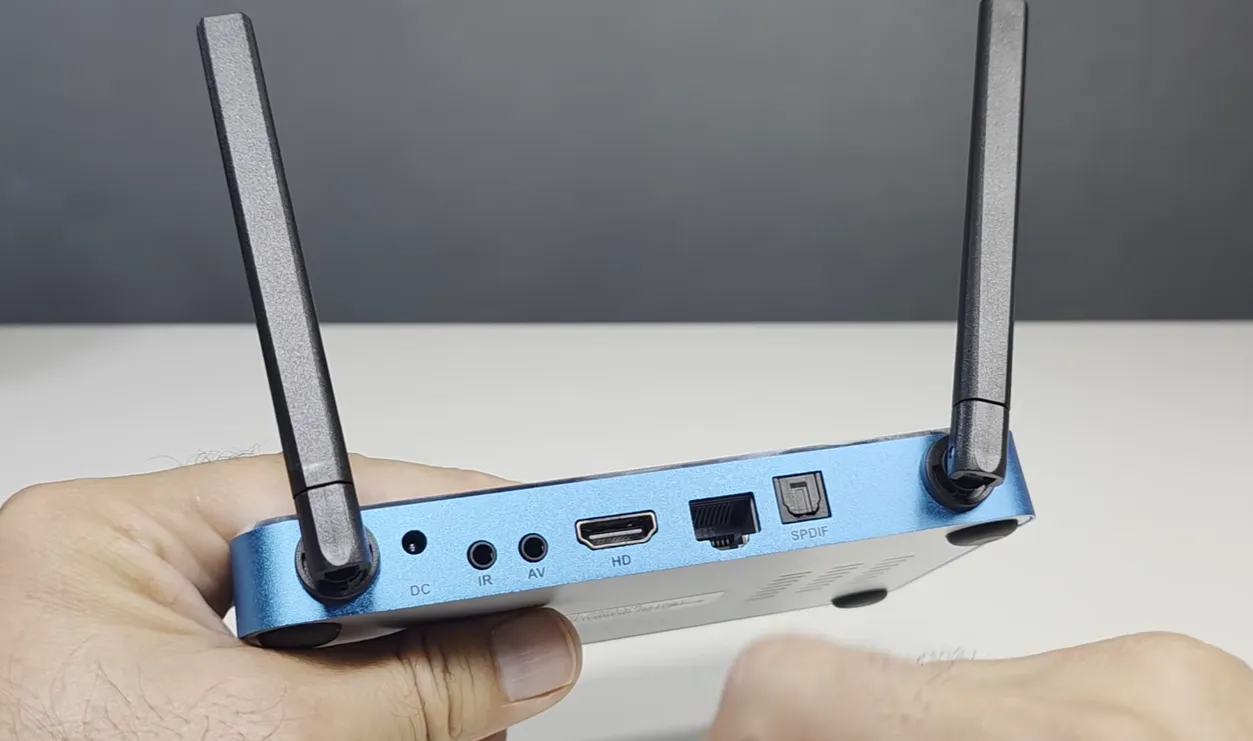
- Connect to an HDMI 2.0 or 2.1 port: High-bandwidth video feeds require 18Gbps ports to deliver 4K resolution at 60 frames per second without signal dropouts.
- Enable HDMI Enhanced Format on your television: Modern televisions require enabling HDMI Ultra HD Deep Color or Enhanced Format in TV input menus to accept 10-bit color feeds.
- Use a certified premium high-speed HDMI cable: Defective or outdated HDMI cables cause intermittent black screens and digital sparkling artifacts during 4K streaming.
- Verify reliable network connectivity: Confirm your box receives at least 25Mbps download throughput through gigabit Ethernet or 5GHz Wi-Fi to maintain native video bitrates.
- Set initial television picture preset to Cinema or Movie: Avoid vivid or dynamic retail presets that artificially oversaturate colors and introduce harsh sharpness ringing.
Step-by-step guide to configure core Android display settings on SuperBox S8
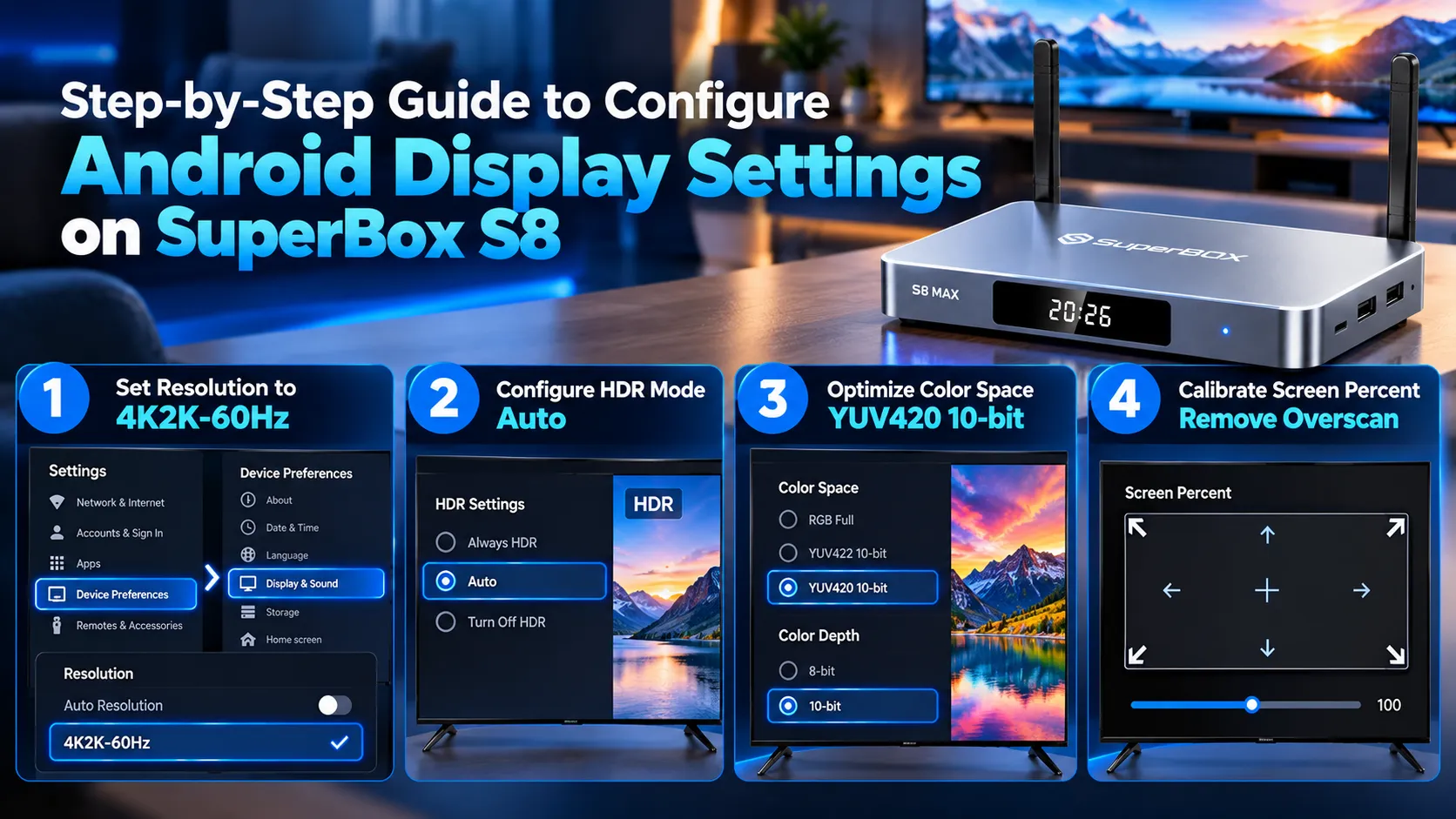
Step 1 Set display resolution and refresh rate to 4K2K-60Hz
Navigate to Settings from the Android home screen, select Device Preferences, and click Display and Sound. Locate the Resolution submenu and turn off Auto Resolution.
Manually select 4K2K-60Hz from the available resolution list. Locking the refresh rate to 60Hz ensures fluid camera motion during fast-paced live sporting events. Leaving this setting on Auto can cause the hardware to drop to 1080p when switching HDMI inputs.
Step 2 Configure TV HDR mode to adaptive auto
Scroll to the HDR Settings menu within display preferences. You will see configuration options for Always HDR, Auto, and Turn Off HDR.
Select Auto to ensure the processor applies high dynamic range only when playing genuine HDR content. Forcing Always HDR over-processes standard-definition broadcasts, resulting in unnatural gray skin tones and blown-out highlights.
Step 3 Optimize HDMI color space and color depth
Open the Color Space and Color Depth submenu. Match the output format to your television panel specifications.
Select YUV420 10-bit for modern 4K HDR televisions to unlock smooth color gradations. If your display exhibits color flickering, select YUV422 10-bit or RGB Full. This setting eliminates harsh color banding across gradient skies and dark movie scenes.
Step 4 Calibrate screen percent to eliminate overscan
Access the Advanced Display Settings menu and locate the Screen Percent calibration tool. Many televisions apply factory overscan that cuts off screen borders.
Use the directional buttons on your remote control to adjust zoom percentage until the white alignment arrows touch the outer screen edges. Correcting screen boundaries guarantees full visibility of live sports scoreboards and subtitle tracks.
Recommended picture settings matrix across different television panels
Different display panel technologies handle video processing, color gamuts, and peak brightness levels differently. Review this comparison matrix to select the optimal configuration for your display type.
| Television Panel Technology | HDMI Output Resolution | HDR Mode Configuration | Color Space and Depth | Recommended TV Profile |
|---|---|---|---|---|
| OLED Displays | 4K2K-60Hz | Adaptive Auto HDR | YCbCr422 10-Bit | Cinema or Filmmaker Mode |
| QLED Displays | 4K2K-60Hz | Adaptive Auto HDR | YCbCr420 10-Bit | Movie or Custom Mode |
| Standard LED 4K Displays | 4K2K-60Hz | Adaptive Auto HDR | YCbCr420 8-Bit | Standard or Warm Profile |
| Legacy 1080p Displays | 1080p-60Hz | Disabled SDR Mode | RGB 8-Bit Full | Cinema or Game Profile |
OLED televisions deliver near-infinite contrast ratios and benefit from uncompressed 10-bit color pipelines. Setting your SuperBox S8 to YCbCr422 10-bit preserves shadow details in dark scenes without raising black levels.
QLED and high-brightness LED televisions utilize quantum dot layers that enhance peak luminance. Pairing YCbCr420 10-bit with the Cinema profile balances bright highlights while maintaining accurate color saturation across live sports feeds.
Optimizing Blue TV and Playback application video decoder settings
Operating system display settings work in tandem with in-app video rendering engines. Adjusting internal application preferences inside Blue TV and Playback prevents playback stutter and audio latency.
- Select Hardware+ video decoding: Open playback settings inside Blue TV and choose Hardware+ decoding. This setting offloads video processing to the GPU, preventing processor overheating.
- Lock aspect ratio to 16:9 or Original: Avoid selecting Stretch mode, which distorts facial proportions. Maintaining original aspect ratios preserves native broadcast geometry.
- Configure player buffer cache to Medium: Setting memory cache buffers to Medium smooths out temporary home broadband speed fluctuations without introducing channel switching lag.
- Disable software de-interlacing: Modern 4K television processors de-interlace 1080i broadcasts natively. Disabling redundant software de-interlacing reduces video processing overhead.
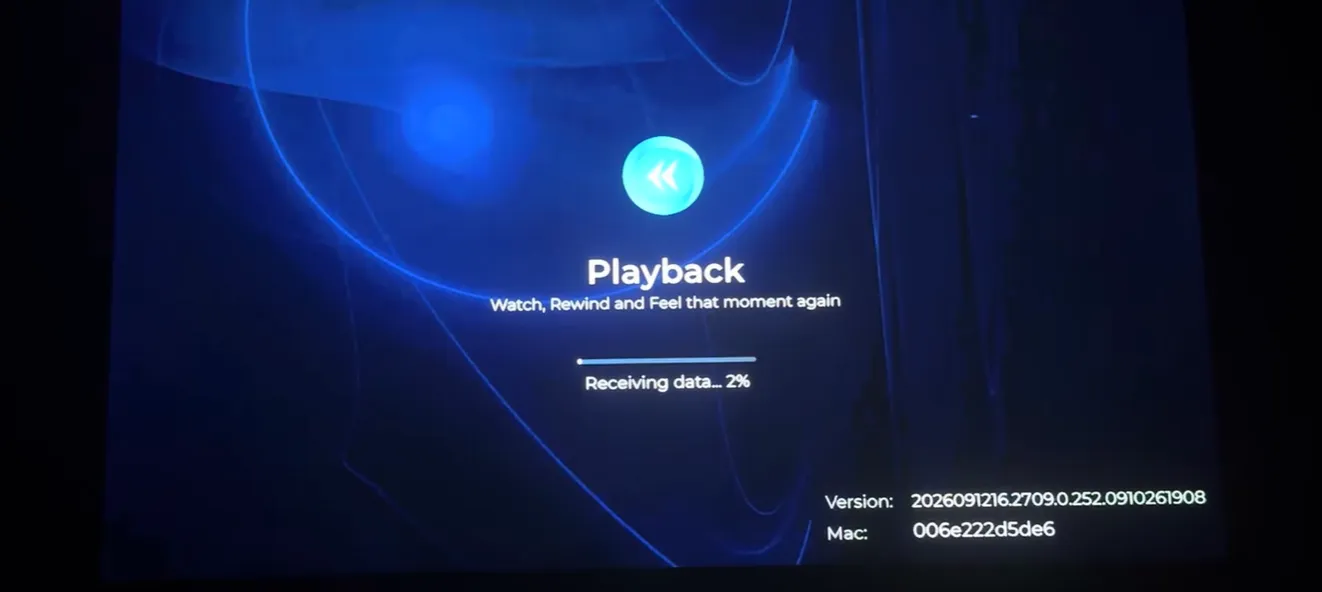
Best television picture adjustments to complement SuperBox S8
Your television internal picture processing settings directly affect final image presentation. Complementing your SuperBox settings with proper television calibration produces a clean home theater experience.
- Disable aggressive motion smoothing: Turn off TruMotion, Auto Motion Plus, or Action Smoothing on your television. Motion smoothing creates an artificial soap opera effect and generates visual artifacts around fast-moving sports balls.
- Reduce television sharpness slider: Lower television sharpness to 0 or 10. High sharpness settings add artificial white halos around text and make broadcast compression artifacts look worse.
- Turn off dynamic contrast and ambient light sensors: Disable energy-saving sensors that dim the display automatically. Fixed backlight settings maintain consistent brightness regardless of living room lighting changes.
- Set color temperature to Warm or Warm 2: Retail television profiles use cool color temperatures that tint images blue. Selecting Warm matches professional broadcast mastering standards.
5 common picture issues on SuperBox S8 and how to fix them
If your streaming display looks subpar after initial setup, review these documented troubleshooting fixes.
- Washed-out and milky colors: This problem occurs when Always HDR is enabled on SDR content. Navigate to Display Settings, open HDR Mode, and switch the option to Auto.
- Stuttering motion during live sports broadcasts: A mismatched refresh rate causes video micro-stutter. Confirm resolution is locked to 4K2K-60Hz rather than 4K2K-30Hz or 24Hz.
- Cut-off scores and ticker banners: Overscan zooming crops display edges. Access Screen Percent settings on your SuperBox and scale the image down to exactly 100%.
- Black screen on startup: An incompatible HDMI handshake causes intermittent black screens. Power cycle both devices and connect through an alternate HDMI port supporting HDCP 2.2.
- Color banding across dark backgrounds: Insufficient color bit depth creates color banding steps. Switch HDMI Color Space from 8-bit to 10-bit in advanced display preferences.
Where to buy authentic SuperBox with warranty coverage?
Ordering your TV box through a licensed distributor ensures genuine hardware backed by factory support. Authorized dealers maintain direct manufacturer connections, protecting buyers from counterfeit components and unauthorized firmware modifications.
When shopping for premium cord-cutting hardware, ordering directly from SuperBox TV Box guarantees authentic factory units with certified technical support. Our direct partnership protects your hardware investment from unauthorized blacklists and counterfeit components.

The flagship SuperBox S8 Ultra ($449) delivers top-tier streaming performance with 4GB RAM, 128GB storage, and Wi-Fi 6 connectivity. Every purchase includes comprehensive factory warranty coverage and express courier shipping.
- Free Shipping: Fast 2 to 5 business day delivery across the United States with full real-time package tracking via FedEx or USPS.
- 24/7 Technical Support: Dedicated technical specialists available 24/7 via live chat and email for troubleshooting assistance.
- 30-Day Money-Back Guarantee: Hassle-free return policy if you are not completely satisfied with your streaming hardware performance.
- 1-Year Manufacturer Warranty: Full replacement coverage safeguarding against any hardware defects or system component failures supported directly by our customer care center in Chino, California.
- 100% Authentic Hardware: Direct factory units guaranteed genuine without modified firmware, unauthorized alterations, or security risks.
SuperBox for Sale is a leading authorized dealer of SuperBox, specializing in the supply of genuine SuperBox TV boxes Series S6, S7, and S8 in the US & CAD.
Frequently asked questions about SuperBox S8 picture settings
Should you keep resolution set to Auto on SuperBox S8?
You should not leave resolution set to Auto on SuperBox S8. Auto resolution can cause the device to handshake at 1080p, resulting in soft picture scaling. Locking output to 4K2K-60Hz ensures sharp native 4K rendering.
Why do colors look faded when HDR is turned on?
Colors appear faded when HDR is forced on standard SDR broadcasts. Standard channels lack wide color gamut data, making forced HDR look washed out. Set HDR mode to Auto so HDR activates only on genuine HDR video files.
Does changing picture settings fix live streaming buffering?
Changing display settings does not fix network streaming buffering. However, selecting Hardware+ decoding reduces processor workload, eliminating frame stutter caused by local CPU throttling.
What HDMI cable is required for SuperBox S8 4K streaming?
A certified high-speed HDMI 2.0 or 2.1 cable is required for SuperBox S8 streaming. These cables support 18Gbps data bandwidth necessary for uncompressed 4K video at 60Hz with 10-bit HDR color depth.
Experience Unrivaled Streaming Performance with SuperBox
Discover lightning-fast quad-core processing, dual-band Wi-Fi 6, 7-day playback, and crisp 6K ultra HD output engineered for discerning media fans.